



 Solution
 Support Center
 About Us
 Contact
How to Share Your Location on Instagram for iOS/Android
 Penny Warren Published on June 02, 2026GPS Location3-min reading
It is well known that social media, such as Instagram, uses your location information in the background or when sharing content. Meta has rolled out a new feature on Instagram, which allows users to access their friends’ locations and vice versa. In the past, users could share their locations in posts and stories. This guide shares the proven methods and explains how to share your location on Instagram on your iPhone or Android phone.

In this article:
Part 1. How to Share Live Location on Instagram
Can you share the location on Instagram? The answer is yes. Moreover, you can share your live location or add a location to your posts. Bear in mind that the live location sharing feature is not available in all regions.
How to Share a Live Location on Instagram
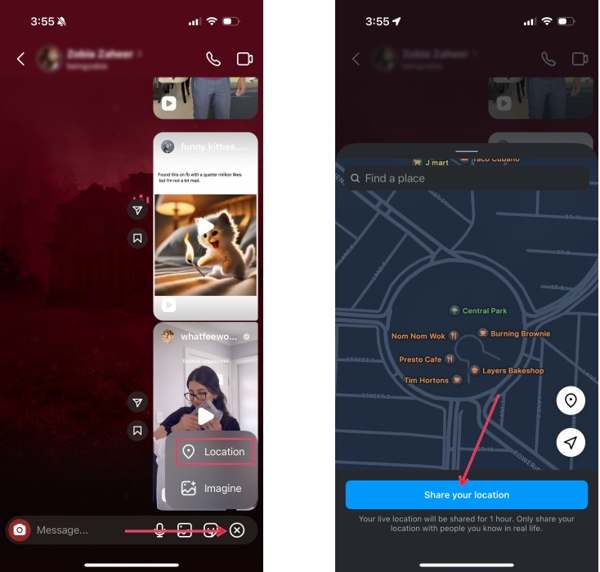
Open a chat with the desired contact on Instagram.
Tap the + button at the bottom and choose Location.
If you use this feature for the first time, make sure to enable Location Services and tap Continue.
If the map doesn’t track your location, tap the Compass button to track it manually.
Then, the interactive map screen will appear.
Tap the Share your location button at the bottom to share your location in IG.
How to Share a Pin Location on Instagram
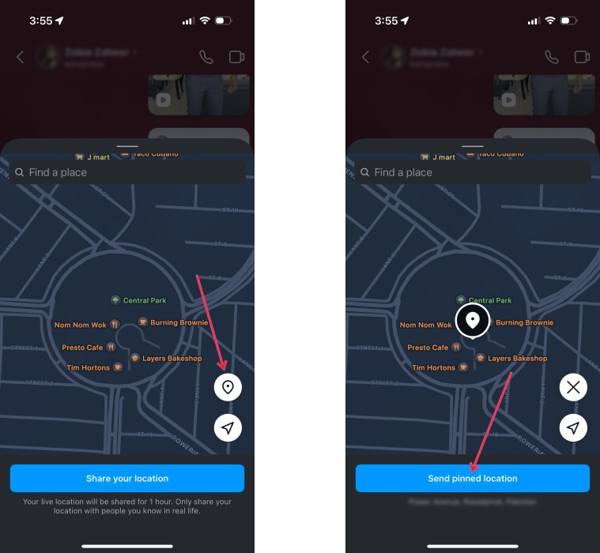
If you want to share a static location on Instagram, enter the preferred chat.
Tap the Add button and choose Location.
Tap the Pin button on the map.
Next, pin the right position or look for the address in the search bar.
Finally, tap the Send pinned location button.
Part 2. How to Share Location on Instagram
In addition to the Direct Message, you can also share a location in Instagram posts and stories. In fact, Instagram allows users to share a location as an independent post or add location data to a post.
How to Share a Location on Instagram
Run the Instagram app and tap the Search button.
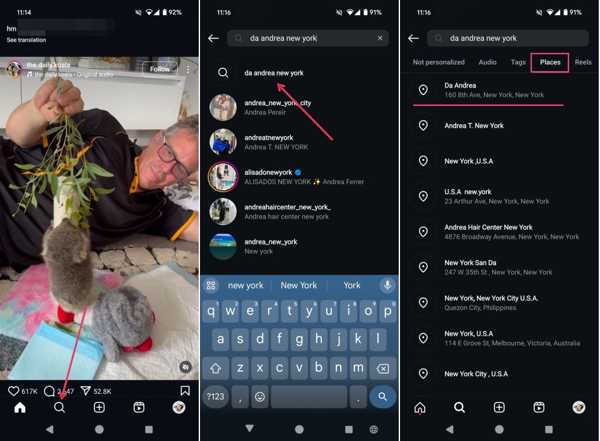
Type in the address, like a restaurant, and select the right location from the results.
Switch to the Places tab under the search bar.
Follow the prompts to begin sharing the location on IG.
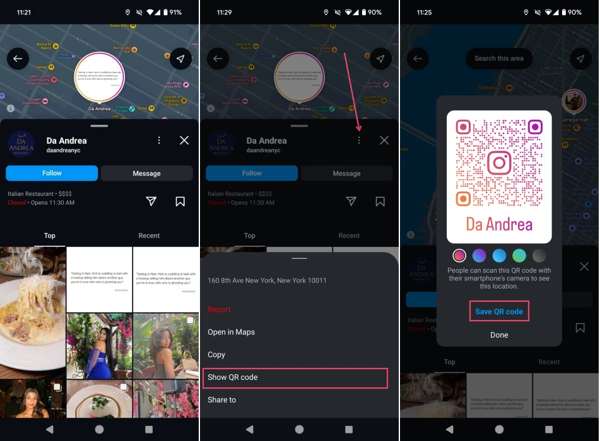
If you want to share it with someone, tap the More button with a three-dot icon, and choose Show QR code.
Tap Save QR code and share it in Instagram or messaging apps.
How to Add Location in an Instagram Post
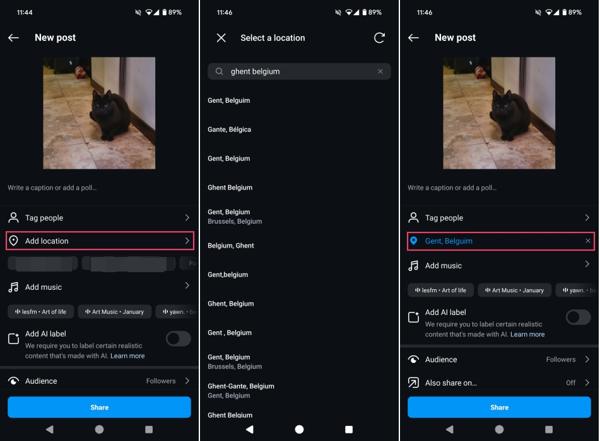
Create a new post on your Instagram.
Tap Add location under the tag area.
Search for a specific location and tap it.
Complete settings for the post.
Finally, tap the Share button to share your location on Instagram.
How to Add Location in Instagram Stories
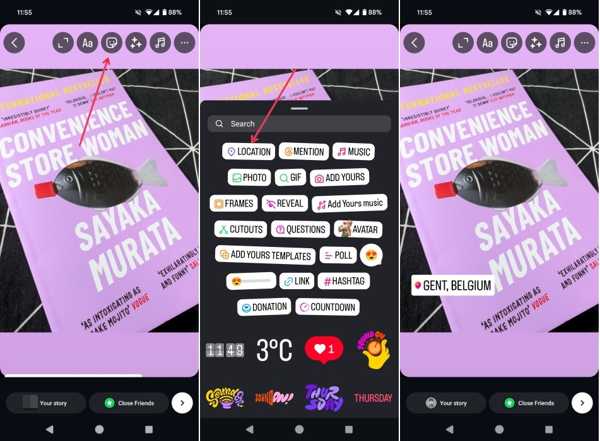
Make a new Story in Instagram.
Tap the Stickers button at the top.
Choose the Location sticker.
Search for the right location and add it to the share location in Instagram Stories.
Part 3. How to Turn off Location Sharing on Instagram
The above steps let you understand how Instagram location sharing works. However, the app doesn’t offer a feature to stop sharing location metadata. Alternatively, you have to complete it in the Settings app.
How to Turn off Location Sharing on Instagram on iPhone
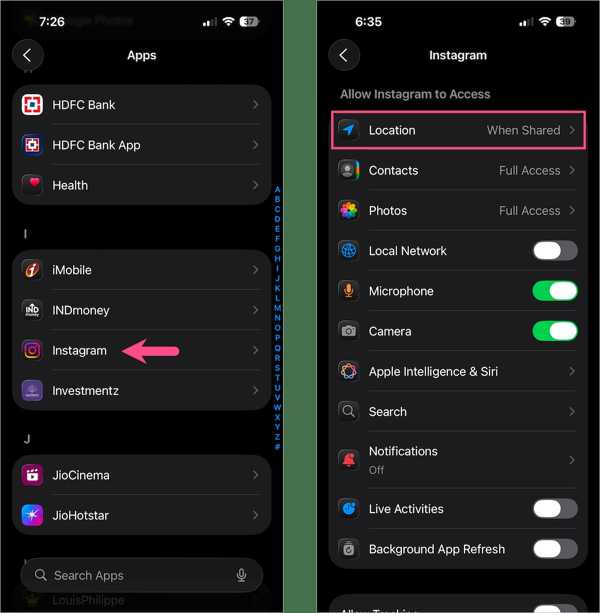
Run the Settings app on your iPhone.
Go to the Apps tab and choose Instagram.
Tap Location and choose Never or While Using the App to turn off location sharing on Instagram.
How to Stop Sharing Location on Instagram on Android
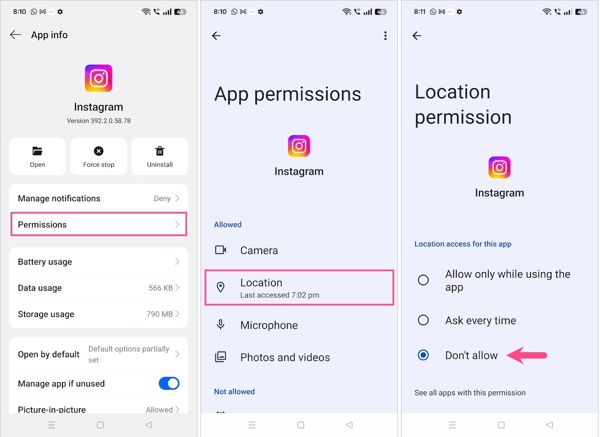
Choose Apps or App Management in your Settings app.
Select the Instagram app.
Tap the Permissions option and hit Location.
Next, select Don’t allow to stop sharing location on Instagram.
Part 4. How to Stop Sharing Location on Instagram for iOS/Android
Once you turn off location sharing on Instagram, the social platform will read the last location available. Alternatively, you can hide your location privacy using imyPass iLocaGo. It fakes your geolocation with any addresses. The interface is well-designed and easy to navigate.

4,000,000+ Downloads
Stop sharing your Instagram location without others knowing.
Change your mobile device location to any position.
Simulate movements with multiple modes.
Offer a variety of custom options.
Support almost all iPhones and Android devices.
How to Stop Sharing Location on Instagram on Your iPhone
Connect to iLocaGo
Download and install the location spoofer software on your PC. There is another version for Mac. Open the software from your desktop when you need to stop sharing your location on Instagram. Connect your iPhone to your PC with a Lightning cable. The software will detect your device immediately.

If you are using an Android phone, connect it to your computer with a USB cable or Wi-Fi network.
Choose Modify Location
The Modify Location mode is used to change a static location. The other three modes, One-stop Mode, Multi-stop Mode, and Joystick Mode, are used to make virtual routes. Here, we choose the Modify Location mode to proceed.

Stop sharing your Instagram location
Then, your current location will be tracked on the map. Input an accurate address into the field or click the right position on the map. Finally, click on the Modify button. Turn on your iPhone and run Instagram.

You May Also Like:
Conclusion
This article shared multiple ways of location sharing on Instagram. Currently, you can share a live or pinned location on your social platform via Direct Messages. Moreover, you share a location with someone else using a QR code on the built-in map. You can also add a location to a post or story on Instagram to share it. imyPass iLocaGo allows you to not share your location when accessing Instagram without notifying others.
Penny focuses on GPS troubleshooting and Windows optimization. She formerly worked as a technical support engineer, helping clients solve location-based and system issues efficiently. Backed by IT support experience, she provides practical solutions that really work. In her free time, she likes hiking and geocaching, testing GPS tech in the real world.
Hot Solutions
-
GPS Location
-
Unlock iOS
-
iOS Tips
-
Unlock Android


