



 Solution
 Support Center
 About Us
 Contact
No Location Found vs Location Not Available: Fix It to Share Location
 Penny Warren Published on March 03, 2026GPS Location3-min reading
If you are using an iPhone every day, you will know how convenient it is for small to massive screen activities. Sharing your location is one of the features that can be used. This procedure uses a GPS to share your real-time location with your friends and family. However, some say they encounter the Location Not Available error message on their iPhone screens.
What does Location Not Available mean? This issue happens when there is no available location being shared on your iPhone. It happens due to various system issues on the mentioned device. In this post, we will help you better understand the error message. The easy methods to fix it are also available. Please continue browsing for more details.

In this article:
Part 1. What Does Location Not Available Mean
What does Location Not Available mean? There are countless of misinformation about this error message on the iPhone. The user action commonly causes it. The iPhone user might have turned off the Share My Location settings. Also, there might be restrictions from the Screen Time feature. Additionally, they might have removed you from their location-sharing list. It means that the iPhone is online, but its location data is not being shared with you.
Also, the iPhone might not be connected to the internet. So you cannot view or share your location on an iPhone. It causes the Location Not Available error message to appear.
Part 2. Location Not Available vs. No Location Found
You might also be seeing the No Location Found error message on your iPhone. What is the difference between No Location Found and Location Not Available? No Location Found can be an indication that the iPhone is turned off. Also, there might be an enabled feature that hinders the location from being shared, including the Airplane Mode. Additionally, it is also possible that your Wi-Fi or cellular data connection is poor.
On the other hand, the error message can also be a result of a temporary glitch in your iPhone. It could be on the Location Services feature of the mentioned device. On the other hand, Location Not Available means that the user preferred not to share the location with you.
Part 3. How to Fix Location Not Available on Your iPhone
Now that you know the differences between the No Location Found and Location Not Available, it is time to fix the Location Not Available on your iPhone. In this section, the methods are related to fixing the error message on your own iPhone. See the methods below.
1. Turn On Location Services
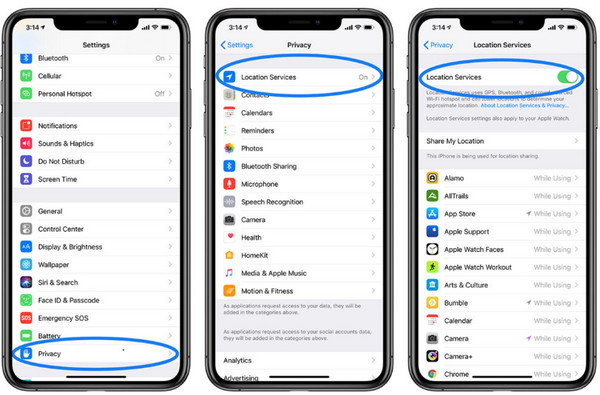
Sharing your location on an iPhone requires the Location Services feature to be turned on. If this feature is turned off, you might experience the Location Not Available issue on your iPhone. Please perform the steps below to turn on the iPhone Location Services feature.
Access the iPhone Settings application. After that, the list of settings will appear on the screen.
Please tap the Privacy & Security or Privacy button on the list. Later, tap the Location Services button and toggle on the Location Services slider at the top.
2. Set Time and Date Correctly
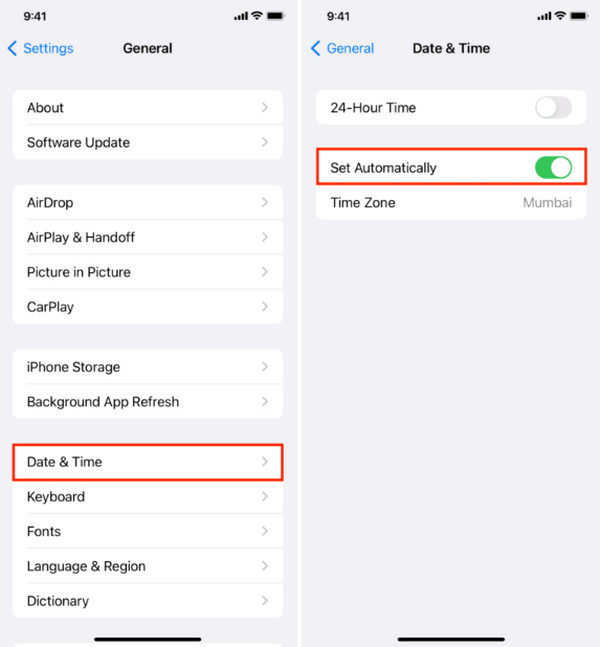
For the iPhone to share your real-time location, you should have your current time and date. Though the iPhone updates your time and date automatically, there are times when users prefer to set it up manually. Set the time and date on your iPhone correctly to fix the Location Not Available issue with the steps below.
Open the Settings app and tap the General button on the first interface of the application. After that, select the Date & Time button from the options list.
The date and time settings will appear on the next interface. Please select the Set Automatically button from the list.
3. Reset Network Settings
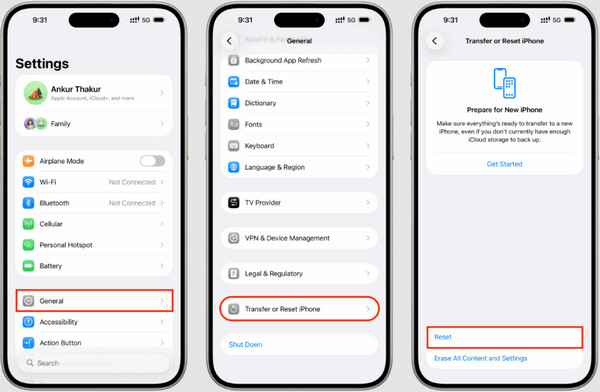
GPS also relies on the internet connection of your iPhone. However, some iPhone users report that their cellular data or Wi-Fi is not functioning as it should. There might be a faulty setting related to the feature. Reset networking settings on your iPhone to fix the issue. The steps are available below.
Open the Settings app on an iPhone and select the General button. Then, tap the Transfer or Reset iPhone button at the bottom.
Choose the Reset button at the bottom. Later, please select the Reset Network Settings button from the list. Confirm the button by tapping it again.
Part 4. How to Fix Someone Else's Location Not Available
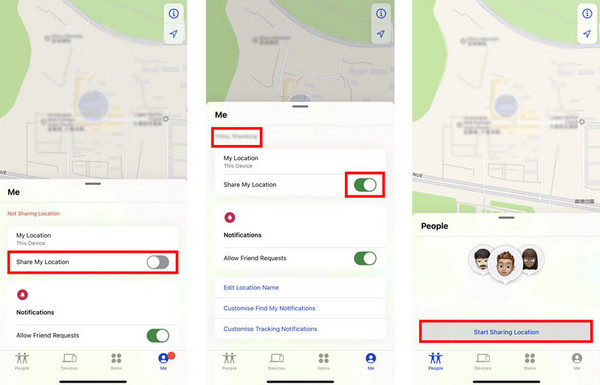
The good thing about Not Location Available is that you can fix it for someone else. Find My Friends of Find My can be used. The steps require the Apple ID credentials and a stable internet connection. Fix Location Not Available in Find My Friends with the steps below.
Open Find My and sign in with your Apple ID. Then, tap the Me button at the bottom right. Later, toggle on the Share My Location slider.
Later, tap the People button at the bottom left. Later, tap the Start Sharing Location button under the names of the associated people from the account.
Part 5. What If You Need to Customize Your iPhone Location
Sometimes, we want to customize our iPhone location to enhance our privacy. imyPass iLocaGo is the most relevant third-party tool for this matter. It supports the latest iOS 26 version, including earlier versions. This program allows you to change location from different apps on your iPhone, including WhatsApp, Snapchat, Tinder, etc.
Additionally, it is 100% safe to use because it does not impact the speed of your network on your iPhone. The history and favorite features can be accessed for easy operations. Besides the iPhone, this tool can also be used to change your location on an Android phone without rooting or jailbreaking it. The steps on how to use the tool to change your iPhone location are posted below.
Access the official website of imyPass iLocaGo. After that, download and set up the file intended for the software. Later, install and open it on your Windows or Mac to start the location-changing process.
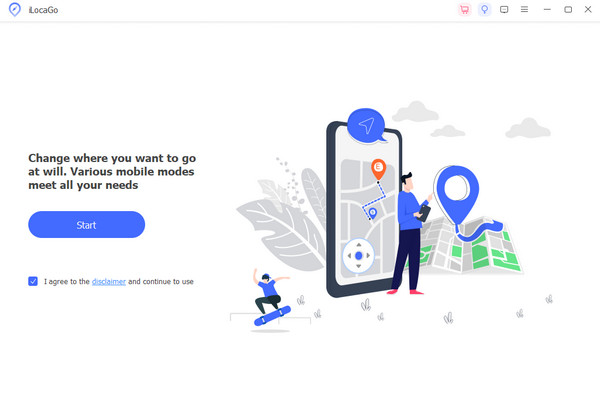
Please click the Start button on the first interface. Then, check the I Agree to the Disclaimer and Continue to Use box. This way, you can proceed with the next process.
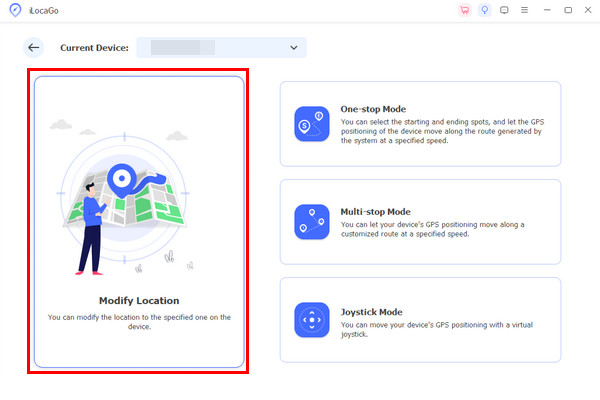
Plug your iPhone into the computer. Then, follow the on-screen instructions for the connecting process. Select the Modify Location on the left afterward. Select your preferred location by typing it at the top left. Click the Modify button at the bottom corner to apply the changes.
Conclusion
Why does it say Location Not Available? All in all, it usually means that the iPhone cannot share your real-time location due to system issues. In this post, we have posted the easy methods to fix the said issue. imyPass iLocaGo can be used to customize your iPhone location in a few clicks. Download the tool to know its full features!
Penny is a senior editor from imyPass. She has focused on discovering perfect GPS location solutions in all scenarios, and also has experience in fixing computers.
Hot Solutions
-
GPS Location
- Best Pokemon Go Locations with Coordinates
- Turn Your Location Off on Life360
- How to Change Location on iPhone
- Review of iSpoofer Pokemon Go
- Set Virtual Locations on iPhone and Android
- TikTok Track Your Location
- Monster Hunter Now Joystick
- Review of IP Location Finder
- Change Mobile Legends Location
- Change Location on Tiktok
-
Unlock iOS
-
iOS Tips
-
Unlock Android


