



 Solution
 Support Center
 About Us
 Contact
Guide on How to Pause Your Location on Life360 Without It Showing
 Penny Warren Published on April 16, 2026GPS Location3-min reading
Life360 relies on real-time GPS tracking, which helps keep circles current, but this can result in a loss of personal privacy in certain situations. Although there is no simple option to press a button and say pause, there are approved and viable options to control this situation. Understanding how tracking, notifications, and status are updated will help you avoid receiving unwanted notifications. This article will explain how to pause your location on Life360 with clear and viable options, then discuss ethical alternatives and optional changes available to you.

In this article:
Part 1. The Official Way to Pause Location Sharing
Life360 does not include a true pause feature, but it does provide built-in controls to stop sharing your location. These options are transparent by design, which means other circle members may see changes in your status. If you are searching for how to pause your location on Life360 without it showing, it is important to understand that the official method will always leave some form of indication. The steps below outline the correct way to manage location sharing using the native settings.
Open the Life360 app on your device and sign in to your account.
Tap on Settings, then select Location Sharing from the menu.
Toggle off the Location Sharing option for the circle you are in.
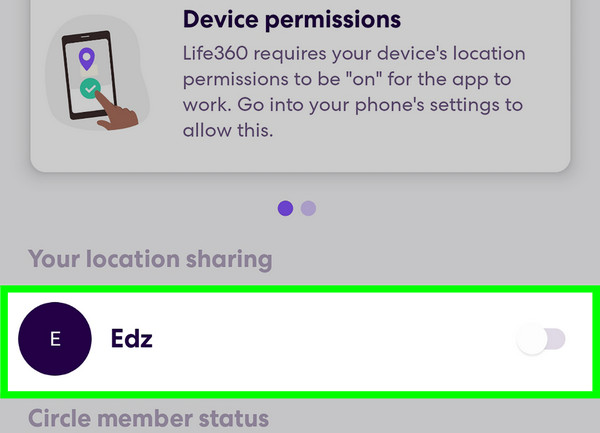
Confirm the change and return to the main screen to ensure your location is no longer updating.
Part 2. "Pause Without Anyone Knowing" - Understanding the Reality
In this case, many people look for different ways to stay off the grid without anyone noticing. They search for phrases like how to freeze location on Life360 without anyone knowing on the Reddit platform. This gives the impression that there is a secret method to stay off the map. Common workarounds include turning on airplane mode, disabling GPS, using a mock location app, or force-closing the app.
While these actions may stop location updates for a short time, they usually trigger clear status messages such as No Network or Location Off. Other members can easily notice these signals. Life360 also runs background processes that track movement and app activity. When updates stop suddenly or behave inconsistently, the app reflects this change.
Because of this system, there is no reliable way to pause or freeze your location without some visible sign. Understanding this helps avoid confusion and sets clear expectations before trying any method.
Part 3. Use Driving Detection & "Battery Saver" Mode - The Most Ethical Alternative
However, in case this is not possible, then the most advisable thing to do is to use tools that restrict location updates. This works within the system and does not arouse any suspicion. Instead of trying to bypass tracking or faking GPS, they reduce how often your location is refreshed. It simply restricts the frequency of your location update. This answers queries like whether one can pause their location on Life360 and still be within the system.
Method 1: Use Driving Detection
Driving Detection is concerned with movement in terms of trips as opposed to constant live tracking. When enabled, this app will prioritize trip-based updates over constant pinging.
Open Life360 and go to the Settings menu.
Select Driving Detection or Drive Detection from the list.
Turn the feature on to allow the app to track only active trips.
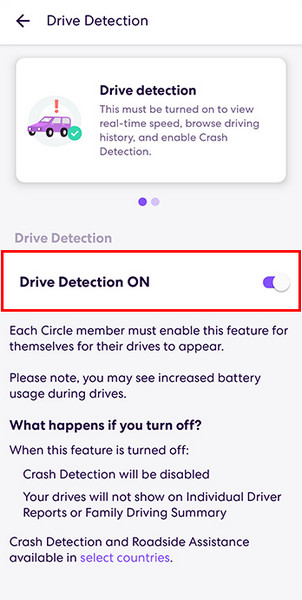
Limit app activity in the background through your phone settings to reduce constant updates.
This method works best when you want less frequent updates without fully disabling location sharing.
Method 2: Enable Battery Saver Mode
Battery Saver mode reduces how often Life360 refreshes your location to preserve device power. This can make your location appear less precise or slower to update. This approach aligns with users asking how to pause location sharing on Life360, since it lowers visibility without turning it off completely.
Open Settings on your device and go to the Low Power Mode.
Enable this feature to temporarily reduce the background activity on your device, including Life360.
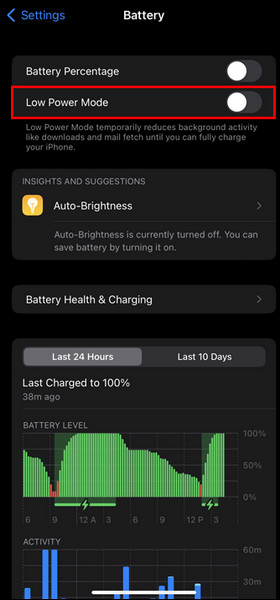
Additionally, turn off the Life360 background app refresh to limit its updating without opening the app. While this does not stop tracking, it reduces update frequency in a natural and expected way.
Bonus: Best Method to Change Your Location Manually
For users who seek further flexibility beyond what is provided by the settings, another method is available: changing your location manually. This is also explored by users who seek information on how to pause Life360 location without anyone knowing on iPhone, especially when the primary methods still reveal status updates. In this case, instead of stopping the location sharing, your location is replaced with another.
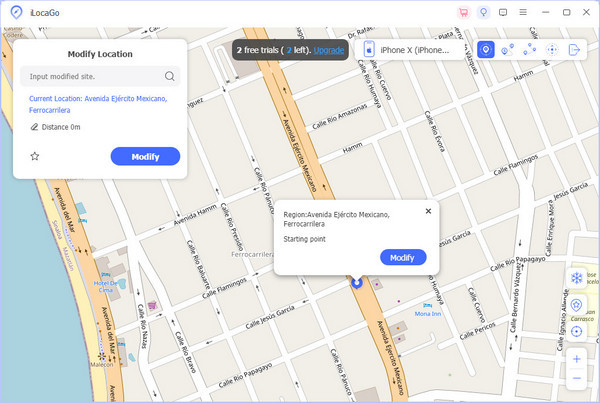
One tool designed for this purpose is imyPass iLocaGo. It works with both iPhone, iPad, and Android devices, allowing you to create a mock GPS location through a computer. You can set a fixed location or simulate movement without physically being there, which changes what Life360 displays.
Download the iLocaGo on your Windows or Mac by clicking the download button that we have here. Follow the instructions it asked for installation before you can launch it. Prepare your USB cable to connect the device to the PC.
Once connected, click the Modify Location amongst the options available here.
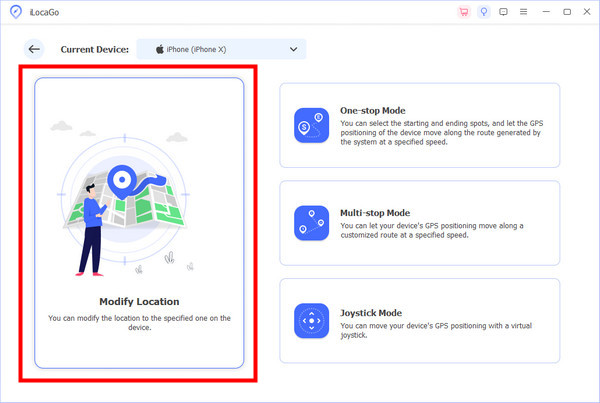
Once the map appears on your screen, search the area where you want to appear on your device and click Sync to the device. If you want to modify the location quickly, you can use the tools available in the right corner.
Conclusion
Managing your location with Life360 requires a careful balance of privacy and transparency. The Life360 app does not have a hidden pause feature. However, knowing the official methods and understanding features like Drive Detection and Battery Saver can help you meet your goals without disrupting system notifications. If you want complete privacy, it is important to understand the app's limitations and how to pause your location without being noticed on Life360.
Penny focuses on GPS troubleshooting and Windows optimization. She formerly worked as a technical support engineer, helping clients solve location-based and system issues efficiently. Backed by IT support experience, she provides practical solutions that really work. In her free time, she likes hiking and geocaching, testing GPS tech in the real world.
Hot Solutions
-
GPS Location
-
Unlock iOS
-
iOS Tips
-
Unlock Android


