



 Solution
 Support Center
 About Us
 Contact
How to Stop Sharing Location Without Notifying iMessage
 Penny Warren Published on January 09, 2026GPS Location3-min reading
Sharing location via iMessage is a convenient way to keep in touch with friends and family. Moreover, it is a significant feature of self-protection when traveling. However, it may bring some risks and troubles. The good news is that you can stop sharing location without notifying iMessage on your iPhone. This guide shares the proven methods and demonstrates the workflows to help you hide your real location.

In this article:
Part 1: How to Stop Sharing Location Without Notifying iMessage
iMessage uses GPS and wireless connections to track your location. You can turn off Location Services or enable Airplane Mode to completely stop sharing location without notifying iMessage on your iPhone.
How to Pause Sharing Location Without Notifying iMessage in Airplane Mode
Airplane mode is designed to turn off all wireless connections on your iPhone, including GPS, Bluetooth, Wi-Fi, Cellular data, and more. It is an easy way to pause sharing location without notifying iMessage.
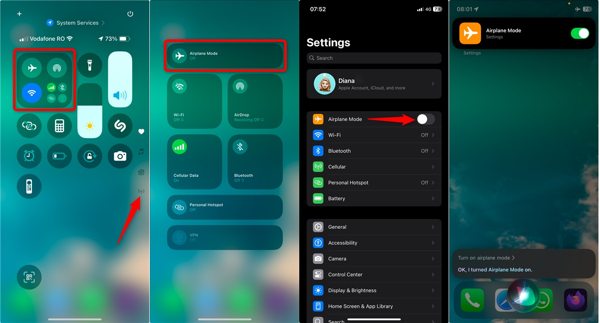
In Control Center
Enter the Control Center on your device, and tap the Airplane Mode button to enable it.
In Settings App
Open the Settings app, find Airplane Mode, and toggle it off.
Note: The downside is that you will lose all connectivity.
How to Stop Sharing Location Without Them Knowing on iMessage
To stop sharing location without them knowing on iMessage, you need to turn off the GPS. However, Apple doesn't allow you to disable GPS on your iPhone, but you can turn off Location Services. Then, all apps and websites cannot track your location. They can only get the last address before you disable Location Services.

Open your Settings app.
Go to Privacy & Security and choose Location Services.
Toggle off Location Services.
When prompted, choose Turn Off.
Note: The steps above will disable location for all apps and services.
How to Stop Sharing Location in iMessage Using Another Apple Device
If you have multiple Apple devices, you can stop sharing location without notifying in iMessage using another device's location. You can put another Apple device in your home, and no one won't learn your current GPS.
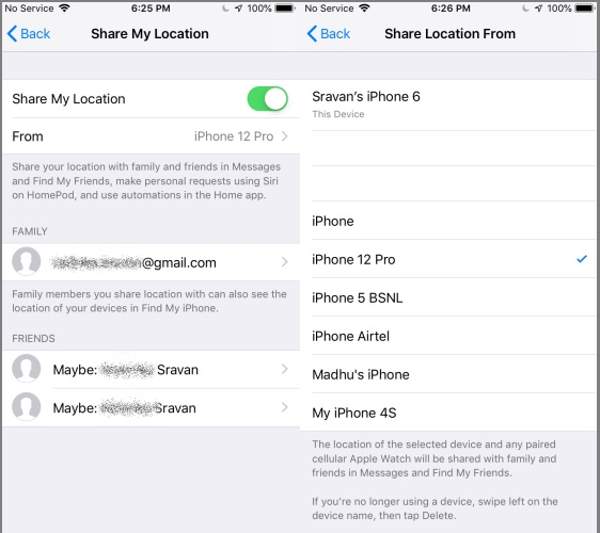
Run the Settings app on your iPhone.
Tap on your profile and choose Find My.
Choose Share My Location.
Next, pick another device under From.
Then, leave the device where you want others to think you are.
How to Pause Sharing Location Without Notifying in iMessage Using Find My
Another way to pause sharing location without notifying in iMessage is the Find My feature. It allows you to stop sharing your location with everyone at one time. Here are the steps to disable sharing your location:
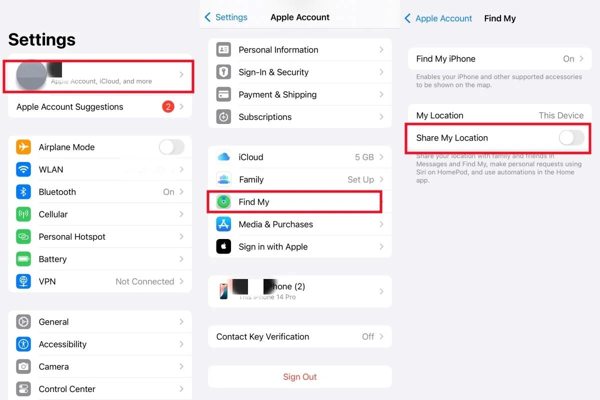
Tap on your profile in your Settings app.
Choose Find My and locate Share My Location.
Toggle off Share My Location.
Part 2: How to Stop Sharing Location with Someone Without Notifying iMessage
If you just want to stop sharing location with someone without notifying iMessage, you don't need to completely disable Location Services. Alternatively, you can set it within the Message app.
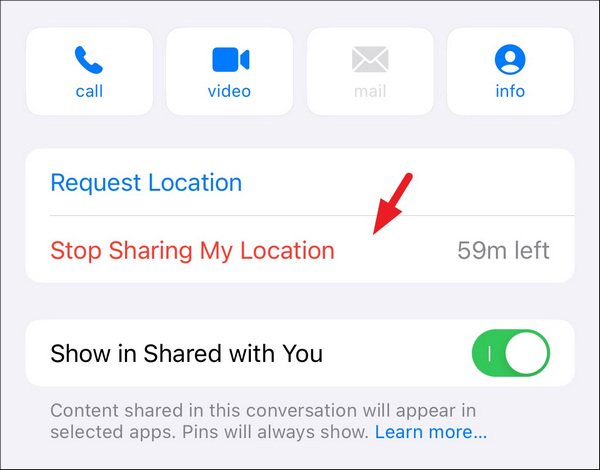
Open the Message app on your iPhone.
Navigate to the chat of the contact who you want to stop sharing location.
Tap on his or her profile and choose Stop Sharing My Location.
Part 3: Ultimate Solution to Stop Sharing Location Without Notifying iMessage
If the common methods of pausing sharing location without notifying iMessage are unavailable, you can try an alternative solution: fake your location using iLocaGo. It allows you to replace your real location with any address around the world. Plus, no one can learn your action.

4,000,000+ Downloads
Hide your location or create virtual locations on a mobile device with one click.
Change your phone's geolocation easily.
Create virtual routes with multiple modes.
Offer custom options and an intuitive interface.
Support almost all iPhones and Android device models.
How to Stop Sharing Location Without Notifying iMessage
Install the location changer
Run the best location-changing software once you install it on your PC. There is another version for Mac. Connect your phone to your PC with a Lightning cable. For Android, you can also connect it wirelessly.

Choose Modify Location
After the software detects your mobile device, you will be presented with the mode window. Choose Modify Location. The other three modes, One-stop Mode, Multi-stop Mode, and Joystick Mode, are used to make virtual routes.

Stop sharing location
Type an accurate address into the field on the pop-up dialog or click a position on the map. Finally, click on the Modify button to confirm to stop sharing location without notifying iMessage. You can also change location on Hily with this program.

Part 4: Comparison of Methods for Stopping Sharing Location Without Notifying
| Advantages | Drawbacks | |
| Enable Airplane Mode | Easy to access Available on any iPhone | Turn off all wireless connections Cut signals |
| Disable Location Services | Prevent any app from accessing your current location Display the last location | All services and apps cannot track your iPhone |
| Use Another Device’s Location | Display another device’s location Hide your current location without notifying | You must have another iOS device |
| Disable Share My Location | Turn off location sharing via Find My | Only available to contacts using iOS devices |
| Stop Sharing Location for Contacts | Block someone from tracking your location | Others can still find your location You need to set it for each contact that you want to block |
| iLocaGo | Won’t install or change anything on your iPhone Cannot be detected by any app or service | You need a computer |
Conclusion
This tutorial explains how to stop sharing location without notifying iMessage in various situations. You can read our guide, pick an appropriate method, and follow our steps to hide your geolocation on your iPhone effectively. Or you can stop sharing your location with specific contacts while allowing others to track your location. If you don't like the common methods, iLocaGo is the best alternative solution. It allows you to hide your real location with a fake address or route.
Penny focuses on GPS troubleshooting and Windows optimization. She formerly worked as a technical support engineer, helping clients solve location-based and system issues efficiently. Backed by IT support experience, she provides practical solutions that really work. In her free time, she likes hiking and geocaching, testing GPS tech in the real world.
Hot Solutions
-
GPS Location
-
Unlock iOS
-
iOS Tips
-
Unlock Android


