Solution
 Support Center
 About Us
 Contact
Change Email Password on iPhone (iOS 26/27 Beta Supported)
 Gideon Byron Published on January 08, 2026Password Tips3-min reading
It is essential to prioritize the security of our email accounts by regularly changing passwords. As an iOS user, you can conveniently manage and update email passwords directly from your iPhone. If you need a detailed tutorial on how to check and change email password on an iPhone, read this post. You can also change or update passwords for all your email accounts.

In this article:
Part 1. How to Change Email Password on iPhone
How do I change my email password on iPhone? iPhone offers a Mail feature in Settings. If you've ever added your email accounts to this feature, you can quickly change email password in iPhone with that feature. The other way is to go to the email app or webpage to change the password.
You can also update email password on iPhone in the Password feature so that when you log in to your email account, the keychain can help you do a fast login.
Change Email Password on iPhone in Mail
The Mail feature in Settings can help you directly change password for some types of emails, like QQ, 163, 126, or other IMAP or POP emails. If you want to change email address on Gmail on iPhone, this method cannot help you.
Open the Settings app on your iPhone. Select Mail, Accounts, and then select one of your email accounts.
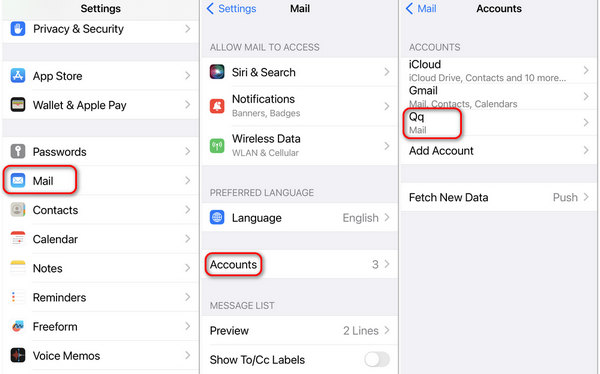
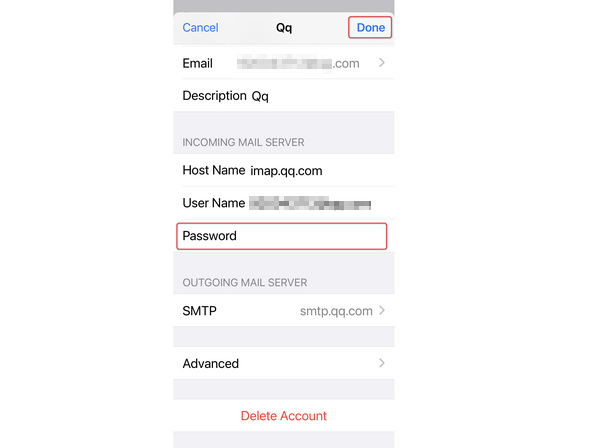
Slide down to find the Password box. Select it to set a new password. Then, tap the Done button to change email password on iPhone.
Note:
Gmail, iCloud, Yahoo, and many other popular email brands don't support this method, so you can only change their email passwords on iPhone in the app or webpage.
Change Email Password on iPhone in App or Webpage
Let's take Gmail as an example – iPhone can only change the email password on the Gmail app or the webpage.
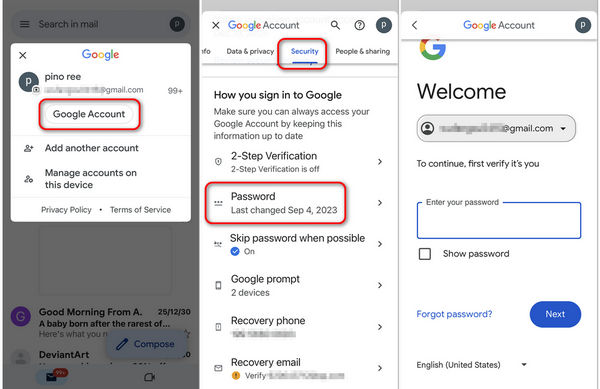
Open the Gmail app on your iPhone. Tap your profile in the top right corner. Then, tap the Google Account button.
Choose the Security tab, and then slide down to tap the Password button.
You should enter your current email password and then verify yourself. Then, you can change the email password of Gmail on your iPhone.
How to Update Email Password on iPhone
After changing email password on iPhone. You can go to Settings and follow the guide below to update your email password. That means the keychain can keep the latest passwords for your emails.
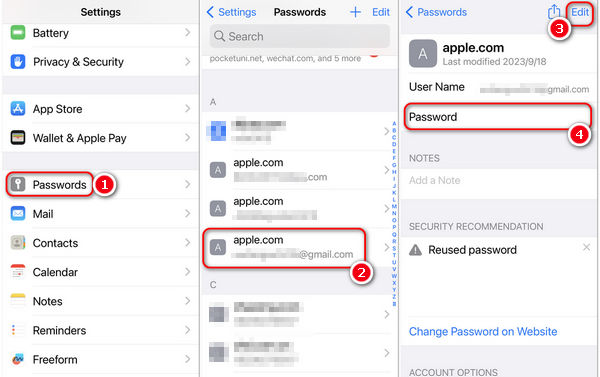
Open the Settings app on your home screen. Scroll down and tap the Passwords button. You are required to identify yourself through the screen passcode.
When you reach the Passwords interface, you can view all the accounts linked to your iPhone, including your email accounts. Find and choose the email account you want to update the password.
Tap the Edit button in the top right corner. Then, enter the new password in the Password box. Tap the Done button to update the email password on your iPhone.
Note:
You can change email passwords on an iPhone to protect against unauthorized access. By regularly updating your email password, you can make it more difficult for others to hijack your account. Moreover, you can better safeguard your personal information and ensure the confidentiality and integrity of your email communications.
Part 2. Best iPhone Password Viewer to See Email Passwords
Suppose you are searching for a reliable password manager to ensure the security of your email accounts and view your saved email passwords. In that case, you can try the popular imyPass iPhone Password Manager. It offers a convenient way to view and manage your stored iPhone passwords. Besides email passwords, it allows you to manage your Apple account passcodes, Wi-Fi passwords, and various passwords created in apps and browsers.
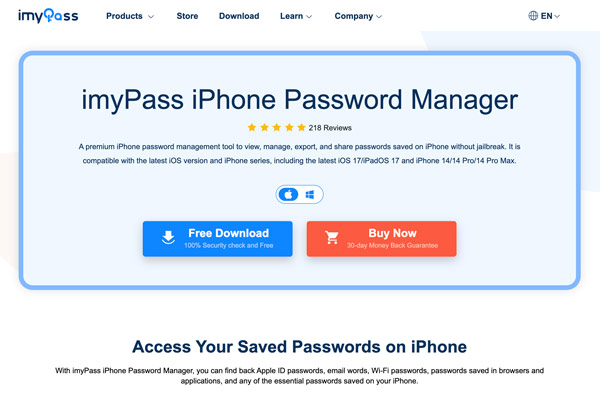
imyPass utilizes advanced encryption techniques to securely store your email passwords, ensuring they are protected from hackers and unauthorized access. Its built-in password generator helps you create strong and unique passwords for your email accounts, further enhancing your security. With its intuitive interface and advanced encryption algorithms, imyPass ensures that your iPhone passwords are protected from unauthorized access.
How to Use imyPass to Manage Email Passwords on iPhone
Download and launch the best email password viewer on your Mac or Windows computer. Connect your iPhone and click Start to scan all types of passwords stored on the iOS device, including your email passwords.
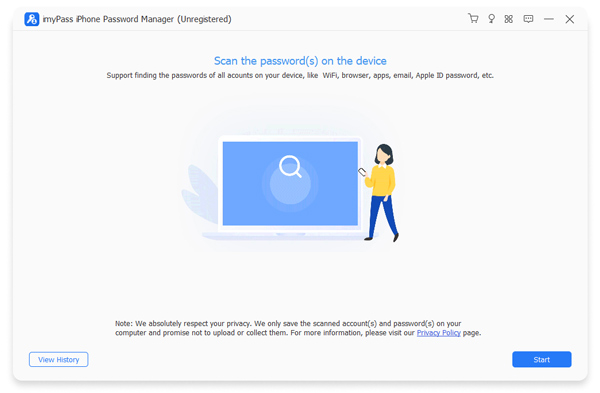
If your iTunes backup is encrypted, you should enter and verify its passcode. During this step, you may also need to enter the lock screen password on your iPhone.
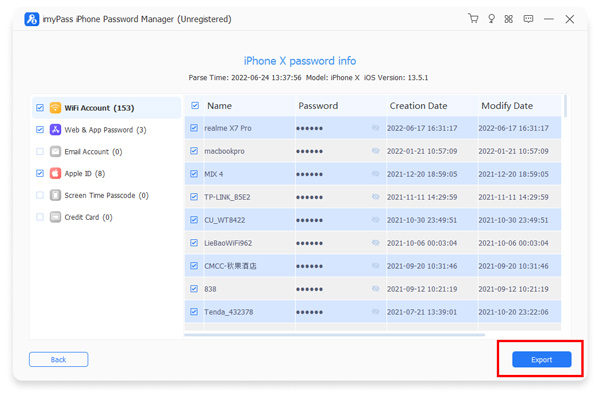
When the scanning process is finished, all your iPhone passwords will be listed in specific types on the left, such as Email Account, Apple ID, Wi-Fi Account, Web & App Password, Screen Time Passcode, and more. To see your email passwords on your iPhone, click the Email Account option.
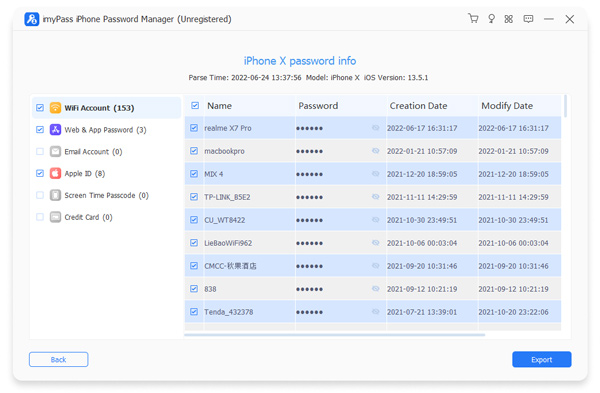
To view the current password of your email account, you should click the eye button next to it. This iPhone Password Manager also allows you to back up and export your stored iPhone passwords. Click Export to export your selected email passwords in a CSV file.
Related Readings:
FAQs.
-
Where to find email password on iPhone?
Open Settings, and tap Passcode, and then enter your screen passcode. Now, you can see all saved passwords on your iPhone, including email passwords. You can also open the Mail app or webpage, go to your profile, and select the Passcode option to view your passcode.
-
Where do I change my email settings on my iPhone?
Go to Settings, Mail, and then Accounts. Here, you can change email settings and add or remove email accounts.
-
How do I retrieve my email password on my phone?
You can go to the email provider's official app or webpage, and then select an option like Forgot password. Then, follow the prompts to reset a password. You can also use imyPass iPhone Password Manager to retrieve all passwords on your iPhone.
Conclusion
This article tells you how to change email password on iPhone. Following the detailed guide above, you can easily view and change your email passwords directly from your iPhone. Regularly updating email passwords is an essential practice to enhance the security of your various online accounts. If you want to keep email passwords and other passwords well, imyPass iPhone Password Manager can help you back up, restore, and view them easily.
Gideon writes about unlocking iOS, Android, and Windows devices. He previously worked as a mobile device specialist in a repair center, assisting customers with locked devices and password recovery. In his spare time, he tests new unlock tools, customizes smart devices and makes complex unlock processes simple and safe.
Hot Solutions
-
Password Tips
- 4 Best Instagram Password Finders
- How to See Your Instagram Password
- How to Unlock Your Snapchat Account
- How to Reset Forgetten Twitter Password
- How to View Saved Passwords in Chrome
- What to Do When I Forgot My Apple ID Password
- How to Reset Your Snapchat Password
- How to Reset Forgotten Discord Password
-
Unlock iOS
-
Unlock Android
-
Windows Password