Solution
 Support Center
 About Us
 Contact
How to Reset Forgotten Discord Password Efficiently
 Samuel Spenser Published on March 19, 2026Password Tips3-min reading
As an instant messaging and VoIP social platform, Discord is popular among game players. It allows users to communicate through voice calls, video calls, text messages, and media files. Of course, users must log in to the platform with their passwords. What to do if you forget your Discord password? In this guide, we will walk you through the steps to reset your Discord password, so you can keep your chats and information.

In this article:
Part 1: What Happens If You Forgot Your Discord Password
Even if you forgot your Discord password, you can continue using the platform if you are still logged into Discord. However, you have to reset your password to sign in to Discord on a new device or log in to the platform after you reinstall the app.
Once you are locked out of Discord and have forgotten your password, all your chats and information will be inaccessible. Therefore, you’d better reset your Discord password.
Part 2: How to Reset a Forgotten Discord Password on Desktop
If you cannot remember your Discord password, you can reset it on the official website. After you provide the required information and verify your ownership, Discord allows you to set a new password directly.
Requirements
- The email or phone number you used for your Discord account.
- Your email or phone number is still accessible.
- A stable Wi-Fi.
- A web browser.
Go to www.discord.com and click Login at the top right corner.
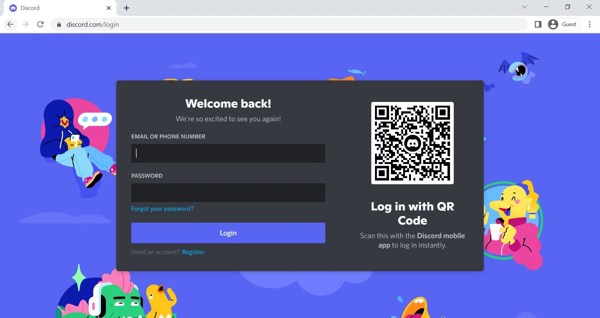
Type your email ID or associated phone number into the box, and click the Forgot your password link.
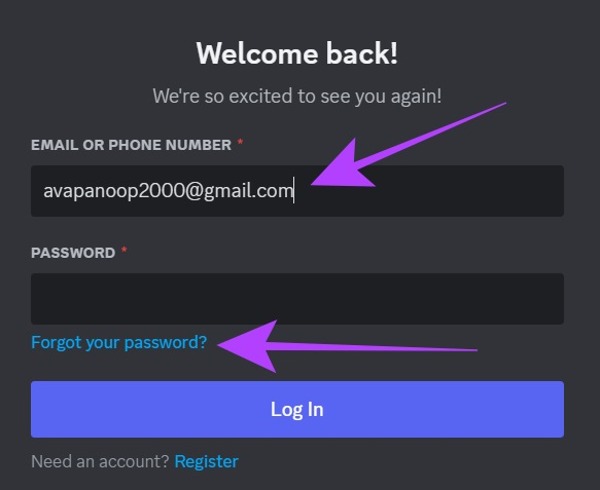
If you forgot your Discord email and phone number, you have to contact Discord support to address the problem.
When Discord receives your request, you will receive a reset link via email or phone number.
Open the email or text message, click the Reset Password button, and you will be directed to the new password page.
Enter a new password, double-check it, and click Change password to confirm it.
Next, access the Discord website in your browser.
Log in with your account and new password to check if Discord password resetting is successful.
Part 3: How to Reset a Forgotten Discord Password on Mobile
According to our research, the majority of users access Discord on their mobile devices. If you don’t have a computer, you can also reset a forgotten Discord password in the mobile app with your information.
Requirements
- The Discord app.
- Your email or phone number is associated with your Discord account.
- Your email or phone number is accessible.
- A Wi-Fi network.
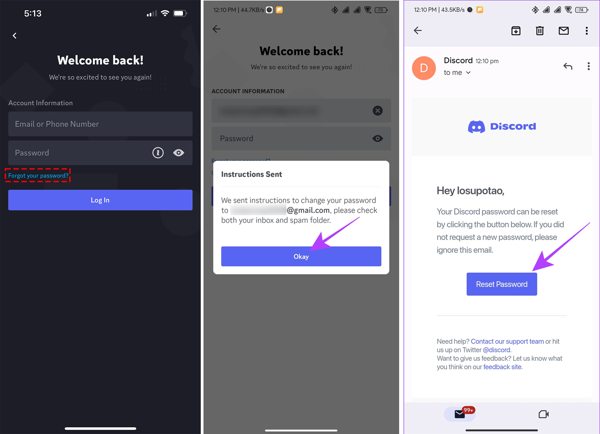
Run the Discord app on your mobile device.
Tap Log In and provide your associated email or phone number.
Tap Forgot your password to make a request.
Next, open the email or message from Discord, and tap Reset Password.
Now, input a new password, confirm it, and hit Change Password to confirm the change.
Bonus Tip: How to Reset a Proper Discord Password
- Length: A Discord password must include at least 8 characters. We suggest you use a password with a minimum of 8 characters.
- Component: Use a password that combines uppercase letters, lowercase letters, digits, and special characters.
- Avoid common combinations: don’t use common words or predictable numbers, like hello, 123456, etc.
- Enable Two-factor Authentication: Discord allows users to use 2FA on their accounts to add an extra layer of security.
- Stay away from suspicious attempts: Discord will never ask for your password or information outside of the official login page or screen.
Extended Reading:
Part 4: How to Reset Forgotten Discord Password via 2FA
If you have turned on Two-factor Authentication on your Discord account, you can reset your forgotten Discord password directly. This way works especially when your email or phone number is inaccessible.
Requirements
- 2FA for Discord is enabled.
- You remember your recovery code.
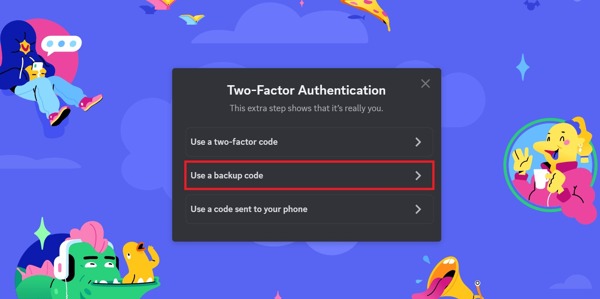
Go to the Discord login page in your browser.
Input your account, and click Forgot your password.
Follow the instructions until you reach the 2FA screen.
Choose the Use backup code option.
Enter a recovery code.
Then, set a new password and confirm the change.
Note:
Each recovery code can be used once.
Part 5: How to Recover a Forgotten Discord Password on iPhone
While it is not difficult to reset a forgotten Discord password, it may block you from accessing your chat in time. imyPass iPhone Password Manager can help you recover your Discord password quickly if you are using Discord on your iPhone or iPad.
4,000,000+ Downloads
Recover a forgotten Discord password quickly.
Back up the Discord password to your computer.
Support a wide range of passwords on iOS.
4.Compatible with the latest versions of iOS and iPadOS.
How to Recover a Forgotten Discord Password on iPhone
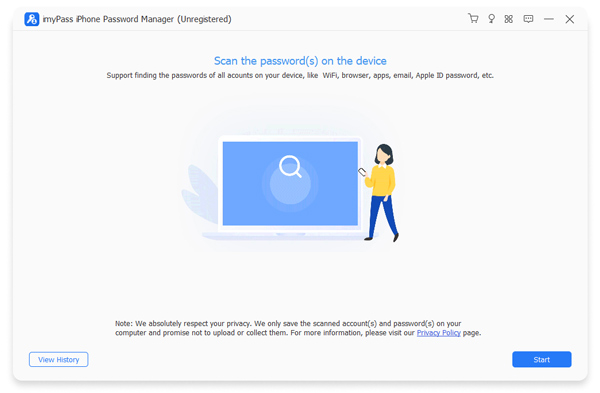
Step 1 Scan your password
Launch the password manager software after you install it on your computer. It is available on Windows 11/10/8/7 and macOS 10.12 or above. Connect your iPhone to your computer with a Lightning cable. Click the Start button once your device is recognized.
Step 2 View Discord password
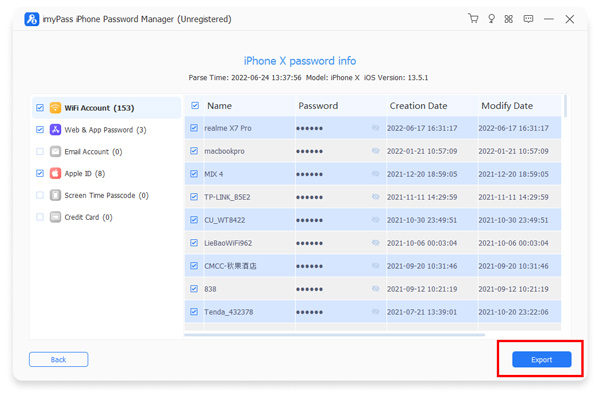
After password scans, select Web & App Password to view all passwords you have used on websites and apps on your iPhone. Find your Discord account on the list, and click the Eye button to recover the password.
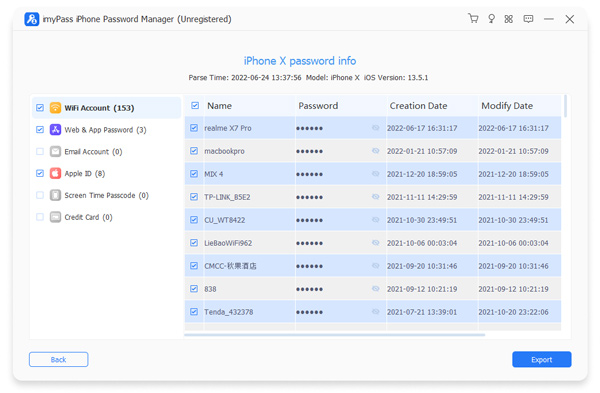
Step 3 Back up Discord password
Select your Discord account and other logins you want to back up. Click the Export button and save them as a CSV file.
Conclusion
This guide shared five ways to recover and reset a forgotten password for Discord. Generally speaking, you can reset your password after you forgot it on either the Discord website or the Discord app using the associated email or phone number. With 2FA enabled, you can use the recovery code to reset it directly. imyPass iPhone Password Manager allows you to recover any password that you have logged in to on your iOS device.
Samuel specializes in password security and digital privacy. He used to work as a cybersecurity consultant for small businesses to protect digital assets. With certifications in Cybersecurity and Ethical Hacking, he turns complex security topics into easy-to-follow advice. He also enjoys sharing password tips to help users protect their accounts more confidently.
Hot Solutions
-
Password Tips
- 4 Best Instagram Password Finders
- How to See Your Instagram Password
- How to Unlock Your Snapchat Account
- How to Reset Forgetten Twitter Password
- How to View Saved Passwords in Chrome
- What to Do When I Forgot My Apple ID Password
- How to Reset Your Snapchat Password
- How to Reset Forgotten Discord Password
-
Unlock iOS
-
Unlock Android
-
Windows Password