Solution
 Support Center
 About Us
 Contact
Forgot Your Mac Keychain Password? Here's How to Reset It Easily
 Gideon Byron Published on April 03, 2026Password Tips3-min reading
Managing passwords can be tricky, but macOS make it easier with Keychain. This guide explains how to reset your Keychain passwords on a Mac and manage saved passwords on your iPhone or iPad. Safari can save your login information and auto-fill it for websites and apps, which is convenient if you use online services like Netflix, Hulu, or Spotify. To stay secure, it's a good idea to update your Keychain password regularly.

In this article:
Part 1: Why is My Keychain Password Not Working
Sometimes, your iCloud Keychain password may not work even if you are entering it correctly. This usually happens due to one of the following reasons:
- User password and Keychain password are out of sync: If you recently changed your Mac login password, your Keychain may still use the old password.
- Keychain is locked: macOS may automatically lock the Keychain after a period of inactivity or when the computer is restarted.
- Corrupted Keychain: System errors or corrupted Keychain files can prevent access to stored credentials.
If your Keychain password isn't working, first check if it's locked or if you recently changed your Mac login password. For persistent issues, you may need to reset your Keychain and create a new one to regain access to stored passwords safely.
Part 2. How to Reset Keychain Password on Mac
There are four ways to reset the Keychain password on Mac. Moreover, the procedures are pretty simple and straightforward. Plus, you can get the job done with and without the old password on your Mac.
Way 1: Reset Keychain Password with Old Password
Best for: Users who remember their current Keychain password and want to update it without losing saved credentials.
Go to Applications > Utilities > Keychain Access, or find the app using the Spotlight Search.
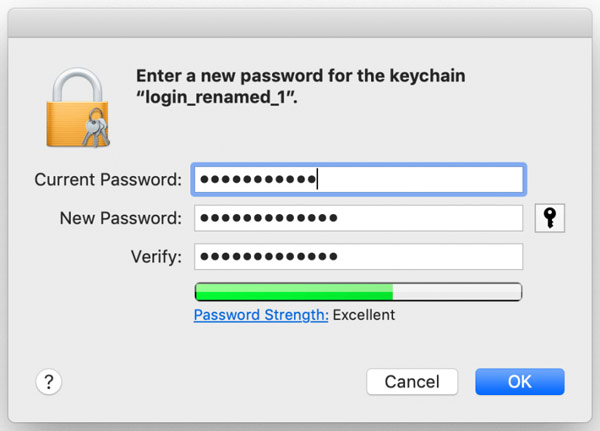
Select the login option from the left sidebar, then click Edit > Change Password for Keychain login.
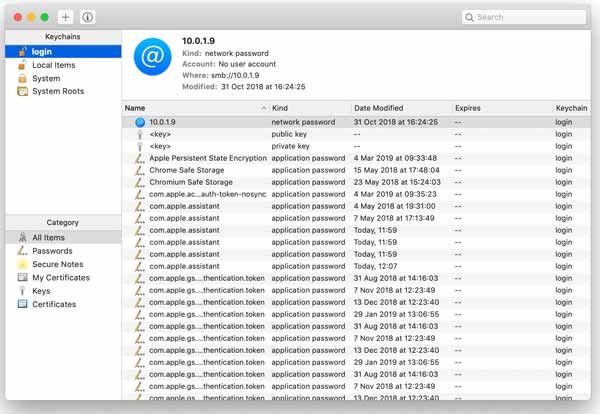
Enter your old password, then type and confirm your new password, and click OK.
Way 2: Reset Keychain Password without Password
Best for: Users who have forgotten their Keychain password and are unable to access saved credentials.
If you forgot your current password, open the Keychain Access app on your Mac.
Go to Keychain Access > Preferences > Reset My Default Keychain, enter your Mac user password when prompted, and click OK.
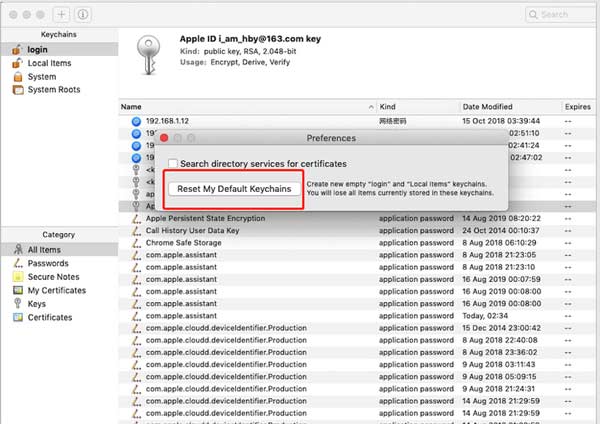
Log out of your Mac account and log back in.
The cost is losing all stored passwords in your Keychain.
Way 3: Reset Keychain Password Using Admin Account
Best for: Users with Macs that have multiple admin accounts, where access to the original account password is unavailable.
Mac allows you to create multiple Admin accounts. So that you can reset the Keychain password for one account using another Admin account. If you just have one Admin account, this way is not available.
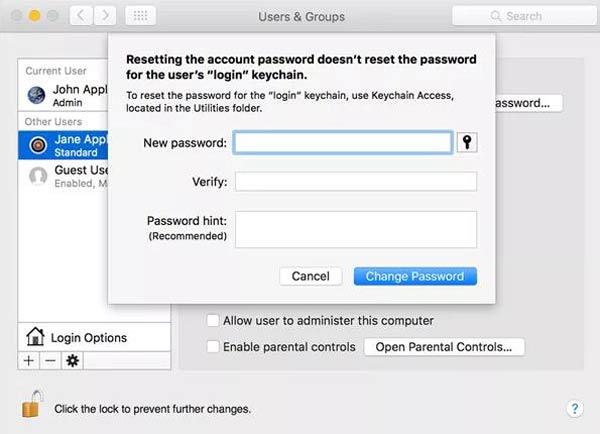
Reboot your MacBook, and log in to the other Admin account. Go to the Apple menu, choose System Preferences, and select Users & Groups.
Click the Lock icon at the bottom left corner. If prompted, input the Admin account and password again. Next, select your username on the list.
Press the Reset Password button, and then follow the instructions to make a new password.
Log out the current Admin account, and sign in to your account with the new password. Then create a new password for Keychain.
Way 4: Reset Keychain Password on Mac by Terminal
Best for: Advanced users familiar with Terminal commands, or for situations where the Change Password for Keychain Login button is greyed out.
Resetting the Keychain password requires Admin privilege. That is why some people said that the Change Password for Keychain Login button turned grey and they could not reset it. The solution is to do the job with a system command.
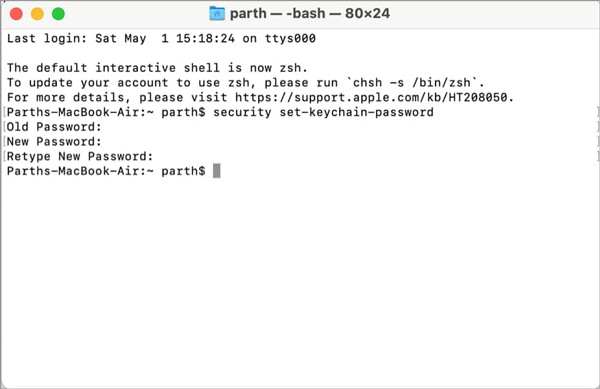
Open a Terminal window on your Mac.
Input the command security set-keychain-password and hit the Return key on your keyboard.
Enter your old password, then type and confirm your new password.
Part 3: A Secure Way to Manage iPhone Passwords Without iCloud Keychain
iCloud Keychain is helpful for saving website logins, app credentials, and Wi-Fi passwords across Apple devices. However, it does not provide full access to view or manage certain important passcodes. For these cases, a third-party tool like imyPass iPhone Password Manager offers a secure and easy way to manage all your passwords in one place.
4,000,000+ Downloads
Manage iPhone/iPad passwords on a computer easily.
Preserve a wide range of accounts and passwords.
Back up all certificates to your computer.
Support almost all iPhones and iPad models.
How to Manage Passwords on Your iPhone
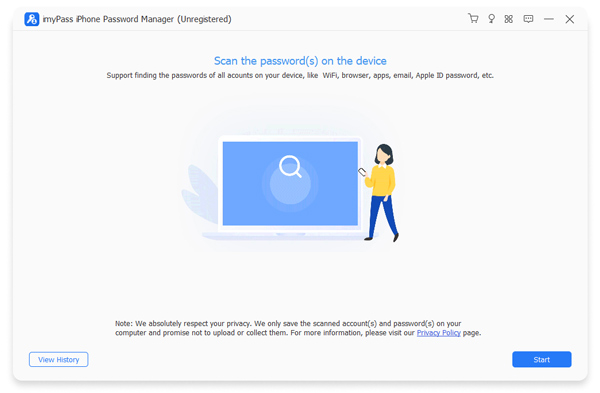
Scan iPhone passwords
Connect your iPhone to your computer. Launch the software on computer, and click Start to scan all passwords stored on your device.
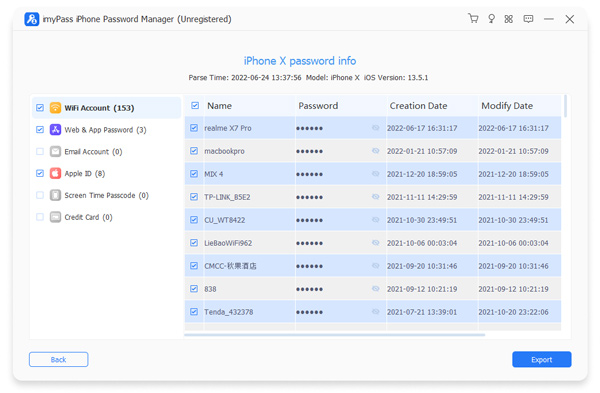
Preview iPhone passwords
Once scanning is complete, passwords are displayed by category. Click the Eye icon to view the password for any specific account.
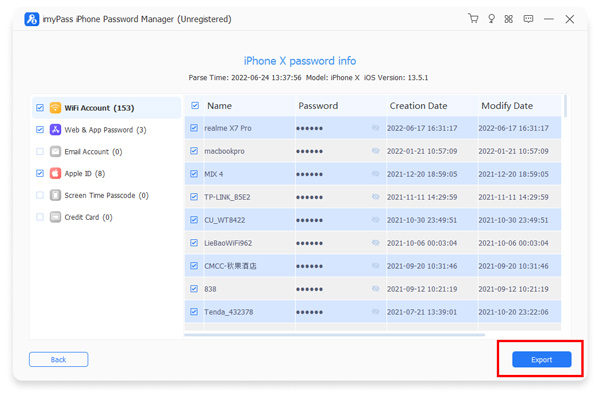
Export iPhone passwords
Select the important login items you want to save, then click Export to back them up to your computer.
FAQs.
-
What to do if you forgot your Keychain password?
If you do not remember your current password, you need to reset your default Keychain. Bear in mind that resetting Keychain will delete all the passwords saved in the account.
-
Why is my Keychain password not working?
Your Keychain may be locked automatically if your device has been inactive for a period of time or your user password and Keychain password are out of sync. Then your Keychain password won't work until you fix it.
-
How to disable Keychain on iPhone?
Open the Settings app from your home screen, tap on your profile, go to the iCloud tab, and select Keychain. Then turn off the iCloud Keychain switch.
-
Can iCloud Keychain store my Apple ID password?
iCloud Keychain can store and automatically fill your Apple ID password when logging into Apple services on your device. However, it cannot show your Apple ID password directly. If you forget your Apple ID password, you must use Apple's password recovery process to reset it.
Conclusion
This guide has told you four ways to reset the Keychain password with the current password or when you forgot the password. You can get the job done effortlessly following our post. imyPass iPhone Password Manager is the best alternative password manager for iCloud Keychain.
Gideon writes about unlocking iOS, Android, and Windows devices. He previously worked as a mobile device specialist in a repair center, assisting customers with locked devices and password recovery. In his spare time, he tests new unlock tools, customizes smart devices and makes complex unlock processes simple and safe.
Hot Solutions
-
Password Tips
- 4 Best Instagram Password Finders
- How to See Your Instagram Password
- How to Unlock Your Snapchat Account
- How to Reset Forgetten Twitter Password
- How to View Saved Passwords in Chrome
- What to Do When I Forgot My Apple ID Password
- How to Reset Your Snapchat Password
- How to Reset Forgotten Discord Password
-
Unlock iOS
-
Unlock Android
-
Windows Password