



 Solution
 Support Center
 About Us
 Contact
Restore iPhone to Factory Settings: Step-by-Step Instructions
 Clara Prescott Published on March 17, 2026Recover Data3-min reading
There are many reasons to restore an iPhone to factory settings. If your iPhone is slow, unresponsive, or has system issues, a factory restore can often fix the problem. In addition, if you plan to sell or give away your iPhone, a factory restore is necessary to completely erase all your personal data. So, how to restore an iPhone to factory settings? This guide covers multiple methods for different scenarios, so you can choose the most suitable solution.

In this article:
Part 1: Things You Should Do Before Restoring
Check the Wi-Fi Connection
Make sure your devices are connected to a stable Wi-Fi network. Keep the connection active until the restore is complete. A poor connection may cause the process to get stuck.
Update Your Devices
Update your iPhone and Mac/PC to the latest version to avoid the compatibility issues. If you plan to your iPhone using iTunes or Finder, make sure iTunes/Finder is updated as well.
Back Up Your iPhone
Restoring your iPhone to Factory Settings will erase all your data on the device. To avoid permanent data loss, make sure you back up your iPhone in advance. You can upload your data to iCloud and restore your iPhone from an iCloud backup after the reset.
Sign Out of Your iPhone
If you plan to sell, give away, or transfer your iPhone to someone else, sign out of your Apple ID and turn off Find My iPhone before resetting. This removes the iPhone from your Apple ID and helps prevent Activation Lock from blocking during setup. If your iPhone is already locked or you've forgotten the passcode, you can skip this step.
Part 2: How to Factory Restore an iPhone (When You Can Access It)
If you can unlock your iPhone or remember your Apple ID credentials, restoring your iPhone to factory settings is easy and straightforward. You can erase the device directly in the built-in Settings or restore it remotely using iCloud.
Use Settings - If You Remember the Passcode
This is the simplest and most effective way to restore an iPhone to factory settings when the device is available, the screen passcode is known, and the associated Apple ID credentials are accessible if required.
Go to Settings, tap Your Name, select Find My, and choose Find My iPhone.
Tap the switch to turn it off. Sign out of your Apple ID when prompted.
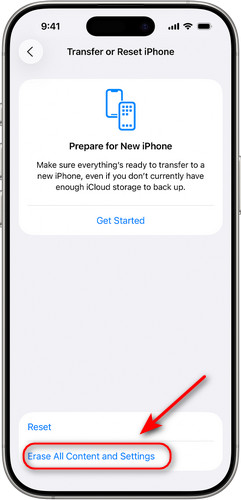
Go back to Settings, select General, and tap Transfer or Reset iPhone.
Tap Erase All Content and Settings and tap Continue to proceed. Enter your iPhone passcode to confirm the erase. Then your data will be wiped in a few minutes.
Use iCloud - Remote Restoring
If your iPhone is lost, stolen, or not with you, or if you've forgotten your iPhone password, you can use iCloud to restore it to factory settings. This method works as long as Find My iPhone is enabled, and you know the associated Apple ID credentials.
Go to iCloud.com and sign in with your Apple ID and password.
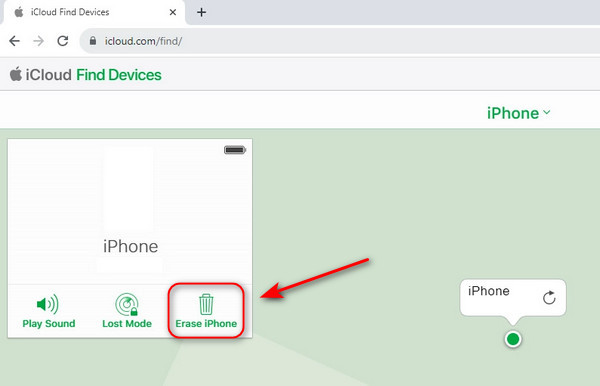
Click Find Devices and choose All Devices. If your device is enabled, you can see it in the list. Select the device you want to restore.
Click the Erase iPhone button and confirm. Done!
Part 3: How to Factory Restore a Locked iPhone
If you've forgotten your iPhone passcode or the device is disabled or unresponsive, restoring it to factory settings may seem impossible. Don't worry. The following shows you how to restore an iPhone to factory settings without a passcode in different scenarios.
Use iOS Unlocker Software - For All Scenarios
If you need to factory restore a locked iPhone, professional iOS unlocker software like imyPass iPassGo provides an easy way to remove the screen lock while restoring your device. Even if your iPhone is unresponsive, disabled, or you've forgotten the passcode, you can still follow the steps to restore it safely.

4,000,000+ Downloads
Erase 4-digit/6-digit screen passcode, Face ID, and Touch ID easily.
Remove Apple ID from iPhone/iPad without a passcode.
Bypass MDM and screen Time passcode on iOS devices.
Support all iOS models, including iPhone 18 Pro with the latest iOS 27.
How to reset an iPhone without a passcode:
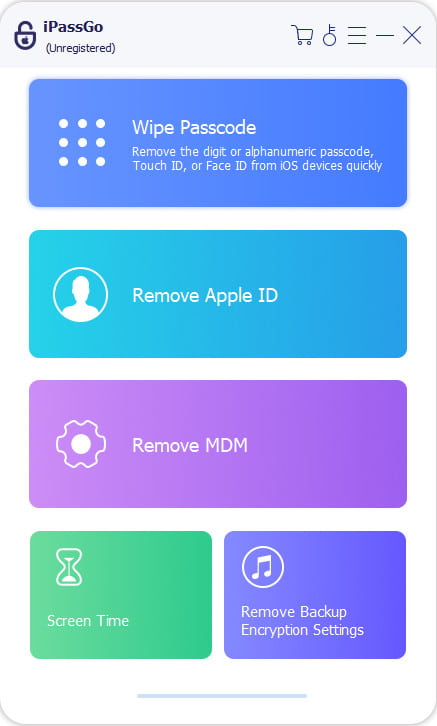
Launch the software on your computer and choose the Wipe Passcode mode from the interface. Connect your iPhone to a computer using a USB cable, then click Start to proceed.
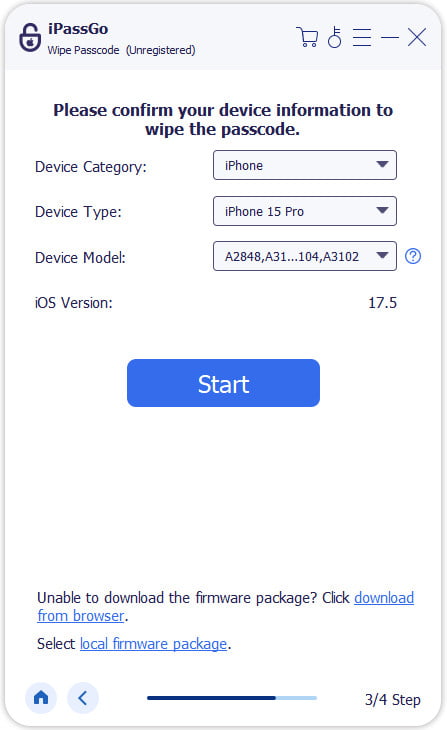
Confirm your device information and hit the Start button to download the firmware package. Wait for the download to complete and the firmware to be verified.
After verification, click the Unlock button and confirm the erase process again. The software will automatically wipe all data on the device, including the screen passcode.

Use the Forgot Passcode Feature - For iOS 15.2 or Later
If your iPhone runs iOS 15.2 or later, Apple provides an official way to restore your locked iPhone to factory settings. You can use the built-in feature - Forgot Passcode to finish the reset easily without any extra software.
How to reset an iPhone with iOS 17 or later:
Enter the wrong passcode several times until the iPhone Unavailable screen appears. Tap Forgot Passcode on the bottom right corner. (If your iPhone runs iOS 15.2 or iOS 16, there will be an Erase iPhone option instead of the Forgot Passcode option; both of them work similarly.)
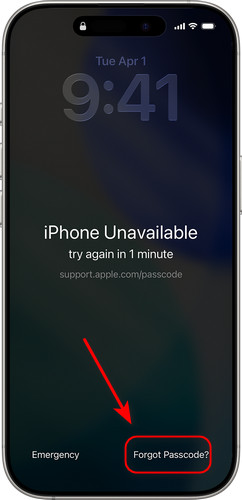
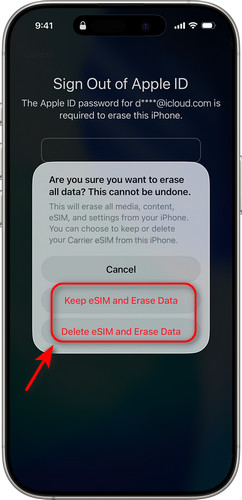
Tap Start iPhone Reset to confirm. Enter your Apple ID and passcode to sign out of your Apple Account.
Tap Erase iPhone to start a factory reset. If you plan to sell your iPhone, choose Delete eSIM and Erase Data. If you're resetting it for personal use, choose Keep eSIM and Erase Data.
Use Finder/iTunes - If iPhone Is Disabled
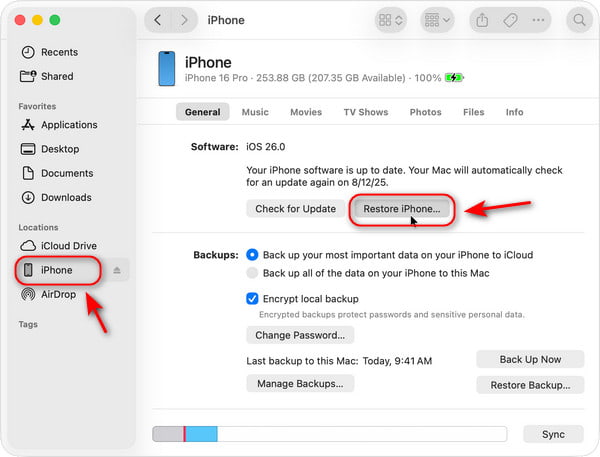
If your iPhone is disabled after too many wrong passcode attempts, but can still turn on and be detected by a computer, Finder or iTunes lets you factory reset the disabled iPhone easily.
Open Finder on macOS Catalina or later. If you use Windows or macOS Mojave and earlier, open iTunes instead.
Connect your iPhone to a computer via a USB cable and follow the onscreen steps to proceed.
Select your iPhone when it appears on the screen, then click the Restore iPhone button.
Click Restore again to confirm. Then your computer will erase your iPhone and install the latest iOS. After your iPhone restores to factory settings, it restarts automatically.
Use Recovery Mode - If Your iPhone Won't Turn On
If your iPhone won't turn on, gets stuck on the Apple logo, freezes during startup, or can't be detected by a computer, normal restore methods may not work. In these cases, putting your iPhone into Recovery Mode can help you reinstall iOS, restore your iPhone to factory settings, and fix these issues.
Put your iPhone into Recovery Mode.
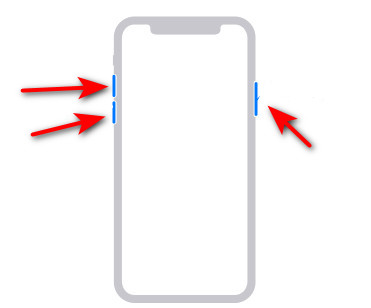
For iPhone 8 and Later Models Including iPhone SE (2nd Generation)
Press and release the Volume Up button quickly. Press and release the Volume Down button quickly. Press and hold the Power button until you see Recovery Mode appear.
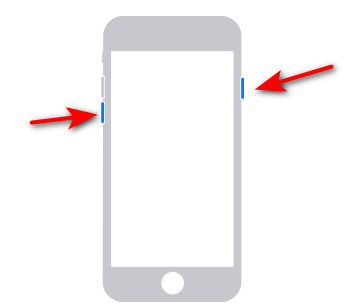
For iPhone 7 and iPhone 7 Plus
Keep pressing the Volume Down button and Side button together until Recovery Mode appears on the screen.
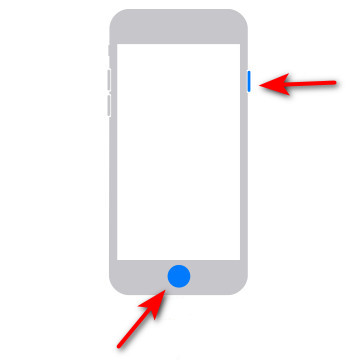
For iPhone 6S or Earlier, Including iPhone SE (1st Generation)
Press the Home and Side buttons together and hold them until Recovery Mode appears on your phone.
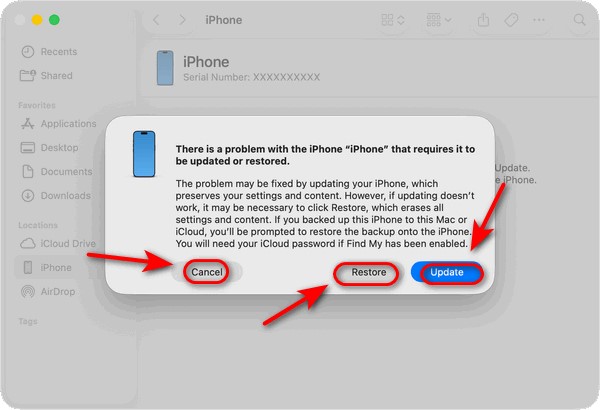
Connect your iPhone to your computer and open iTunes/Finder.
Then you will see 3 options in the prompt window: Update, Restore, and Cancel. Choose Restore to reset your iPhone.
Part 4: How to Recover Your Data After a Factory Restore
A factory reset removes all your personal data, apps, and settings from your iPhone, which can make it feel like everything is permanently lost. However, there are still reliable tools that can recover data after a factory reset, even if you don't have a backup. imyPass iPhone Data Recovery is a powerful solution that helps you retrieve lost data safely and efficiently in a wide range of recovery scenarios.
4,000,000+ Downloads
Recover all types of data from various damage scenarios.
Retrieve lost or deleted files without a backup.
Preview and filter files before recovery for flexible data restoration.
Support all iOS devices, including the latest iPhone 18 Pro with iOS 27.
Connect your iPhone to a computer.
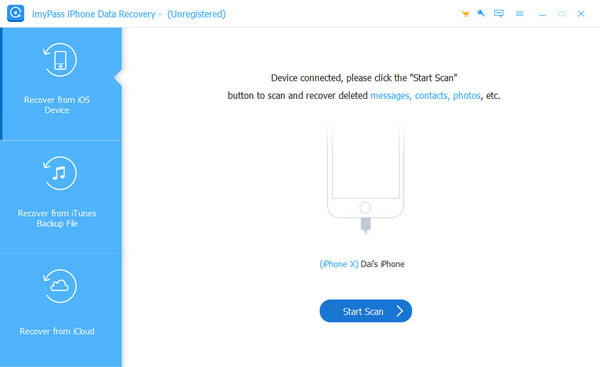
Launch this program on your computer and connect your iPhone using a USB cable. When prompted, tap Trust This Computer and click the Next button. Select Recover from iOS device, then click Start Scan to begin scanning all data on your iPhone.
If you have an iTunes/iCloud backup, you can choose Recover from iTunes Backup File or Recover from iCloud Backup File. Select the backup you want to restore from and click Start to continue.
Preview and filter data.
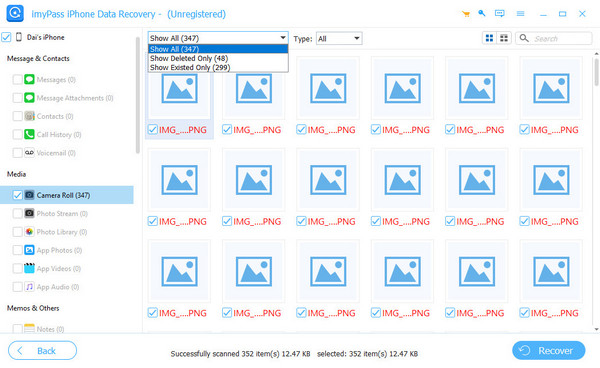
After the scan is complete, all recoverable data types will be displayed in the left sidebar. You can preview the files and choose Show All or Show Deleted Only to filter the results and quickly find what you need.
Choose and recover data.
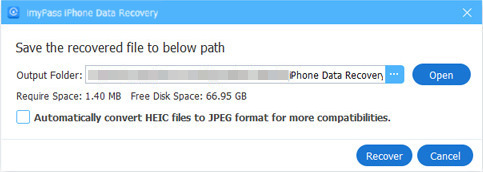
Choose the files you want to recover, then click the Recover button in the bottle right corner. Select a location to save the recovered data.
FAQs.
-
Will factory restoring an iPhone delete everything?
Yes. A factory restore erases all content and settings on the iPhone, such as photos, messages, contacts, apps, and system configurations. To avoid permanent data loss, make sure to back up your iPhone before restoring.
-
How to reset my iPhone to factory settings without the passcode?
If you forget the passcode or the iPhone is disabled, you can still factory restore it using the Forgot Passcode feature (iOS 15.2 or later), Finder/iTunes, Recovery Mode, or third-party unlocker tools.
-
Can I factory reset my iPhone without a computer?
Yes, if you can access your iPhone and remember the passcode, you can factory reset it directly in Settings. First, turn off your Find My Phone. Then go to Settings > General > Transfer or Reset iPhone, and tap Erase All Content and Settings.
-
Is it safe to factory restore an iPhone before selling or giving it away?
Yes, a factory restore wipes all your personal data and returns your iPhone to the original state. Just remember to sign out of your Apple ID and turn off Find My iPhone before restoring, especially if you plan to sell or give away the device.
-
How to recover data after a factory restore without backup?
Professional iPhone data recovery software, like imyPass iPhone Data Recovery, can help restore data even without a backup. It performs a deep scan of the device and provides a detailed preview of recoverable data, allowing you to restore files selectively without a backup.
Conclusion
Factory restoring an iPhone is an effective way to fix system issues, remove a forgotten passcode, or prepare the device for a new owner. Always back up important data before resetting, so you can restore your iPhone safely and avoid unnecessary data loss. If no backup is available, data recovery software may still help you retrieve lost files!
Clara has over 8 years of experience helping users recover lost files and transfer data. She previously worked as a data recovery technician for a major IT service company. Certified in Data Recovery and Digital Forensics, her articles focus on simple solutions that make complicated recovery tasks easier for everyday users.
Hot Solutions
-
Recover Data
- AppGeeker iOS Data Recovery Review
- Disk Drill iPhone Data Recovery Review
- How to Get iPhone Out of Recovery Mode
- How to Fix support.apple.com/iphone/restore
- How to Recover Data from DFU Mode
- Gbyte iPhone Data Recovery Review
- How to Recover iPhone Deleted Photos After 30 Days
- How to Recover Deleted Photos on iPad
-
Unlock iOS
-
Transfer Data
-
iOS Tips

