



 Solution
 Support Center
 About Us
 Contact
How Do I Factory Reset My Disabled iPhone Without Using iTunes?
 Penny Warren Published on September 03, 2026Unlock iOS3-min reading
When your screen displays iPhone Unavailable, your iPhone enters a disabled state. All functions get locked and you have no way to unlock your device normally. If you are stuck with this problem right now, you must factory reset your disabled iPhone. Read this guide and learn all practical methods to get back control of your iPhone.

In this article:
Key Takeaways: How to Reset iPhone When it is Disabled
There are several ways to reset a disabled iPhone, but each method has different requirements and limitations. Check the comparison table below:
| Method | Need Computer | Difficulty | Supported iOS Versions | Data Loss | Note |
| imyPass iPassGo | Yes | Easy | All iOS versions | Yes | / |
| Find My App | No | Easy | iOS 5 and later | Yes | Find My enabled; Apple ID and password required |
| Siri Trick | No | Complicated | iOS 8–11 only | No | Temporary bypass method |
| iTunes/Finder | Yes | Moderate | All iOS versions | Yes | / |
Part 1: Why is Your iPhone Disabled
Why does my iPhone get locked and disabled? Before learning the resetting methods, it's essential to understand the mechanism to avoid the same mistake next time. iPhone is designed with a security lockout feature to protect your data if someone tries to guess your password. After 10 wrong passcode entries, your device will show an "iPhone Unavailable" or "Security Lockout" screen. This means your phone becomes completely unusable and disabled.
Part 2: Prepare Your Device Before Factory Resetting
Before jumping into any reset method, there are a few key prep steps you need to know.
1. All data will be erased.
Every reset method wipes all photos, files, apps, and settings. There is no way to unlock a disabled iPhone without a full factory reset. Most importantly, you'd better have a recent backup, so you can restore your iPhone from iCloud or iTunes.
2. Check your Apple ID and password
After resetting, your iPhone will trigger Activation Lock. You must enter the original Apple ID and password linked to the device. If you don't remember your Apple ID credentials, your phone might be stuck on the activation screen in the setup process.
3. Ensure a strong network connection.
Ensure your iPhone or computer can connect to a stable Wi-Fi or cellular data. A weak network may interrupt the factory reset.
Part 3: How to Reset Disabled iPhone with iTunes
If you want Apple's official solution, you can factory reset disabled iPhone with iTunes. This method requires a computer with the latest iTunes version installed and a USB cable.
First, you need to hard reset disabled iPhone and put it into Recovery Mode.
For iPhone 8 and later:
Press and release the Volume Up button quickly. Press and release the Volume Down button quickly. Press and hold the Power button until you see Recovery Mode screen.
For iPhone 7 and iPhone 7 Plus:
Keep pressing the Volume Down button and Side button together until Recovery Mode appears on the screen.
For iPhone 6S or earlier:
Press the Home and Side buttons together and hold them until Recovery Mode appears on your phone.
Connect your iPhone to your computer using a USB cable and open iTunes/Finder.
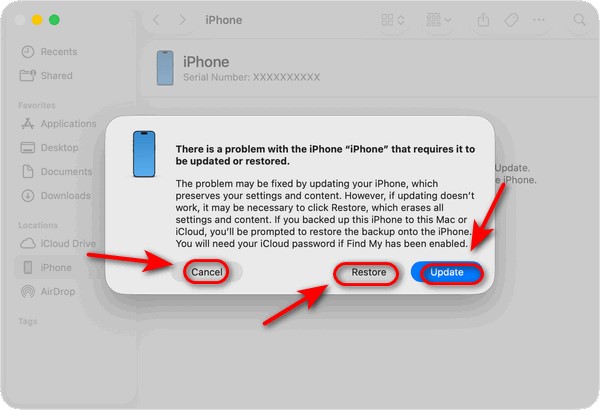
Then you will see 3 options in the prompt window: Update, Restore, and Cancel. Choose Restore to factory reset your disabled iPhone.
Part 4: How to Reset Disabled iPhone Without iTunes
Searching for how to reset disabled iPhone without iTunes? There are still 3 easy alternative methods for you.
Reset Disabled iPhone Using imyPass iPassGo (All iOS Versions)
If you want the fastest, most user-friendly way to reset your disabled iPhone, imyPass iPassGo is the best choice. Whether you forgot the screen passcode, or your iPhone became disabled after several wrong attempts, this software allows you to unlock a disabled iPhone without any complicated steps. It works for all iOS versions and all iPhone models, including the latest.

4,000,000+ Downloads
Factory reset disabled iPhone and iPad in a few clicks.
Remove screen passcode, Face ID, and Touch ID easily.
Delete Apple ID from a second-hand iPhone without password.
Bypass MDM and screen Time passcode on iOS devices.
How to reset iPhone when it is disabled:
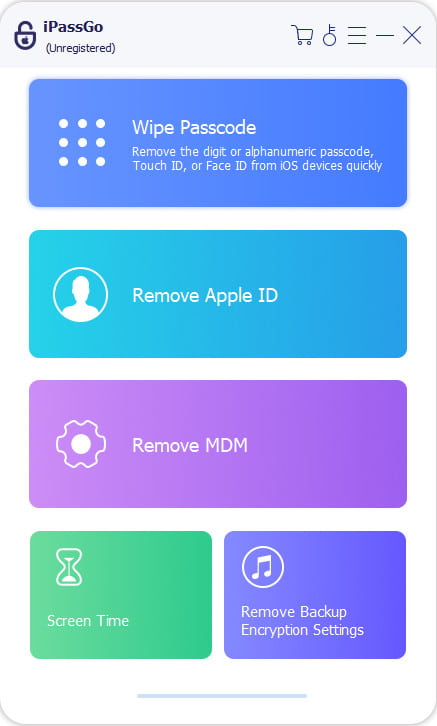
Launch the software on your computer and choose the Unlock iOS Screen mode from the interface. Connect your iPhone to a computer using a USB cable, then click Start Now to proceed.
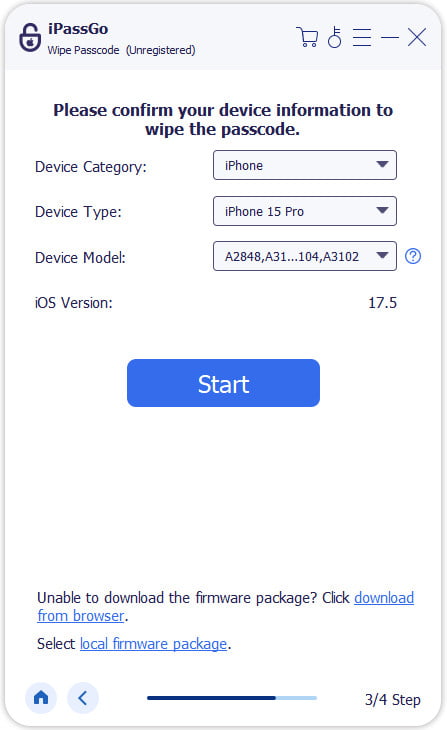
Confirm your device information and hit the Start Now button to download the firmware package. Wait for the download to complete and the firmware to be verified.
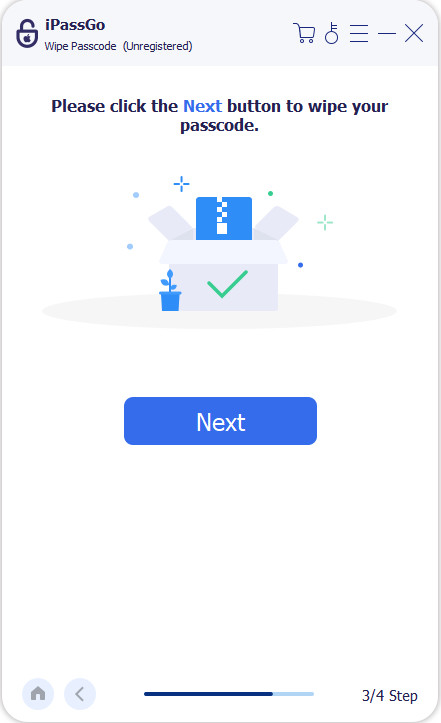
After verification, click the Start Removing button and confirm the reset again. The software will automatically reset the device to factory settings, then you can set up your device.
Reset Disabled iPhone without a computer (Find My App)
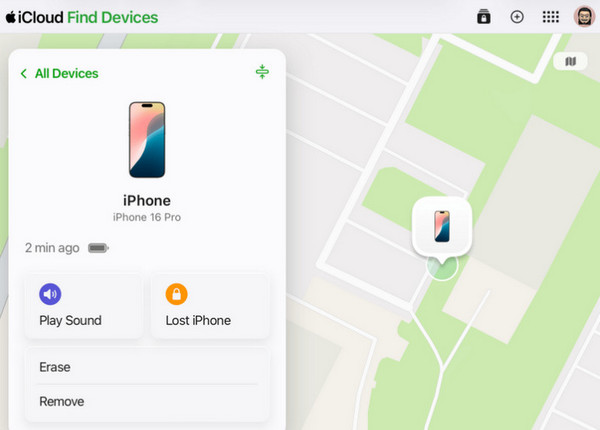
If you don't have a computer, how to factory reset disabled iPhone without computer? The Find My feature can help you do this. This method remotely erases your disabled iPhone via another Apple device.
Open iCloud.com on another device and log in with your Apple ID and password.
Click Find Devices, choose All Devices at the top. If your device is enabled, you can see it in the list. Select the disabled device you want to erase.
Choose Erase the Device. If your device is online, the erase will start at once; If offline, it will begin automatically next time it's online.
Note:
This method only works if Find was enabled before the device became disabled, and the device needs an active internet connection.
Reset Disabled iPhone Using Siri (iOS 8-11 Only)
This is an old loophole that only works for old iOS 8 to iOS 11 devices. It's a temporary bypass trick to reset the disabled phone manually, not recommended for new iPhones.
First, activate Siri by asking, "What time is it now?"
Siri will tell you the current time and show a clock on your screen, then tap the Clock button to go to World Clock.
Tap "+" located in the top-right corner to create a new clock.
Enter something casual into the input box and then long-press the text to select them all. Once selected, tap Share, then choose Messages.
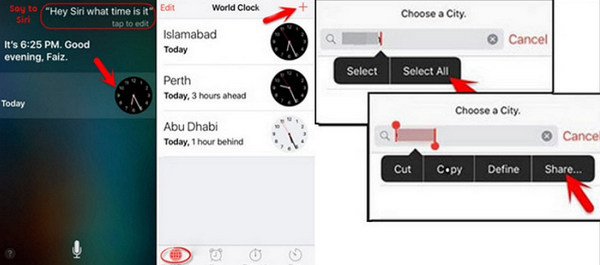
This will take you to an editing window. In the "To:" entry box, type some text and click "+" to create a new contact.
Tap Add Photo, then select Choose Photo to go to the Photos Library app.
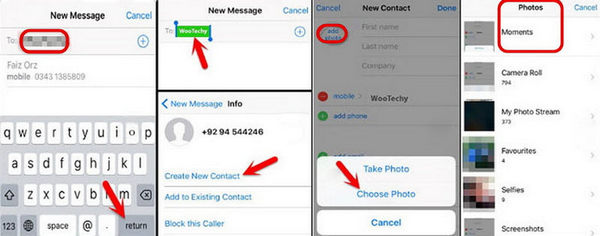
Press the Home button to return to the home screen. You've successfully unlocked your disabled iPhone with Siri.
Conclusion
Now you have every method to reset your iPhone when it is disabled. Before trying these methods, remember to back up your iPhone regularly via iCloud or Finder/iTunes. This saves you from permanent data loss after a factory reset.
Penny focuses on GPS troubleshooting and Windows optimization. She formerly worked as a technical support engineer, helping clients solve location-based and system issues efficiently. Backed by IT support experience, she provides practical solutions that really work. In her free time, she likes hiking and geocaching, testing GPS tech in the real world.
Hot Solutions
-
Unlock iOS
-
iOS Tips
-
Unlock Android
-
Password Tips


