Solution
 Support Center
 About Us
 Contact
How to Use Master Code to Unlock Android Phone Easily
 Penny Warren Published on June 12, 2026Unlock Android3-min reading
Using a Master Code to unlock the phone is a quick method for regaining access when locked out of your Android device. In this guide, you will learn how to use secret codes, explore their pros and cons, and discover a safer, more reliable alternative for unlocking any Android phone with ease.

In this article:
Part 1. What Is Master Code and How It Works
Master codes are special dialable codes used on some Android devices to trigger system-level actions such as reset or bypass functions. In some cases, these codes are also called "universal unlock codes." So, does a true universal master code really exist? The answer is no. There is no single code that can unlock all Android phones. It is important to note that not all Android phones support these codes, and newer devices often restrict them for security reasons.
Master Codes and Their Functions:
1. ##7780##: Soft Factory Reset
• Removing all items, data and information stored in internal storage and only preserving the external applications is called a soft factory reset, or simply performing a factory settings reset on your device.
• While this does help delete numerous less-used settings and intricately delete every single file in a phone while preserving contacts and social media apps, it will also delete his data, which also consists of photos, messages and settings.
• Renewing tablets and phone memory.
2. 27673855#: Hard Factory Reset + Firmware Reinstall
• Flawless, clear hard resets the device for everything, including all notes, files, images, videos, apps, and lock words and restores everything.
• Just like changing your phone to another one.
3. ##7378423##: Code for Bypassing FRP Locks
• Bypassing Google's check of the app account made immediately after a factory reset is what is claimed to be done by this code. A work of grace this is, at least.
• Not mandatory approval on each Android device made recently could outdo blurry bypass.
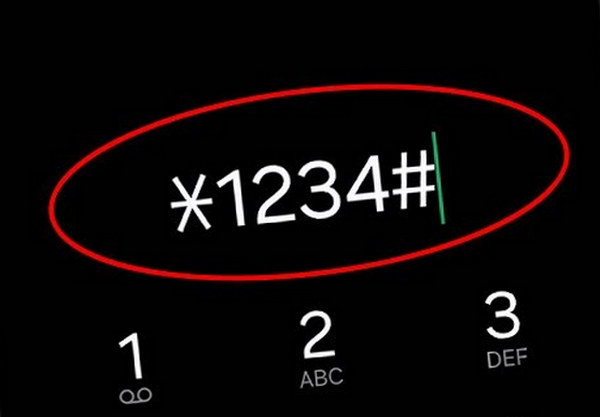
4. 0000 or 1234: PINS that Precede the Set Codes
• Some phones accept these basic, default PINs to unlock pattern lock or other screen locks before users set their own.
• It may work on older devices or those that have never been configured with a new lock.
Part 2. How to Use Master Code to Unlock a Phone
Even if your Android phone is security locked using a PIN, a password, or a pattern, you can unlock it using specialized secret codes. These codes reset the device or enable bypassing the security locks.
Some codes trigger a full factory reset. Before using the master code, it is strongly recommended to back up your photos, contacts, messages, and app data.
Steps:
To activate the device, press the Power button. Upon turning on the phone, the Emergency Call should be tapped or swiped.
One of the master codes needs to be entered into the dialer as follows:
• To execute soft reset : ##7780## (removes lock, may keep personal files)
• To execute a hard reset: 27673855# (wipes everything, including lock credentials).
• For bypassing FRP in some uses: ##7378423##
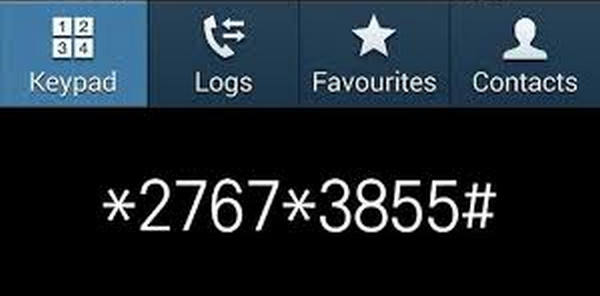
Press the call button to run the code. If confirmation is required, ensure OK or Yes is chosen.
After you finish the steps, the phone should take a few minutes to process, reset or reboot.
Access can be regained by completing the steps above, enabling the setting of a new PIN, pattern or password.
Part 3. Pros & Cons of Using Master Code to Unlock a Phone
Using master codes on Android phones may seem like a quick and convenient way to bypass the lock screen. While this method has some benefits, it also comes with significant risks.
Pros
- Master codes is free of change and do not require payment for unlocking services.
- Most codes can be entered directly through the phone's dialer without any technical skills.
- The codes are usually short and easy to use. Users can complete the process in just a few steps.
- Some master codes work across different Android brands and device models.
- Certain codes, such as ##7780##, can restore system settings without removing personal data.
Cons
- Many master codes trigger a factory reset, which can permanently erase all your personal data.
- Using incorrect codes or applying them on unsupported devices may cause system errors.
- The success rate is not guaranteed, and the codes often fail on newer Android versions.
- Searching for codes from unverified websites may expose users to scams or malware.
- There is no official customer service if something goes wrong during the process.
Why Most Master Codes No Longer Work
Most master codes cannot work on newer Android devices. This is because phone manufacturers have improved security systems to prevent unauthorized resets. Features like FRP (Factory Reset Protection) and stronger system protection now block these codes. As a result, master codes are mostly only effective on older phones.
Part 4. Alternative Way to Unlock Any Android Phone
Suppose the master code strategy does not work, or you are worried about its associated risks. In that case, a simpler and much safer alternative can be relied upon: imyPass AnyPassGo. This advanced Android unlocker can perform screen lock removal and FRP bypassing, even when users cannot recall their Google account.
4,000,000+ Downloads
Supports PIN, pattern, password, fingerprint, and face ID—even on unresponsive devices.
Works for forgotten passcodes, second-hand phones, or broken screens.
Simple, step-by-step process, no tech experience required.
Compatible with major Android brands, from Android 6.0 to 15.
Removes Google Factory Reset Protection without needing account details.
Download and Install
Proceed to the imyPass official website and download imyPass AnyPassGo. Then, install the software on a Mac or Windows computer.
Launch the App and Select Unlocked Mode
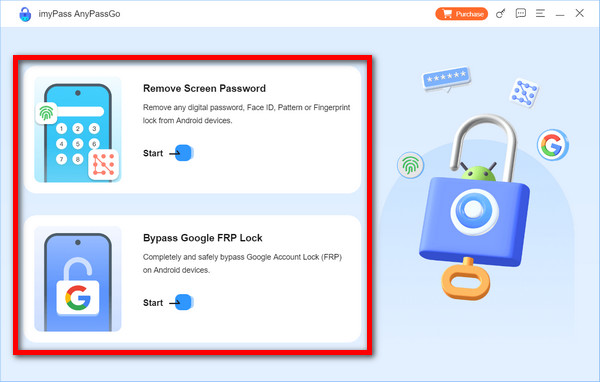
Access imyPass AnyPassGo and, if you are locked behind a screen lock, select the Remove Screen Password option. If you are stuck at a Google FRP screen, toggle the option Bypass Google FRP Lock.
Attach your Android Device
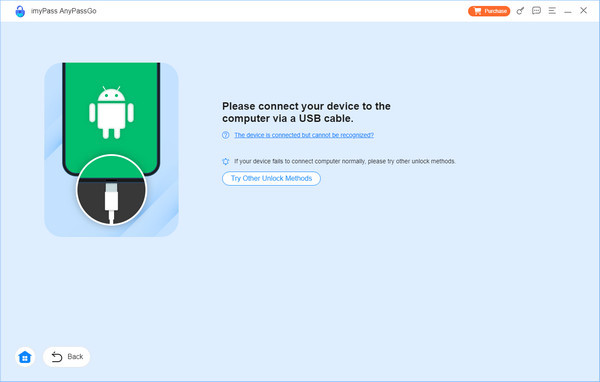
Link your Android to the computer using a USB cable. After a successful connection, the application will auto-recognise your phone.
Confirm Device Details and Start Unlocking
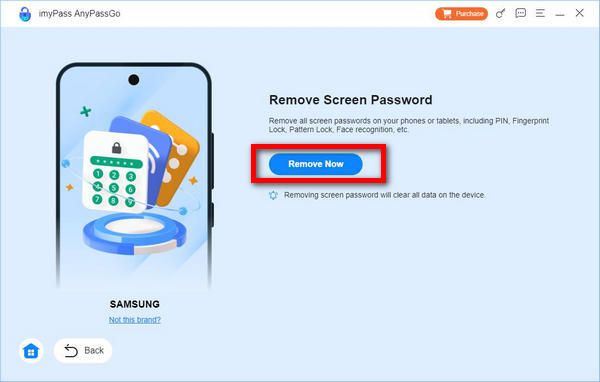
Please select your phone and its brand, and finally follow the suggestions provided via the interface. To unlock your device, click on the Remove Now button. FRP bypass is achieved through the guide provided in the application.
Wait for the Completion of the Procedure
The unlocking process will be completed in minutes. Afterward, you can fully access your device, change your code, and use your phone freely without screen locks, FRP, or any other restrictions.
Conclusion
In conclusion, using a master code to unlock any phone password is a quick and convenient method to unlock an Android device. This method also carries many risks, such as system instability or data loss. You need to weigh the benefits and before deciding whether to use this method. For a safer solution, a third-party tool, like imyPass AnyPassGo, can make a real difference.
Penny focuses on GPS troubleshooting and Windows optimization. She formerly worked as a technical support engineer, helping clients solve location-based and system issues efficiently. Backed by IT support experience, she provides practical solutions that really work. In her free time, she likes hiking and geocaching, testing GPS tech in the real world.
Hot Solutions
-
Unlock Android
-
Unlock iOS
-
Password Tips
-
iOS Tips