Solution
 Support Center
 About Us
 Contact
All about Universal Unlock PIN for Android Phone or Tablet
 Gideon Byron Published on August 25, 2026Unlock Android3-min reading
Keeping data on your phone or tablet safe is essential because it saves a lot of private photos and files. The lock screen password is designed to protect your data and privacy on your Android device. If you forgot the lock screen password, you will be locked out of your device. This article explains whether you can unlock your phone or tablet with a universal unlock PIN for Android.

In this article:
Part 1: Is There a Universal Unlock PIN for Android
Is there a universal unlock PIN for all Android devices? No, there is no universal unlock PIN for Android. Any claim of a universal unlock code or master code that works for all devices is a lie.
It cannot be denied that old versions of Android support secret codes. However, since Android 5.0, Google has eliminated the secret codes to prevent unauthorized access and enhance security.
Furthermore, there is a wide variety of Android brands. They all customize the operating systems for their products, including the screen locks. Obviously, the universal unlock PIN for Android is unavailable to all devices. In short, there is no universal PIN.
Part 2: How to Unlock an Android Phone Without a Universal PIN
Way 1: How to Unlock PIN on Android Without Losing Data
One easy way to unlock a PIN on an Android phone without losing data is the remote lock feature on Google Find My Device. This way requires that you have turned on Find My Device and Use Remote Lock on your device.
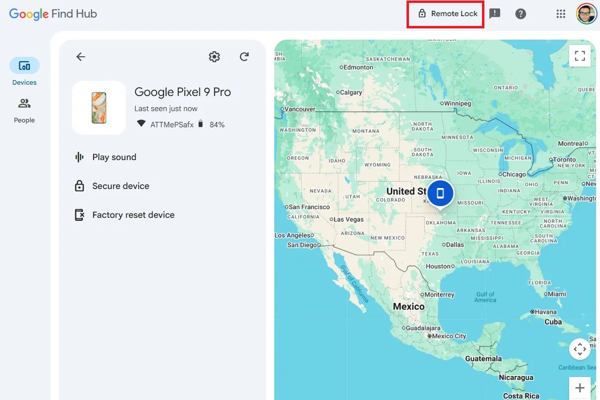
Go to www.google.com/android/find/ in a web browser.
Log in to the Google account and password linked to your device.
Choose your device under the My Devices section.
Click the Remote Lock button.
Set a new password.
Turn to your phone and unlock it with the new password.
Way 2: How to Unlock Android Phone Password by Google Find Hub
If you have set up Find My Device on your Android device, you can unlock your Android phone's password using the Find My Device app on another phone or tablet. This way requires the associated Google account and password. Bear in mind that the process will clear all data on your device.
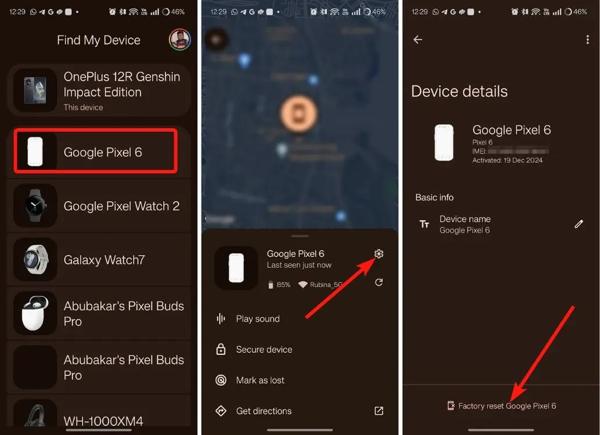
Install the Find My Device app on another Android device.
If you don't have a secondary device, borrow one and install the app from the Google Play Store for free.
Open the app and sign in with your Google account.
Go to the Devices tab and choose your phone.
Tap the Settings button with a gear icon.
Tap the Factory reset [your phone] button.
Read the notification and tap Reset to confirm it.
When the process finishes, your device will restart automatically.
You May Also Like:
Way 3: How to Unlock PIN on Android in Recovery Mode
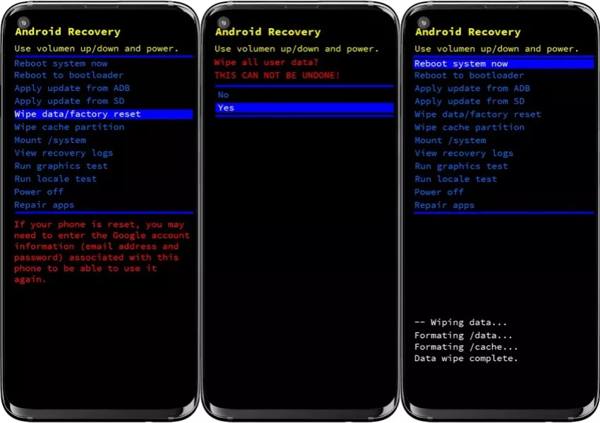
Another way to unlock the PIN on your Android device is to factory reset your phone or tablet in Recovery Mode. This way doesn't require extra software or hardware, but all your data will be deleted.
Long-press the Power button.
Tap the Power off or similar option to shut down your device.
For Samsung, hold the Volume Up + Power buttons together.
For other Android devices, hold the Volume Down + Power buttons simultaneously.
When the bootloader menu appears, release the buttons.
Select the Wipe data/factory reset option with the volume buttons and press the Power button to confirm it.
When prompted, select Yes and press the Power button.
Select Reboot system now and press Power after the process.
Part 3: How to Unlock Android PIN Without Restrictions
If you forgot your password and haven't turned on Find My Device, you will need a powerful unlock tool, such as imyPass AnyPassGo. It is able to remove the screen password and unlock the Android PIN easily and quickly.
4,000,000+ Downloads
Unlock Android devices in 3 steps.
Unlock PINs, passwords, patterns, fingerprints, and more.
Easy to use and offers on-screen instructions.
Bypass Google FRP Lock without your Google account.
Support almost all Android brands and models.
How to Unlock Your Android PIN Easily
Install Android unlocker
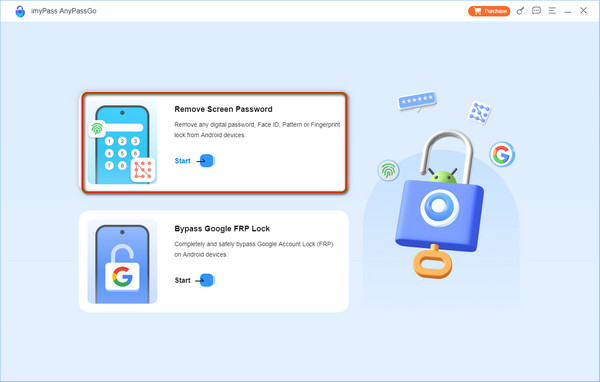
Launch the Android unlock software after installing it on your computer. Choose the Remove Screen Password mode to move on.
Step 2: Connect to your phone
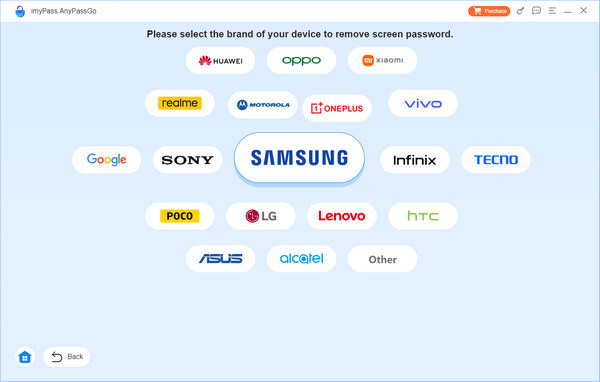
Choose your device brand in the interface. Connect your phone to your computer with a USB cable. If prompted, tap Trust to trust your computer.
Step 3: Unlock Android PIN
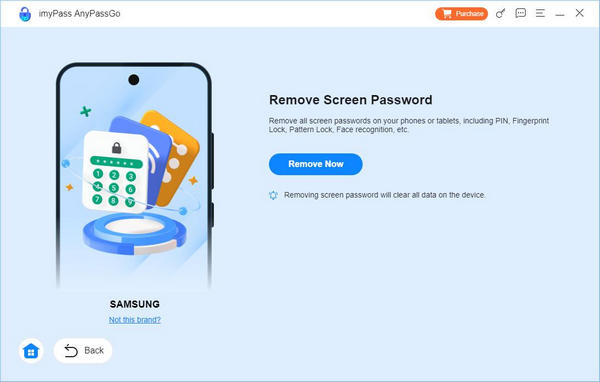
Once your device is detected, click on the Remove Now button to begin unlocking the PIN on your Android device immediately.
Conclusion
This article answered whether there is a secret code to unlock an Android phone's password. Moreover, you should learn the proven methods to unlock your smartphone or tablet when you forgot your PIN. You can pick an appropriate method and follow the steps to regain access to your device. imyPass AnyPassGo is a good option for beginners due to the intuitive design.
Gideon writes about unlocking iOS, Android, and Windows devices. He previously worked as a mobile device specialist in a repair center, assisting customers with locked devices and password recovery. In his spare time, he tests new unlock tools, customizes smart devices and makes complex unlock processes simple and safe.
Hot Solutions
-
Unlock Android
-
Unlock iOS
-
Password Tips
-
iOS Tips