Solution
 Support Center
 About Us
 Contact
How to Unlock Android Phone Without PIN: Universal Solutions
 Gideon Byron Published on October 09, 2026Unlock Android3-min reading
Forgot your Android PIN? It happens to plenty of people. Many of us have gotten stuck staring at the lock screen after too many wrong tries. Don't freak out. There are still a few real ways for you to unlock an Android phone when forgot PIN.
This guide covers the main options in order from least destructive to last resort. Pick the one that matches your situation and follow the steps carefully.

In this article:
Part 1. Unlock Samsung Android with Previous PIN
Samsung added a helpful recovery option on devices running One UI 6.1 or newer. If you changed your PIN, pattern, or password within the last 72 hours, you can often use the previous one to unlock the phone.
Enter Forgot PIN Mode
Enter the wrong code five or more times until the "Forgot PIN/Password/Pattern" option appears. Tap it.
Type in Previous Code
Enter the previous lock method, whether it's a PIN code or a biometric password. If it's correct, the device unlocks and lets you set a new one right away.
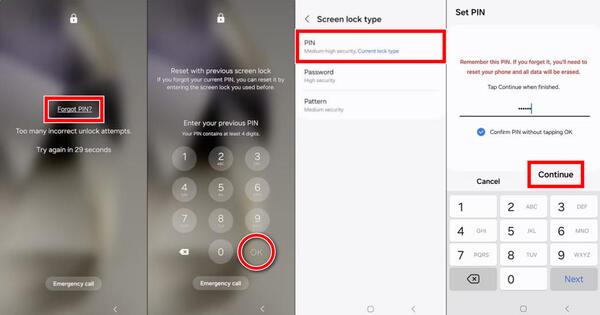
This window only lasts 72 hours after the change. After that time, or if you already deleted the previous lock in Secure lock settings, the option disappears. It works on recent Galaxy S series, Z Fold and Flip models, and some A-series phones. Exact menu names can vary a bit by model and software version.
If this works for you, set a new lock immediately and store it somewhere safe.
Part 2. Unlock Old Android Without PIN Using Google Account
This method is mostly limited to very old devices, on Android 4.4 KitKat and earlier. Newer Android versions removed this recovery path years ago for security reasons. On phones from roughly 2015 onward, the option simply does not appear. If your device is modern, skip this section – it will not help.
Trigger the Forgot PIN Mode
Enter incorrect passcodes 5 times until the lock screen shows a Forgot Pattern, Forgot PIN, or similar button. Tap that button.
Sign in with Google
Choose the option to sign in with your Google Account credentials. You could then sign in with the Google account linked to the phone and reset the lock screen.
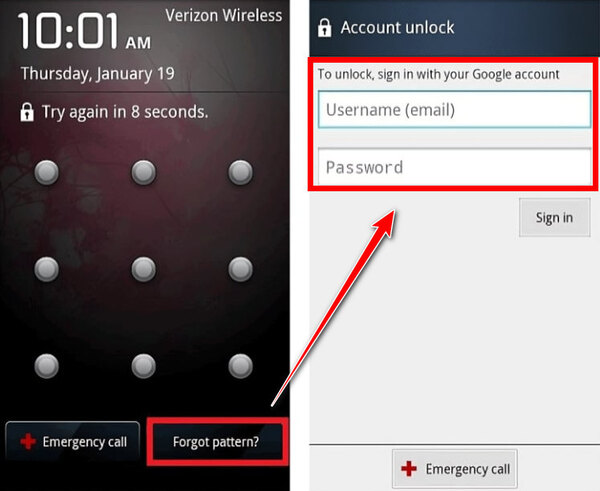
If you still have an ancient phone that shows the forgot option, enter the Google account credentials that were previously synced to it, then set a new lock. Those older devices are also more vulnerable overall, so update them or replace them when you can.
Part 3. Universal Way: Unlock PIN for Android Using imyPass AnyPassGo
imyPass AnyPassGo can remove screen locks, including PIN, pattern, password, and fingerprint, from any model running Android 5 to Android 17. You can connect the phone to a Windows PC with a USB cable and run the software, which then clears the lock. Note that it removes other data from your phone too, except for some early Samsung models.
4,000,000+ Downloads
Remove a range of lock types, such as PIN, pattern, password, and biometric locks.
Unlock the screen of Samsung, Pixel, Xiaomi, OnePlus, Sony, Motorola, and more.
Works on early Samsung models without data loss, including the Note 3, Galaxy S5, etc.
User-friendly with a simple interface.
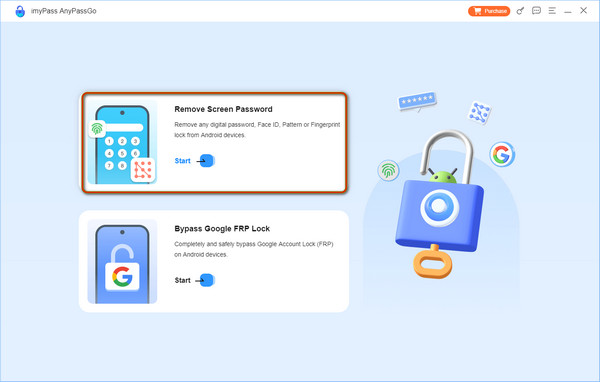
Select Remove Screen Password
After installing and launching the program, select the Remove Screen Password option and pick the brand so it knows what model it is dealing with.
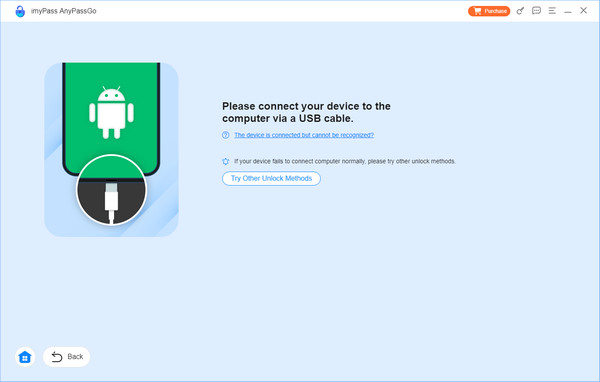
Connect the Android to a PC
After selecting the brand, connect it to the computer using the charging cable you have right now. If you have trouble connecting the device, click The device is connected but cannot be recognized.
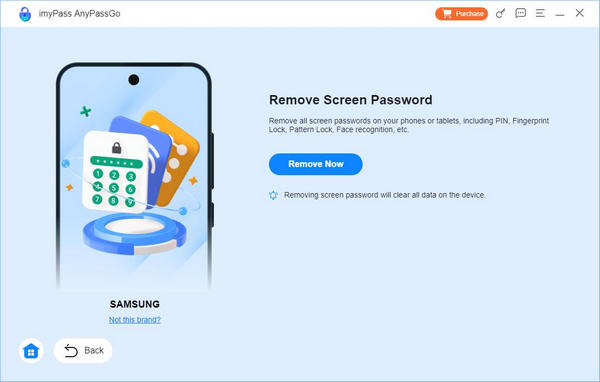
Unlock Android PIN
Here, click the Remove Now button to erase the lock that is activated on your phone. Once it is successfully removed, you will get a notification on your screen; click OK.
Part 4. Last Resort: Factory Reset Android
When nothing else works, a factory reset is the final option. It wipes the phone completely: photos, apps, messages, settings, everything stored locally. The device returns to a like-new state, but any data that was not backed up is gone for good.
Recovery Mode (Works for all Android phones)
Enter Recovery Mode
Power the phone off completely. Then hold the correct button combination until the recovery menu appears. Common combinations include:
- Most Pixel and stock Android phones: Power + Volume Down. Pixel 5 and earlier used Volume Up.
- Most Samsung models: Power + Volume Up. Newer models might require connection to a computer with a USB cable.
If you're not sure, check the button combination in your brand's support center.
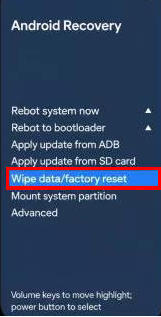
Wipe the Android
Use the volume keys to highlight options and the power button to select. Choose "Wipe data/factory reset" or something similar, confirm, then select reboot.
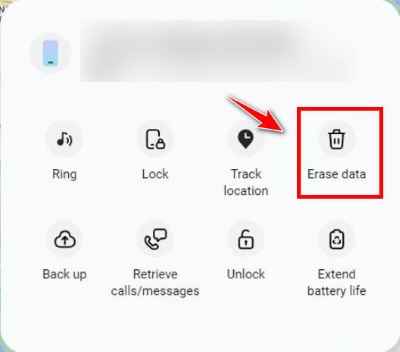
Samsung SmartThings Find
Go to SmartThings Find
On a Galaxy phone, open a browser on another device and go to the SmartThings Find site.
Sign in
Sign in with the Samsung account that was linked to the locked phone.
Erase Data
Select the device and choose Erase Data.
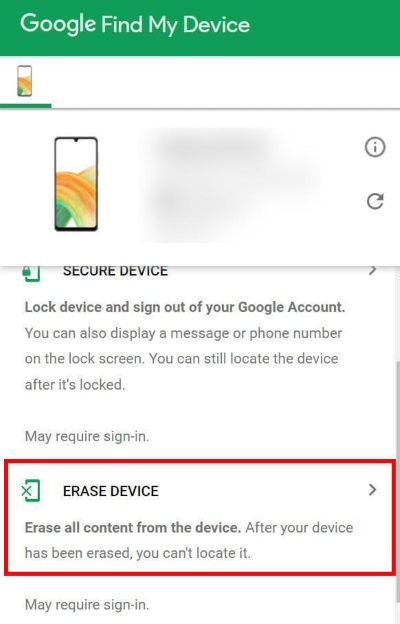
Google Find My Device
Sign in
Visit android.com/find from another device or computer. Sign in with the Google account that was previously on the phone.
Wipe Data
Select the locked device and choose Erase device.
Note:
After any factory reset, Google's Factory Reset Protection (FRP) almost always activates. During the initial setup, the phone will require the previous Google account credentials. Without them you cannot finish setup. This is deliberate anti-theft protection, and it survives the wipe. If you have forgotten the Google account or password, you can recover it through Google's account recovery process or bypass FRP.
Part 5. Prevent Future Lockout: Back Up Android
The smartest move is to avoid this situation next time.
1. Turn on automatic backups
Go to Settings > Google > Backup, or System > Backup, and enable Backup by Google One. This will prevent data loss when you factory reset your Android.
2. Securely store your PIN
Keep a written record of your PIN in a safe place, or save it in a password manager for your Android. Use fingerprints or face recognition as a secondary unlock method, but always keep a working PIN as the backup.
3. Set up extra backup options if needed
Back up media: Open Google Photos and turn on Backup & Sync so your pictures and videos are safely stored in the cloud.
Samsung-specific: Use Smart Switch or Samsung Cloud as an additional backup method.
4. Enable Extend Unlock
In Settings, turn on Extend Unlock (also called Smart Lock) so your phone stays unlocked in trusted situations.
Conclusion
Getting locked out of your phone is frustrating, but most of the time there is a workable path to unlock an Android phone with a forgotten PIN. Start with the Samsung previous-PIN option or Google credentials if they apply to you. Move to imyPass AnyPassGo or a factory reset when other methods fail. Back everything up going forward so a forgotten PIN stays a minor headache instead of a full crisis.
Gideon writes about unlocking iOS, Android, and Windows devices. He previously worked as a mobile device specialist in a repair center, assisting customers with locked devices and password recovery. In his spare time, he tests new unlock tools, customizes smart devices and makes complex unlock processes simple and safe.
Hot Solutions
-
Unlock Android
-
Unlock iOS
-
Password Tips
-
iOS Tips