Solution
 Support Center
 About Us
 Contact
4 Ways to Unlock Samsung Phone When You Forgot Password
 Gideon Byron Published on February 06, 2026Unlock Android3-min reading
As the first level of security measurement on Samsung phones, the lock screen password prevents others from accessing your device and data without permission. However, it is frustrating if you forget your password or PIN as you will lose access to your device. The good news is that you can unlock your Samsung phone by yourself. This guide demonstrates 4 methods on how to unlock Samsung phone when you forget the password.

In this article:
- Part 1. How to Unlock Samsung Galaxy S25 Without Passcode
- Part 2. How to Unlock a Samsung Phone with Smart Lock
- Part 3: How to Unlock Samsung Phone Without Losing Data via SmartThings Find
- Part 4: How to Unlock Samsung Phone Remotely via Find My Device
- Part 5: Comparison of The 4 Ways to Unlock Samsung Phone
- Part 6. FAQs of Unlocking Samsung Phone
Part 1. How to Unlock Samsung Galaxy S25 Without Passcode
For many Samsung users, forgetting the lock screen password can be a frustrating experience, whether it’s a PIN, pattern, password, or fingerprint. For average people, unlocking a new Samsung Galaxy S25 phone without a factory reset can also be challenging. Fortunately, there is a reliable and efficient solution. imyPass AnyPassGo is one of the best tools designed to unlock Samsung phones without a password, helping you regain access to your device quickly and safely.
4,000,000+ Downloads
Unlock Samsung Galaxy phones without the password.
Easy to use and do not require technical skills.
Available to a variety of screen locks including PIN.
Compatible with a wide range of Samsung phones.
Let's see how to unlock a Samsung phone without the password.
Connect your Samsung Galaxy S25 to computer
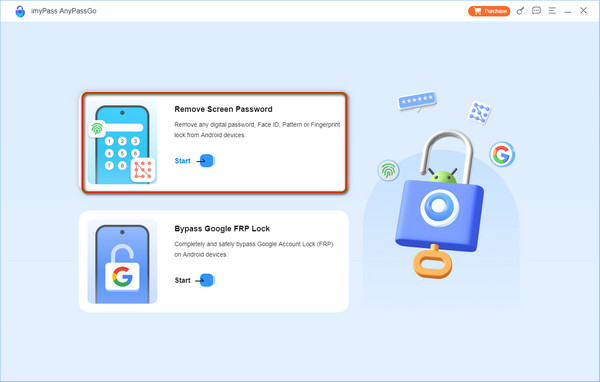
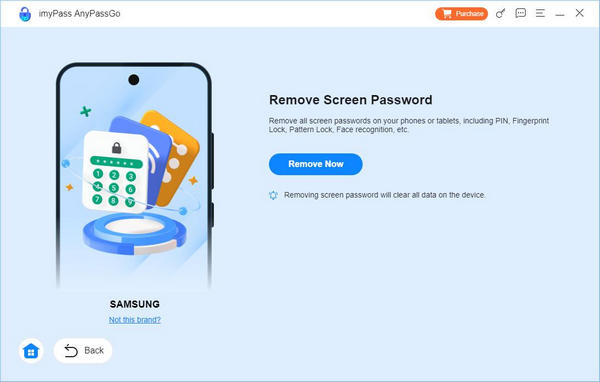
Download, install, and launch imyPass AnyPassGo on your computer. Connect your Samsung phone to your computer. To unlock a Samsung phone screen, choose Remove Screen Password.
Confirm your phone information
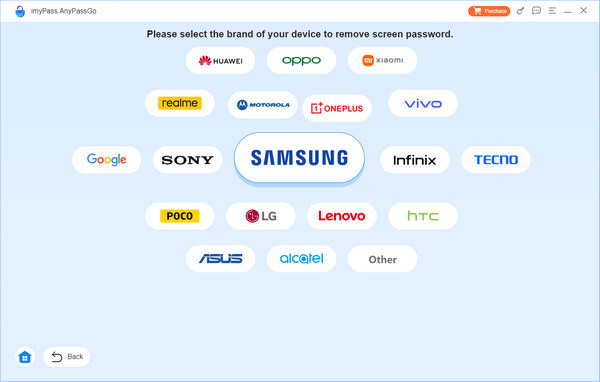
Then select your phone brand. Here we choose Samsung. Then follow the on-screen instructions to enter the Recovery Mode on your phone.
Unlock the Samsung phone
Once you are ready, begin removing the screen lock on your phone immediately. When it is done, disconnect your phone and access it without the screen lock. That's how easily you can unlock Samsung phone when you forgot the passcode.
Part 2. How to Unlock a Samsung Phone with Smart Lock
In addition to professional unlocking software, you have a few ways to unlock a Samsung phone for free. These methods may not be available to all Samsung devices, but they are still worth trying.
Smart Lock is a native feature to unlock the Samsung phone when you forget the screen password. After setting up, it allows your phone to stay unlocked in trusted environments or under certain conditions, reducing the need to repeatedly enter your password.
However, if you haven't set up Smart Lock, you cannot unlock Samsung phone in this method.
| Type | Use Case |
| On-body detection | Keeps the phone unlocked while it is being carried, such as in your hand or pocket |
| Trusted places | Automatically unlocks the phone when you are in a trusted location, like home or office |
| Trusted devices | Unlocks the phone when connected to a trusted Bluetooth or NFC device, like a smartwatch or car system |
| On-body detection + PIN/Pattern backup | Keeps the phone unlocked while on your person, but requires PIN or pattern if the trusted condition is lost |
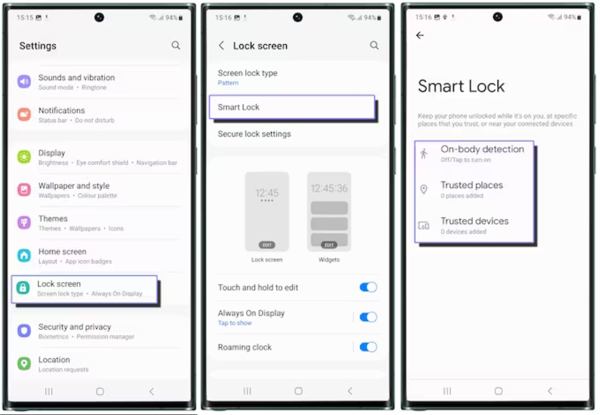
Open the Settings app on your phone.
Navigate to Lock screen, Smart Lock, read the description, and tap GOT IT.
Now, select a Smart Lock type that you want to use. Then, you can unlock new Samsung Galaxy S23/S24/S25 without needing a password for free.
Note:
If you don't use your phone for four hours, you have to unlock your screen with the pattern, PIN, or password you set.
Part 3: How to Unlock Samsung Phone Without Losing Data via SmartThings Find
Even if you did not set up Smart Lock, you can still unlock your Samsung phone after you forget your password without a factory reset. SmartThings Find is a feature to manage your Samsung phone through your Samsung account. This feature works to unlock almost all Samsung phones running Android 8.0 or higher.
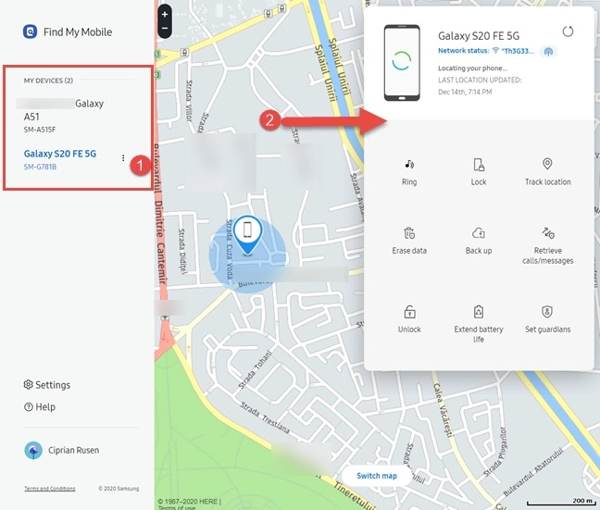
Access smartthingsfind.samsung.com/ in your web browser, and log in to your Samsung account.
Click your phone name on the left side under MY DEVICES, and choose Unlock on the toolbox. Then press Unlock again to confirm it.
If prompted, enter the password of your Samsung account. Then hit Next to unlock your Samsung phone immediately.
Note:
Your phone must be powered on and should be connected to a Wi-Fi or mobile network. Moreover, the Remote Unlock feature must be enabled on your phone.
You May Also Like:
Part 4: How to Unlock Samsung Phone Remotely via Find My Device
Google's Find My Device lets you easily track, lock, or erase the data on most Android phones. Although it does not include an option to unlock Samsung Galaxy A54/A53/A14 5G/S21/S20 and more, the erase feature allows you to remove all data on your device, including the screen lock. Be aware that Find My Device will erase your whole phone so you'd better make a backup before unlocking your Samsung phone. Moreover, you must have enabled Find My Device on your phone.
On Web
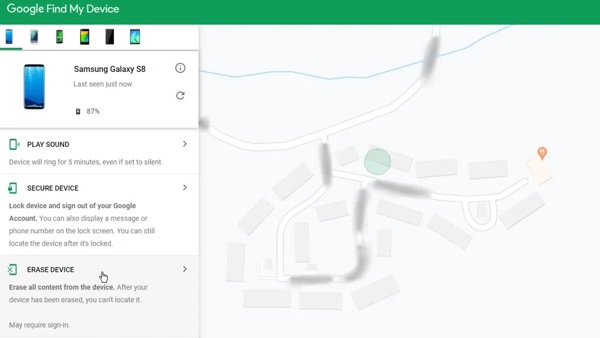
Visit www.google.com/android/find in a web browser, and sign in to the Google account that you added on your phone.
Select your phone on the top left side, and the location of your phone will appear on the map.
Choose the ERASE DEVICE option, and hit the ERASE DEVICE button again to start erasing and unlocking your Samsung phone.
On Another Phone
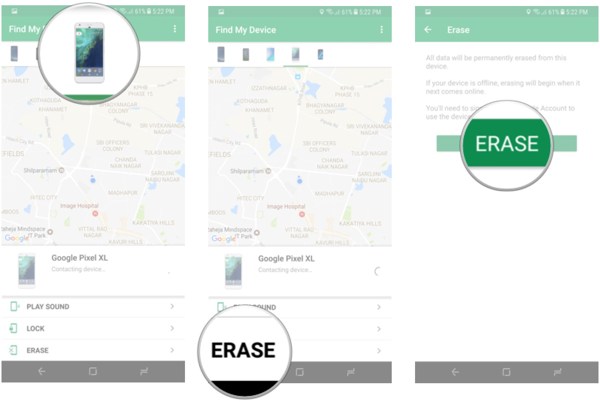
Open the Find My Device app on an accessible phone, and sign in to your Google account.
Tap the locked Samsung phone, press ERASE, and hit the ERASE button.
When it is done, you can access your Samsung phone without a screen lock.
Note:
If your phone is offline now, it will be erased when your device connects to a Wi-Fi next time.
Part 5: Comparison of The 4 Ways to Unlock Samsung Phone
| Method | Best For | Data Preservation |
| AnyPassGo | Users who forgot both phone and account passwords. | Depends on Model |
| Smart Lock | Automatic unlocking in Trusted environments. | Safe (No Data Loss) |
| SmartThings Find | The official, most secure method for Samsung users. | Safe (No Data Loss) |
| Find My Device | Remote reset when the Samsung account is inaccessible. | Wiped (All Data Deleted) |
FAQs.
-
What is the 8-digit code to unlock a Samsung phone?
You can go to your network provider's official website, sign in with your SIM card information, and seek out the network unlock option. As long as you submit the required information, you will receive an unlock code. Or you can call your carrier's customer service and request the code to unlock your Samsung phone.
-
Can I unlock my Samsung phone with an IMEI number?
Yes, you can unlock your phone with the IMEI number. Check the IMEI number in the Settings app on your phone. Then visit an unlock service online, input the IMEI, and pay the bill to unlock your handset.
-
Are Samsung phones unlocked to all networks?
Most devices, including Samsung 5G unlocked phones have support for all carrier brands in the United States. Thus, Samsung unlocked phones can work on all carriers. If your phone is locked, you have to unlock it.
Conclusion
Now, you should understand how to unlock a Samsung phone if you forgot the password. If you enable Smart Lock on your device, you can unlock it automatically. Samsung's Find My Mobile feature lets you unlock a Galaxy phone remotely. Google's Find My Device enables you to remove all data and regain access to your phone. If you want to unlock newly Samsung Galaxy S24 and S25 when you forgot screen passcode and Samsung account password, you'll need imyPass AnyPassGo. It can one-click remove all types of screen locks on all Samsung models.
Gideon writes about unlocking iOS, Android, and Windows devices. He previously worked as a mobile device specialist in a repair center, assisting customers with locked devices and password recovery. In his spare time, he tests new unlock tools, customizes smart devices and makes complex unlock processes simple and safe.
Hot Solutions
-
Unlock Android
-
Unlock iOS
-
Password Tips
-
iOS Tips