



 Solution
 Support Center
 About Us
 Contact
Apple ID Verification Failed? 7 Ways to Fix it & Regain Access
 Samuel Spenser Published on September 16, 2026Unlock iOS3-min reading
"Why does my Apple ID verification code not work when I sign in with my Apple Account?" "Why is the Apple ID verification code not sending?" "Why do I never receive the code from Apple?" Many users encountered verification errors for various reasons. Don't worry. It can be solved with a few simple checks. In this guide, we will guide you on how to fix this problem.

In this article:
Part 1: Why is Apple Verification Code Not Working?
Apple verification code is an important part of Apple ID two-factor authentication. Whenever you sign in on a new device, browser, or app, Apple may ask you to enter a six-digit code to confirm that it is really you. But sometimes, the Apple verification code is not working. Here are the most common situations you may run into.
Not Receiving Apple Verification Code
You don't receive the Apple verification code. It's usually because the code is sent to the wrong device or phone number, or there is a delay with your carrier's SMS service due to network issues. If you cannot receive the code, you need to check and request it again.
Apple Verification Code is Invalid
You received the verification code but see an "invalid verification code" message when entering it. Apple verification codes are temporary. If you request several codes, only the latest one will work. Make sure you enter the newest code carefully.
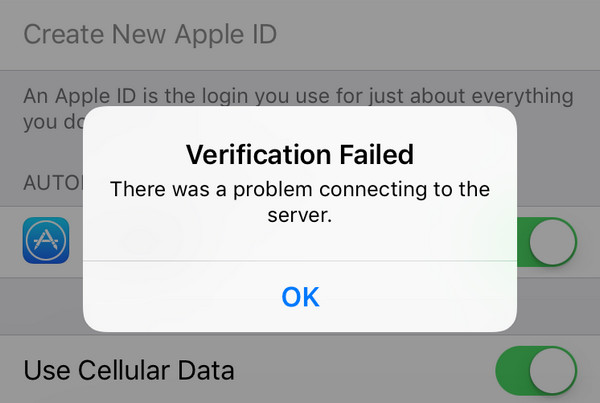
Apple ID Verification Failed
Sometimes, the problem is not the verification code itself, but that Apple failed to verify your identity at that moment. It may be caused by wrong Apple ID password, an unstable internet connection, Apple server issues, or incorrect settings on your device.
Part 2: What to Check When Apple ID Verification Failed
It's necessary to check the following things first before trying more advanced solutions.
Check Login Details
Start by making sure your Apple ID and password are correct. Also, double-check that the Apple ID verification code you entered is correct. If you forgot your Apple ID password, you may need to reset or recover it.
Check Internet Connection
Check whether Wi-Fi or mobile data connection is stable. You can also switch between Wi-Fi and mobile data to see if the issue is caused by your current network.
Check Your VPN Server
A VPN can interfere with Apple ID verification. Turn off VPN on your device and attempt the verification again.
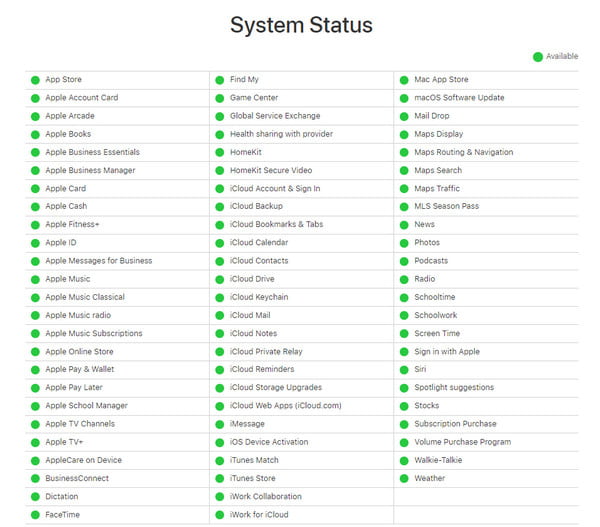
Check Apple Server Status
Check Apple's System Status page to see which services are currently available. A green dot next to the service means it is available. A red dot indicates that Apple is currently working on an issue. You need to wait until Apple fixes it.
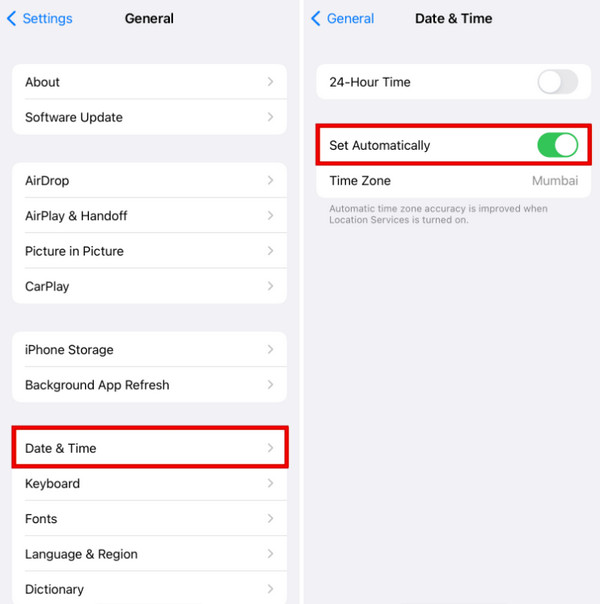
Check Date & Time Settings
If you set a wrong time zone and date, Apple may have trouble verifying your request. Go to Settings > General > Date & Time and turn on Set Automatically to make sure your device has the correct time.
Part 3: How to Fix Apple Verification Code Not Working
After checking the things above, if the verification for Apple ID still failed, you can take these additional fixes to resolve this issue.
Get a Verification Code via Your Phone Number
If you are not receiving the verification code on your trusted device, you can try getting it through your trusted phone number instead.
On the sign-in screen, tap Didn't Get a Code?
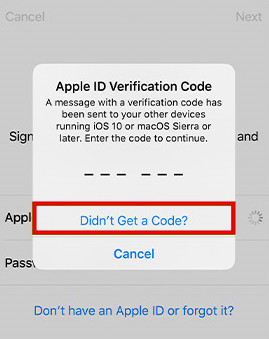
Choose the option to send the code as a text message or phone call.
You will get the code via text or phone call within a few seconds. Enter the verification code and click the Sign In option.
Get a Verification Code from a Trusted Device
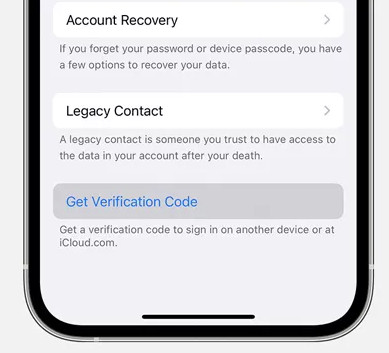
If you have another Apple device that is already signed in with the same Apple ID, you can generate a verification code via Settings directly. It even works offline, but is only available on iOS 17 or earlier.
Open Settings on your device, and tap on [Your Name].
Choose Password & Security.
Tap Get Verification Code, then use this new code to complete the verification.
Update to the Latest iOS
Updating your device may fix the Apple ID verification failing problem.
Go to Settings and select General.
Tap Software Update and check whether a new iOS version is available.
Tap Update Now and follow on-screen instructions.
Reset Network Settings
If your internet connection seems fine but Apple verification still does not work, your network settings may be causing the problem. You need to reset the network settings to fix it.
Open Settings on your iPhone and tap General.
Scroll down and select the Transfer or Reset iPhone option.
Choose Reset and tap Reset Network Settings.
Part 4: How to Recover Apple ID If Verification Failed
If you have tried all the methods above but still cannot complete Apple ID verification, you may need a professional iPhone unlock tool. imyPass iPassGo is a powerful tool that helps remove the Apple ID from your iPhone or iPad safely. It can be useful when you forget the Apple ID password or get stuck on the Apple ID verification process.

4,000,000+ Downloads
Recover Apple Account when Apple ID verification fails.
Remove Apple ID without password on iPhone/iPad.
Delete old, disabled, or inactive Apple ID easily.
Support the latest iOS and iPadOS versions.
Connect the iOS device to computer
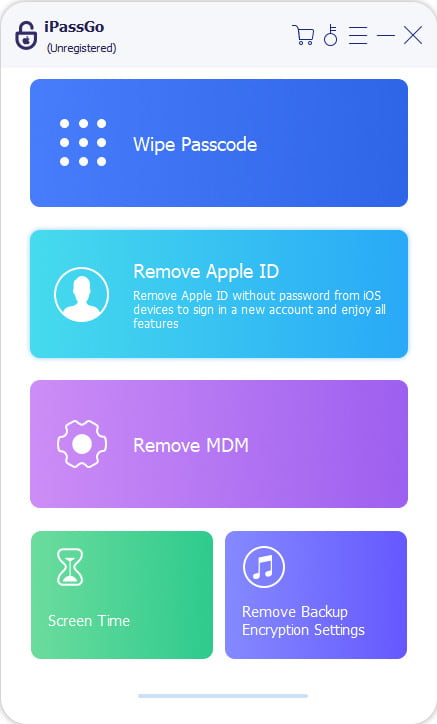
Launch the software on your computer, then select the Remove Apple ID mode from the interface. Use a USB cable to connect your device to the computer. Once connected, click the Start Now button.
Remove Apple ID from your device
If Find My iPhone is turned off:
imyPass iPassGo can remove your Apple ID password immediately.
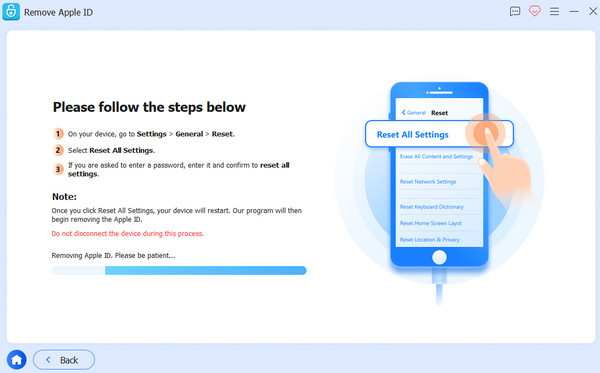
If Find My iPhone is enabled:
You'll need to reset all settings on your device. Go to Settings > General > Reset All Settings. Then, imyPass iPassGo will start removing the Apple ID instantly.
Confirm the unlocking process
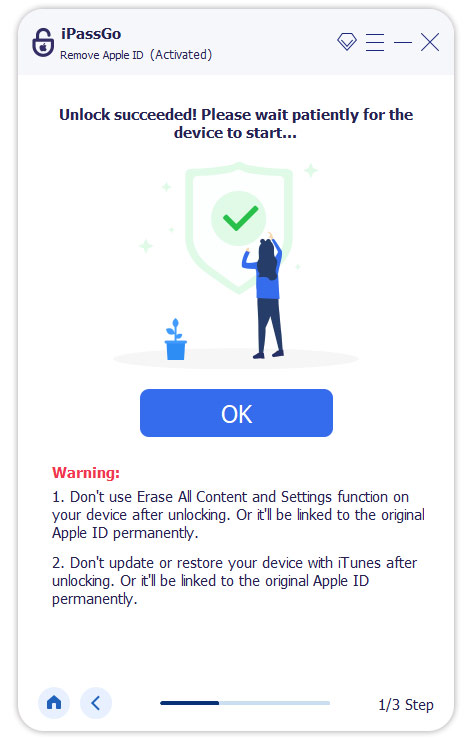
When all has settled, click Confirm Again, then the current Apple ID will be removed soon.
Conclusion
When you're facing the Apple ID verification code not working issue, start with the simple checks and solutions mentioned in this guide. Take your time and go through each method one by one. If nothing works and you are still locked out of your device, you can try imyPass iPassGo as your last resort to unlock your Apple ID.
Samuel specializes in password security and digital privacy. He used to work as a cybersecurity consultant for small businesses to protect digital assets. With certifications in Cybersecurity and Ethical Hacking, he turns complex security topics into easy-to-follow advice. He also enjoys sharing password tips to help users protect their accounts more confidently.
Hot Solutions
-
Unlock iOS
-
iOS Tips
-
Unlock Android
-
Password Tips


