



 Solution
 Support Center
 About Us
 Contact
How to Factory Reset a Locked iPhone or iPad Quickly
 Samuel Spenser Published on September 21, 2026Unlock iOS3-min reading
A factory reset means that you restore a device to its original system state by wiping all user data, apps, and settings. This process promises a fresh start for your iPhone or iPad. When you need to troubleshoot, hand off, or manage the lifecycle, it is an essential step. Apple has introduced the factory reset option into iOS devices. If you forgot your passcode, learn how to factory reset a locked iPhone or iPad from the guide below.

In this article:
Part 1: How to Reset a Locked iPhone on the Security Lockout Screen
Apple added the Security Lockout functionality to iPhones and iPad devices when releasing iOS 15.2 and iPadOS 15.2. It enables users to reset an iPhone to factory settings when locked. The workflow is a little different for iOS 17 and iPadOS 17 or above.
On iOS 17/iPadOS 17 and Later
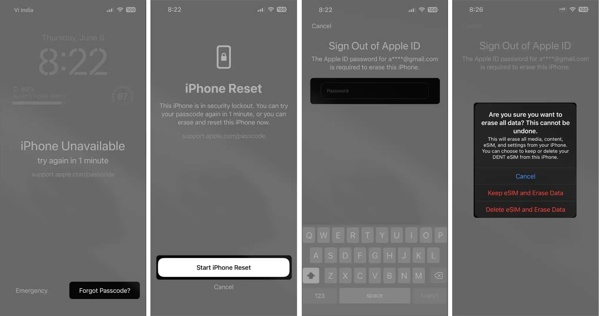
Repeatedly enter a wrong passcode until the Security Lockout screen appears.
Tap the Forgot Passcode button.
Choose the Start iPhone Reset or Start iPad Reset option.
Type in your Apple Account password.
If you are using eSIM, choose Keep eSIM and Erase Data or Delete eSIM and Erase Data.
Then, confirm resetting your device immediately.
On iOS 15.2/iPadOS 15.2 and Later
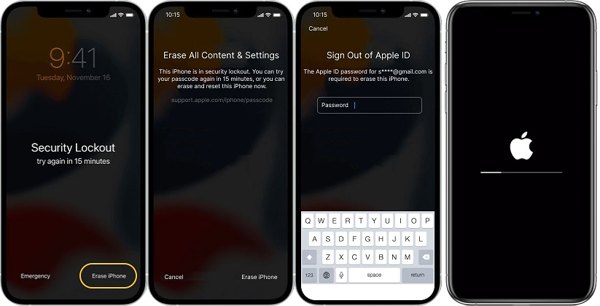
Tap the Erase iPhone or Erase iPad button on the Security Lockout screen.
Read the notification and tap Erase iPhone or Erase iPad again.
Enter the linked Apple Account password to initiate the process.
Part 2: How to Reset a Locked iPhone in Recovery Mode
A hard reset iPhone means force-restarting your device. In other words, it cannot reset a locked iOS device. Instead, you can factory reset a locked iPhone or iPad with buttons in Recovery Mode. This method requires a computer and the latest version of iTunes or Finder.
Link your locked device to a computer with a compatible cable.
Put your device in Recovery Mode:
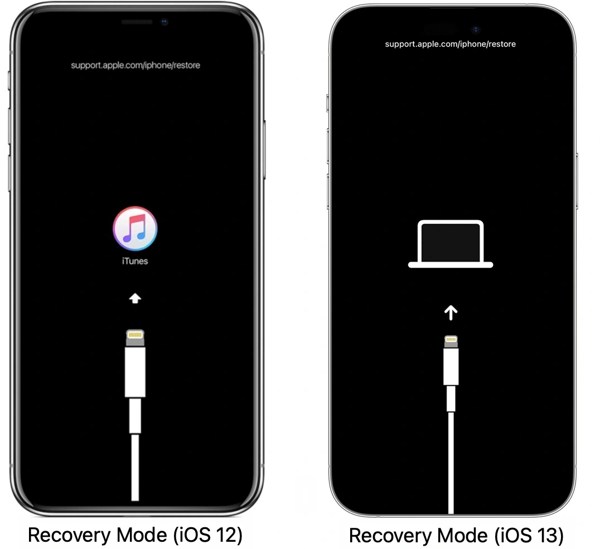
On iOS 27 or iPadOS 27
Power off your device.
Press and hold the Side button.
When you see the Apple logo, keep holding the Side button.
Release the Side button until you see Loading recovery options.
Tap Recovery Mode.
On iPhone 8 or later, iPad without a Home button
Quickly press and release the Volume Up button.
Quickly press and release the Volume Down button.
Press and hold the Side button until you see Recovery Mode.
On iPhone 7/7 Plus
Hold down the Volume Down + Side buttons together.
When your device enters Recovery Mode, release the buttons.
On iPhone 6s or earlier, iPad with a Home button
Long-press the Home + Sleep/Wake buttons simultaneously.
Once your device enters Recovery Mode, let the buttons go.
If iTunes or Finder doesn’t pop up automatically, open it.
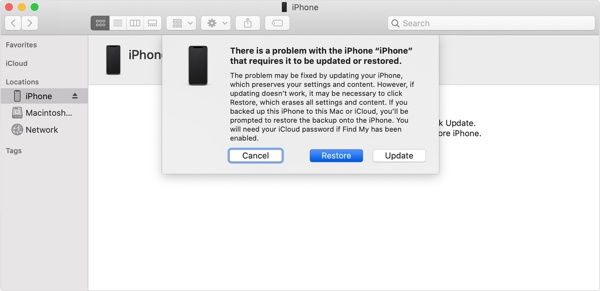
Click on the Restore button on the pop-up dialog to begin resetting your locked iPhone.
Note:
Many methods you can use will factory reset your iPhone or iPad, which will also inevitably erase all data. Therefore, you'd better ensure that you have backed up your iPhone or iPad already. Otherwise, make up your mind to be ready to get a device with no data.
Part 3: How to Reset a Locked iPhone Remotely
Another option to factory reset an iPhone when locked is the Find My functionality. The prerequisite is that you have turned on Find My iPhone or Find My iPad before you are locked out of your device. You can complete the process on iCloud Find My portal or the Find My app on a borrowed Apple device.
On Find My Portal
Visit www.icloud.com/find in a web browser and sign in with the Apple Account linked to your locked device.
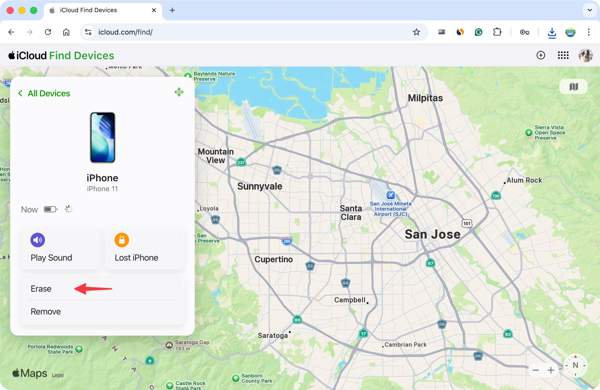
Click and expand the All Devices list and choose your device.
Once your device is tracked, click the Erase button.
Authenticate with your Apple Account password again.
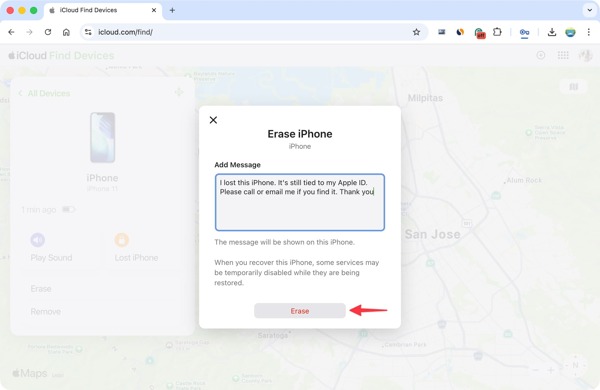
Add your phone number and click Next.
Finally, click the Erase button to begin resetting the locked iPad.
On Find My App
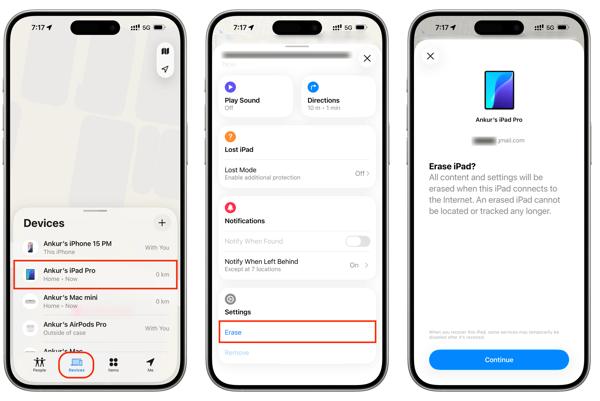
Run the Find My app on another Apple device. You can borrow a device from your friends or family.
Press Help a Friend and sign in with your Apple Account.
Head to the Devices tab and choose your device.
Expand the toolbar and hit the Erase button.
Read the message and press Continue.
Next, follow the prompts to initiate the process.
Part 4: How to Reset a Locked iPhone with a Computer
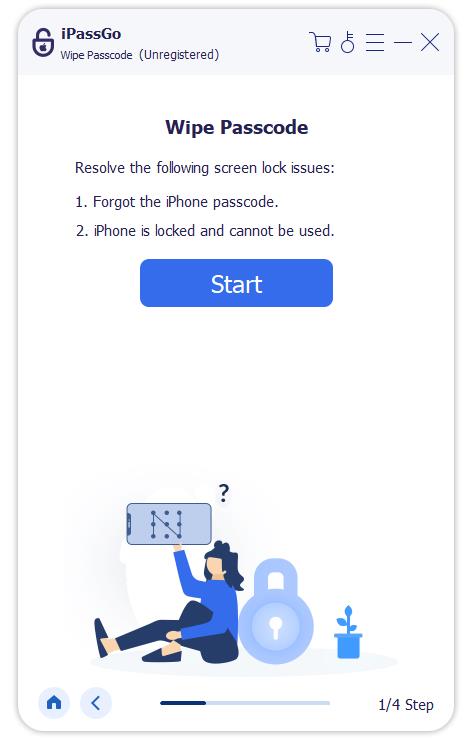
If the methods above are unavailable, you can factory reset a locked out of iPhone or iPad using imyPass iPassGo. It can bring your iPhone or iPad to the factory status without a password or passcode. Moreover, the intuitive interface makes the software easy to use.

4,000,000+ Downloads
Factory reset a locked iPhone or iPad in three steps.
Don’t require any password during the process.
Work for locked, disabled, and frozen iOS devices.
Offer bonus features, like bypassing MDM.
Support the latest editions of iOS and iPadOS.
How to Factory Reset Your iPhone Without a Password
Connect to your device
Launch the iPhone unlocking software after installing it on your computer. It is compatible with Windows 11 to 7 and Mac OS X 10.12 or above. Connect your iPhone to your computer with a Lightning cable and trust this computer.
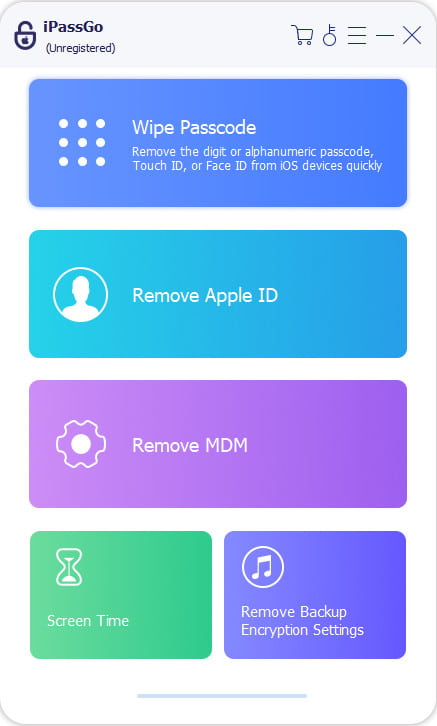
Download the firmware
Choose the Unlock iOS Screen mode to proceed. Once your device is detected, click the Start Now button to download the firmware.
Reset your locked iPhone
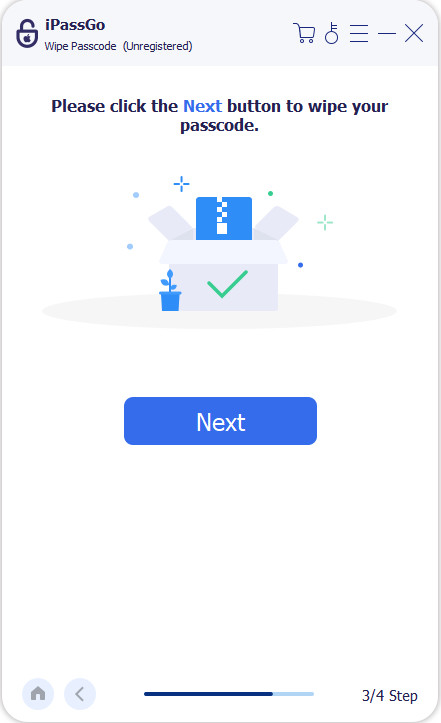
As long as the download finishes, click Start Removing. If you are sure, click Confirm Again to begin factory resetting your locked iPhone or iPad. When it is done, disconnect your device and set it up as a new device.
You May Also Like:
Conclusion
This guide shared multiple ways to factory reset a locked iPad or iPhone in various situations. Recovery Mode enables you to reset your device without accessing your iPhone or iPad. If you have updated your device, try the Security Lockout feature. The Find My functionality is available if you have turned on Find My iPhone or Find My iPad. imyPass iPassGo is the one-stop solution to reset a locked device.
Samuel specializes in password security and digital privacy. He used to work as a cybersecurity consultant for small businesses to protect digital assets. With certifications in Cybersecurity and Ethical Hacking, he turns complex security topics into easy-to-follow advice. He also enjoys sharing password tips to help users protect their accounts more confidently.
Hot Solutions
-
Unlock iOS
-
iOS Tips
-
Unlock Android
-
Password Tips


