



 Solution
 Support Center
 About Us
 Contact
How to Delete the Screen Time Passcode Without Losing Data
 Samuel Spenser Published on June 09, 2026Unlock iOS3-min reading
When Screen Time locks your settings, even simple changes on an iPhone or iPad can feel blocked. Sometimes it occurs when the passcode is forgotten, or when parents or administrators with restrictions lock a device. There are official recovery methods from Apple, but full reset and software-based options, depending on access to Apple ID or device data. This article explains each of the paths and the safest route for you to take in your case, including how to remove the Screen Time passcode.

In this article:
Part 1. The Official Method (For the Account Holder)
Screen Time limits are meant to limit access to the settings for device use, but can be a problem if the Passcode is lost or if the device is broken. In these instances, Apple has a built-in recovery process backed by an Apple ID that was set up during the setup process. This way, the data is not lost, and only the account holder will be able to add or delete restrictions. To use more advanced methods to delete the Screen Time passcode, it's vital to understand this method first.
Go to the Settings on your device, then tap Screen Time from the main menu.
Scroll down and select Change Screen Time Passcode. Choose the option that says Forgot Passcode when it appears.
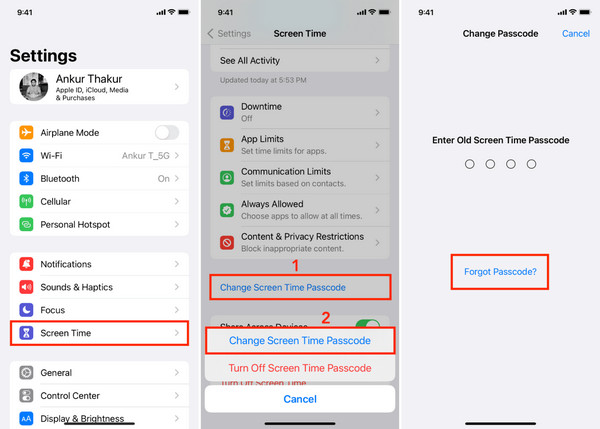
Type in the Apple ID and password that were used to set up Screen Time on the device. This verifies ownership and unlocks recovery access.
Once verified, you can either reset a new passcode or turn off Screen Time completely, which completes how to delete the Screen Time passcode.
Part 2. The Nuclear Option: Erase Your Device
If all other methods to recover have failed, a full reset may be the only way to do it. It eradicates all device configuration and content, including previous Screen Time restrictions. Useful, but should be carried out with caution as all files, applications, and personal information may be deleted in the course of the process.
1. Erase via Find My (If Enabled)
If the Find My feature is enabled, then often the most rapid method of regaining access to a locked iPhone or iPad is by remote erasure. This is essentially a Screen Time passcode decoder; in many situations, that restriction will be cleared off the device during a factory reset.
Open the Find My app on another Apple device or visit iCloud.com and sign in with your Apple ID.
Select the locked iPhone or iPad from your list of connected devices.
Choose Erase This Device to begin the remote wipe process.
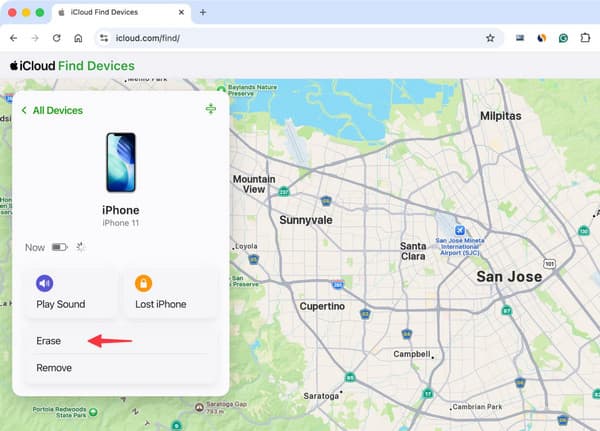
Confirm the action and wait for the device to restart with factory settings restored.
2. Erase via Recovery Mode/Restore with iTunes/Finder
If Find My is unavailable, Recovery Mode provides another way to reset the device fully through a computer connection. This approach is commonly used as a Screen Time passcode remover because it reinstalls iOS and removes all existing Screen Time restrictions from the system.
Use the USB cable to connect the iPhone or iPad to the computer and open Finder or iTunes.
Use the appropriate Button combination for your device model to enter Recovery Mode.
When the restore prompt appears, select Restore to erase the device and reinstall iOS.
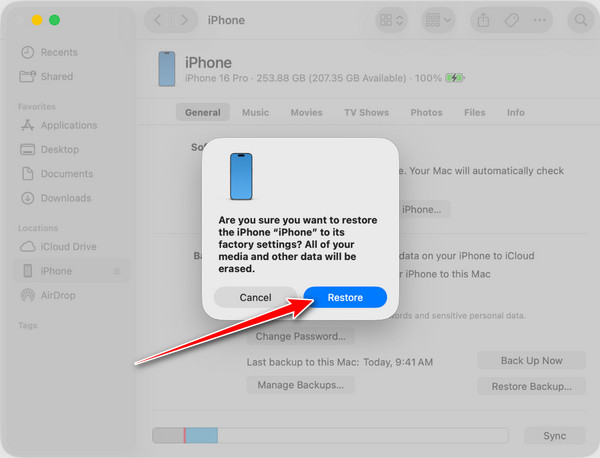
Once the reset is done, reconfigure the equipment and restore the data from backups.
Part 3. Third-Party Software to Bypass Screen Time Passcode
1. imyPass iPassGo
If Apple's internal recovery options are not available, third-party options can help you remove Screen Time restrictions without diving into the advanced reset processes. It can be advantageous for some users to use this method as it does not require an entire erase of the device, but helps them regain access to locked settings. imyPass iPassGo aims to ease the process with its direct desktop-based solution to remove passcodes from Screen Time.
Download and install imyPass iPassGo on your computer using the correct version for Windows or Mac. After installation, launch the software.
From the main interface, pick the Unlock Screen Time mode and connect your iPhone or iPad to the computer using a stable USB connection.
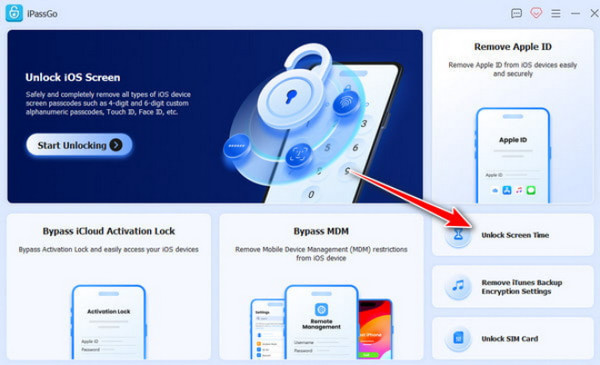
Choose the iOS version of your connected device and click Start now. After that, select the option that matches how the Screen Time passcode was originally configured.
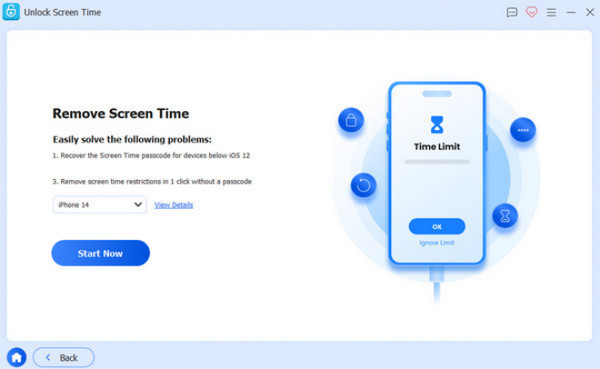
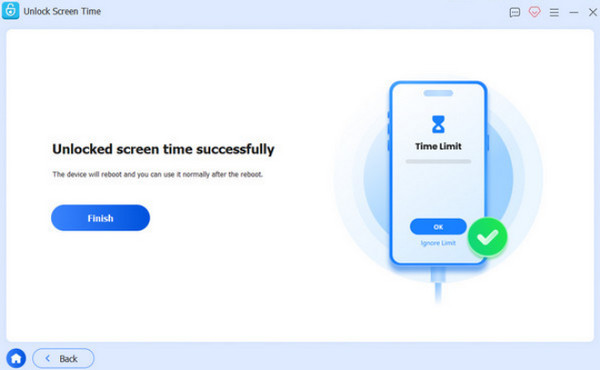
Turn off Find My on your iPhone, enable two-factor authentication for your Apple ID, then click Unlock to begin removing the Screen Time passcode from the device.
2. AnyUnlock
AnyUnlock is a desktop-based recovery tool designed to simplify iOS lock removal through a guided interface. AnyUnlock tool consolidates multiple unlocking functions into a single dashboard, including Screen Time restriction removal. This makes it useful for users searching for how to delete the Screen Time passcode when Apple’s built-in recovery options are not available or have failed.
Open AnyUnlock on your computer and go to the Unlock Screen Time Passcode section from the main dashboard. Then click Start Now.
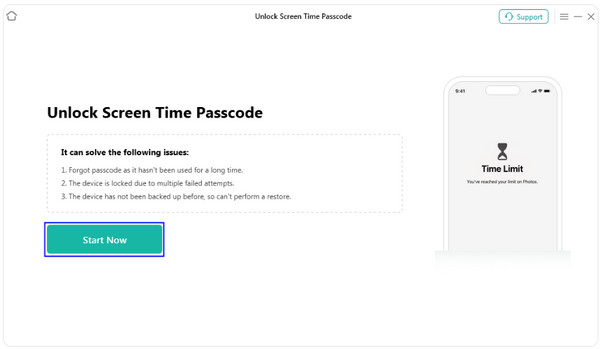
Link up your iOS device using a USB cable and allow the software to detect your device automatically, and click Unlock Now.
The app will create an encrypted backup and wait as the process goes through. If Find My is deactivated, the process will start immediately.
3. TunesKit
TunesKit iPhone Unlocker is built around a modular unlocking system that separates different iOS lock types into individual modules. Its Screen Time removal function is designed for users who need direct access recovery without navigating Apple settings. It is often used by people searching for how to get rid of the Screen Time password when standard Apple ID recovery is not possible.
Launch TunesKit iPhone Unlocker and select Unlock Screen Time Passcode from the available options.
The app requires you to disable Find My and reset the device after removing it. To confirm that you want to proceed, click Start.
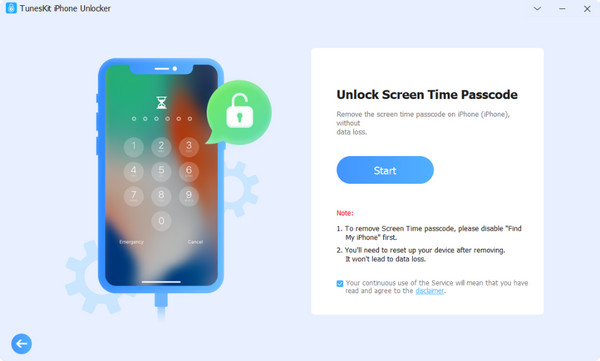
After that process, follow the onscreen instructions in setting up your iPhone, choose the Don’t transfer Apps and Data, then tap Set Up Later in Settings.
Conclusion
The allowance of device use is intended to be there to protect device use, but it can lead to restrictions when access to the passcode is lost. In these situations, the recovery process relies on the technique accessible, from resetting the Apple ID, complete removal of the gadget, or the utilization of a trusted third-party gadget recovery application. There are differing degrees of risk and impact on data with each approach, and it is important to select the correct solution to prevent any unnecessary data loss.
Finally, a Screen Time passcode decoder is nothing more than a collection of legitimate recovery and system reset procedures that can regain control over the limited set of iOS settings where the passcode is missing.
Samuel specializes in password security and digital privacy. He used to work as a cybersecurity consultant for small businesses to protect digital assets. With certifications in Cybersecurity and Ethical Hacking, he turns complex security topics into easy-to-follow advice. He also enjoys sharing password tips to help users protect their accounts more confidently.
Hot Solutions
-
Unlock iOS
-
iOS Tips
-
Unlock Android
-
Password Tips


