



 Solution
 Support Center
 About Us
 Contact
What Is Touch ID and How to Use Touch ID on iPhone/iPad
 Samuel Spenser Published on May 09, 2026Unlock iOS3-min reading
As a biometric ID, Apple's Touch ID is an electronic fingerprint recognition feature designed for specific iPhone and iPad models. It allows users to unlock their iOS devices, make purchases, and authenticate Apple Pay online or in apps. However, there are questions about this secure measure among Apple users. This article explains this system and shares the information about it you should know, such as how to use it on an iPhone or iPad.

In this article:
Part 1. Where Is Touch ID on iPad and iPhone
As mentioned previously, Apple Touch ID is the biometric ID system designed for unlocking iOS devices without frequently entering the passcode. It was introduced in the iPhone 5s in 2013. In 2015, Apple developed the second-generation Touch ID in the iPhone 6s, which is faster than the first-generation. The iPad Touch ID was introduced in 2014 when releasing iPad Air2.
How does Touch ID work? Apple Touch ID works through a fingerprint sensor. It can scan, read, and recognize fingerprints. Once you enable Face ID, the sensor captures high-resolution images of your fingerprint in 360 degrees of orientation and analyzes the epidermal layers of the skin. When you want to unlock your iOS device or use payment, put your finger on the sensor, and it will match and recognize your fingerprints.
Where is Touch ID on iPad? Depending on your iPhone or iPad model, Touch ID is built into the Home or Top button, which is made of laser-cut sapphire crystal and won't scratch easily. If your iPad comes with a Home button, the Touch ID sensor is built into the button. If not, it may be built into the Top button.
The iPhone and iPad Models with Touch ID
iPhone 8/8 Plus/7/7 Plus/6s/6s Plus/5s
iPhone SE 1st, 2nd, and 3rd generation
iPad 5th to 11th generation
iPad Pro was released in 2015 and later
iPad Air 2nd to 6th generation
iPad mini 3 to 7
Part 2. How to Set up Touch ID on iPad/iPhone
By default, Touch ID is disabled, and you need to set up Touch ID on your iPad/iPhone. According to Apple, you can add up to 5 fingerprints on a single device. Moreover, you can use more than one person's fingerprints on one iPad or iPhone.
Run the Settings app from your home screen.
Scroll down and choose Touch ID & Passcode.
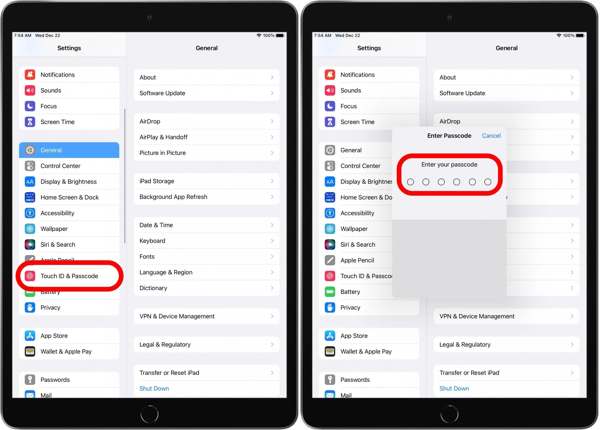
If prompted, enter your digit passcode. If you don't have a passcode, you will be asked to set one first.
Now, you can find the settings for Touch ID.
Tap the Add a Fingerprint button.
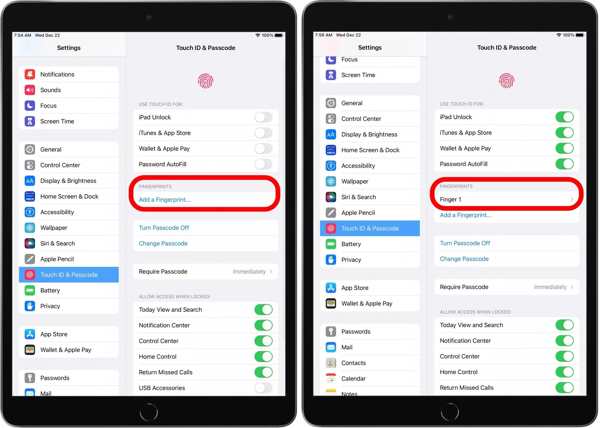
Follow the onscreen instructions to scan one of your fingers in 360 degrees.
When the scan is complete, it is named Finger [number] under the Fingerprints section.
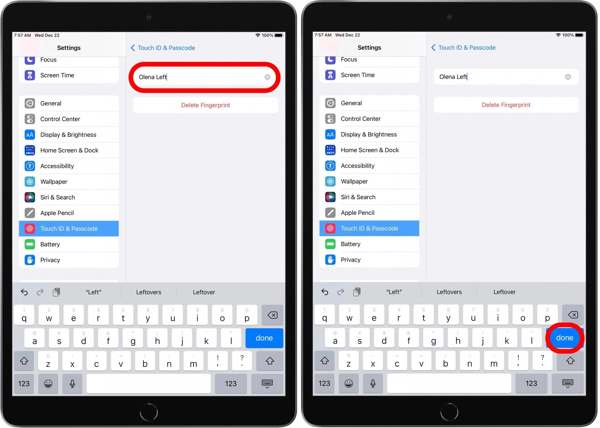
Optionally, tap Finger 1, rename it, and tap Done.
To use Touch ID on iPad, toggle on iPad Unlock under the USE TOUCH ID FOR section.
Moreover, you can use Touch ID for the App Store, Apple Pay, and Password AutoFill by enabling the corresponding options.
Next, move to the ALLOW ACCESS WHEN LOCKED section and decide what features the Touch ID can be used for.
After setup, put the finger you have added on the Home or Top button to unlock your iPad or iPhone quickly.
Note:
If you want to add another fingerprint, tap the Add a Fingerprint button again.
Extended Reading:
Part 3. How to Turn off Touch ID on iPad
When you want to stop using fingerprints, you can temporarily turn off Touch ID on iPad/iPhone or completely delete fingerprints from your device. Moreover, you can disable Touch ID for specific services.
Turn off Touch ID on iPad
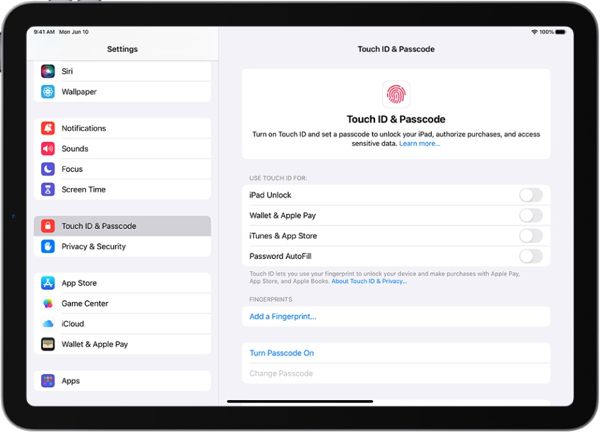
Choose Touch ID & Passcode in your Settings app.
Enter your passcode when prompted.
Toggle off iPad Unlock.
If prompted, tap Turn Off to confirm it.
Note:
If you just disable iPad Unlock, Touch ID still works for other services.
Delete Touch ID on iPad
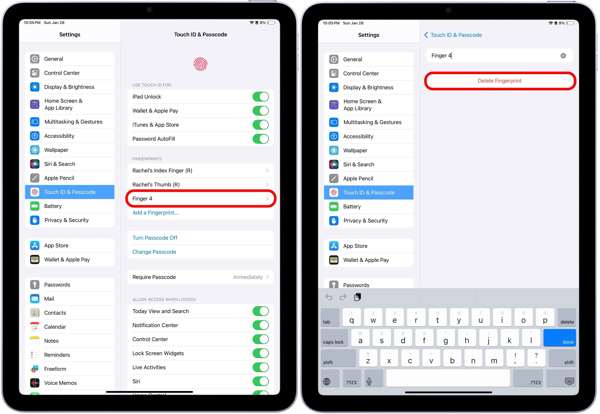
Enter the Touch ID & Passcode screen in Settings.
Choose the unwanted fingerprint under the Fingerprints section.
Tap Delete Fingerprint.
Part 4. What to Do If Touch ID Is Not Working
If Touch ID is not working or you cannot turn off Touch ID, try imyPass iPassGo. It can remove all your fingerprints from your iPad or iPhone without any restrictions. Furthermore, the workflow is simple due to the user-friendly design.

4,000,000+ Downloads
Remove iPad Touch IDs with a single click.
Work for Touch IDs, Face IDs, and digit passcodes.
Won't jailbreak your device during the process.
Support all iPad and iPhone models with Touch ID.
How to Turn off Touch ID on Your iPad Without a Passcode
Connect to your iPad
Start the Touch ID removal software after installing it on your PC. There is another version for Mac users. Connect your iPad or iPhone to your PC with a Lightning cable. If prompted, trust this PC. Go to the Wipe Passcode mode.
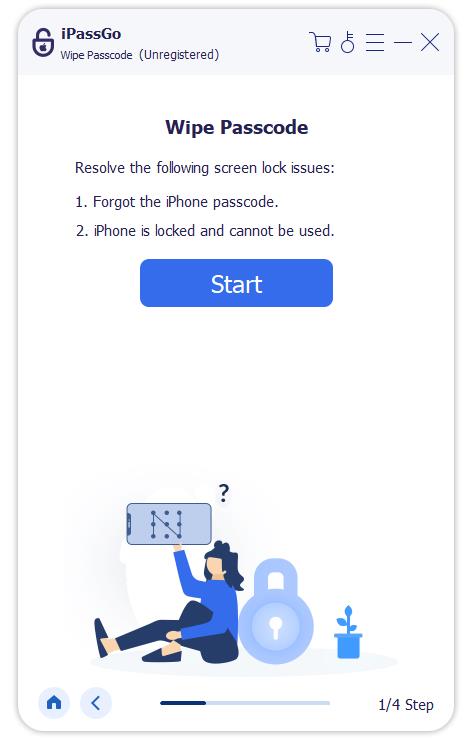
Download the firmware
After your device is detected, click the Start button to load the information. Check them and click the Start button to begin downloading the firmware package.
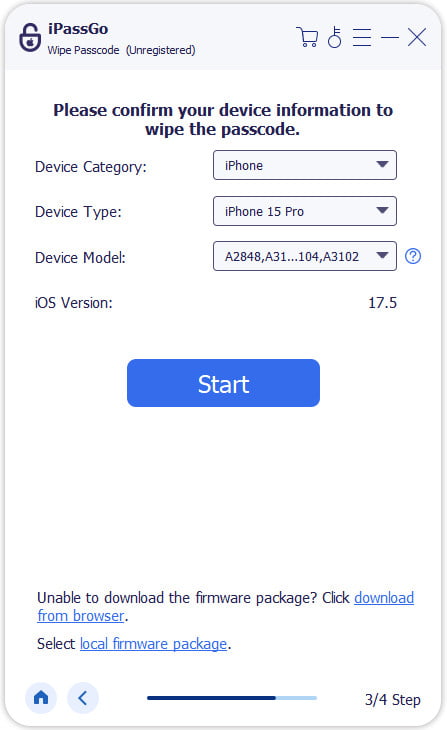
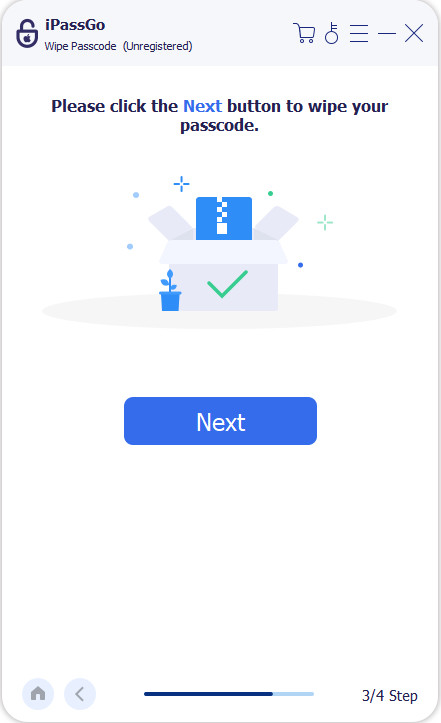
Turn off Touch ID
Wait for the download to finish, and then click the Unlock button to continue. Read the on-screen notification and follow the prompts to complete the process. This process will also factory reset your iPhone. When it is done, your iPad will restart, and you can unlock it directly.
Conclusion
This article shared one of the biometric ID systems, Apple Touch ID. Following our introduction, you should understand what it is and how it works. More importantly, you can follow our guide to add your fingerprints to your iOS device and use it for various services. Moreover, we recommended imyPass iPassGo. It can help you remove fingerprints even if your iPad is inaccessible or disabled without technical skills.
Samuel specializes in password security and digital privacy. He used to work as a cybersecurity consultant for small businesses to protect digital assets. With certifications in Cybersecurity and Ethical Hacking, he turns complex security topics into easy-to-follow advice. He also enjoys sharing password tips to help users protect their accounts more confidently.
Hot Solutions
-
Unlock iOS
-
iOS Tips
-
Unlock Android
-
Password Tips


