



 Solution
 Support Center
 About Us
 Contact
How to Unlock Your iCloud Account Without Password
 Samuel Spenser Published on May 11, 2026Unlock iOS3-min reading
The iCloud account plays a key role in Apple’s ecosystem. It is used not only to access iCloud storage but also to back up data and expand Apple device space. Moreover, it also links to a security measure, Activation Lock. If you want to sell your iOS device or give it to someone else, you’d better unlock your iCloud account. This guide shares multiple proven methods for when you forget your account password.

In this article:
Part 1. An Intuitive Way to Unlock iCloud Account
Generally speaking, you can get into your iCloud account if you still remember your password. After forgetting the password, you have to reset it first and then unlock your account. Luckily, imyPass iPassGo can streamline the process. Moreover, the straightforward design makes it a good option for beginners.

4,000,000+ Downloads
Unlock iCloud account without the password.
Work for all situations, including when your account is disabled.
Offer bonus features, like Screen Time removal.
Support a wide array of iPhones and iPad devices.
How to Unlock iCloud Account Without a Password
Install iCloud removal software
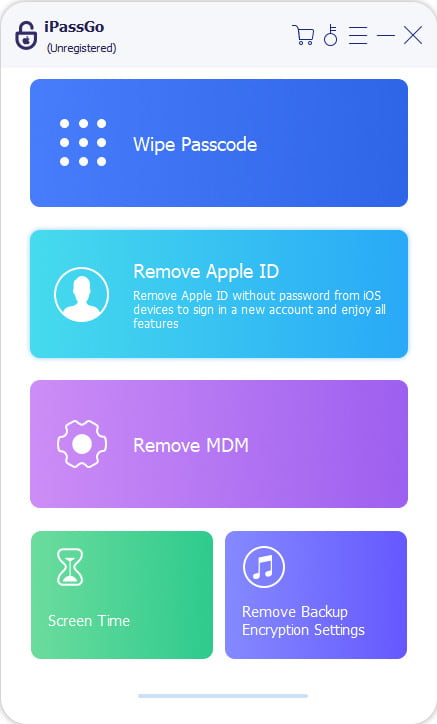
Start the iCloud account removal software once you install it on your computer. It is compatible with Windows 11/10/8/7 and macOS 10.12 or above. Choose the Remove Apple ID mode to proceed.
Connect to your iPad
Connect your iPad to your computer with a Lightning cable. If prompted, make sure to trust your computer. The software will detect your device automatically.
Remove iCloud account
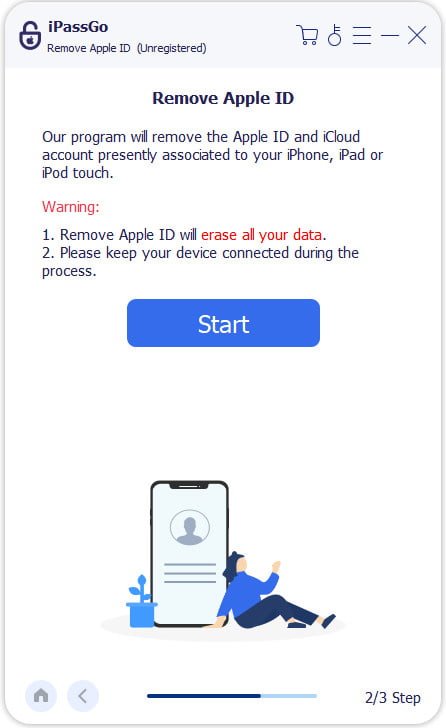
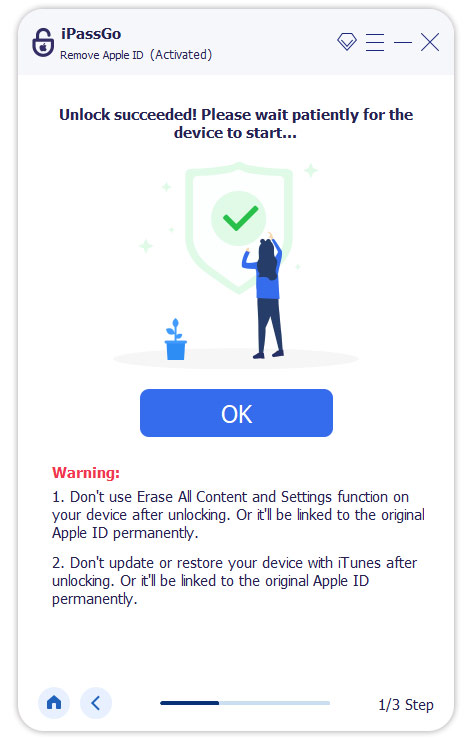
Click the Start button to begin unlocking your iCloud account on your device immediately if Find My is disabled. If Find My is enabled, follow the on-screen prompts to reset all settings on your device. Then, the software will do its job. When it is done, disconnect your iPhone or iPad.
Extended Reading:
Part 2. How to Unlock iCloud Account by Changing Apple ID Password
As mentioned previously, if you forgot your iCloud account password, you have to reset it and then unlock the account on your device. With Two-factor Authentication enabled, you can unlock your iCloud account on your iOS device without extra hardware.
Run the Settings app on your iPhone or iPad.
If your trusted device is a MacBook, open the System Settings app.
Tap on your profile and go to Sign-In & Security.
Tap the Change Password button.
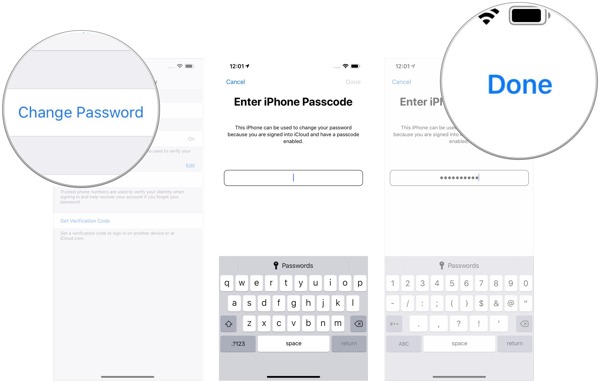
Enter your lock screen passcode.
Set a new password for your iCloud account and tap Done.
Back to the Settings app and tap on your profile again.
Scroll down and tap the Sign Out button.
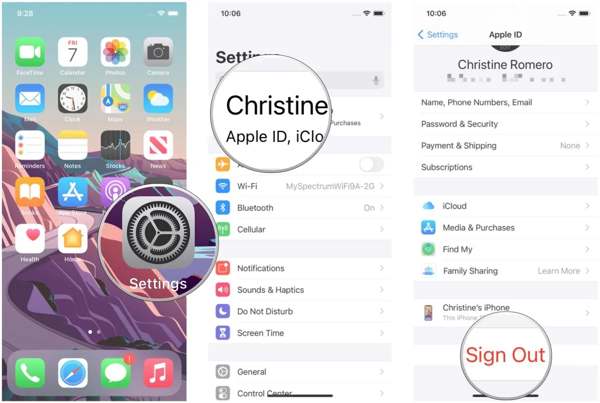
Keep a copy of the desired data types or not.
Tap the Sign Out button again.
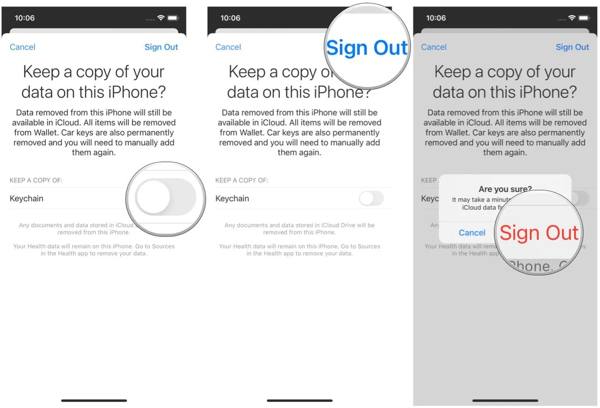
Finally, read the warning and choose Sign Out to unlock the iCloud account.
Part 3. How to Unlock iCloud Account by Resetting Apple ID Password Online
If you have reset your Apple device locked to an account, you cannot get into the iCloud account on your iPhone or Mac anymore. Alternatively, you have to reset your iCloud password online and sign out of it from your device.
Visit https://iforgot.apple.com/ in your browser.
Enter your Apple ID email address.
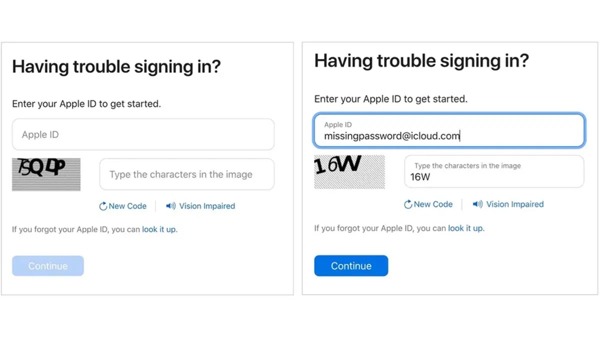
Type the characters in the image and click Continue.
Confirm the associated phone number and hit Continue.
Follow Apple’s additional instructions to verify your ownership:
Choose a trusted device if 2FA is turned on. Then, turn on the device, hit Allow on the notification, provide the login passcode, and reset your iCloud password.
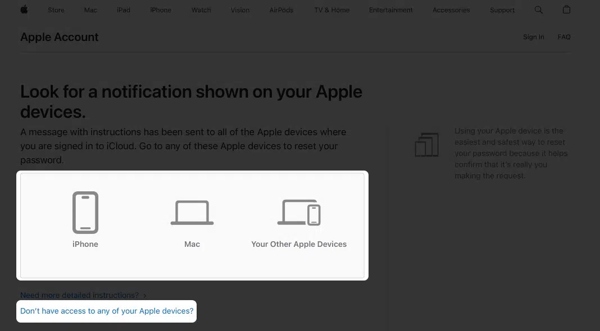
Press the link of Don’t have access to any of your Apple devices if the trusted device is inaccessible. Next, locate an available option and click the Continue button. Follow the prompts to complete resetting your iCloud password.
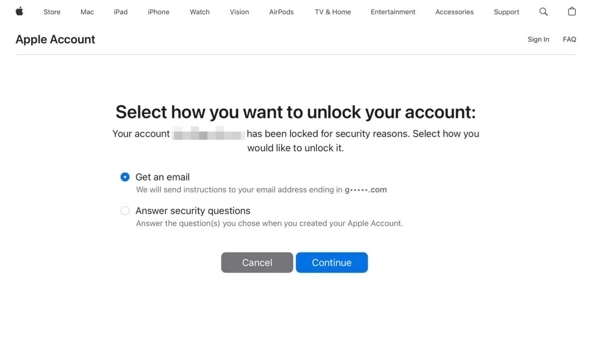
Select Get an email or Answer security questions if 2FA has not been enabled. Click Continue and verify your ownership via email or by answering your security questions.
Enter your verification code if you have set up Two-step Verification.
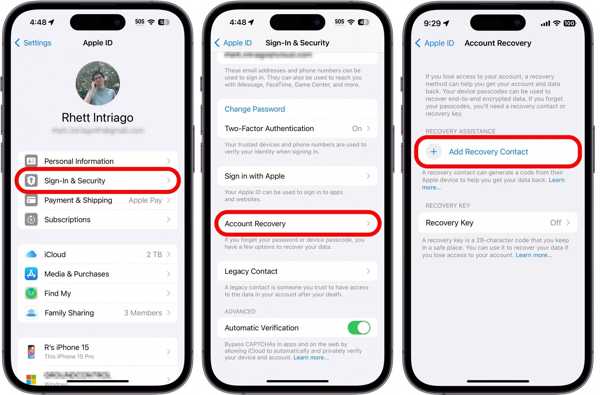
If you have set up Account Recovery Contact, go to Settings, tap on your profile, choose Sign-In & Security, and tap Account Recovery. Tap the contact and press Get Recovery Code to get the recovery code. Then, enter the code to make a verification.
Leave a new password, re-enter it, and confirm the changes.
Now, turn on your device and unlock your iCloud account with the new password.
Part 4. How to Unlock iCloud Account Using Apple Support
If you don’t have a computer and your Apple device is inaccessible, you can borrow an iPhone from a family member or a friend. The Apple Support app allows you to reset your iCloud account password when you forget it. Then, you can unlock your iCloud account from your device with the new password.
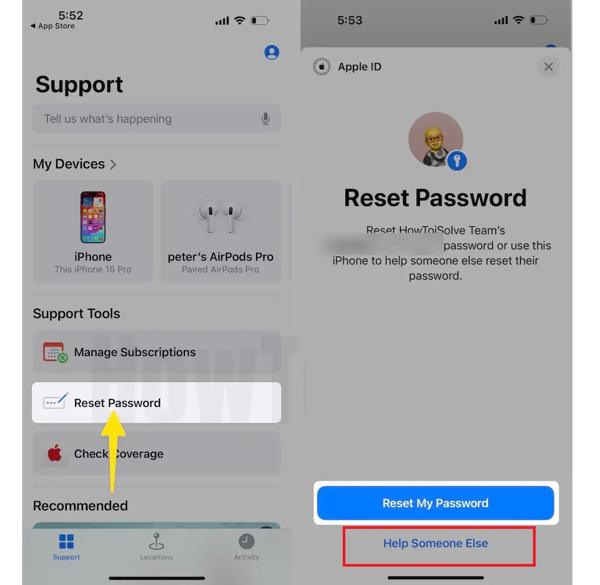
Install the Apple Support app from the App Store for free.
Open the app.
Choose the Reset Password option under the Support Tools section.
Enter the phone number or email address associated with your account.
Once you receive the 28-character recovery code, enter it.
Next, enter a new password, verify it, and confirm your action.
Turn on your iPhone, go to the Settings app, tap on your profile, and tap Sign Out. Unlock the iCloud account with the new password.
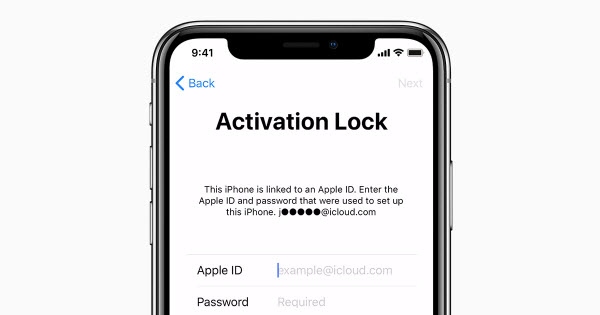
If you have factory reset your iPhone, set it up as a new device. When you reach the Activation Lock screen, enter your iCloud account and the new password to unlock it.
Conclusion
This guide discussed how to unlock your iCloud account password after you forgot it. The general methods require you to reset your account password on a trusted device, on iForgot, or using Apple Support. You can follow our steps to complete the process. Nevertheless, imyPass iPassGo is a better option for ordinary people to get rid of iCloud account from iPhone or iPad without technical skills or any restrictions.
Samuel specializes in password security and digital privacy. He used to work as a cybersecurity consultant for small businesses to protect digital assets. With certifications in Cybersecurity and Ethical Hacking, he turns complex security topics into easy-to-follow advice. He also enjoys sharing password tips to help users protect their accounts more confidently.
Hot Solutions
-
Unlock iOS
-
iOS Tips
-
Unlock Android
-
Password Tips


