



 Solution
 Support Center
 About Us
 Contact
Why is Face ID Not Available: Fix It to Unlock Your iPhone
 Samuel Spenser Published on May 20, 2026Unlock iOS3-min reading
Adding a passcode to an iPhone is convenient because it can secure your data. But it is a bit of a hassle for some users because it sometimes takes a while to unlock the iPhone. It is the common reason why people use Face ID. They only need to scan their faces to unlock the iPhone in a few seconds.

However, there are instances where users experience that Face ID is not available. It may be due to a software or a hardware issue on the iPhone. If you are experiencing this issue, this article is best for you! It has simple methods to teach you to resolve the mentioned problem. Kindly scroll below to know the processes.
In this article:
Part 1. Common Reasons Face ID is Unavailable
The Face ID can be experienced with different software and hardware issues. Many are unaware of them, but they can be discovered in this section. Please see the list below to know the common reasons for the iPhone Face ID Not Available issue.
- 1.An obstructed camera or sensors of your iPhone.
- 2.Water damage and other physical damage.
- 3.Incorrect settings for Face ID.
- 4.Software bugs and glitches.
- 5.Changes in the appearance of the owner.
- 6.Poor lighting or angle while unlocking Face ID.
Part 2. Quick Fixes (Try These First)
Before you unlock or bypass Face ID using more advanced methods, these three methods in this section must be performed first. They can be done in a few seconds. Also, they will not affect your iPhone data. See them from the list below.
1. Clean the Camera
Have you seen the Face ID Not Available, Try Again Later error message? This problem can occur when the camera is dirty or when there is small debris blocking it. Cleaning it with a cloth is suggested to let your iPhone scan your face easily.
2. Restart the iPhone
An iPhone that cannot verify Face ID can also be caused by bugs and glitches in the software. Restarting it is the best option to fix the issue. See how below.
- For an iPhone without a Home button, press and hold Side and Volume Down. Toggle off the slider afterward.
- For an iPhone with a Home button, please press and hold Side or Top. Toggle off the slider on the screen to restart it.
3. Update iOS
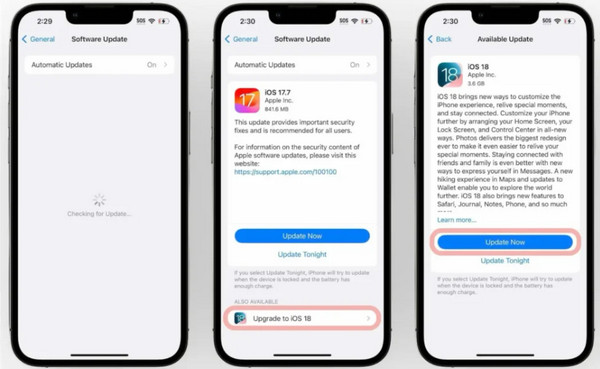
There might be an outdated feature that supports Face ID, which is the reason for its non-functionality. You may try to update your iOS to fix the Face ID is Not Available at This Time issue.
Open the Settings app and choose the General button. Tap the Software Update button from the list.
Wait if there is an available update. Then, tap the Update Now button.
Part 3. Software & Settings Fixes (Deeper Troubleshooting)
If the simple methods did not work, it is time to take deeper troubleshooting methods. Before anything else, ensure that you do not unlock iPhone Face ID while sleeping. This method is not accessible. Please proceed with the process below.
1. Check Face ID Settings
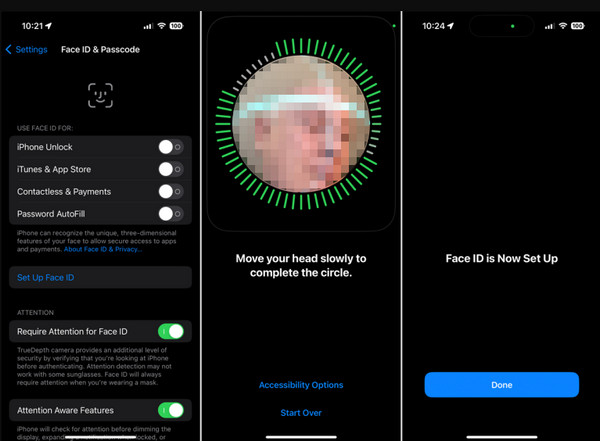
The Face ID settings are important for scanning your face when unlocking the iPhone. It is better to check them to avoid issues. You can refer to the steps below to know how.
Open the Settings application on the iPhone. Select the Face ID & Passcode button on the list.
Look for faulty settings for the Face ID. Then, ensure that you correct them.
2. Reset Face ID and Set Up Again
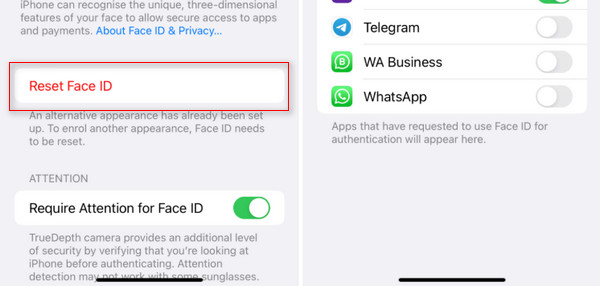
Alternatively, you can reset your Face ID and set it up again. This way, you can ensure that it is set up properly. Know the process with the steps below.
Go to the Settings app. Select the Face ID & Passcode button.
Enter your iPhone passcode and tap the Reset Face ID button. Finally, tap the Set Up Face ID button. Perform the on-screen steps to complete the setup process.
3. Reset All Settings
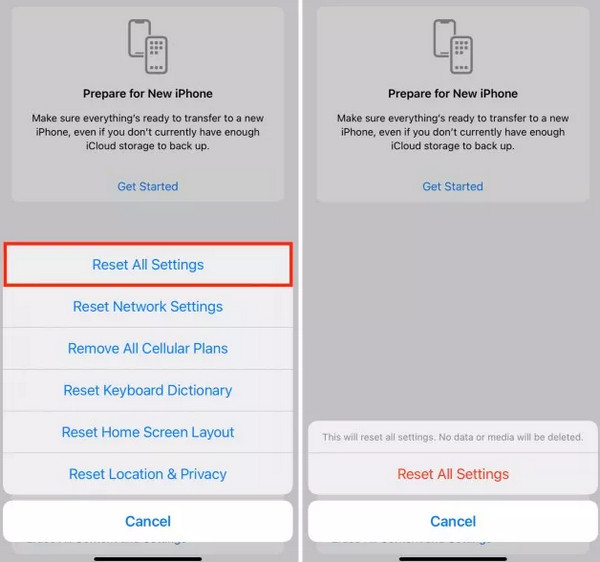
A faulty setting on your iPhone can affect the scanning process of your Face ID. Reset all settings on an iPhone to fix this issue. See how the process can be done with the steps below.
Open the iPhone Settings app. Then, select the General button from the list. Choose the Transfer or Reset iPhone button on the list.
Tap the Reset button to see the list of options. Later, tap the Reset All Settings button and authenticate it.
Part 4. Hardware Issues (When Software Fixes Don't Work)
If the Face ID Not Available Try Setting Up Later, or other error message cannot be fixed with software troubleshooting methods, it might be a hardware issue. If that is the issue, you can set up a repair appointment to get your iPhone fixed. It might be due to a damaged camera or screen. However, this option is a bit expensive.
Part 5. Can I Get Into a Locked iPhone Without Face ID
Besides fixing the software and hardware issues with your Face ID, you can also remove it to unlock the iPhone. imyPass iPassGo can help you do that! It is a third-party tool that can help you get rid of a forgotten passcode, PIN, Touch ID, and Face ID on the iPhone, including an iPad. It is an offline tool, so you will not rely on an internet connection.
Additionally, there are other security features it can bypass. It includes iCloud Activation Lock, Screen Time, SIM lock, MDM, and more. Professionals and novices can use the tool due to its simple interface. Do you want to know how to use the tool? Refer to the steps below.
Please download imyPass iPassGo on your computer. Set up the downloaded file based on the requirements, and install the tool afterward. Later, the computer will automatically open the tool.
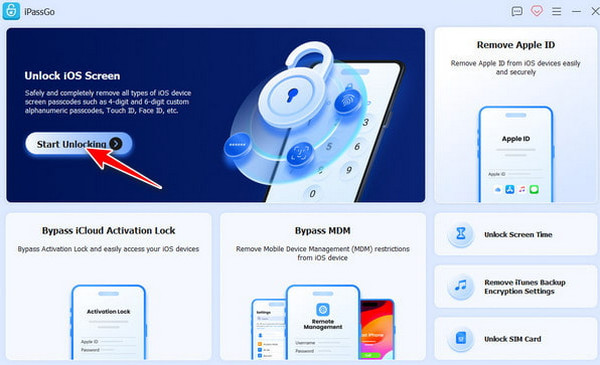
Choose the Start Unlocking button. Plug an iPhone into the computer with your USB cable. Then, select the Start Now button at the bottom left. The firmware package will be downloaded after a few seconds. Select the Start Removing button at the bottom.
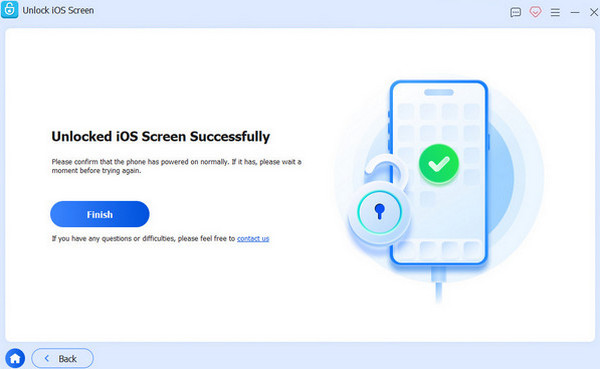
Click the Confirm Again button to proceed with the unlocking process. Wait for it to be completed. Finally, please click the Finish button to end the process.
Conclusion
Why is Face ID not available? In conclusion, there are software or hardware issues your iPhone is experiencing. This post will help you unlock the iPhone or fix the issue causing it. imyPass iPassGo is here to help you unlock the iPhone without Face ID. Downloading the tool will help you know more about it.
Samuel specializes in password security and digital privacy. He used to work as a cybersecurity consultant for small businesses to protect digital assets. With certifications in Cybersecurity and Ethical Hacking, he turns complex security topics into easy-to-follow advice. He also enjoys sharing password tips to help users protect their accounts more confidently.
Hot Solutions
-
Unlock iOS
-
iOS Tips
-
Unlock Android
-
Password Tips


