Solution
 Support Center
 About Us
 Contact
How to Unlock OnePlus Phone: Complete Guide for All Models
 Gideon Byron Published on January 28, 2026Unlock Android3-min reading
A locked OnePlus phone that is locked is frustrating and raises concerns about the security of data. Recovery by using verified techniques will prevent loss of information and the integrity of devices. The official features, such as Google Find My Device and Android Flash Tool, are safe, whereas Smart Lock and Face Unlock allow you to regain access to the models compatible with these features. This guide presents one step by step-by-step description of every approach, so that you can unlock your OnePlus phone effectively, showing safe practices and trusted procedures in the process.

In this article:
- Method 1: Use "Find My Device" (Google's Official Way)
- Method 2: Use OnePlus' Official Tool - Android Flash Tool (OxygenOS Recovery)
- Method 3: For Specific Models - Smart Lock & Face Unlock
- Method 4: Using a Computer & ADB (For Advanced Users with USB Debugging Enabled)
- Bonus: Try the Best Android Unlocker
Method 1: Use "Find My Device" (Google's Official Way)
Being locked out of your OnePlus phone can be stressful, but there is a secure way to regain access. In this guide, you will learn how to unlock your OnePlus phone using Google’s Find My Device. Follow these simple steps to restore access quickly and securely.
Go to https://www.google.com/android/find on a computer or another smartphone. Sign in with the Google account connected to your locked OnePlus phone.
From the list of devices, select your OnePlus phone. Make sure the device shows as online.
Click Erase Device and follow the prompts. This removes the lock screen and all data. Only use this if other recovery options are not available.
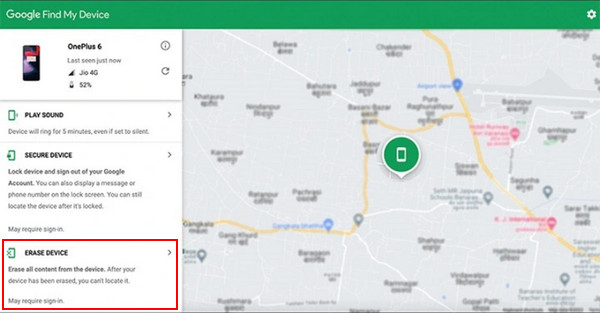
Once the erase is complete, restart your phone. Sign in with your Google account and make a new password or pattern. Your OnePlus phone is now unlocked and ready to use.
Method 2: Use OnePlus' Official Tool - Android Flash Tool (OxygenOS Recovery)
If your OnePlus phone is locked, using the official Android Flash Tool to install OxygenOS is a safe and reliable solution. This method fixes your phone to its original software while removing the lock screen. Here is a simple guide on how to unlock a OnePlus phone using this tool.
Get the latest OxygenOS or download TWRP recovery for your model.
Install Android SDK Platform Tools, install ADB drivers, and restart your computer.
Enable Developer Options on your phone by thumping Build number in Settings > About Phone. Turn on USB debugging and link your phone to the computer.
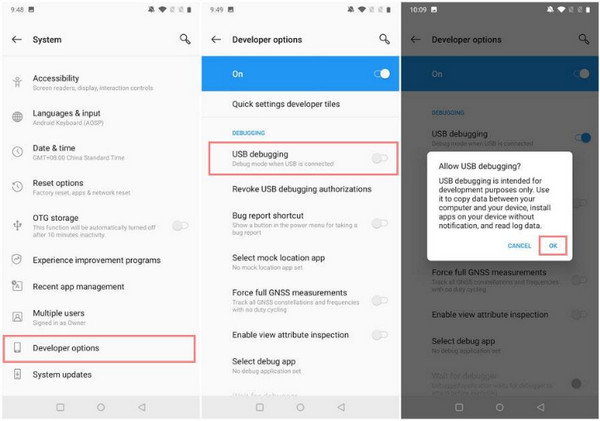
Open Command Prompt or Terminal in the platform-tools folder. Type adb devices to confirm your phone is recognized. Approve any prompts on your phone.
Type adb reboot bootloader to put it into fastboot mode. Then type fastboot oem unlock. If your phone reboots, re-enable USB debugging.
Move the TWRP file to the platform-tools folder and rename it twrp.img. Type fastboot flash recovery twrp.img and then fastboot reboot.
Copy the OxygenOS .zip to your phone. Boot into retrieval by holding Volume Down + Power, perform a factory reset, and install the zip. Reboot your phone, OxygenOS will be installed, and your OnePlus bootloader is now unlocked.
Method 3: For Specific Models - Smart Lock & Face Unlock
Some OnePlus models allow you to regain access using Smart Lock or Face Unlock features. These methods can unlock your device without performing a full factory reset, which is almost similar to when you want to factory reset a Huawei. Here is a model-by-model guide on how to unlock a OnePlus phone safely using these options.
1. OnePlus Nord N10
Hold the Power button until the device is switched off. Hold Power and Volume Down together. When you see the OnePlus logo, release the two buttons.
Choose the Forgot Password option when prompted. Press OK on the You Will Lose Everything and This Cannot Be Undone messages.
The phone will erase all data and unlock.
2. OnePlus Nord N200, Nord N100, OnePlus 9, 9 Pro, 8, 8 Pro, 8T
Press and hold the Power button until the device shuts down. Press and hold Power + Volume Down until the OnePlus logo appears. Use the volume buttons to choose Recovery Mode, then press Power to confirm.
The next step is to scroll to Wipe Cache Partition and choose it. Confirm the action. Click Wipe Data/ Factory Reset and confirm all the prompts.
Select Reboot System Now. Your phone will restart unlocked.
3. OnePlus LE2127 and LE2120
Press and hold the Power button until the device shuts down. Press and hold Power + Volume Down until the OnePlus logo appears.
Choose English to enter Recovery Mode. Tap Wipe Data and Cache > Erase Everything. Confirm This Cannot be Undone by pressing Yes.
Wait for the Format Success message, then select Reboot. The phone will now be unlocked.
4. OnePlus 7, 7 Pro, 7T
Press and hold the Power button until the device shuts down. Press and hold Power + Volume Down until the OnePlus logo appears.
Use the volume buttons to pick Wipe Data/Factory Reset, then press Power to confirm.
Select Yes on all prompts to erase all data. Choose Reboot System Now. The phone will restart and unlock.
Method 4: Using a Computer & ADB (For Advanced Users with USB Debugging Enabled)
To unlock a OnePlus device, running the ADB commands on a computer is safe enough, especially when advanced users have already enabled USB debugging. This is the least invasive approach that needs the least amount of software installation and can restore access without reinstalling the entire operating system. The following is a step-by-step procedure for unlocking the OnePlus 12 with ADB.
Download Android SDK Platform Tools and install ADB drivers. Restart your computer after installation.
On your OnePlus 12, open Settings > About Phone and, by tapping Build number seven times, you enable Developer Options. Then, in the developer options, check the USB debugging. Plug the phone into your computer using the USB.
Open Command Prompt or Terminal in the platform-tools folder. Type adb devices and press Enter. Approve any prompts on your phone, and the device should appear as connected.
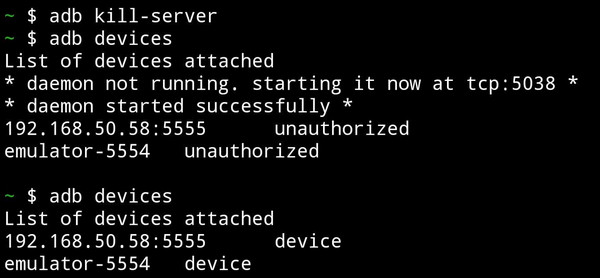
Type the following commands in order:
- adb reboot bootloader - boots the phone to fastboot mode
- fastboot oem unlock - unlocks the bootloader, and it can erase data.
The more sophisticated users can also delete certain lock files with the help of such commands as:
adb shell rm /data/system/gesture.key - removes pattern locks
Once the commands are executed, reboot your phone with fastboot reboot. Your OnePlus 12 will restart and allow you to set a new PIN, pattern, or password. Then, you can use
Bonus: Try the Best Android Unlocker
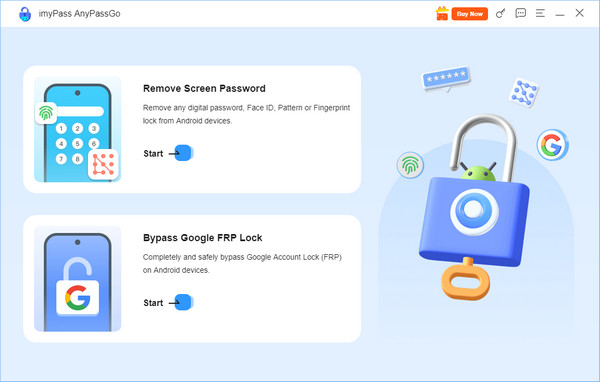
Many users ask, does the OnePlus 12 have face unlock? But this feature does not always work when the phone is fully locked or not responding. In these cases, a simple unlock tool can help. imyPass AnyPassGo is an Android unlocker that removes screen locks like PIN, pattern, password, fingerprint, and Face Unlock on many OnePlus devices.
Conclusion
Being locked out of a OnePlus phone can be stressful, but there are clear ways to fix it. You can use official tools, recovery options, or a computer if needed. Some methods may erase data, so choosing the right one matters. By following the steps in this guide, you now know how to unlock OnePlus without a password safely and simply. This helps you regain access and get back to using your phone without confusion.
Gideon is a senior editor from imyPass. He is an expert in unlocking phones and computers, and he has written password tutorials in imyPass for 3 years.
Hot Solutions
-
Unlock Android
-
Unlock iOS
-
Password Tips
-
iOS Tips