



 Solution
 Support Center
 About Us
 Contact
How to Bypass and Delete the Defaultuser0 Account on Windows
 Penny Warren Published on January 28, 2026Fix Windows3-min reading
What is the defaultuser0 account and password?
Defaultuser0 is an automatic system account created by Windows during installation or major updates. It is used for initial setup on Windows and is not a real user account. Generally, it will disappear after Windows setup or update; however, if the process is interrupted, the defaultuser0 may remain on the login screen, user account, or C:Users.
In most cases, you can simply delete the defaultuser0 folder or account. However, if it appears on the Windows login screen and pressing the Enter key doesn't let you bypass it, you’ll need to follow specific steps to resolve the issue. That's exactly what we'll walk you through in this post.

In this article:
Part 1: What Is Defaultuser0?
defaultuser0 is a temporary account automatically created by Windows during installation, system restoration (OOBE), or major updates. Windows uses this account to get temporary permissions while completing setup tasks. If defaultuser0 remains visible after setup, it usually means that the installation, restore, or update process was interrupted or did not complete successfully.
Can You Bypass Defaultuser0?
In most cases, you can click the password input box and press the Enter key on your keyboard to bypass defaultuser0 without a password.
However, if this method doesn't work, you'll need advanced operations to remove this account.
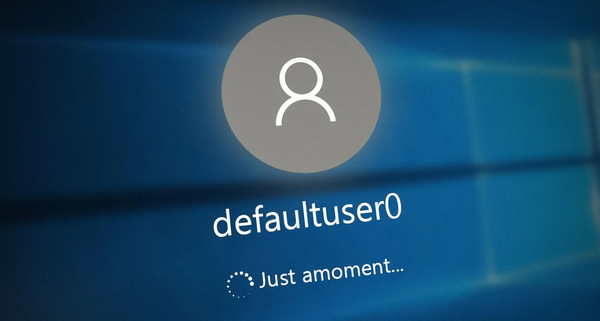
defaultuser0 will also appear on the User Accounts or C:Users. In that case, you can follow the guides in this post to remove it easily.
Part 2: Remove Defaultuser0 When You Can Log in
Actually, there's no password for defaultuser0 because it's not a real account, so you can press Enter to skip the defaultuser0 login to access your computer. However, it will still stay in the user Accounts setting and your system disk. Please follow the three phases to permanently delete the defaultuser0 account.
Phase 1: Delete defaultuser0 in CMD
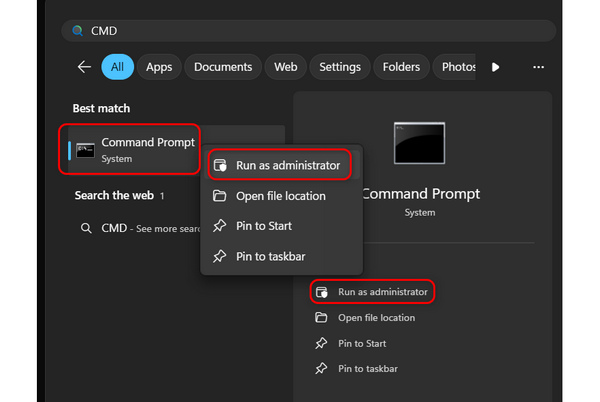
Run Command Prompt as Administrator
Click the Windows search box and type CMD. Then, the Command Prompt will appear. Right-click on it and select Run as administrator, or directly select this option on the right side.
Remove the defaultuser0 Account
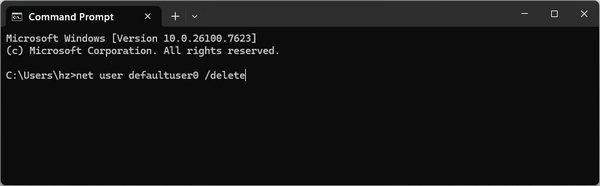
Then, you just need to type:
net user defaultuser0 /delete
Press the Enter key on your keyboard to fulfill the first phase of removing defaultuser0 on Windows 11 or 10.
Phase 2: Remove the defaultuser0 Folder
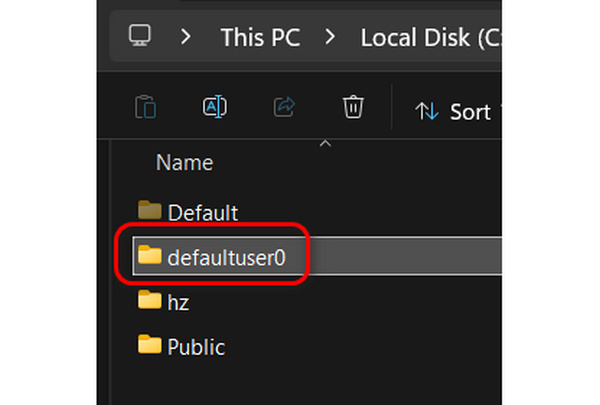
You also need to delete the defaultuser0 folder in your system disk. This is an essential step to delete the user profile.
Open This PC on your Windows computer. Select your system disk (C: by default). Then, select the Users folder.
Find the defaultuser0 folder and press the Delete key on your keyboard to delete this folder. You'll need to click the Continue button to fulfill this step as administrator.
Phase 3: Wipe defaultuser0 in Registry Editor
To permanently delete the defaultuser0 account on your Windows 11 and 10, the final step is to wipe it in Registry Editor.
Launch Registry Editor
Click the Windows search box and type Registry Editor. Find the app and launch it.
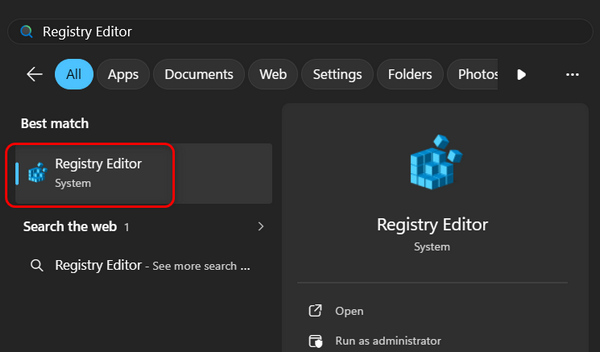
Find defaultuser0 in Registry Editor
Locate the address bar at the top and input:
HKEY_LOCAL_MACHINESOFTWAREMicrosoftWindows
NTCurrentVersionProfileList
Then, tap the Enter key on your keyboard.
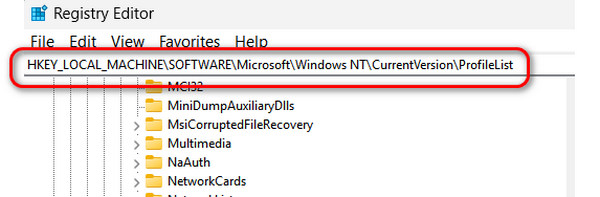
Delete defaultuser0 in Registry Editor
Under the ProfileList tab, you can find many folders. Select each one and then double-click the ProfileImagePath file on the right side. If the file's Value data is defaultuser0, you'll need to delete the whole folder on the left side.
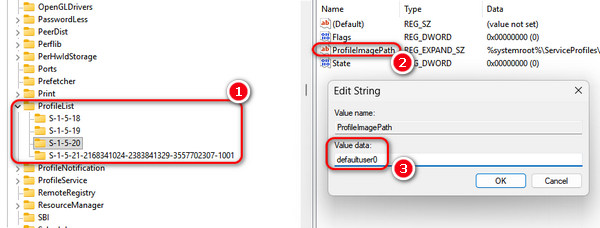
When completing all the phases and steps above, you can permanently deleted the defaultuser0 account and folder.
Part 3: Remove Defaultuser0 When You Can't Log in
If you cannot press the Enter key to bypass the defaultuser0 login screen, that doesn't mean you need to provide the defaultuser0 password on Windows 11 or 10. You'll need some advanced operations to fix this problem.
Method 1: Restart Your Computer
When you are stuck on the defaultuser0 login screen, you can restart your computer to try fixing this problem. Check the steps below to do that.
Click the Power button in the bottom right corner of the defaultuser0 login screen. Then, select Restart.
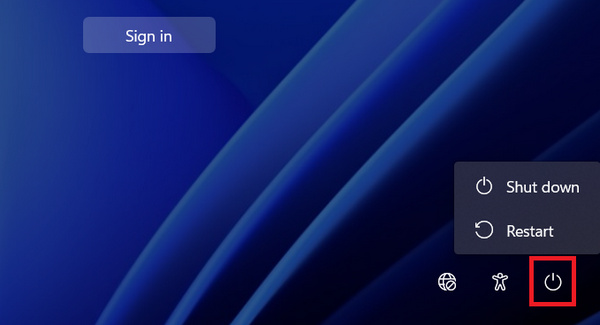
If you're still stuck on the defaultuser0 login screen and the Enter key still doesn't help, you should follow the methods below to fix defaultuser0.
Method 2: Reset Your Computer
On the defaultuser0 login screen, click the Power button at the bottom right, and then hold the Shift key on your keyboard and click the Restart button.
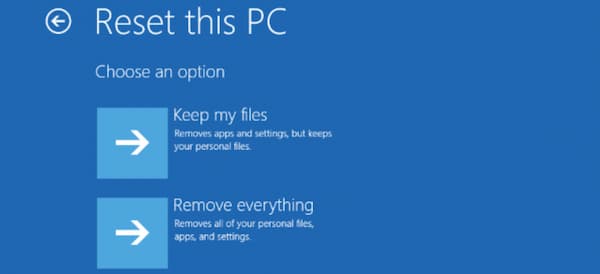
Then, you'll see a Choose an option screen. You should select Troubleshoot and click the Reset this PC button.
You can select Keep my files or Remove everything based on your needs.
Then, your computer will reset. After that, it will automatically remove defaultuser0 on your computer. You won't see the defaultuser0 login screen anymore, nor will you need to worry about finding a password for it.
Related Readings:
Bonus: Easily Reset Windows Login Password
If you forgot the password on Windows 7/8/10/11, you can use imyPass Windows Password Reset to get into your locked computer. The program can reset Windows administrator and standard account passwords without losing data. By burning a bootable drive with simple clicks, you can even directly create a new user account while resetting the existing account password.
4,000,000+ Downloads
Easily bypass the forgotten login screen password and reset a new one.
Remove the login password on Windows 10, 11, 7, and 8 without data loss.
Burn a Windows password recovery disk with a CD/DVD drive or USB flash drive.
Support Windows 10/8/7/Vista/XP/Server on HP, Lenovo, Dell, and more brands.
How to Reset the Forgotten Windows Account Password
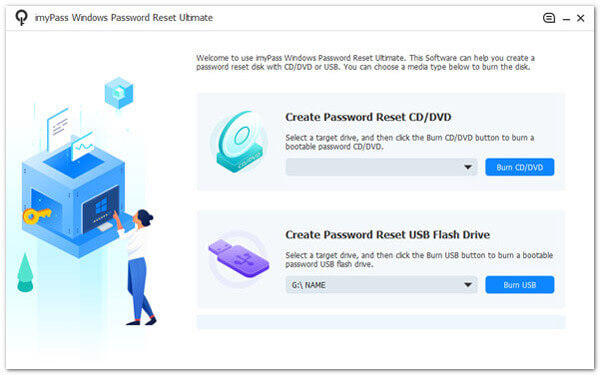
Download, install, and launch imyPass Windows Password Reset on your computer. On the main interface, choose between Create Password Reset CD/DVD and Create Password Reset USB Flash Drive. You'll need to insert a CD/DVD or USB drive into your computer. Then, click Burn CD/DVD or Burn USB.
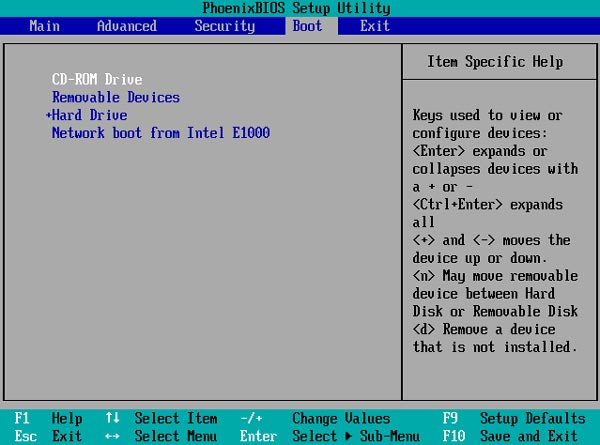
When the burning process is over. Insert your CD/DVD or USB into the computer that has a forgotten password. Restart the computer and repeatedly hit F12 or ESC (based on your PC brand) to enter the BIOS panel.
Here, you should find an option like "Boot" or "Boot Sequence". You can use the Up and Down keys to set optical drive or hard drive as the first option.
Then, restart your PC, and you will enter the imyPass panel. Here, you can select an account and click the Reset Password button. Then, click the OK button to confirm. It will delete the password of this account.
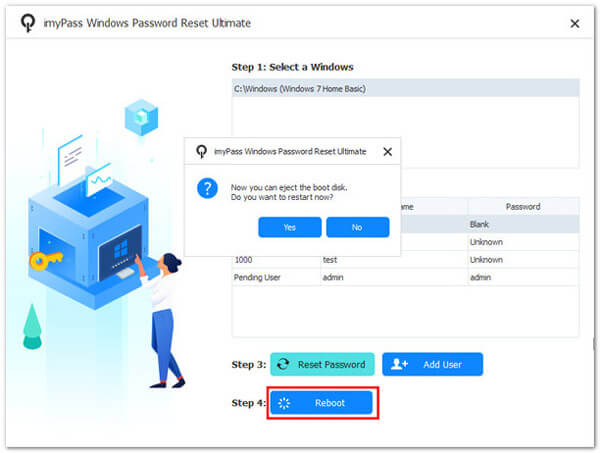
Eject your CD/DVD or USB and restart your computer. Then, you can use your computer with the login password.
FAQs.
-
What is the default admin password on Windows?
In modern Windows 11 and 10, there is no default admin password. Microsoft also hides this account password for security.
-
Can you set the login password for defaultuser0?
No, you can't. defaultuser0 is not real account, there are no steps to set a password for it.
-
How to unlock Windows 10 if forgot password?
You can try to answer the Security Questions to reset the password. If you've forgotten the answers, you can use imyPass Windows Password Reset to easily create a Windows installation USB to reset the password.
Conclusion
There's no a defaultuser0 password because the defaultuser0 is not a real account but a temporary account that Windows uses to install or update the system on your computer. If you still can see the defaultuser0 account or folder after Windows setup or update, you can manually delete them following the methods in this post.
If you have forgotten the login password of a Windows computer, you can use imyPass Windows Password Reset to easily reset the password.
Penny is a senior editor from imyPass. She has focused on discovering perfect GPS location solutions in all scenarios, and also has experience in fixing computers.
Hot Solutions
-
Fix Windows
-
Windows Tips
-
Windows Password


