Solution
 Support Center
 About Us
 Contact
How Can I Tell If My Phone Is Unlocked Without a SIM Card
 Gideon Byron Published on February 27, 2026Unlock Android3-min reading
When you're about to switch phones or consider a new carrier, have you ever wondered if your phone is already unlocked? Maybe you are wondering: How do I know if my phone is unlocked? Don't worry, checking your phone's status is easier than you think. Next, we will teach you step by step to quickly confirm, so that you can easily take the initiative in the free use of your phone.

In this article:
Part 1. What Does an Unlocked Phone Mean
Have you ever wanted to change carriers or use an overseas SIM card, but weren't sure if your phone would work? An unlocked phone is the key to this problem. Simply put, what an unlocked phone means is that the phone is free to use any carrier's network, no longer restricted by the original carrier.
So, what does it mean when a phone is unlocked? It means you can change your SIM card at any time, whether changing plans, traveling abroad, or buying and selling used phones, without worrying about network constraints. Once you understand this concept, it's easier to manage your device and make it work for you instead of being tied to it.
Part 2. How to Check If a Phone Is Unlocked
Now that you know what it means to unlock your phone and the flexibility it offers, the next most important step is to verify that your device is actually unlocked. Whether you're using an iPhone or Android, there are a few easy and reliable ways to check if your phone is unlocked quickly.
For iPhone
Method 1: Apple Support
Open the Apple Support website or use the Apple Support App.
Log in to your Apple ID and select the device you want to query.
Check for device lock status or contact online customer service to confirm.
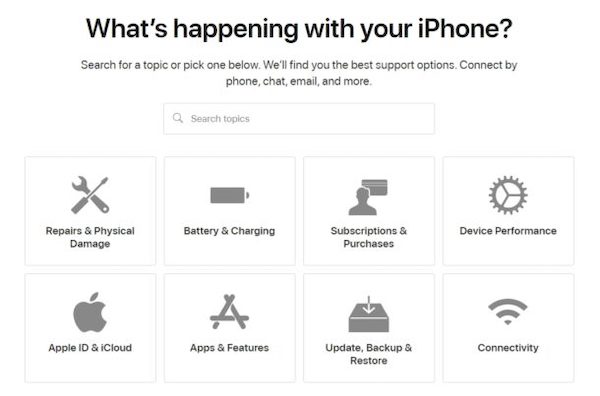
This method is the most reliable, and the information provided by the official channel is accurate and suitable for users who want to confirm the official record.
Method 2: Use SIM cards from different carriers
Power off and remove the current SIM card.
Insert another carrier's SIM card.
Turn it on and try to make a call or send a text message.
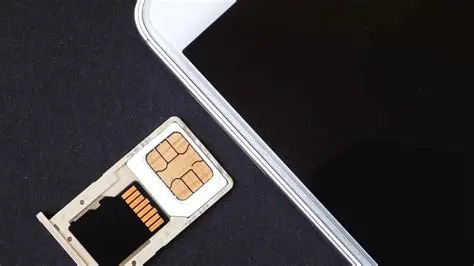
If it works, your phone is unlocked. This method is intuitive and fast, making it ideal for users who want instant verification. If SIM is not supported on the iPhone, there may be other factors.
Method 3: Settings
Go to Settings > General > About.
Locate the Carrier Lock section.
The No SIM restrictions display indicates that the iPhone is unlocked.
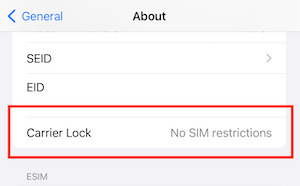
This method is suitable for those who want to know how to check if the phone is unlocked but don't want to change the card, because it can be done directly on the phone, which is very convenient.
For Android
Method 1: Settings
Go to Settings. Tap Network & Internet.
Click on Mobile Network or SIM cards.
Look for items like Network Unlock/Carrier Lock/SIM Lock.
If "Network unlocked" or "No SIM restrictions" is displayed, you can determine that the phone is unlocked
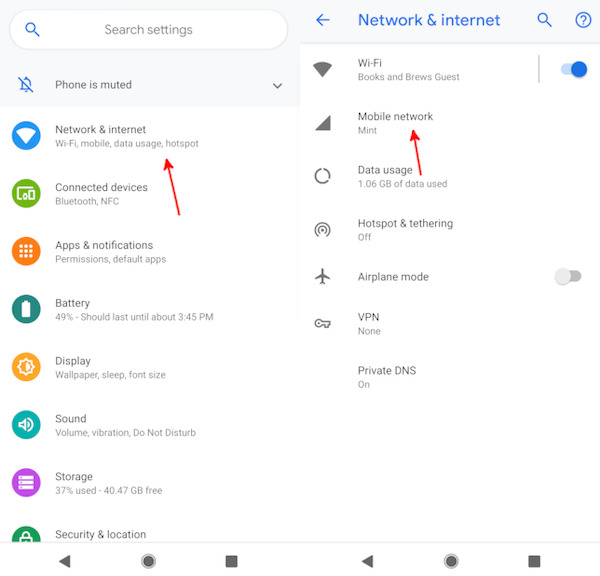
Although different brand names are not exactly the same, they all focus on network Settings. It's also the quickest way to check if an Android phone is unlocked, but sometimes it may occur a miscalculation may occur.
Method 2: IMEI
Dial *#06# to obtain the IMEI number of the mobile phone.
Open the operator's official website or a trusted third-party website for inquiry.
After entering the IMEI, the system will display whether the device is locked.
This method is suitable for users who want official records or third-party verification, and the code is so powerful that you can even bypass iCloud activation with IMEI.
Method 3: Developer Mode
Go to Settings > About Phone > Software Information.
Tap the Build number seven times in a row to enable Developer Mode.
Go to Developer options and look for OEM Unlocking or related options.
If OEM Unlocking is enabled, your phone should be unlocked. Not every Android has this entry, but it's an advanced and useful way to check if an Android phone is unlocked.
Part 3. What to Do If Your Phone Is Locked
Even confirming that your phone is locked doesn't mean it's hopeless, and you still have a chance to turn it into a truly unlocked device. But not all devices can go directly into the carrier unlocking process. In particular, the second mobile phone or device of unknown origin sometimes cannot even unlock the screen, which will directly affect the network unlock later.
First. Make the phone accessible
If you're getting a used Android, or if your phone can't get into the system because you forgot your passcode, then you'll need to use imyPass AnyPassGo to unlock the screen limit before you can apply for further unlocking.

4,000,000+ Downloads
Support multiple Android brands, Samsung, and Pixel. Xiaomi, etc.
No IMEI, contract information, or additional proof is required.
Suitable for used equipment or machines of unknown origin.
Visual operation with fixed steps ensures stable success rates.
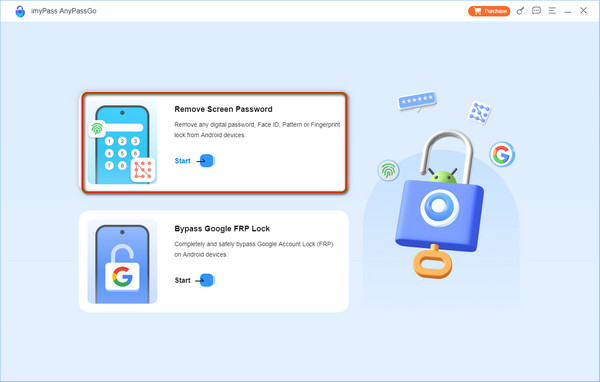
After opening the software, select the option to Remove Screen Password on the main page.
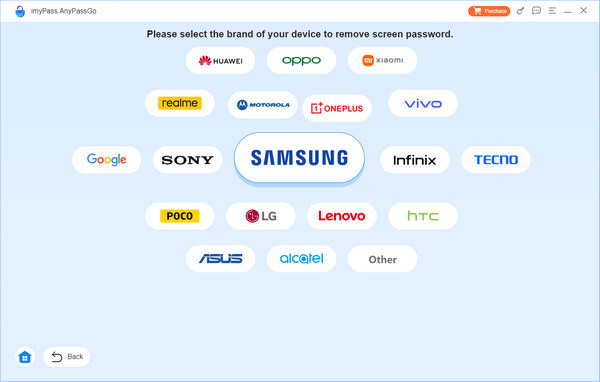
Then choose the brand of your phone.
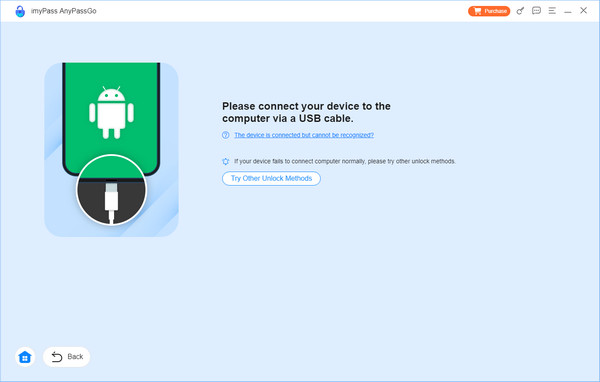
Wait for the software to identify the device model after connecting the phone. If the software fails to recognize your phone, click on the blue text below: The device is connected but cannot be recognized? Just follow the prompts on the subsequent screen.
Finally, just click the Remove Now button and wait for the progress to complete before entering the system
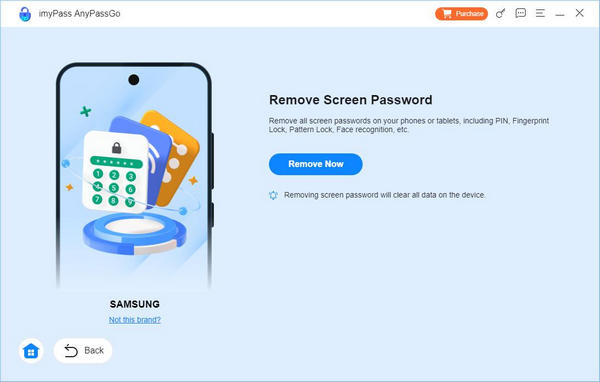
It should be noted that while this restores access to the device, the data on your phone will be erased, so it is best to do this when you have just replaced the device and don't have much important data.
Second. Apply for the Official Carrier Unlock
When the device is reachable, you can check the current SIM lock status and apply it to the corresponding carrier. Depending on the carrier, you may be required to provide IMEI, confirmation that the device is free of arrears, proof of ownership, etc.
Submit IMEI to the customer service or the page of the original carrier.
Wait for a review, which may take hours to weeks.
After approval, the operator will add IMEI to the unlocking allowlist.
Insert another SIM to verify network registration after the customer service sends you an unlocked email.
Conclusion
Now not only do you know how can I tell if my phone is unlocked, but you can also unlock it when the answer is no. Even if you cannot access the system, you can use imyPass AnyPassGo to restore the device to an accessible state and continue processing. As long as you can re-enter the system, it's up to you to decide how to use it, whose network to connect to, and which card to use!
Gideon is a senior editor from imyPass. He is an expert in unlocking phones and computers, and he has written password tutorials in imyPass for 3 years.
Hot Solutions
-
Unlock Android
-
Unlock iOS
-
Password Tips
-
iOS Tips