



 Solution
 Support Center
 About Us
 Contact
Windows Hello PIN Not Working? Fix Windows 10 Login Problem
 Penny Warren Published on January 16, 2026Fix Windows3-min reading
A lot of Windows 10 users opt for a PIN when logging in because it's faster and more convenient than a traditional password. But the trouble comes when the Windows PIN not working and the system says it can't be verified, the PIN is unavailable, or it keeps stopping at the login screen. But don't worry, there are actually clear paths and solutions for such problems. Next, you'll see the most feasible and time-saving ways to get your computer logged in again.

In this article:
Part 1. Identify the Problem of PIN Not Working on Windows 10
When you find that my PIN is not working in Windows 10, you first need to determine which situation the problem belongs to, which will help you find the corresponding solution faster.
Here are the common symptoms that you can check to see which one you belong to:
- The PIN input box appears, but the system says that the PIN is incorrect, invalid, or cannot be verified.
- The Windows Hello PIN option cannot be clicked or shows "Temporarily unavailable".
- PIN function disappears after device reset, update, or modification of security Settings.
- You remember your PIN, but your system still says Windows PIN not working, or you can't verify your identity.
If any of these things apply to you, then you're dealing with a PIN not working in Windows 10 problem, not a faulty keyboard or network problem. This step is critical because subsequent fixes can be handled differently depending on the symptoms.
Part 2. What Causes the Windows 10 PIN Not Working
When it is confirmed that the Windows Hello PIN is not working, there is usually no single cause of the problem. PIN, as a local encryption method based on TPM and Windows Hello architecture, is closely related to the system, security components, and user credentials. Therefore, when any of the links are abnormal, the PIN does not work in Windows 10, or the PIN cannot be used, it will be triggered.
Here are the most common triggers you can check to see if they fit your situation:
- Corrupted configuration
A Windows update can cause a change in the credential service, TPM, or security policy that triggers a PIN verification failure. - Abnormal TPM status
If the TPM cache is corrupted or not correctly identified, the system may reject the existing PIN and prompt that the PIN is invalid. - Damaged NGC folder
The Windows 10 PIN not working situation occurs when the NGC directory where the PIN-encrypted file is stored is corrupted, and the system cannot call the PIN. - Account synchronization errors
Users who sign in with a Microsoft account are more likely to experience this issue, especially after things like resetting the Windows 11password or a device sync exception. - Device policies
PIN unavailability can also be caused by certain users turning off authentication services, modifying local security policies, or installing software that affects credential verification.
With an understanding of the cause, you'll be able to more accurately judge how to fix the Windows 10 PIN not working issue, rather than mindlessly trying multiple PIN inputs or repeatedly rebooting your system. Next, we'll go into quick fixes that you can try right away, so you can get back to work without any complications.
Part 3. Quick Fixes for When Your PIN Is Rejected or Not Accepted
If you've identified the type of problem, try some quick fixes that don't require a lot of work and are effective for most Windows PIN not working situations. Many users reported that trying these steps after a failed system update or synchronization of account credentials restored normal login without entering the advanced repair phase.
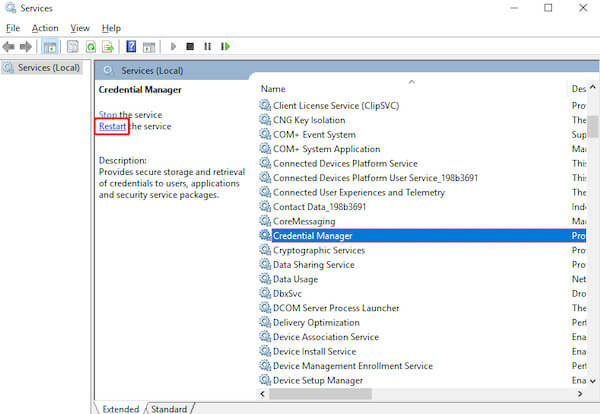
Method 1: Restart the Windows Credential Service
Windows PIN relies on the credential management component to run, and if this service is suspended or abnormal, a PIN not working in Windows 10 occurs.
Press Win + R and enter services.msc.
Find the Credential Manager. Right-click and select the Restart option.
Return to the login screen and try the PIN again.
Method 2: Disconnect and re-log in
Many Windows Hello PINs not working come from a Microsoft account verification anomaly, especially after updating the system.
Unplug the network cable, turn off Wi-Fi, or enable airplane mode.
Enter the PIN again to log in.
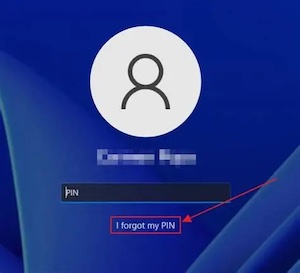
Method 3: Regenerate the PIN
If the system is able to identify the account, but cannot accept the old PIN, this step often reestablishes the NGC verification architecture.
Select I Forgot PIN on the PIN input page.
Use the account password or verification method to pass the identity authentication
Create a new PIN and log in.
Part 4. Best Third-Party Tool to Bypass or Reset PIN
If the previous quick fixes still don't work, or if you have lost access to the system, it is more efficient to use a professional recovery tool. imyPass Windows Password Reset allows you to bypass login restrictions directly, reset your PIN, password, or create a new administrator account, allowing you to regain access to your device.
4,000,000+ Downloads
Unlock Windows without an original PIN or password
Support for local and Microsoft accounts
Works with Windows 10, Windows 11, and all major PC brands
Provides the ability to create new administrator accounts at the same time
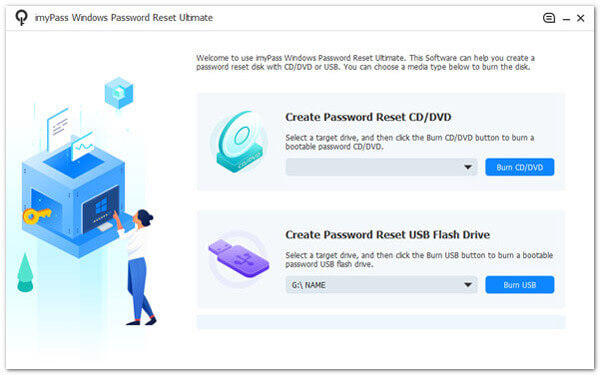
Please install the latest version of the software on another working computer and insert it into a USB flash drive or CD.
Open the software and select the software media you want to write to, such as a USB or a DVD. Click Burn and wait a few minutes to finish.
Then insert the Boot disk into the target computer and enter the Boot Menu. Different brands of computers have different keys to enter the startup menu.
If the first entry is not successful, do not wait for the system to load; after the restart of the continuous key is easier to trigger.
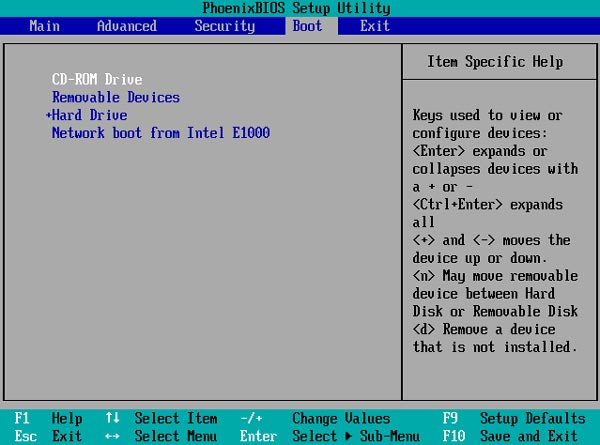
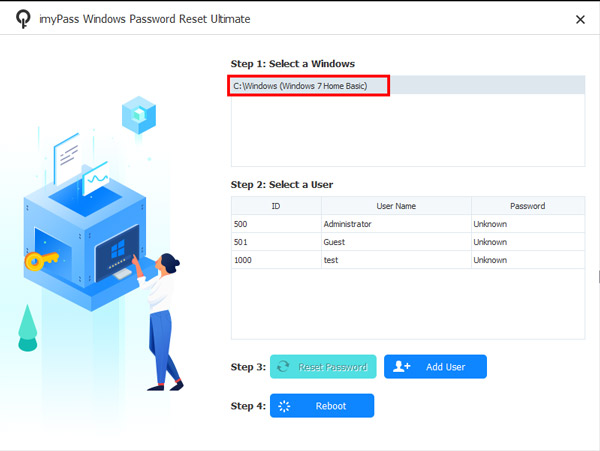
After entering the Boot Menu, select USB or DVD as the boot device using by up and down keys, and the software will load automatically. You'll see all your local accounts or Microsoft accounts and select the one you want to recover.
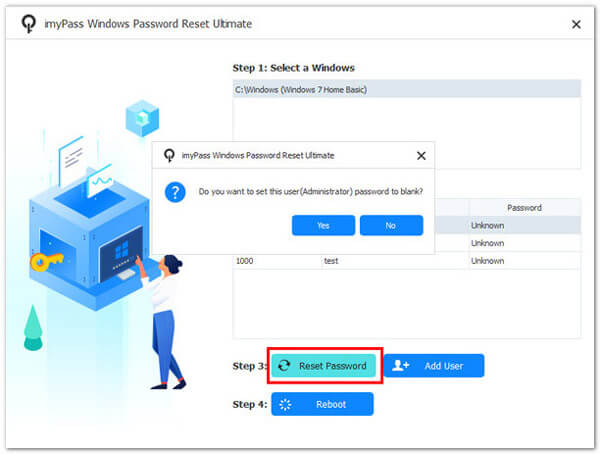
You can select Remove Password to remove the PIN and click Reboot when you're done.
After the restart, you can get into the system without a PIN, then head to Settings to set up a new Windows Hello PIN. It is one of the fastest and most stable ways to skip complicated Settings or operating system interfaces.
Part 5. Advanced Repair When PIN Not Working on Windows 10
Suppose you want to go deeper into the system structure, troubleshoot login exceptions or fix the credential environment. In that case, that is, you want to solve the Windows PIN not working completely, not just temporarily bypass the problem, the following method is for you.
Method 1. Use Safe Mode
Windows 10 Safe Mode loads core system services in a streamlined running environment, helps to rule out update conflicts or creator-locked issues, and is a common and effective way to fix PIN not working in Windows 10.
In the login interface, click the power button and hold Shift to restart.
Then, enter the interfaces in turn: Troubleshooting > Advanced Options > Startup Settings > Restart.
Press 4 or F4 to select Safe Mode.
Finally, open Settings on the desktop. Choose Account > Login Options > Windows Hello PIN > Delete or reset PIN.
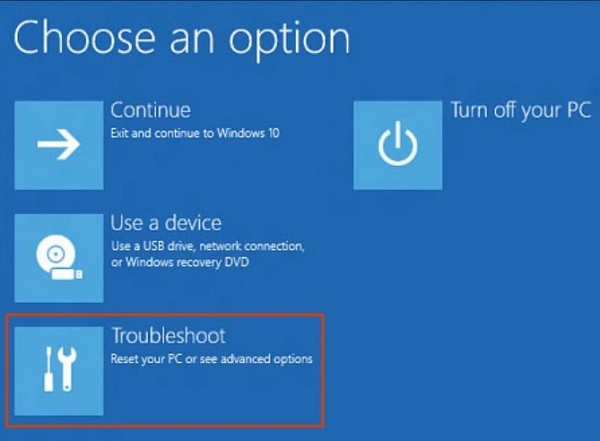
Method 2. Use CMD
If the credential system is corrupted, it could cause a Windows 10 PIN not working, and the system will reject status verification. The following command restores a corrupted login component and system image.
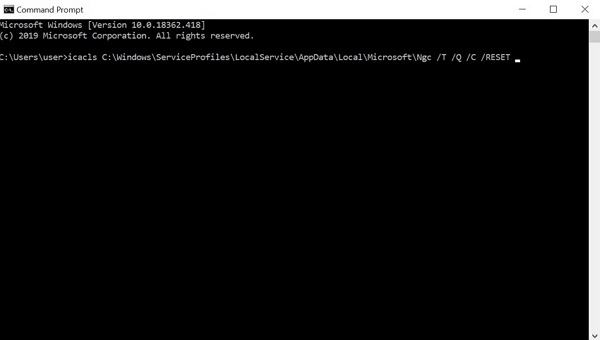
Press Shift to restart on the login screen, and select one after another after entering the recovery screen: Troubleshoot > Advanced options > Command Prompt.
Enter the following path at the command prompt and press Enter:
C:WindowsServiceProfilesLocalServiceAppDataLocalMicrosoftNgc/T /Q /C /RESET
Then log in to Windows and go to Settings again, and follow the prompts to create a new PIN.
Method 3. Delete NGC Folder
If the NGC folder storing PIN configuration information in the system is damaged, manually deleting the folder forces the system to regenerate the PIN module and restore the normal login function.
Click the folder button on the taskbar or press Win + E to open File Explorer.
Go to Options > View, and check Show hidden items. This will show all hidden files.
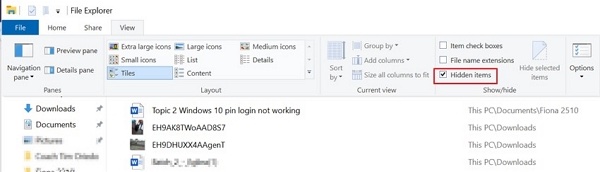
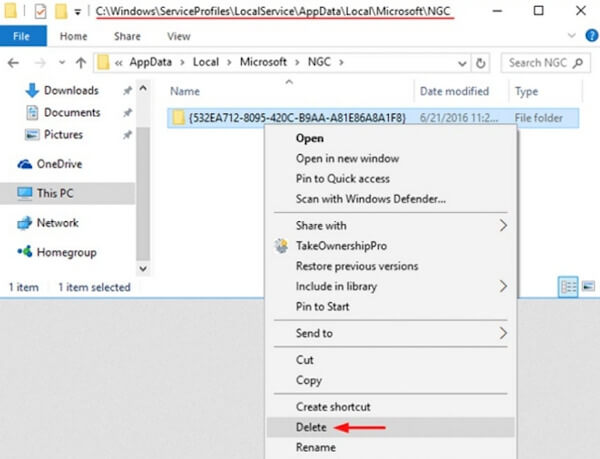
Enter the following path in the address bar and press Enter to navigate to the NGC folder directory:
C:WindowsServiceProfilesLocalServiceAppDataLocalMicrosoftNGC
Then select all files and right-click to delete. Once the deletion is complete, restart the system immediately and then enter your Microsoft password to create a new PIN.
Conclusion
No matter where the issue comes from, the fact that a Windows Hello PIN not working doesn't mean the system can't continue to work. Most cases can be recovered by following the steps. Suppose you are already unable to log in or want to skip PIN authentication more quickly. In that case, third-party tools such as imyPass Windows Password Reset can also provide a more direct and secure solution. Hopefully, this guide will help you regain access to your device, create a new PIN, and get back to normal.
Penny focuses on GPS troubleshooting and Windows optimization. She formerly worked as a technical support engineer, helping clients solve location-based and system issues efficiently. Backed by IT support experience, she provides practical solutions that really work. In her free time, she likes hiking and geocaching, testing GPS tech in the real world.
Hot Solutions
-
Fix Windows
- How to Bypass the Defaultuser0 Password
- How to Fix Windows Stuck on Loading Screen
- How to Fix Windows 10 Stuck on Welcome Screen
- 7 Ways to Stop Windows Code 0xc000021a
- How to Fix Windows 10 PIN Not Working
- How to Unlock Computer Without Password
- Fix Windows 10 No Login Screen
- How to Fix Getting Windows Ready Stuck
-
Windows Tips
-
Windows Password
-
Password Tips


