



 Solution
 Support Center
 About Us
 Contact
How to Hide Your Location on iPhone Without Others Knowing
 Samuel Spenser Published on December 04, 2025GPS Location3-min reading
Location sharing on your iPhone is extremely useful; it helps apps deliver accurate navigation, weather updates, and personalized services. It also lets your friends and family know where you are through Find My or Messages. However, there are times when you need more privacy. Whether you're protecting personal information or simply avoiding unnecessary tracking, learning how to hide location on iPhone is essential.
This guide explains how to hide your location on iPhone using built-in settings, privacy tricks, and temporary methods. You can protect your privacy and real location on iPhone.

In this article:
- Part 1: Why You Might Want to Hide iPhone Location
- Part 2: How to Hide Location on iPhone in Settings
- Part 3: How to Hide My Location on My iPhone from Friends & Family (Find My)
- Part 4: How to Hide Your Location iPhone Using Share My Location Setting
- Part 5: How to Hide My Location on iPhone Without Them Knowing (Best Tricks)
- Part 6: How to Change iPhone Location to Hide Your Real Location
Part 1: Why You Might Want to Hide iPhone Location
People choose to hide their location for many reasons. For example, you can maintain privacy from apps that track your movements You may also want to temporarily pause location sharing with friends or family. Sometimes, you also want to avoid targeted ads and protect your data from unknown apps
No matter the reason, Apple gives users full control over their location settings. You can see the methods below to hide your location on iPhone or iPad easily and quickly.
Part 2: How to Hide Location on iPhone in Settings
If you want the simplest way to hide location on iPhone, you can turn off Location Services completely or for specific apps.
Open the Settings app. Go to Privacy & Security. Then, tap Location Services.
Here, you can toggle off Location Services. Then, you can hide your location on iPhone, and all apps and services won't know your real location.
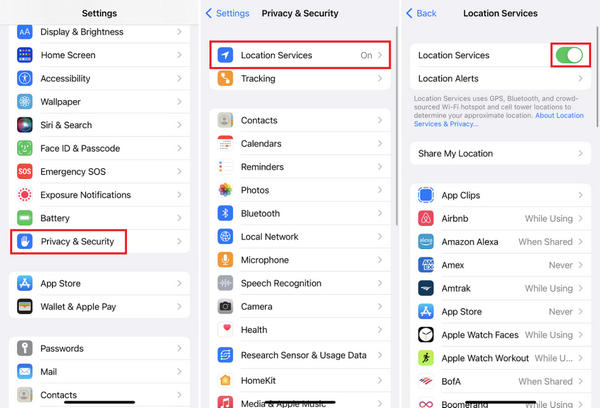
You can also slide down and select a specific app. Then, in the ALLOW LOCATION ACCESS tab, you can select Never to stop the app from using location service on your iPhone.
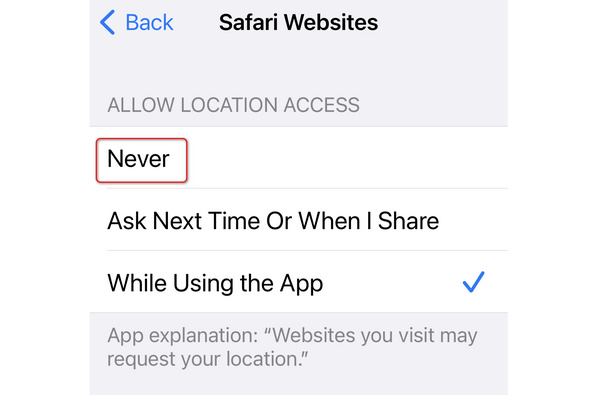
This method instantly disables all GPS location tracking for a special app or all apps, Apple services, and system functions. It is the most direct solution when you want to hide your location iPhone without adjusting individual apps. However, your Maps, Find My, Weather, and other apps may not work properly while Location Services is off.
Part 3: How to Hide My Location on My iPhone from Friends & Family (Find My)
If you share your location through Find My, your contacts can see where you are in real time. To stop sharing, follow the detailed guide below.
Open the Find My app. Go to the People tab.
Then, select a specific person. Tap Stop Sharing My Location.
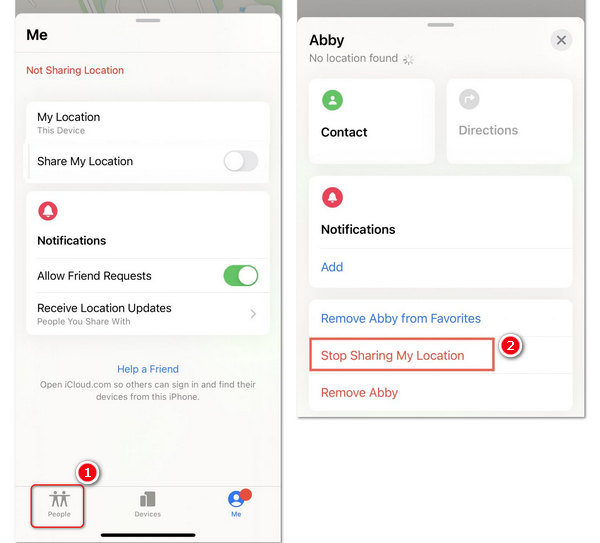
If you don't want anyone to know your location, there's a quick way to hide your location on iPhone in just one click: Select the Me tab. Then, swipe up from the bottom and disable Share My Location.
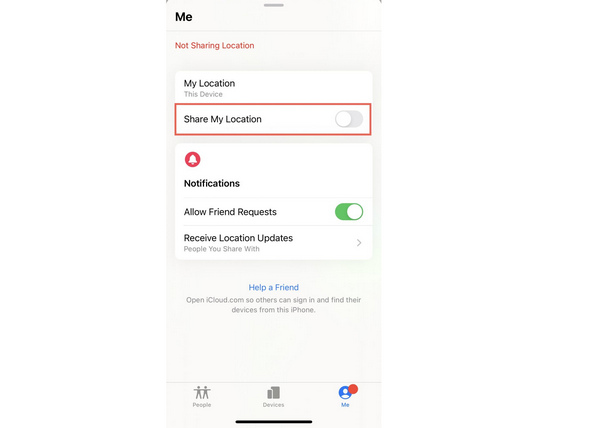
This way, they won't receive a notification saying you turned it off, but they will see Location Not Available if they check. Also, they can see Find My won't update location. This is one of the most common ways people search for how to hide my location on iPhone without them knowing.
Part 4: How to Hide Your Location iPhone Using Share My Location Setting
The Share My Location setting can help you easily hide location on iPhone. This setting controls all location sharing from your Apple ID. Check the specific guide below.
Open Settings. Tap your profile. Then, select Find My.
Here, you should find the Share My Location option and turn it off.
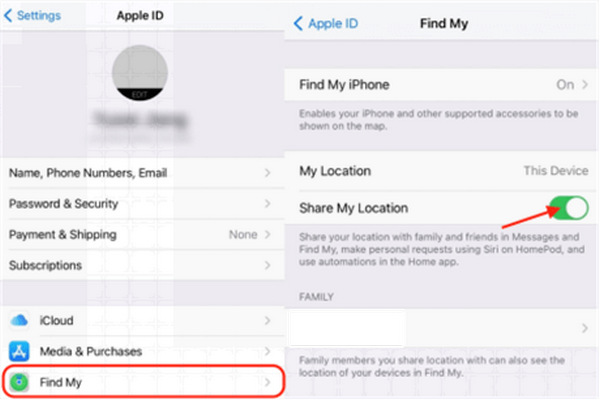
This method disables sharing across iCloud, Messages, and Find My for all contacts. It is a clean solution for how do you hide your location on iPhone without altering GPS services.
Part 5: How to Hide My Location on iPhone Without Them Knowing (Best Tricks)
If you want a quick and temporary way to hide your location on iPhone, you can turn on Airplane Mode: just swipe down to turn on the Control Center. Then, tap Airplane Mode. In this way, GPS becomes unavailable, Wi-Fi and cellular tracking will also stop, and Find My will show Location Not Available on others' devices.
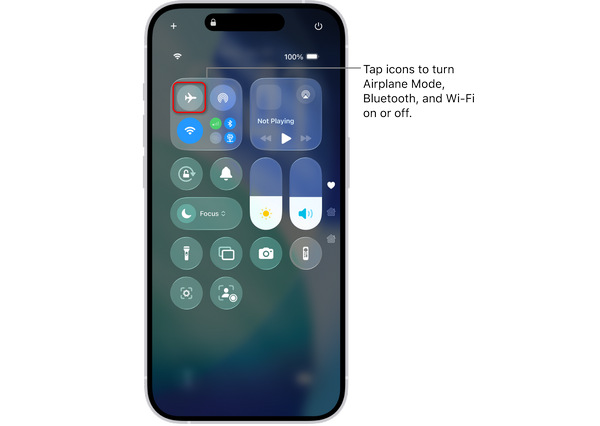
This is a useful how to temporarily hide location on iPhone method, especially in moments when you want immediate privacy, but calls and messages won't work until you turn off Airplane Mode.
Part 6: How to Change iPhone Location to Hide Your Real Location
Although you can hide your location in Settings and Find My, people will clearly know that they cannot spot you. Why not directly change your virtual location on iPhone to spoof others and those location-tracking apps? imyPass iLocaGo can help you do that easily. It can create a virtual location, make a fake route, and let you freely change your location with a joystick. People in Find My won't know your real location anymore.

4,000,000+ Downloads
Change your GPS location to hide your location on iPhone.
Create a virtual location or a fake route on your iPhone.
Spoof Find My, parental control, and other location-based apps and services.
Work well and seamlessly on the latest iOS 27 and iPhone 18 Pro/17/16/15.
Download, install, and launch imyPass iLocaGo on your computer. Connect your iPhone to your computer. On the main interface, you can select Modify Location.

You can type a random location in the search box. It will offer some related locations. You can select a desired one and click the Modify button. That's how easily you can hide your location on an iPhone by making a virtual location.

Conclusion
Learning how to hide location on iPhone gives you complete control over your privacy. Whether you want temporary protection or long-term anonymity, Apple provides multiple built-in tools. From turning off Location Services to switching your device location, you can choose the method that best fits your needs. The smartest way to hide your location on iPhone is imyPass iLocaGo. It can create a fake location, so that others and apps won't know your real location.
Samuel specializes in password security and digital privacy. He used to work as a cybersecurity consultant for small businesses to protect digital assets. With certifications in Cybersecurity and Ethical Hacking, he turns complex security topics into easy-to-follow advice. He also enjoys sharing password tips to help users protect their accounts more confidently.
Hot Solutions
-
GPS Location
-
Unlock iOS
-
iOS Tips
-
Unlock Android


