



 Solution
 Support Center
 About Us
 Contact
Want More Roblox Games? Learn to Change Your Roblox Location
 Penny Warren Published on June 18, 2026GPS Location4-min reading
Roblox is one of the most popular global virtual gaming platforms and a massive game creation system, with over 70 million daily active users across more than 180 countries. However, geo-restrictions can prevent you from enjoying all games. So, how can you bypass these limits and access full Roblox resources? This guide covers everything. We will show you how to change your Roblox account location and unlock Roblox games that are unavailable in your region.

In this article:
Part 1. Why Change Your Location on Roblox
Many users want to change their region on Roblox to get better discounts and access more games. So, what will happen if you change your Roblox location?
- 1.Roblox may display prices in your new region's currency and provide payment methods available in that country.
- 2.You can gain Roblox bundles, sales, and special events that are only available in certain regions.
- 3.The Discover page will recommend trending Roblox games based on your selected region.
- 4.You can unlock region-specific Roblox games that were previously unavailable in your area.
Part 2. How to Change Roblox Account Location
If you want to change your account location on your Roblox profile, it's very easy. You can update your Roblox account location directly through the Settings menu.
Changing your Roblox account location does not change your IP address. It only updates your account's regional settings, so it will not unlock region-restricted games.
On Desktop
Visit the Roblox official website and log in to your account.
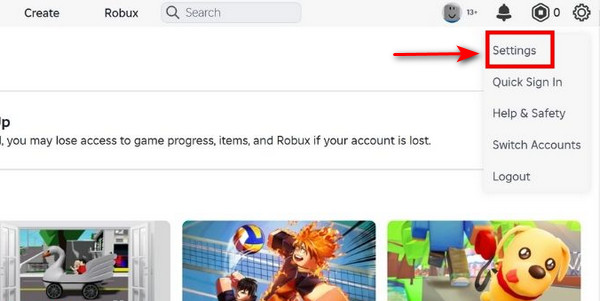
Click the gear button in the top right corner and select Settings from the dropdown menu.
In the Personal section, click Country, and select your new country from the list.
Click Save at the bottom to confirm the changes.
On Mobile
Open the Roblox app on your mobile device.
Tap the three dots in the bottom right corner.
Select Settings > Account Info, then tap Country/Region.
Select your desired country and save the changes.
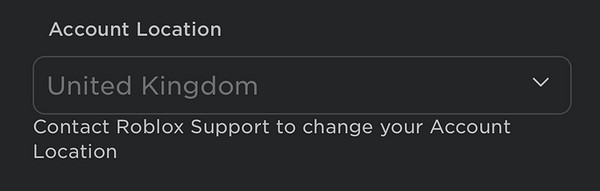
If you have reached the limit on times to modify your location, you need to contact Roblox Support manually to change your account location.
Part 3. How to Unlock Roblox Games Unavailable in Your Region
Just changing your Roblox account region isn't enough to play geo-locked games. Roblox checks your real location using your device's GPS and IP, so the restrictions still apply. If you want to play games that are blocked in your area, you'll need to hide your real location. Here are two common ways to do it:
Change Roblox Location with a GPS Spoofer
Using a GPS spoofer is one of the easiest ways to spoof your GPS location on Roblox. imyPass iLocaGo is a highly recommended location changer for both Android and iPhone. It allows you to appear anywhere around the world without moving, so you can play geo-restricted games without restrictions. This tool also supports advanced features like simulating real-time movement with a joystick.

4,000,000+ Downloads
Spoof your location on Roblox, Tinder, and more location-based apps.
Unlock geo-specific games without restrictions.
Customize your speed and route as you like with the joystick.
Support the latest Android 17 and iOS 27.
Steps to change your location on Roblox:
Connect your device to the computer using a USB cable. For Android users, you can also use a wireless connection. Tap Trust on your phone when prompted.

Launch the software and choose the Modify Location option from the interface.

A map will appear on your screen. You can drag, zoom in, and zoom out to find the desired site. Alternatively, type the place name in the search bar to quickly find it.

Click Sync to device to apply the new location to your device instantly.
Change Roblox Location Using a VPN
A VPN hides your real IP address and connects your device to remote global servers. It changes the network location that Roblox detects, allowing you to play geo-restricted games. Before using a VPN, you need to understand the potential risks. For example, VPNs may cause higher latency and slower game performance, sometimes it will trigger moderation reviews.
Download and install a reputable VPN on your device.
Launch the VPN and log in to your account.
Select a server in a region where the Roblox game you want to play is available, and connect to it.
Open Roblox, and your account location will now appear to be the spoofed area.
Avoid using free VPN services. They often have unstable connections, limited server options, and may trigger security issues.
Part 4. FAQs about Changing Roblox Location
FAQs.
-
Can Roblox track my real location?
Yes. Roblox can detect your real location using your device's signals including your IP address and GPS data. That's why some Roblox games are restricted in certain regions. Simply changing your account region in account settings will not hide your real location and bypass these restrictions.
-
Is it legal to change my Roblox location?
Yes, using tools like VPNs or GPS spoofers to change your Roblox location is generally legal. Using them for cheating, fraud, or violating Roblox's Terms of Service may lead to account restrictions or other penalties.
-
Will changing my Roblox location affect existing game data?
No. Changing your Roblox location does not affect your existing game data. Your game progress, purchases, friends list, and inventory won't disappear. It mainly changes how Roblox displays regional content.
Conclusion
Now you can change your Roblox account location through the account settings directly! If you want to unlock unavailable content, you'll still need to use a VPN or a reliable location changer. Are you disappointed that you can't play your favorite Roblox game? Try these methods now!
Penny focuses on GPS troubleshooting and Windows optimization. She formerly worked as a technical support engineer, helping clients solve location-based and system issues efficiently. Backed by IT support experience, she provides practical solutions that really work. In her free time, she likes hiking and geocaching, testing GPS tech in the real world.
Hot Solutions
-
GPS Location
-
Unlock iOS
-
iOS Tips
-
Unlock Android


