



 Solution
 Support Center
 About Us
 Contact
How to Disable Location on iPhone: Completely, Specifically & More
 Penny Warren Published on April 10, 2026GPS Location3-min reading
Your iPhone tracks your location to support maps, weather, and safety features. However, constant tracking can lead to privacy issues and drain your battery. Many users look for ways to turn off location services on their iPhone, but they often overlook the complete set of controls Apple offers. As someone who deals with mobile privacy settings every day, I will help you navigate the specific options that balance security and usability. This article explains each method step by step so you can find what works best for you.

In this article:
- Part 1. How to Turn Off Location Services Completely
- Part 2. How to Manage Location for Specific Apps
- Part 3. How to Turn Off Location for Specific People (Find My)
- Part 4. How to Tell If Someone Turned Their Location Off
- Part 5. How to Turn Off Location Temporarily
- Bonus: How to Fake Location on Your iPhone
Part 1. How to Turn Off Location Services Completely
Location Services on your iPhone manage how apps and system features access your current location. While these services can be helpful, turning them off can boost your privacy and lower background activity. If you want to learn how to turn off location on your iPhone, the process is straightforward but often neglected in the settings. Follow the guide to turn off location tracking on your device completely.
Open the Settings app on your iPhone. Scroll down and tap Privacy & Security.
Hit Location Services at the top of the screen to access all location settings.
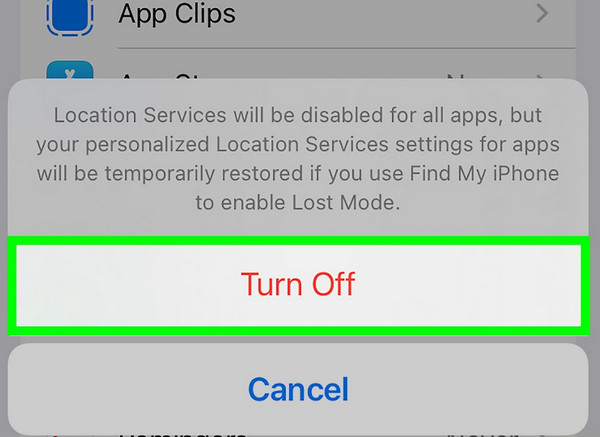
Toggle the Location Services switch to the off position. This restricts location access for all apps and system features.
Confirm your choice if prompted. Once turned off, no app or service can use your location unless you turn it back on.
Part 2. How to Manage Location for Specific Apps
Not every app needs your exact location all the time, except when you are using the Pokémon Go map. Many apps only need your location while you are using them, and others do not need it at all. If you want more control without completely turning off system services, learning how to turn off location on your iPhone for specific apps is a better choice. This method helps protect your privacy while keeping important features running smoothly. Follow the steps below to adjust location access for each app.
Go to the Settings app and hit Privacy & Security. Then select Location Services.
Scroll through the list of apps to find the one you want to manage, then tap it.
Choose your preferred setting: Never, Ask Next Time, While Using the App, or Always, depending on how much access you want to allow.
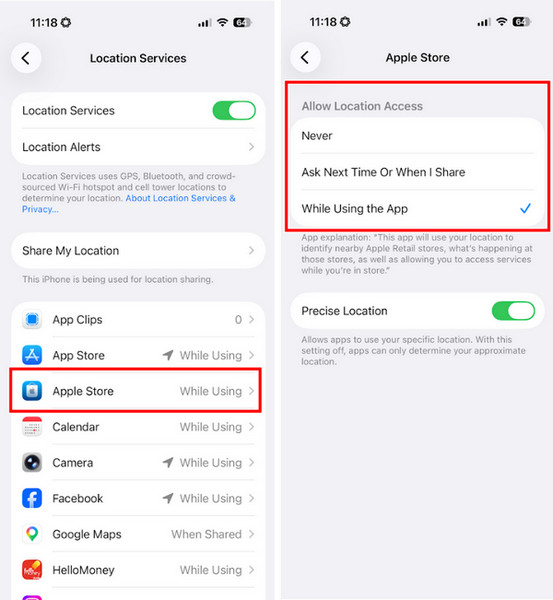
Repeat the process for other apps to customize location access based on your needs and usage.
Part 3. How to Turn Off Location for Specific People (Find My)
1. Stop Sharing Your Location with One Person
If you only want to stop sharing with a specific contact, this method gives you precise control without impacting others. It is helpful when you want privacy in certain situations while still using Find My normally. Many users looking for how to turn off my location on iPhone prefer this option because it is quick and does not turn off features across the system.
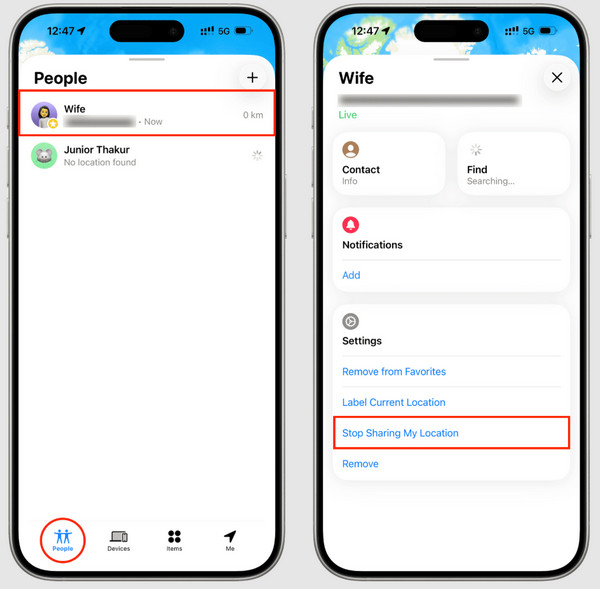
Open the Find My app on your iPhone.
Hit the People tab at the bottom of the screen.
Select the person you want to stop sharing your location with.
Scroll down and tap Stop Sharing My Location, then confirm your choice.
2. Hide Your Location from Everyone
If you want full privacy, you can stop sharing your location with all contacts at once. This method is ideal when you want to pause location visibility without removing people one by one. Users looking for how to turn off location services on iPhone often choose this approach to ensure no one can access their location through Find My.
Open the Find My app and go to the Me tab.
Locate the Share My Location option.
Toggle it off to disable location sharing.
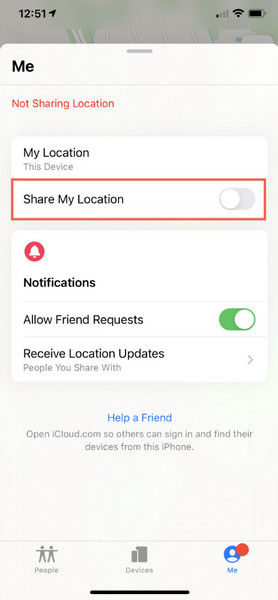
Once turned off, your location will no longer be visible to anyone.
Part 4. How to Tell If Someone Turned Their Location Off
Location sharing in Find My depends on active settings, network access, and device status. When something changes, the app shows clear signals. If you are trying to confirm whether someone has stopped sharing, it helps to understand these indicators rather than guessing. Below are the most common signs and what each one means.
1. "Location Not Available" Message
This is the most common indicator and appears under a person’s name in Find My. It often shows when someone has chosen how to turn off location on iPhone without notifying, or when their device is offline.
2. No Location Update or Frozen Location
The last known location stays the same for an extended period. This can happen if the user performed an iPhone switch off location services, preventing new location data from updating.
3. "Stopped Sharing Location" Notification
You may receive a direct alert in Find My. This is the clearest confirmation that the person manually stopped sharing their location with you, often after they deactivate location sharing on their iPhone in their settings.
4. Missing from the People List
The person no longer appears in your Find My list. This can happen if they removed you, stopped sharing, or signed out of their Apple ID. It may also occur when someone chooses to disable location tracking on an iPhone completely.
5. No Location Update or Temporary Pause
In some cases, location sharing may stop for a short time and resume later. This often indicates the user chose how to turn off location on iPhone temporarily rather than disabling it permanently.
6. No Map or Blank Location Screen
Instead of a visible map, the screen appears empty or stuck loading. This is one of the common signs people notice when learning how to tell if someone turned their location off on iPhone, especially when visibility is intentionally limited.
Part 5. How to Turn Off Location Temporarily
There are times when you may not want to share your location, but only for a short period, then share your location on your iPhone again. Instead of turning off all settings, you can use temporary methods that are quick and easy to reverse. Below are three effective ways to pause location sharing, each linked to a specific scenario.
1. Use Control Center (Fastest Method)
This method works by cutting off connections that location services rely on, such as Wi-Fi and cellular data. It is the quickest way to pause tracking and is ideal if you want to learn how to disable location on iPhone instantly.
Swipe down from the top-right corner of your screen to open the Control Center.
Tap the Airplane Mode icon to disable all wireless connections.
Wait a few seconds to ensure all signals are turned off.
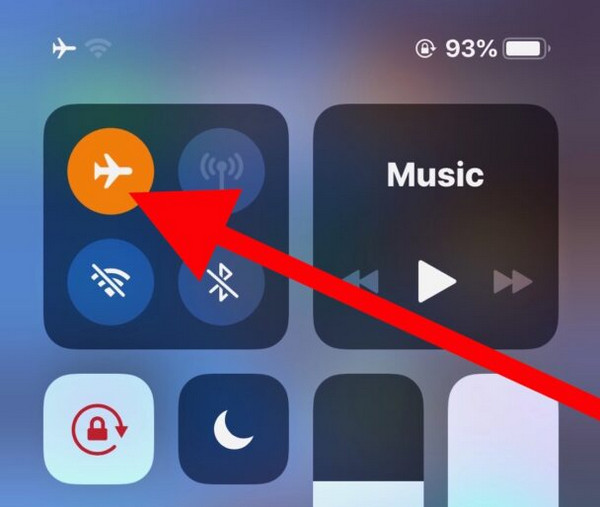
Turn Airplane Mode off when you want to restore location access.
2. Turn Off "Share My Location" Temporarily
This option stops others from seeing your location without affecting other system features. It is perfect if you want to control visibility in Find My and are exploring how to turn off my location on iPhone temporarily.
Open the Settings app and tap your Apple ID at the top.
Tap Find My to access location sharing settings.
Toggle off Share My Location.
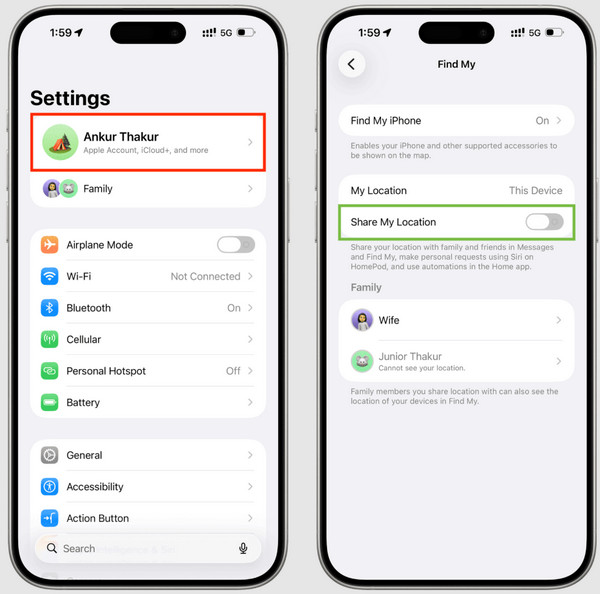
Turn it back on anytime to resume sharing.
3. Use Focus Modes
Focus Modes can limit background activity, including location sharing for certain apps. This is a useful approach if you want partial control without fully disabling system features, showing a way to turn off location services on iPhone selectively.
Open Settings and tap Focus.
Select a Focus mode, such as Do Not Disturb, or create a new one.
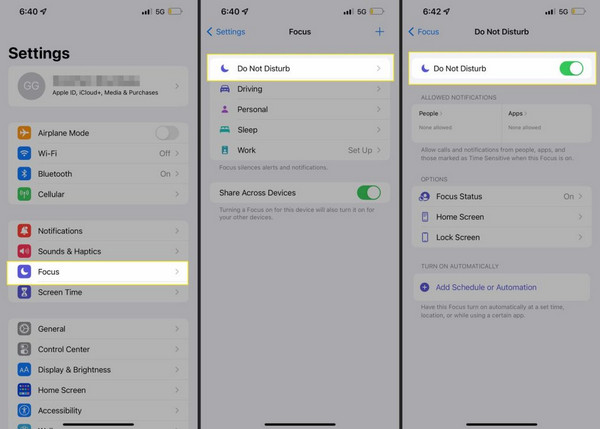
Customize allowed apps and notifications as needed.
Enable the Focus mode to reduce background activity, including some location usage.
Bonus: How to Fake Location on Your iPhone
Sometimes, you may want to change your location without physically moving. One reliable tool for this is imyPass iLocaGo, a location changer made for iOS devices. It lets you change your GPS location safely through a computer connection, without jailbreaking your iPhone. The tool has an easy interface, precise controls, and several features, including setting a custom location, simulating movement, and managing saved locations. It syncs changes directly to your device for accurate results in apps.
Download and install imyPass iLocaGo on your computer from the official website, then open the program after setup is complete.
Connect your iPhone to the computer using a USB cable, then wait for the tool to detect your device and tap Trust This Computer if prompted.
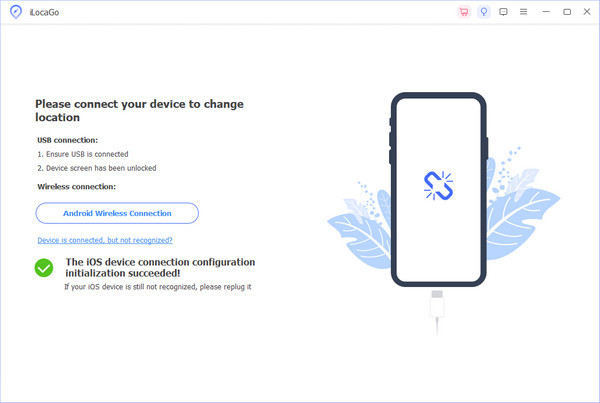
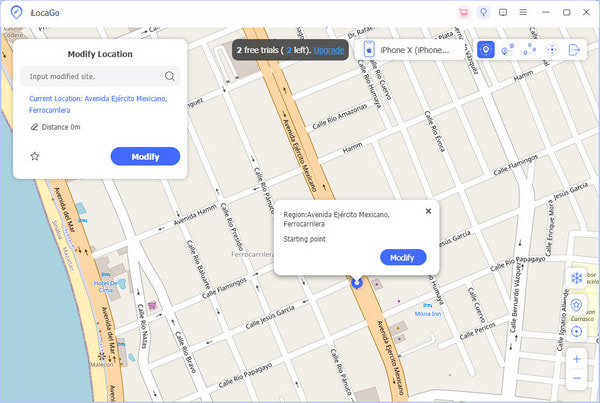
Click the Modify Location option, then use the map or search bar to choose your desired location and select Sync to device to apply the change.
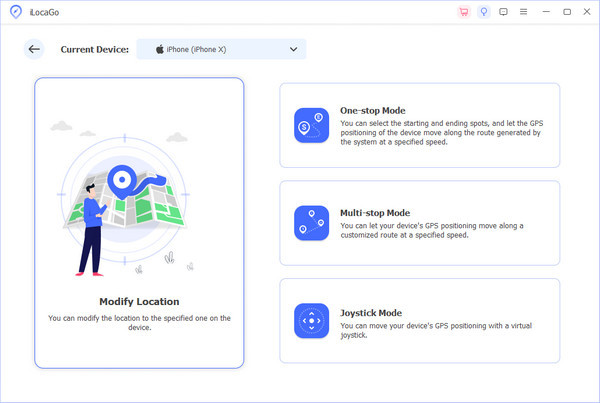
Use the built-in tools such as history, favorite locations, zoom controls, and current location to switch locations faster and manage saved spots efficiently. With that, you have learned how to change your iPhone location with the use of this software.
Conclusion
Taking control of your location settings on an iPhone is a simple way to protect your privacy without losing essential features. From fully disabling Location Services to managing app access or pausing sharing in Find My, each option gives you a different level of control. Knowing how to turn off location on iPhone allows you to adjust these settings with purpose, not guesswork. With the steps in this guide, you can confidently manage when your location is shared, who can see it, and how your device uses it every day.
Penny focuses on GPS troubleshooting and Windows optimization. She formerly worked as a technical support engineer, helping clients solve location-based and system issues efficiently. Backed by IT support experience, she provides practical solutions that really work. In her free time, she likes hiking and geocaching, testing GPS tech in the real world.
Hot Solutions
-
GPS Location
-
Unlock iOS
-
iOS Tips
-
Unlock Android


