



 Solution
 Support Center
 About Us
 Contact
[Comprehensive Guide] Mock Location on Huawei
 Penny Warren Published on November 28, 2025GPS Location3-min reading
Are you curious about the concept of Huawei mock location? This comprehensive guide unveils step-by-step methods, including developer options and proxy applications, offering insights into why people fake their location and addressing FAQs. Discover strategies for privacy, gaming, content access, and more. Ready to explore the world of simulated locations on your Huawei device?

In this article:
Part 1. What Is Mocking Location
Mock location is a built-in feature for mobile devices. Users can use it to simulate or fake a device's GPS or Global Positioning System coordinates. It allows users to override the actual location information reported by the device's GPS.
Mock location is a software-based feature. That means you need an app to first change the GPS location, and then the phone system will imply the fake location as your phone location. All applications and services that rely on location data, such as maps, navigation apps, social media platforms, and location-based games, will use this simulated location.
Reasons Why People Mock Their Location
◆ Privacy Concerns: Some individuals mock their location to protect their privacy. They may want to hide their whereabouts, especially in online interactions or social media, to avoid potential risks or unwanted attention.
◆ Security Measures: In certain situations, people may change their location settings as a security measure. This could be to prevent their actual location from being tracked by malicious entities or to avoid being targeted for cyber threats.
◆ Gaming Strategies: In geo-based games, players may mock their location to gain a strategic advantage. This could involve appearing to play from a different region to access specific game feature servers or to matchmake with players they perceive as more accessible competition.
◆ Content Access: Geo-restrictions on digital content, such as streaming services or specific websites, can lead individuals to mock their location. By pretending to be in a different location, they can acquire content that may be restricted or unavailable in their actual location.
◆ Bypassing Location-Based Pricing: Some people change their location to take advantage of price variations in different regions. This is particularly common in online shopping, where individuals might set their location to a region with lower prices or better discounts.
Part 2. How to Mock Huawei Location on Settings
Below are the steps to mock your location on a Huawei device. This step-by-step guide will navigate you through the process, ensuring a straightforward experience in altering your device's location for various purposes.
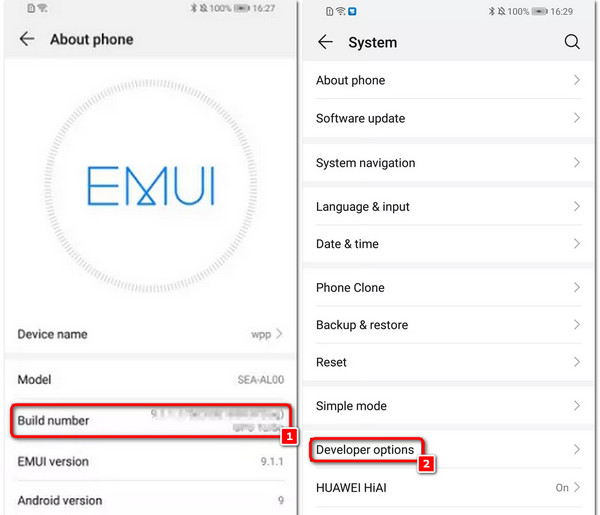
Open your device's settings, navigate to About phone, and tap on Build number seven times to unlock Developer Options.
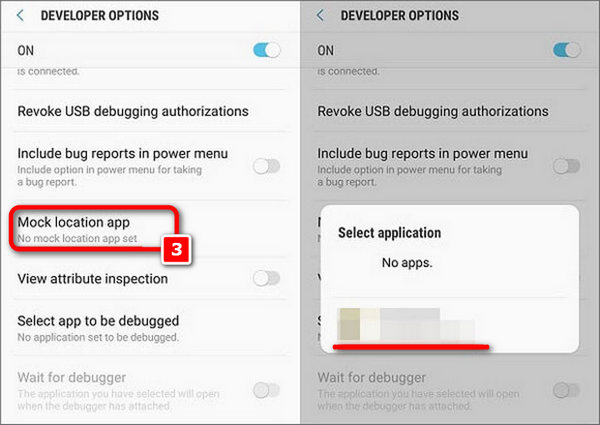
Next, locate the Mock location app setting within Developer Options, then choose a location spoofing app.
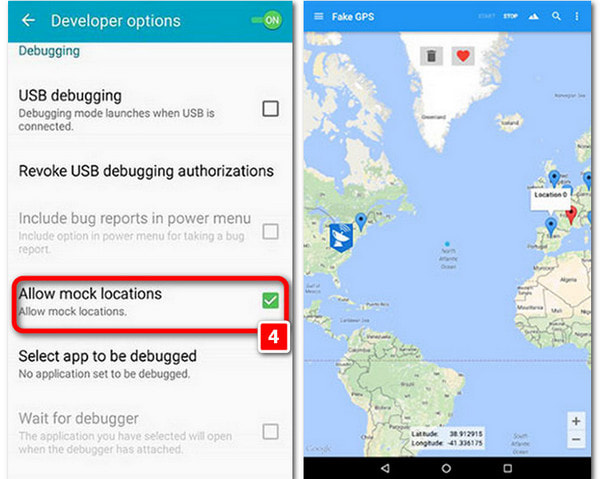
Then, download and open the chosen spoofing app, grant the necessary permissions, and set a fake location either manually or on the map.
Lastly, return to Developer Options and turn on Allow mock locations, then open a mapping app to confirm the new location.
Part 3. How to Set the Mock Location App
We have finished setting up your Huawei phone. As we explained, you need to choose a mock location app in the last step. Now it's time to download and set up the mock location app: imyPass iLocaGo. See the detailed steps below.
Download and install imyPass iLocaGo on your computer. Once the tool is installed, launch it to proceed with the following steps.
Next, click the Start button to initiate altering or simulating your location on your Android smartphone, allowing you to appear as if you are in a different location.
iLocaGo also works for iPhone and iPad.
Subsequently, a prompt will appear, instructing you to connect your phone to the computer using a USB cable or wireless connection.

Proceed to the main interface, and from the left menu, choose Modify Location to alter your device's location effortlessly.

Finally, select a location on the map or input the address directly. Initiate an instant shift to your chosen destination by clicking Modify for a seamless experience.
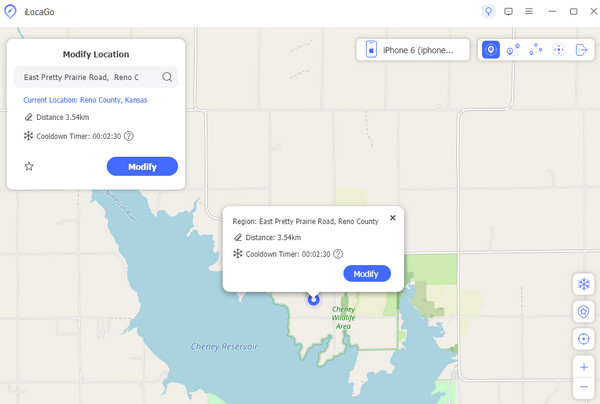
You can also use different modes, including Modify Mode, One-stop Mode, Multi-stop Mode, and Joystick Mode. When you change modes, there is nothing you need to do in your phone settings. All the location mocking will be synced to your phone.
Conclusion
The easiest way to fake a Huawei location is to use the built-in mock location feature. This article shows the two most important parts of this method so that you can mock Huawei location successfully.

4,000,000+ Downloads
The best mock location app for Huawei, other Android phones, and iOS devices.
4 Modes supported: Modify Mode, One-stop Mode, Multi-stop Mode, and Joystick Mode.
Compatible with all devices running Android 5, iOS 12, and above.
Changing the location of all apps in your phone, including Facebook, TikTok, WhatsApp, etc.
Penny focuses on GPS troubleshooting and Windows optimization. She formerly worked as a technical support engineer, helping clients solve location-based and system issues efficiently. Backed by IT support experience, she provides practical solutions that really work. In her free time, she likes hiking and geocaching, testing GPS tech in the real world.
Hot Solutions
-
GPS Location
-
Unlock iOS
-
iOS Tips
-
Unlock Android


