



 Solution
 Support Center
 About Us
 Contact
What is The Latitude and Longitude for My Location: Track Exact Spot
 Penny Warren Published on March 20, 2026GPS Location3-min reading
Tracking a specific location or places around the world is hard. One of the reasons is that some places have the same name. This issue is the top cause why people want to use their location coordinates. Coordinates show the exact spot of the place, not just the general area it contains. Also, coordinates work around the globe as they use longitude and latitude.
However, coordinates are a set of numbers, which are hard to remember. You might wonder: What are my location coordinates? If you are new to this, you will find it very hard to use. But do not worry. This helpful post will help you understand the topic deeper. Continue browsing to learn more.

In this article:
- Part 1. Understanding Your Coordinates: A Quick Primer
- Part 2. Find My Location Coordinates Using Google Maps
- Part 3. Get My Location Coordinates Using Built-in Phone Compass/Utility Apps
- Part 4. Display My Location Coordinates Using Dedicated Coordinate Finder Websites
- Part 5. Change My Location Coordinates
Part 1. Understanding Your Coordinates: A Quick Primer
Before you proceed in finding your location coordinates, it is better to understand it in simple terms first. In this section, we will discuss the important information about it.
1. Why Coordinates are Helpful
Location coordinates are very helpful for navigation. It can be your guide for using Google Maps, GPS, Waze, and other applications for location. You can also share your location coordinates for emergency purposes to help the rescuers find you quickly. Delivery services can also benefit from coordinates because they will know your exact location.
Furthermore, there will be no confusion about the locations that have the same name. The reason is that coordinates are always unique.
2. Latitude (The First Number)
Latitude tells you how far north or south of the place is. It is commonly known as the Equator. It is the up or down position from the earth. It is the first number from the location coordinates.
3. Longitude (The Second Number)
Longitude is another part of the location coordinates. It tells you how far the place is from the west or east of the center of the Earth. The place is called the Prime Meridian. Longitude is the second number from the coordinates.
Part 2. Find My Location Coordinates Using Google Maps
Google Maps is one of the most trusted location tracking services. You are allowed to track your current location, including the location of your friends and family. Others can also fake location on Google Maps with the right methods.
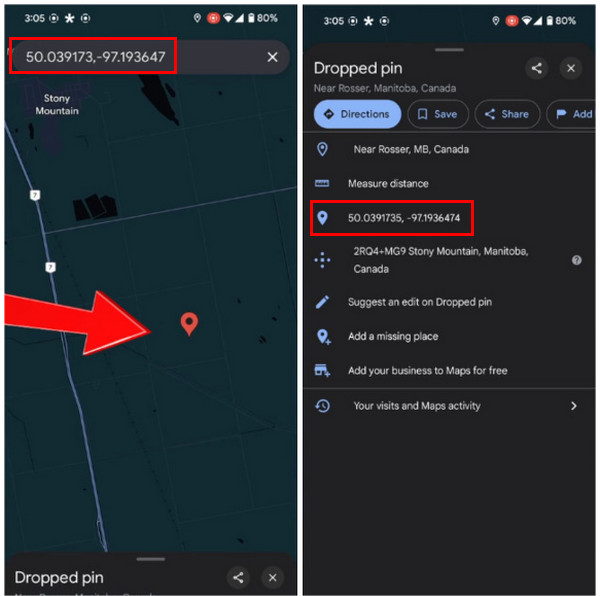
Furthermore, it is easy to find your location coordinates with this service. Dropping a PIN or locating the location information will help you locate it. Please see and perform the steps below to use Google Maps for finding your location coordinates.
Open Google Maps. You can also download it if you do not have it yet on your mobile phone. Alternatively, you can visit its website.
Locate the place you want to know the coordinates of. Then, long-press to drop a PIN. The location coordinates will appear at the top. Alternatively, you can swipe up at the bottom, and more information will appear. Go to the PIN button, and you will see the coordinates.
Part 3. Get My Location Coordinates Using Built-in Phone Compass/Utility Apps
Your mobile phones, like Android and iPhone, have built-in applications to look for your location coordinates. Please see their procedures as you scroll below.
1. On iPhone
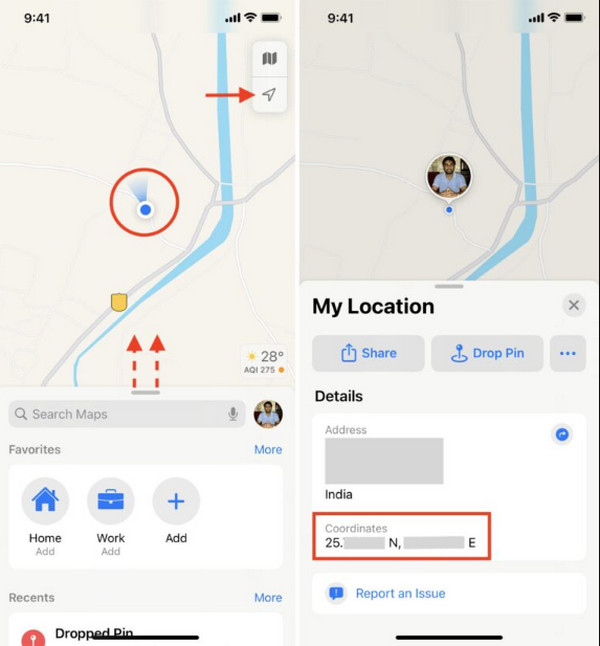
Apple Maps may help you find your location coordinates on an iPhone. It is almost the same as Google Maps. Please use the steps below to know how to use it.
Open the Apple Maps app. After that, tap the Arrow button at the top right. Your current location will be prompted. Tap the Circle button, and the My Location tab will appear.
Go to the Coordinates section. Later, tap the location coordinates to copy them to your iPhone clipboard.
2. On Android
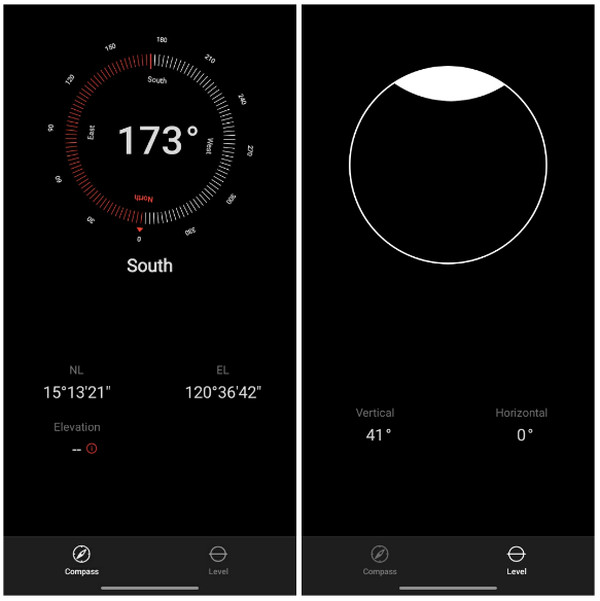
The built-in application that can be used on Android to locate your location coordinates is its Compass app. The application is straightforward to use. It shows you the east, west, north, and south locations. You can also use its Level feature for guidance. See how to use the app below.
Open the Compass app on your Android phone. Then, tap the Level button at the bottom left. Ensure that you have your correct angle.
Tap the Compass button at the bottom left. Then, you will see your location coordinates at the bottom.
Part 4. Display My Location Coordinates Using Dedicated Coordinate Finder Websites
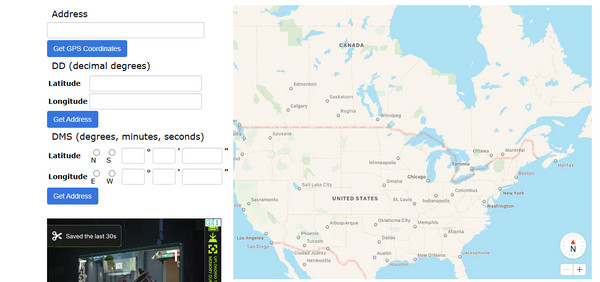
Some websites can help you track coordinates. Please note that they are not IP location finders. They use the information that the user provides. GPS Coordinates are one of them. Please see the steps below to know how to use the website to find your location coordinates.
Open a supported web browser and pay a visit to the website of GPS Coordinates. After that, swipe down on the screen and fill out the information needed. Enter information from the Address section. Select the Get GPS Coordinates button.
The Longitude and Latitude sections will be filled out afterward. Tap the Get Address button as the final process.
Part 5. Change My Location Coordinates
Besides finding the location coordinates, you can also use imyPass iLocaGo to change it! This third-party tool can change your location from your iPhone and Android around the globe. It allows you to play joystick, simulate routes, and more. It supports the later versions of Android and iOS. The tool can change your location from different applications, including Snapchat, WhatsApp, Facebook, Tinder, Hinge, etc.
Also, this software does not require an internet connection for the process. You only need a USB cable to change your location. Please perform the steps below to change your location coordinates with this tool.
Open your computer and search for the website of imyPass iLocaGo. After that, set up the downloaded file and install it on your computer. Finally, the tool will be launched automatically.
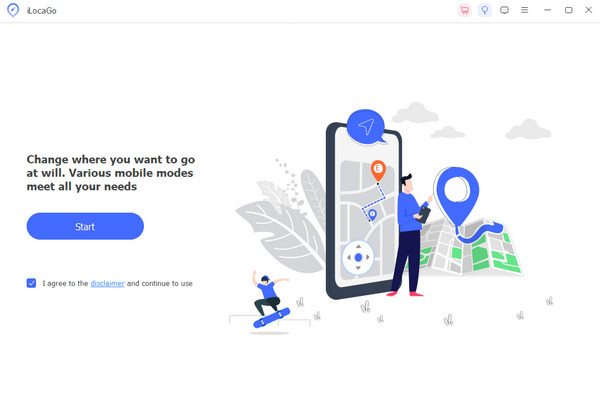
The first interface of the tool will be prompted. Please click the Start option on the left.
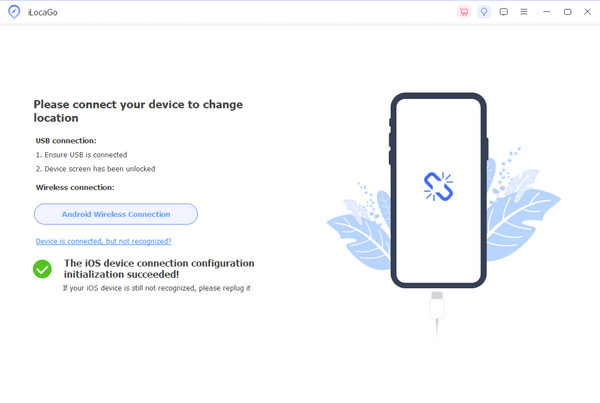
The next screen is the plugging process. Get your USB cable and use it to plug an iPhone or Android into a computer. Click the Modify Location button and set your preferred location at the top left. Click the Modify option to apply the changes.
Conclusion
What are the exact coordinates of my location? This question has been answered in this article. Longitude and latitude are well explained. Additionally, there are three ways to find your location coordinates. imyPass iLocaGo is also here to help you change your location coordinates. Download the tool if you want to explore it.
Penny focuses on GPS troubleshooting and Windows optimization. She formerly worked as a technical support engineer, helping clients solve location-based and system issues efficiently. Backed by IT support experience, she provides practical solutions that really work. In her free time, she likes hiking and geocaching, testing GPS tech in the real world.
Hot Solutions
-
GPS Location
-
Unlock iOS
-
iOS Tips
-
Unlock Android


