Solution
 Support Center
 About Us
 Contact
How to Properly Pause Your Location on iPhone Find My
 Penny Warren Published on September 02, 2026GPS Location3-min reading
Sharing location on an iPhone is a convenient way to send location information to your friends and family members. However, every coin has two sides. So does location sharing. That brings security concerns and risks. It makes sense that users wish to pause location on Find My iPhone. The good news is that you have multiple ways to stop sharing your current location. This guide shares the proven methods and detailed steps.

In this article:
Part 1: Can You Pause Your Location on Find My
Pausing location means temporarily hiding your live location or freezing your current location. Can you pause your location on Find My? Yes, but you won't find a Pause Location option or button on your iPhone. In fact, once you turn off location sharing on an iOS device, others will read the latest available location rather than disappear from the map.
Part 2: How to Pause Location on Find My iPhone
Way 1: How to Pause Location on Find My iPhone in Airplane Mode
Does Airplane Mode pause location? Yes, this is the easiest way to pause your location on your iPhone temporarily. Once you want to share your location, you just need to turn off Airplane mode. Bear in mind that this way will cut off all connections on your device.
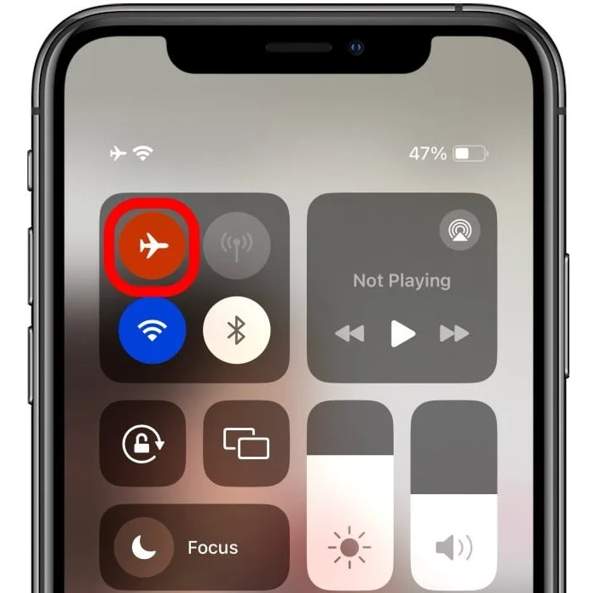
Enter the Control Center on your iPhone.
Tap the Airplane button to turn it on.
Powering off your iPhone can pause location, too.
Way 2: How to Pause Location Sharing on iPhone
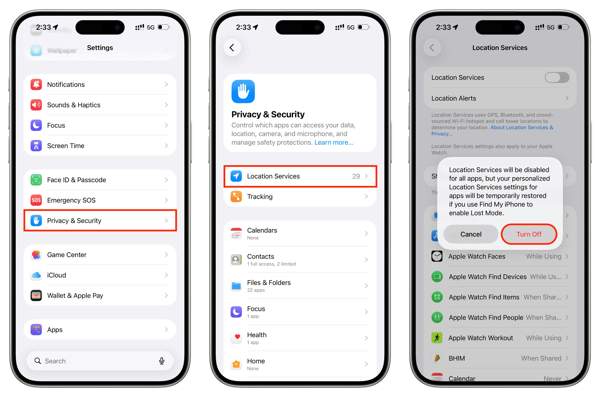
Open the Settings app.
Go to Privacy & Security, then Location Services.
Toggle off Location Services, and tap Turn Off.
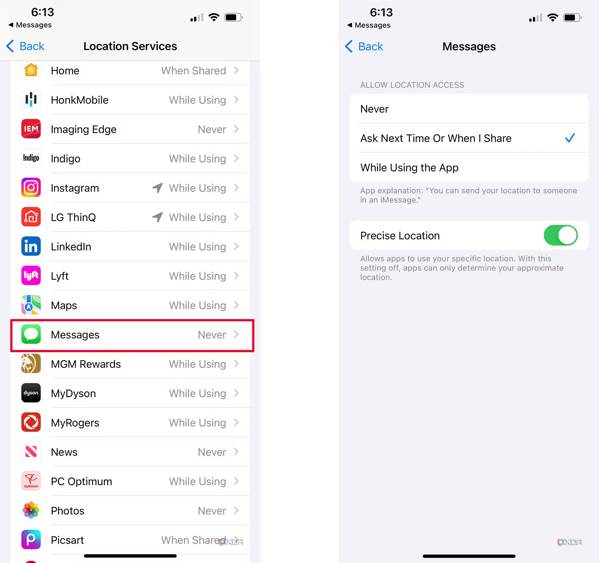
If you want to pause location for an app, keep Location Services enabled, select the app on the list, and pick Never.
Way 3: How to Pause Location After Turning off Find My iPhone
Can you pause your location on Find My? Yes, the easy way is to completely turn off Find My iPhone. You can disable the location tracking feature in the Settings app and authenticate with your Apple Account password.
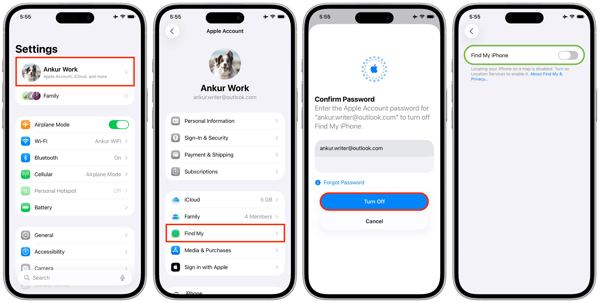
Run your Settings app.
Tap on your profile.
Go to Find My and Find My iPhone.
Toggle off Find My iPhone.
Enter your Apple Account password and tap Turn Off.
Now, Find My cannot track your live location.
Way 4: How to Pause Location with Turning off Location Sharing
You can pause location sharing on your iPhone in the Settings app or Find My app. Furthermore, you can stop sharing your location with specific people while continuing to share with others.
In Settings App
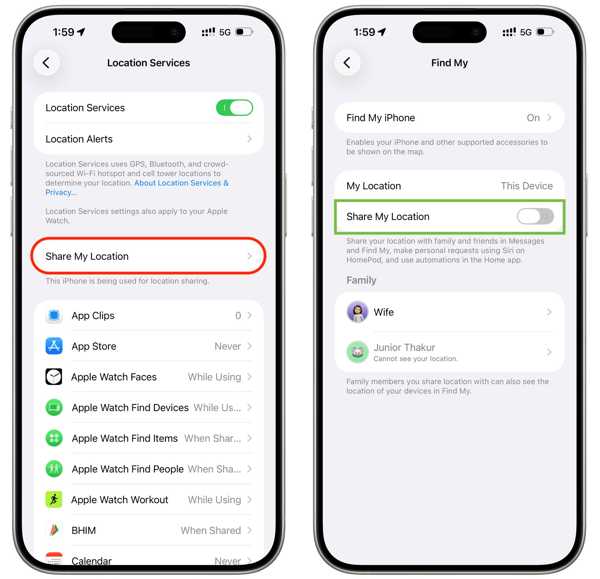
Open your Settings app.
Head to Privacy & Security, then Location Services.
Tap Share My Location.
Toggle off Share My Location.
In Find My App
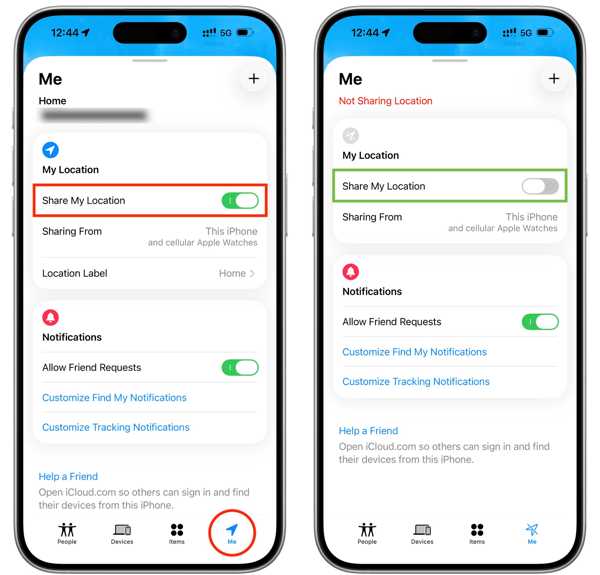
Run the Find My app.
Go to the Me tab from the bottom.
Toggle off Share My Location under the My Location heading.
For a Specific Contact
Go to the People tab in the Find My app.
Choose the desired contact.
Tap the Stop Sharing My Location button.
You May Also Like:
Way 5: How to Pause Location Using Another iOS Device
If you have multiple iOS devices, you can use another device to pause location on Find My Friends. When you put an iPhone or iPad at home, for example, you can use the location information on the device in your bag.
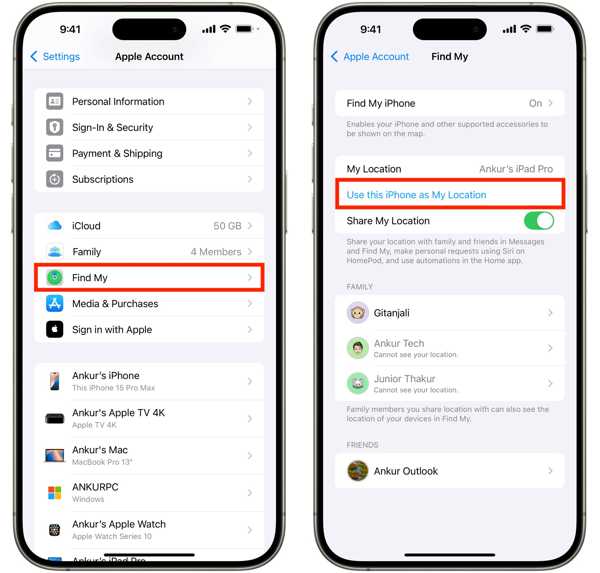
Go to the Settings app on the secondary device.
Tap on your profile and make sure that you log in to the same Apple Account on both devices.
Scroll down and choose Find My.
Tap the Use this iPhone as My Location button.
Now, take your primary iPhone, and it won't share the real location.
Part 3: How to Pause Location on Find My Without Disabling It
4,000,000+ Downloads
Stop sharing location on an iPhone or iPad in one click.
Hide live location with any address or destination.
Simulate movements with your mouse or keyboard.
Offer multiple modes for various purposes.
Support almost all iPhone and iPad models.
How to Pause Location on Find My iPhone Without Disabling It
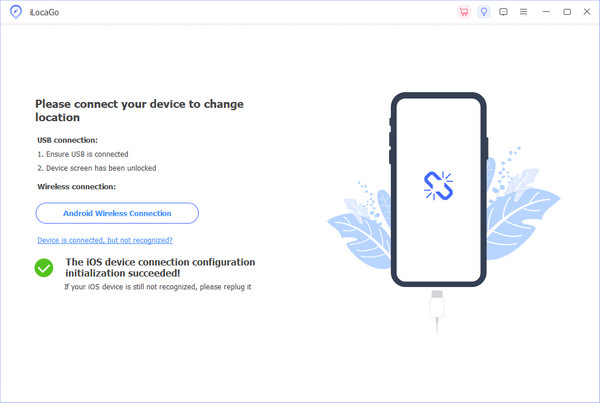
Detect your iPhone
Run the location spoofing tool after you install it on your computer. Connect your iPhone to your computer with a Lightning cable. Make sure to trust this computer. Then, the software will detect your device immediately.
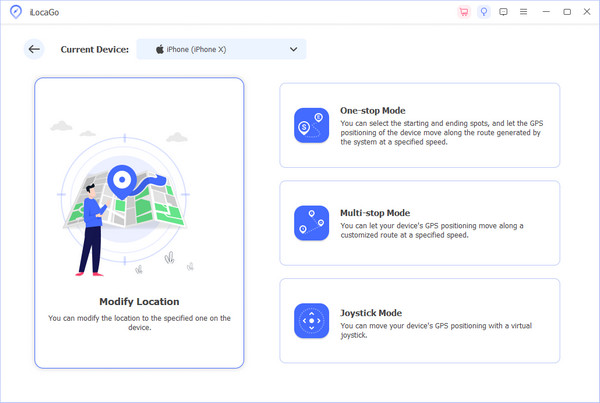
Choose a mode
Choose the Modify Location option if you need to pause the static location on Find My iPhone. The other three modes, One-stop Mode, Multi-stop Mode, and Joystick Mode, are used to simulate movements.
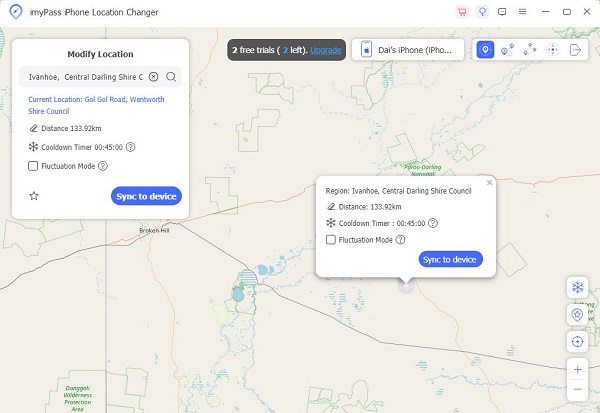
Pause location on iPhone
Type in an accurate address into the field or click the destination on the map. Finally, click on the Modify button to confirm the pausing location on your iPhone. Now, you can use your iPhone as usual.
Conclusion
This guide shared multiple ways to pause location on Find My iPhone. The Airplane mode cuts off all connections on your iPhone and disables location sharing. Plus, you can pause location sharing in your Settings or Find My app according to your preferences and needs. If you wish to stop sharing your live location without others knowing, imyPass iLocaGo is a good option. Furthermore, the intuitive design simplifies the workflow.
Penny focuses on GPS troubleshooting and Windows optimization. She formerly worked as a technical support engineer, helping clients solve location-based and system issues efficiently. Backed by IT support experience, she provides practical solutions that really work. In her free time, she likes hiking and geocaching, testing GPS tech in the real world.
Hot Solutions
-
GPS Location
-
Unlock iOS
-
iOS Tips
-
Unlock Android