



 Solution
 Support Center
 About Us
 Contact
How to Temporarily or Permanently Turn off Face ID on iPhone
 Clara Prescott Published on May 11, 2026iOS Tips3-min reading
Apple's Face ID is a convenient way to unlock iOS devices and Apple services. According to Apple, the likelihood that someone else can pick up your iPhone and unlock it with a glance is about 1 in 1 million. Therefore, Face ID only permits five failed match attempts to add another layer of security. This guide shares how to temporarily or permanently turn off Face ID on your iPhone.

In this article:
Part 1: How to Turn off Face ID on iPhone
When you remove Face ID on your iPhone, your device stops using biometric security and switches entirely to the digit passcode for authentication. Besides, you can turn off Face ID for Messages, Safari, or any app, respectively.
How to Completely Turn off Face ID
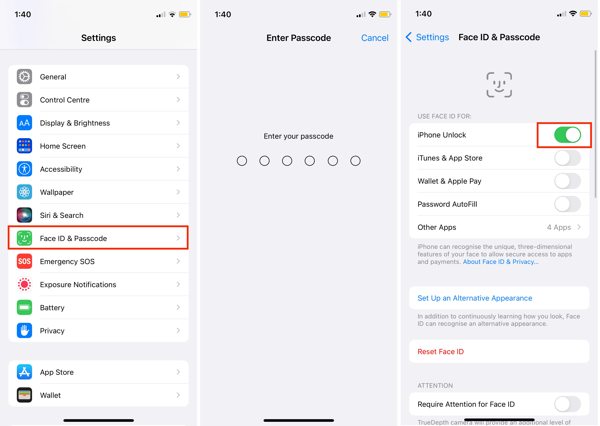
Open the Settings app on your home screen.
Choose the Face ID & Passcode tab.
If prompted, enter your lock screen passcode.
Toggle off iPhone Unlock under the USE FACE ID FOR section.
Note:
If you want to turn off Face ID for a service, like App Store, toggle off iTunes & App Store.
How to Turn off Face ID for Messages
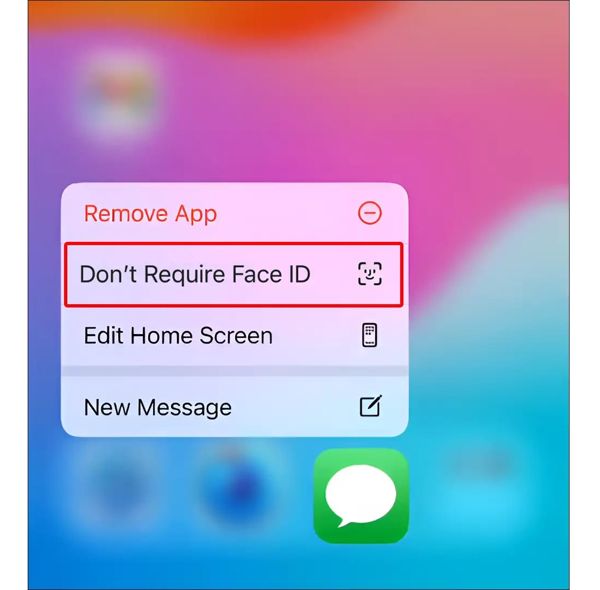
Long-press the app on your screen, like Messages.
Choose Don't Require Face ID to turn off Face ID for Messages.
How to Turn off Face ID for Safari
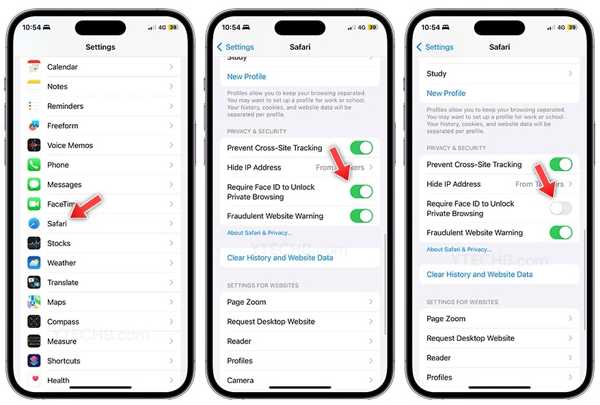
Long-press Safari on your home screen.
Choose Don't Require Face ID to turn off Face ID for Safari.
If you just want to turn off Face ID for private browsing, choose Require Face ID after holding the Safari app.
Then, go to Settings and Safari.
Toggle off Require Face ID to Unlock Private Browsing.
How to Remove Face ID on iPhone
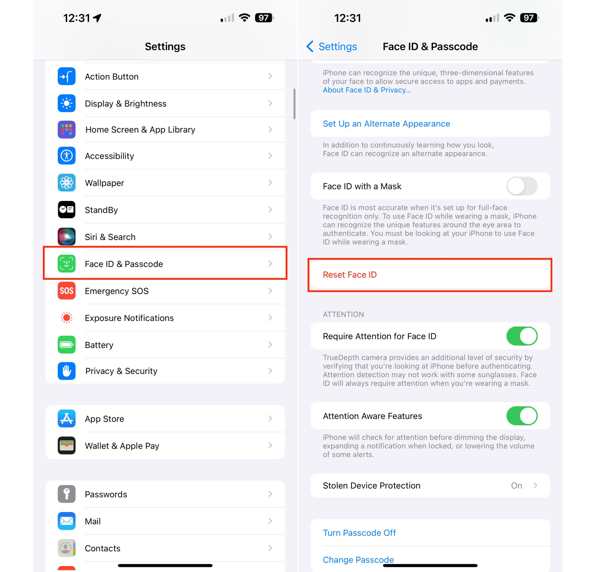
Choose Face ID & Passcode in your Settings app.
If prompted, enter your passcode.
Tap Reset Face ID to remove all Face ID from your iPhone.
Part 2: How to Disable Face ID on iPhone on Lock Screen
If it is inconvenient to scan your face when unlocking your device, you can disable Face ID on the iPhone's lock screen. Moreover, you have multiple ways to temporarily disable the biometric system on your lock screen.
Option 1: Disable Face ID on iPhone on the Power-off Screen
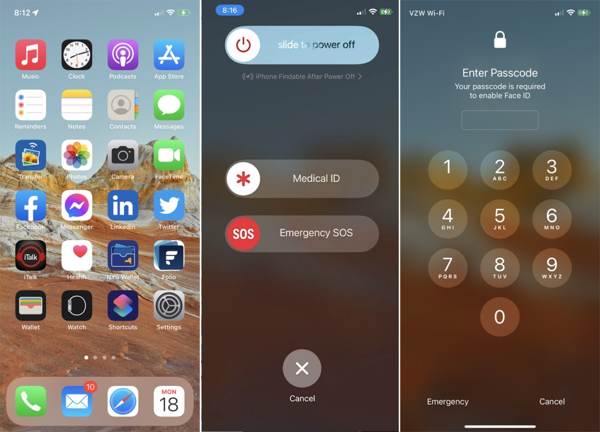
Press and hold either Volume button and Side button together.
When the power-off screen appears, release the buttons.
Tap the Cancel button.
Then, you will be presented with the passcode screen.
Option 2: Disable Face ID on iPhone with Siri
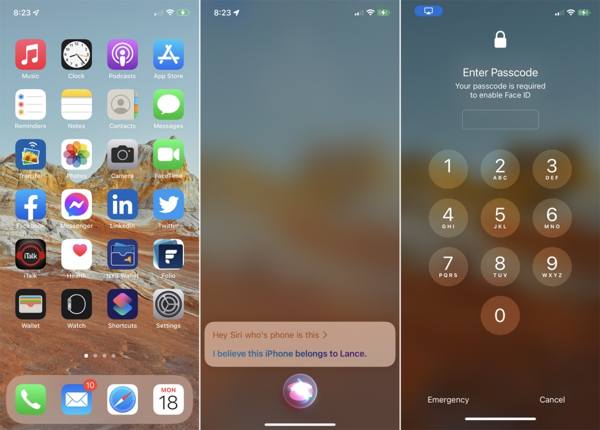
Go to Siri & Search in your Settings app.
Toggle on Allow Siri When Locked.
Now, lock your iPhone.
Hold down the Side button to wake Siri.
Say Hey Siri, whose phone is this to disable Face ID temporarily.
Option 3: Disable Face ID on iPhone after Wrong Scans
After 5 unsuccessful Face ID attempts, Face ID will be disabled on your iPhone. You will be asked to enter the digit passcode to unlock your device. The next time, Face ID will be enabled again for unlocking.
Part 3: How to Turn off Face ID on iPhone Remotely
Once you put your iOS device in Lost Mode, Face ID is disabled on your iPhone. It means that you have to unlock your device with the passcode. The precondition is that you have enabled Find My iPhone.
Turn off Face ID on iPhone with Find My
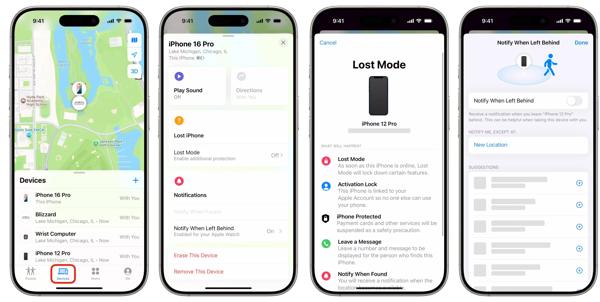
Open the Find My app on a borrowed Apple device.
Go to the Me tab, tap Help a Friend, and sign in with your Apple ID credentials.
Head to the Devices tab and choose your iPhone on the list.
Read the summary and tap Continue.
Next, enter your phone number and tap Next.
Enter a message and hit Next.
Finally, tap Activate to confirm it.
Disable Face ID on iPhone on iCloud
To disable Face ID on your iPhone, go to www.icloud.com/find in a browser.
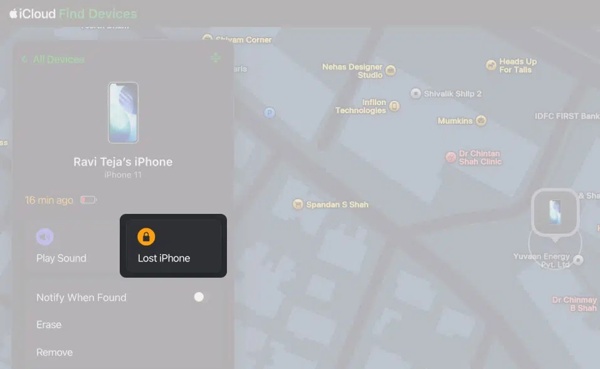
Log in with your Apple ID and password.
Click All Devices and pick your iPhone.
Click the Lost iPhone button and hit Next.
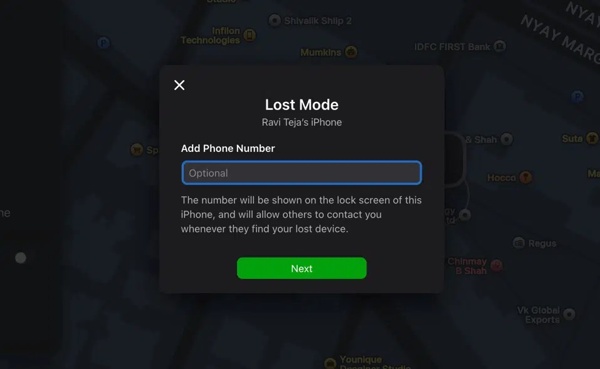
Follow the on-screen instructions to continue.
Finally, click Activate to confirm it.
Part 4: How to Delete Face ID on iPhone Without a Password
If you want to delete Face ID on your iPhone without a password, imyPass iPassGo is a good option. It is able to remove all Face IDs from your device without any restrictions. Moreover, it comes with a user-friendly interface.

4,000,000+ Downloads
Delete Face IDs on an iPhone in three steps.
Work for Face IDs, digit passcodes, and Touch IDs.
Don't ask for your passcode or Apple ID password.
Support the latest versions of iOS and iPadOS.
How to Delete Face ID on Your iPhone Without a Password
Detect your iPhone
Launch the Face ID removal software after installing it on your PC. There is another version for Mac. Connect your iPhone to your PC with a Lightning cable. Choose the Wipe Passcode mode to proceed.
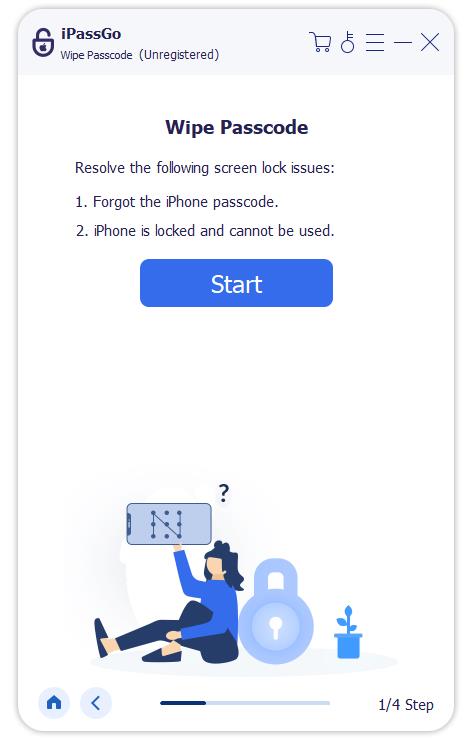
Download the firmware
Click the Start button to load your device information. Check them and hit Start to download the firmware.
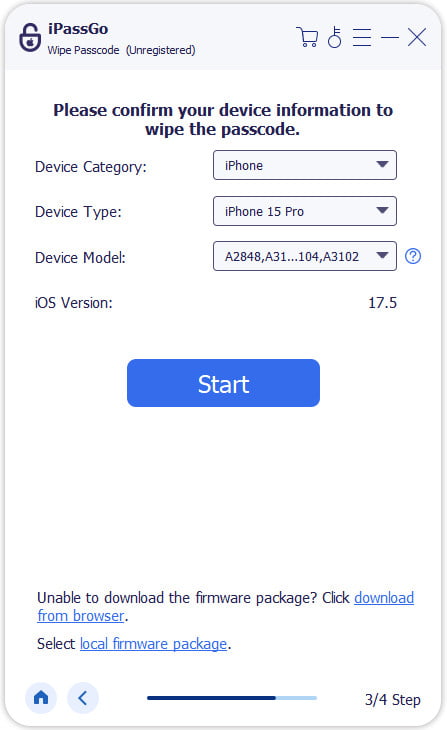
Delete Face IDs
After downloading, click the Unlock button to continue. Read the notification and follow the prompts to ensure the process. When your iPhone restarts, Face ID will be permanently deleted.

You May Also Like:
Conclusion
This guide shared how to remove Face ID on your iPhone in various situations. You can turn off the biometric system for the lock screen, specific services, and apps. Furthermore, you can temporarily disable the security measure on your lock screen. The Find My feature enables you to lock your device with the passcode remotely. imyPass iPassGo is the ultimate option to get rid of Face ID on iPhone.
Clara has over 8 years of experience helping users recover lost files and transfer data. She previously worked as a data recovery technician for a major IT service company. Certified in Data Recovery and Digital Forensics, her articles focus on simple solutions that make complicated recovery tasks easier for everyday users.
Hot Solutions
-
iOS Tips
-
Unlock iOS
-
GPS Location
-
Windows Tips


