



 Solution
 Support Center
 About Us
 Contact
Why Does Touch ID Ask for a Passcode? 7 Reasons and Fixes
 Samuel Spenser Published on September 24, 2026Unlock iOS3-min reading
Does your iPhone or iPad suddenly ask for a passcode before you can use Touch ID? In most cases, there is nothing wrong with your fingerprint sensor. This is because Apple requires a passcode in certain situations to protect your device.
Touch ID is a convenient way to unlock your device, but it does not replace your passcode. In this guide, we will explain why Touch ID asks for a passcode, how to fix this issue, and whether you can use Touch ID without passcode.

In this article:
Part 1: Why Does Touch ID Ask for a Passcode
If your iPhone or iPad asks for your passcode before you can use Touch ID, there are two things that could be happening. Sometimes, iOS requires your passcode for security reasons. Other times, Touch ID simply cannot recognize your fingerprint. Let's take a look at both situations.
Apple requires a passcode in certain situations, and you cannot skip this step by using Touch ID.
1. After a Restart/Reboot
After you turn off and restart your iPhone or iPad, your Touch ID is blocked to unlock the device immediately. You need to enter your passcode at the first time, then use Touch ID as normal.
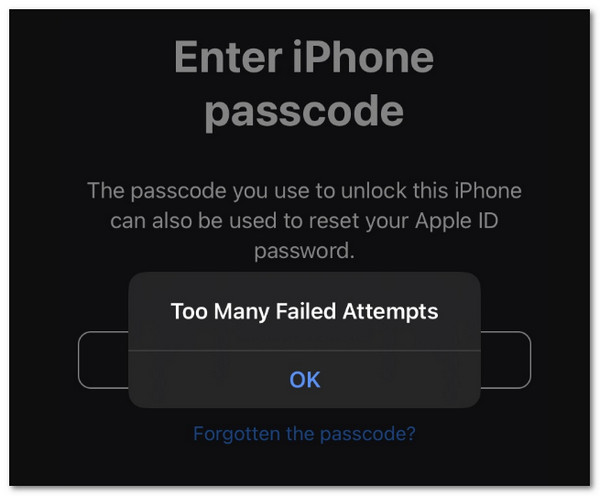
2. After Several Failed Touch ID Attempts
If Touch ID fails to recognize your fingerprint several times, your device may ask you to enter the passcode instead.
3. After an iOS or iPadOS Update
Your device may require the passcode after installing a software update or completing certain security-related actions.
4. The Device Has Not Been Unlocked with a Passcode for a While
Apple also requires a passcode after certain periods of time or other security conditions.
Part 2: When Touch ID Can't Recognize Your Fingerprint
A passcode request can also appear because Touch ID is having trouble reading your fingerprint. This is different from the security-related passcode requirements above.
1. Your Finger or the Sensor is Wet or Dirty
Water, sweat, oil, or dirt can affect fingerprint recognition.
2. Your Fingerprint Has Changed
Dry skin, cuts, or peeling skin can sometimes make it harder for Touch ID to recognize your finger.
3. Temporary Software Glitches
Sometimes, Touch ID may stop responding properly because of system bugs or errors.
Part 3: How to Fix "Your Passcode Is Required to Enable Touch ID"
The message "Your passcode is required to enable Touch ID" is not an error. Your iPhone or iPad is simply asking you to verify your identity. The easiest fix is to enter your correct passcode once. if Touch ID is not working after entering your passcode, try the following fixes.
1. Restart Your iPhone or iPad
If Touch ID is not responding after you enter your passcode, a simple restart can fix temporary system issues. Press and hold the power button (or the power button and volume button on some models), turn off your device, then restart it. After restarting, enter your passcode first and test Touch ID again.
2. Clean Your Touch ID Sensor and Finger
Touch ID relies on fingerprint recognition, so dirt, moisture, or oil can affect its accuracy. Use a clean, dry cloth to wipe the Touch ID sensor. Also make sure your finger is clean and completely dry before trying again.
3. Check Touch ID Settings
Sometimes, Touch ID may be disabled or changed in your settings. Go to Settings > Touch ID & Passcode, then check whether iPhone Unlock is turned on. Make sure your registered fingerprints are still listed and the fingerprint you want to use is enabled.
4. Remove and Add Your Fingerprint Again
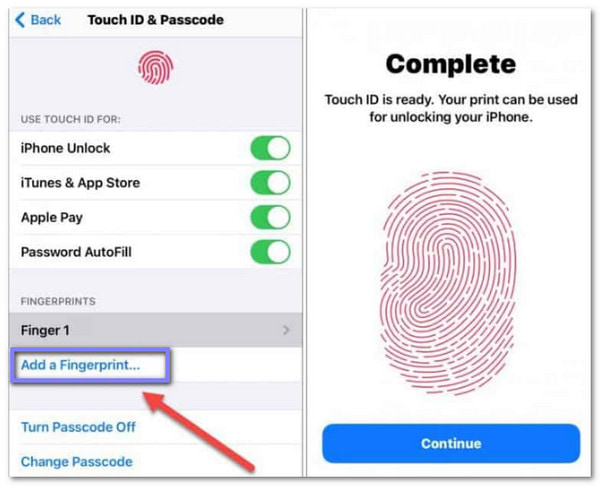
If Touch ID frequently fails to recognize your fingerprint, your saved fingerprint data may no longer work. You need to add your fingerprint again:
Open Settings, and tap Touch ID & Passcode.
Enter your passcode when prompt.
Select the fingerprint you want to remove.
Tap Delete Fingerprint, then tap Add a Fingerprint and follow the instructions.
5. Update iOS or iPadOS
Software issues can sometimes affect Touch ID performance. Go to Settings > General > Software Update, install any available update, then test Touch ID again.
Part 4: Can You Use Touch ID Without a Passcode
No. You cannot use Touch ID without setting up a passcode on your iPhone or iPad. If you forgot your passcode and cannot unlock your iPhone, you cannot use Touch ID to bypass the lock screen. In this case, you need to remove the forgotten passcode using an iPhone unlocker.
Remove a Forgotten iPhone Passcode with imyPass iPassGo
If you forgot the screen passcode and Touch ID doesn't work, imyPass iPassGo can help remove the forgotten passcode and regain access to your device. It supports various iPhone, iPad, and iPod models and removes screen passcode, Touch ID and Face ID easily.

4,000,000+ Downloads
Fix Touch ID asking for passcode issue easily.
Unlock iPhone without passcode, Touch ID, and Face ID.
Remove MDM profiles and Screen Time passwords.
Compatible with a wide range of iPhones, iPads, and iPods.
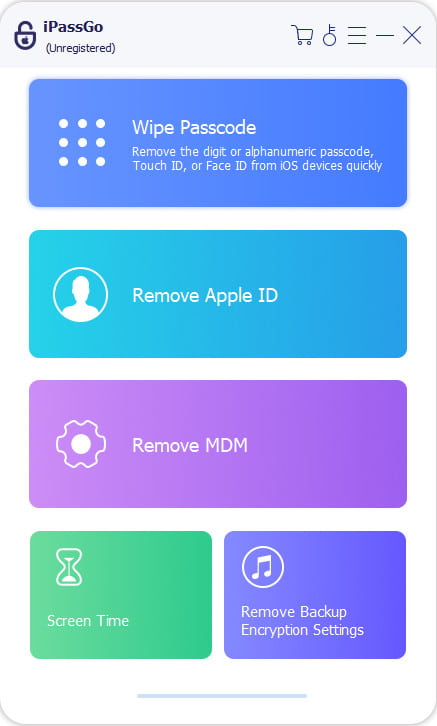
Launch imPass iPassGo on your computer, then choose the Unlock iOS Screen mode from the interface. Connect your device to the computer with a USB cable.
Confirm your device information and click Start Now to begin downloading the firmware package.
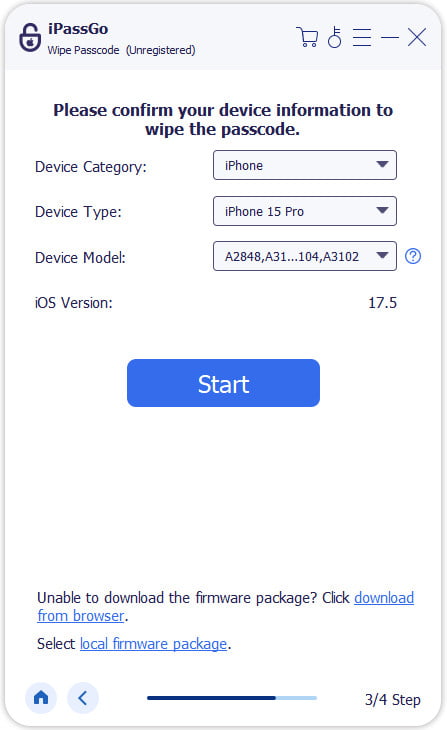
Click the Start Removing button to start the unlocking process. When it is done, the screen passcode and all your data will be erased from your device.

Conclusion
The next time you see "Enter passcode to enable Touch ID", simply enter your passcode first and try Touch ID again. If the feature still does not work, check your fingerprint settings, clean the sensor, or update your device. If you forgot your passcode and are locked out of your iPhone, imyPass iPassGo can help remove the forgotten screen passcode and unlock your iPhone fast.
Samuel specializes in password security and digital privacy. He used to work as a cybersecurity consultant for small businesses to protect digital assets. With certifications in Cybersecurity and Ethical Hacking, he turns complex security topics into easy-to-follow advice. He also enjoys sharing password tips to help users protect their accounts more confidently.
Hot Solutions
-
Unlock iOS
-
iOS Tips
-
Unlock Android
-
Password Tips


