



 Solution
 Support Center
 About Us
 Contact
How to Unlock Disabled iPad Without Passcode (4 Proven Methods)
 Samuel Spenser Published on July 02, 2026Unlock iOS3-min reading
The iPad is now widely used for both work and daily tasks. However, forgetting your iPad passcode also becomes a common issue that can affect productivity and cause unnecessary anxiety. Fortunately, unlocking iPad without passcode doesn't necessarily require complicated tech support or high fees. There are several simple and effective ways to regain control to your iPad.

In this article:
- Quick Comparison: How to Unlock iPad Without Passcode
- Important: Back Up Your iPad Before Unlocking
- Method 1. Unlock iPad Without Passcode Using Apple ID
- Method 2. Unlock iPad Without Password via iPad Unlocker
- Method 3. Unlock iPad Without Password via Find My iPad
- Method 4. Unlock iPad Without Passcode via iTunes [Trusted Device]
Quick Comparison: How to Unlock iPad Without Passcode
Here is a quick comparison of the four methods so you can choose the one that fits your situation:
| Method | Requirements | Ease of Use | Data Loss | Best For |
| iPad Unlocker (iPassGo) | Computer required | Easy | Yes | Forgot passcode, no Apple ID and verification methods |
| Apple Support | Apple ID & identity verification | Medium | No | Official recovery with Apple support |
| Find My (iCloud) | Find My enabled + Apple ID | Easy | Yes | Remote erase when device is online |
| iTunes/Finder | Computer required | Medium | Yes | Device previously synced with computer |
Important: Back Up Your iPad Before Unlocking
Most unlocking methods may erase all data on the device, especially the reset methods. Before trying any method to unlock your iPad, it is highly recommended to back up your data first.
You can choose to back up to iCloud if your device is accessible. Go to Settings, tap on [your name], then select iCloud. Toggle on iCloud Backup and tap Back Up Now.
Or you can use a computer to back up with iTunes/Finder. Connect your device to your computer, open iTunes/Finder on computer, select your device and click Back Up Now.
Method 1. Unlock iPad Without Passcode Using Apple ID
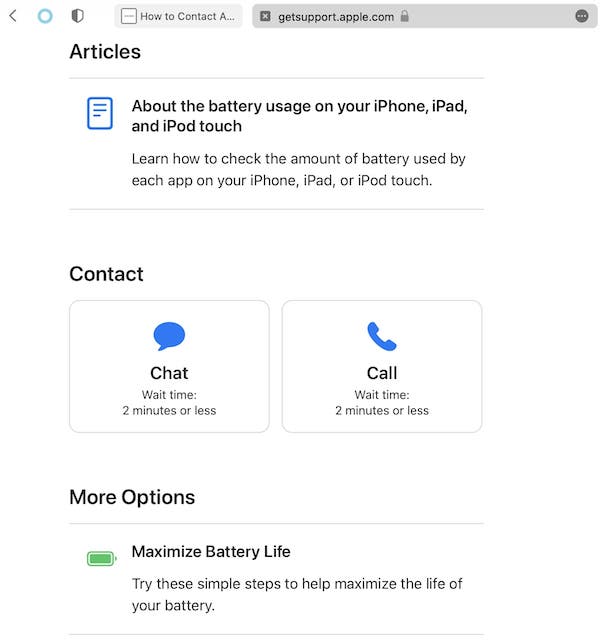
Apple offers a variety of services to help users unlock their devices, including live chat, phone support, or making an appointment for technical support at an Apple Store or authorized service center. If you are searching for an official way to unlock iPad without password, you can get help by contacting Apple Support. This way requires your Apple ID and password.
Go to the Apple Support website, select iPad as the device type, and select Unlock Device related questions.
Depending on the options on the page, you can choose to have a live chat with the Apple support team or contact them over the phone. If you choose to chat online, you'll get instant help from the Apple support team.
After contacting the Apple support team, you will need to provide your Apple ID and related information (such as the device's serial number). The Apple support team will provide solutions based on your specific situation.
If you confirm your identity and complete the steps, the Apple support team will help you unlock your iPad. Once unlocked, you can reset the password and resume use.
Pros
- Resolve issues through official channels to ensure data security and privacy protection.
- Does not require any third-party tools and relies entirely on official Apple support.
Cons
- Time spent waiting for a response from Apple's support team or making technical support appointments.
- If the device is not tied to an Apple ID, or you have also forgotten your Apple ID password, you may face increased authentication difficulties.
Method 2. Unlock iPad Without Password via iPad Unlocker
If you forget your iPad's passcode, one of the most straightforward and efficient ways is to use a professional iPad unlocking tool. These tools can make unlocking an iPad without a passcode easy and efficient. Among the many tools, imyPass iPassGo is a widely recommended unlocking software that will not only help you unlock password protection quickly but also keep your data safe and avoid any loss of information.

4,000,000+ Downloads
Unlock iPad, iPhone, iPod screen locks without passcode.
Remove screen passcode, Face ID, Touch ID easily.
Easy to operate, suitable for both beginners and professionals.
Support password removals on the latest iOS/iPadOS versions.
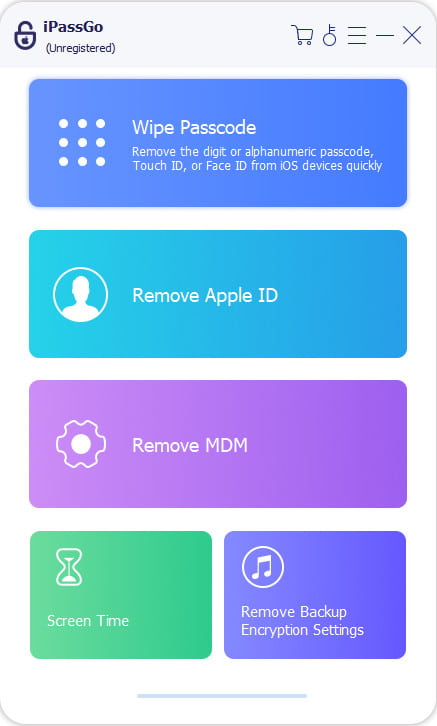
Download and install the latest version of iPassGo. Launch the software, select the Unlock iOS Screen mode. Then, connect your iPad to your computer via a USB cable.
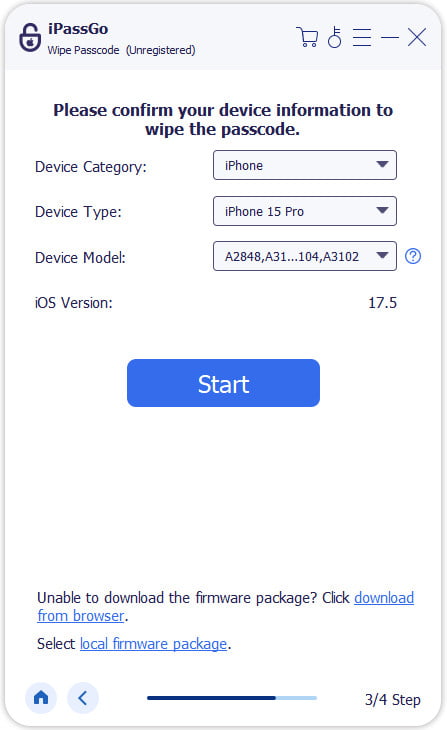
Confirm the device information and click Start Now to begin downloading the firmware package. This process can take a few minutes, depending on your Internet speed.
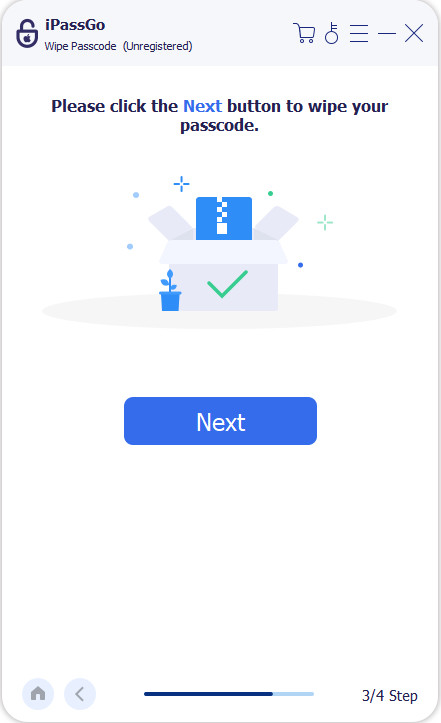
After downloading the firmware, click the Start Removing button. You need to confirm again to ensure the unlock. Then, your screen lock will be removed in minutes.
Method 3. Unlock iPad Without Password via Find My iPad
If, unfortunately, you can't recall any passcodes, how to unlock iPad without Apple ID quickly? If you've enabled Find My iPad in advance, you can also unlock the iPad without a passcode. Not only is this method simple, but it doesn't require connecting a computer or using any third-party tools.
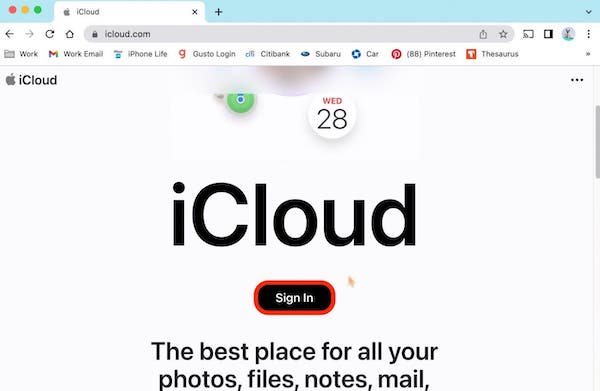
First, make sure your iPad is connected to a Wi-Fi or cellular data network. Then, open a browser on another device, go to iCloud.com, and sign in with your Apple ID. You can simply reset the Apple ID password if you forget your password.
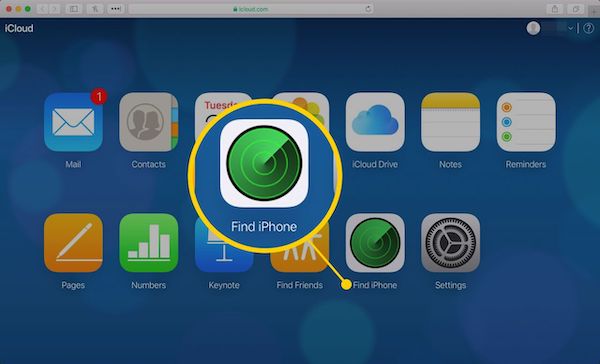
Once logged in, tap the Find iPhone option, which works even if you're using an iPad. You'll see a list of devices associated with your Apple ID.
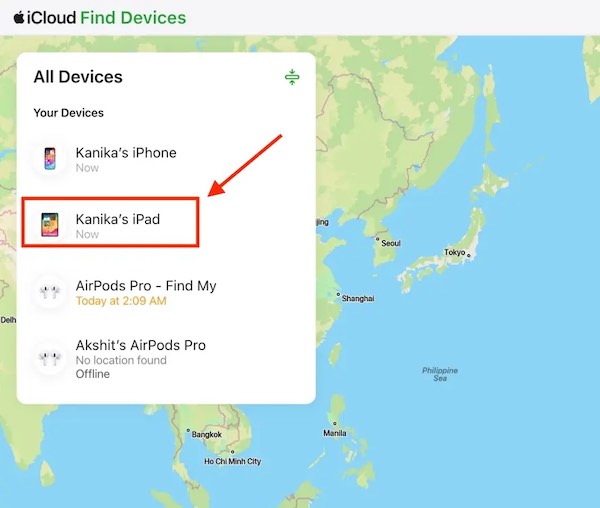
Locate and select your iPad from the list of devices. The screen will show the iPad's current location, and if the device is online, the map will show its real-time location.
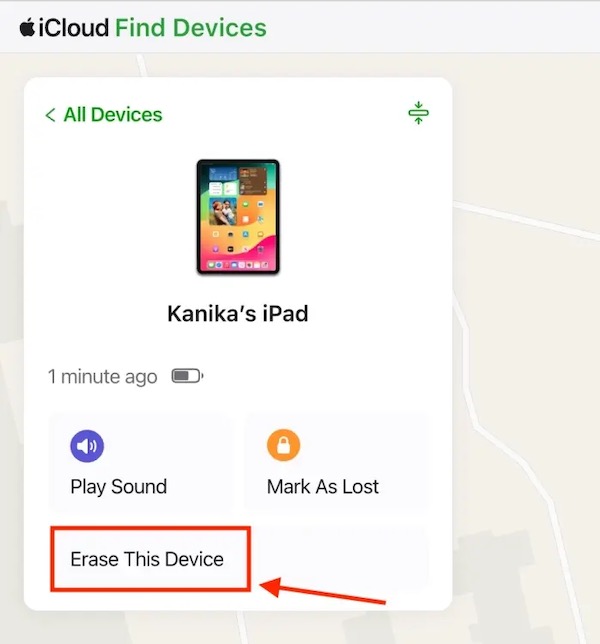
Once you tap your device, select the Erase This Device option. This will erase all data on the iPad, including password protection. You'll no longer need to enter your old password, and the device will revert to its factory Settings.
After you erase the iPad, the device reboots. During the setup process, you will be asked to set up a new password. This will allow you to create a new lock screen passcode for the iPad.
Note:
If Find My iPad is enabled on the device, your iPad may have Activation Lock turned on. Even after erasing the device, you will still need the original Apple ID and password to set up and use the iPad again!
Method 4. Unlock iPad Without Passcode via iTunes [Trusted Device]
Sometimes, the reason you forgot your password is not necessarily the reason the iPad touch screen not working can't unlock. The device can't be unlocked, so it can only be recovered from another device. One of the most common ways to do this is through iTunes, provided your iPad has previously synced with iTunes and is a trusted device. This method uses recovery mode to help you clear the lock screen password and reset the password.
First, make sure you connect your iPad to a computer you trust. If you're not sure if your computer is a trusted device, check to see if it's ever synced with the iPad. If not, make sure you have the latest version of iTunes installed on your computer.
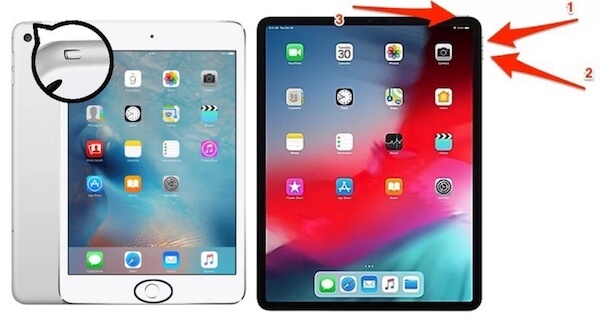
Next, you need to put the iPad in recovery mode. The specific steps are as follows:
• For iPad with a Home button (such as iPad 9 and earlier): Press and hold both the Home button and the power button until Recovery mode appears on the screen.
• For an iPad without a Home button (such as the iPad Pro), press and hold the volume up and volume down keys at the same time, then quickly release them. Then, press and hold the top button until the recovery mode screen appears.
After connecting your iPad to your computer and opening iTunes, you'll be prompted that your device is in recovery mode and given two options. Click the Restore button, and iTunes will start downloading the iPad firmware and help you restore your device to factory Settings. Note that this process erases all data on the iPad.
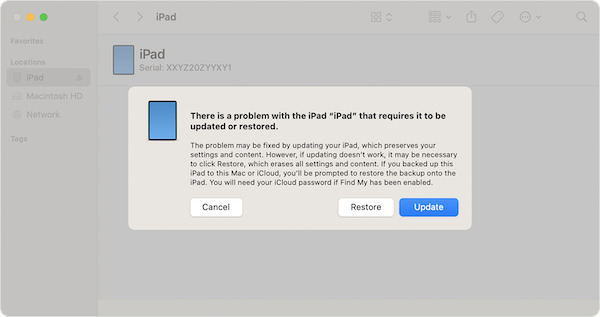
Once the recovery is complete, iTunes will prompt you to reset your device to a new one. During this process, you can set a new password for your iPad and choose whether to restore data from the backup.
Conclusion
In summary, forgetting your password doesn't mean you can't recover your device. All the methods mentioned above will help you reach out how to unlock iPad without password. Especially when other methods fail, imyPass iPassGo is a highly recommended tool to help you unlock your iPad efficiently and securely. Choose what works best for you and rejuvenate your iPad.
Samuel specializes in password security and digital privacy. He used to work as a cybersecurity consultant for small businesses to protect digital assets. With certifications in Cybersecurity and Ethical Hacking, he turns complex security topics into easy-to-follow advice. He also enjoys sharing password tips to help users protect their accounts more confidently.
Hot Solutions
-
Unlock iOS
-
iOS Tips
-
Unlock Android
-
Password Tips


