Solution
 Support Center
 About Us
 Contact
What to Do If You Forgot Voicemail Password on iOS/Android
 Samuel Spenser Published on March 19, 2026Password Tips3-min reading
Voicemail is a useful feature that allows callers to leave a voice message when their call goes unanswered. With this feature, you never miss important calls on your iPhone or Android phone. To protect voicemails, users are allowed to set up a password. If you forget your voicemail password, you will lose information and cannot access the voice messages. This guide explains how to reset the password on your iOS or Android device.

In this article:
Part 1: How to Recover a Forgotten Voicemail Password on iPhone
What to do if you forgot your voicemail password? You can recover it using imyPass iPhone Password Manager. It helps you remember all the passwords you have used on your iOS device. Moreover, it allows you to back up your voicemail password to your computer.
4,000,000+ Downloads
Recover voicemail password on your iPhone.
Support a wide range of passwords.
Back up the voicemail password to a computer.
Compatible with the latest models of iPhone and iPad.
How to Recover a Forgotten Voicemail Password on Your iPhone
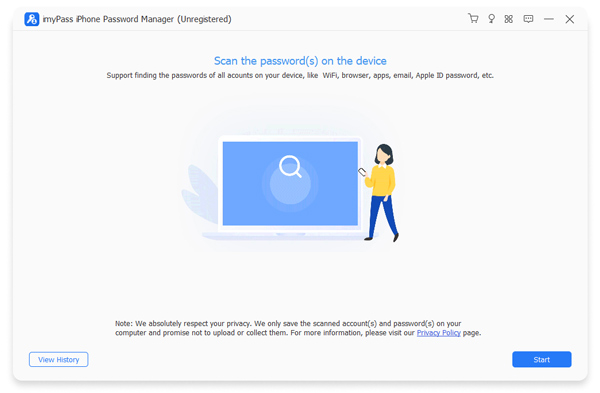
Step 1 Scan your iPhone
Launch the voicemail password recovery software after installing it on your PC. There is another version for Mac. Plug your iPhone into your PC with a Lightning cable. Click the Start button once your device is detected.
Step 2 View voicemail password
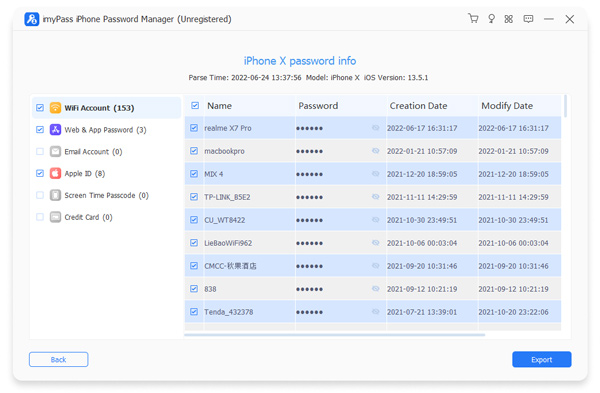
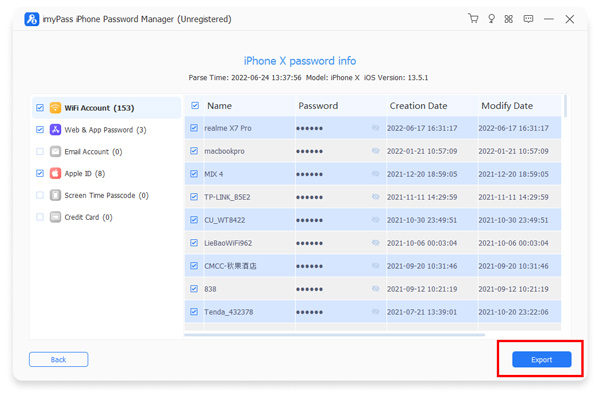
After your iPhone is scanned, select the right password type on the sidebar. Here, we select Web & App Password. Then, browse up and down until you find your voicemail item. Click the Eye button display your voicemail password.
Step 3 Export voicemail password
If you want to back up your voicemail password, select it on the list and click the Export button. Then, save it as a CSV file. You can view the voicemail password on your computer at any time.
Part 2: How to Reset Forgotten Voicemail Password on iPhone
Did you forget your voicemail password on your iPhone? Never fear. iOS allows you to reset your voicemail password easily. In fact, you can change your voicemail password on your iPhone directly without the previous password.
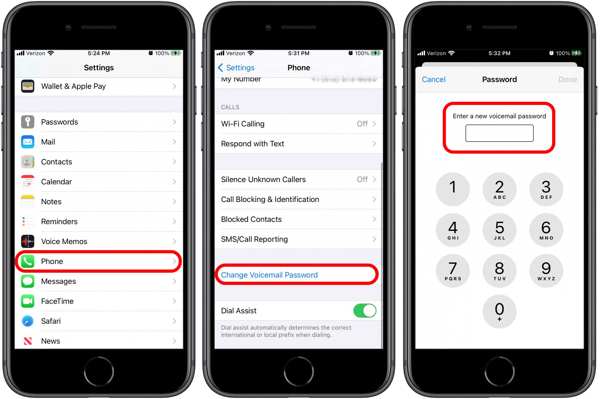
Open the Settings app on your iPhone.
Scroll down and choose Phone.
Tap the Change Voicemail Password button.
Enter a new voicemail password with 4 to 10 digits.
Type in the new password again, and tap Done.
Part 3: How to Reset Forgotten Voicemail Password on Android
On Android devices, you must provide your current password to change your voicemail PIN. However, Samsung enables users to reset forgotten voicemail passwords on its Android phones and tablets directly.
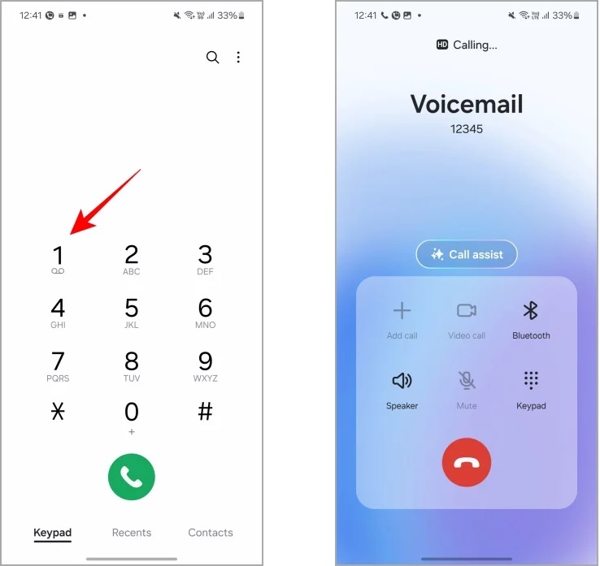
Run the Phone app on your Galaxy device.
Press and hold 1 until it starts to call your voicemail.
Press 5 or listen to the automated voice.
Next, press 1 or the number for changing the password.
Input the new voicemail password followed by #.
Listen to the new password and confirm it by pressing #.
Part 4: How to Reset Forgotten Voicemail Password via Carriers
A voicemail password, also known as a PIN, is a security measure that protects your voice messages. It prevents others from listening to your messages without permission. If you cannot remember the password for voicemail, you can reset it through your carrier.
How to Reset Forgotten T-Mobile Voicemail Password
Open the Phone app on your phone.
Input the T-Mobile voicemail reset code: #793#.
Tap the Call button.
Now, your voicemail password is changed to the last four digits of your phone number.
Then, you can change your voicemail password with the temporary password.
How to Reset Forgotten Verizon Voicemail Password
In the My Verizon app
Run the My Verizon app.
Go to Me, choose Profile & settings, and tap Voicemail password.
Tap Create my own password or Choose a password for me.
Enter a new password into the field.
Tap Update.
Call from a phone
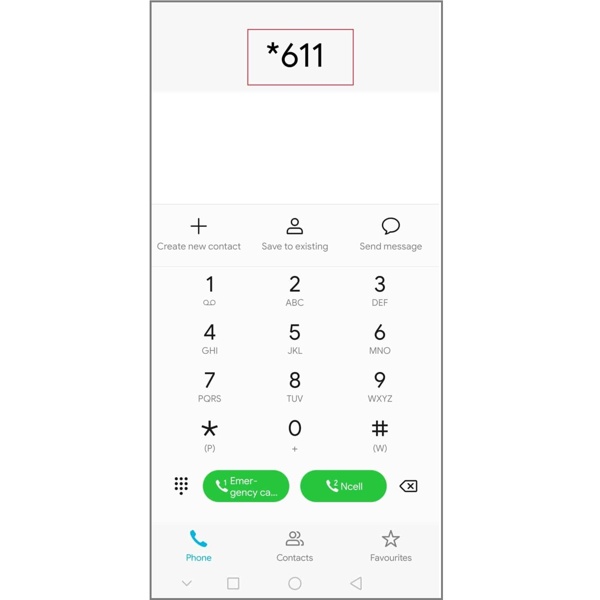
Open the Phone app.
Dial *611 and tap Call.
Provide the requested information.
When you are asked to state the reason for your call, say Reset voicemail password.
Then, follow the prompts to reset the forgotten password for Verizon voicemail.
How to Reset Forgotten AT&T Voicemail Password
Go to the AT&T login screen in a browser.
Log in to your account.
Find your device needing a new voicemail password.
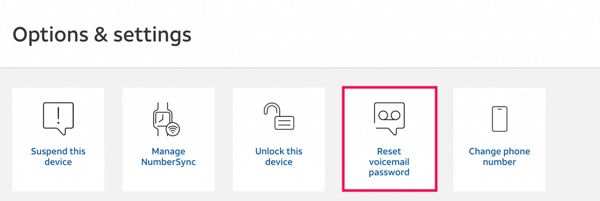
Click the Manage Device button.
Then, choose Reset voicemail password in the Options & settings section.
If prompted, click Yes.
Now, you will receive a temporary voicemail code via text.
Now, you will receive a temporary voicemail code via text.
How to Reset Forgotten Tracfone Voicemail Password
Create a new conversation and use 611611 as the recipient’s number.
Type voicemail in the message field and tap Send.
Once you receive the message with a link, reply with Y.
Then, the forgotten voicemail password will be replaced with the last four digits of your phone number.
Finally, hold 1 on the dialer to confirm the password reset.
How to Reset Forgotten Voicemail Password for Other Carriers
If you are using other network providers, you can contact the customer support via a phone call or on the official website. Then, request to reset the voicemail password, and provide the required information.
Extended Reading:
Conclusion
This article explained what you can do if you forgot your voicemail password. First of all, you can try to reset your password on your iPhone or Android phone. If it is unavailable, you will need to contact your carrier and reset the voicemail password. With a major carrier, you can follow our basic instructions to reset it on your own. imyPass iPhone Password Manager is an ideal way to back up and recover your voicemail password on iOS.
Samuel specializes in password security and digital privacy. He used to work as a cybersecurity consultant for small businesses to protect digital assets. With certifications in Cybersecurity and Ethical Hacking, he turns complex security topics into easy-to-follow advice. He also enjoys sharing password tips to help users protect their accounts more confidently.
Hot Solutions
-
Password Tips
- 4 Best Instagram Password Finders
- How to See Your Instagram Password
- How to Unlock Your Snapchat Account
- How to Reset Forgetten Twitter Password
- How to View Saved Passwords in Chrome
- What to Do When I Forgot My Apple ID Password
- How to Reset Your Snapchat Password
- How to Reset Forgotten Discord Password
-
Unlock iOS
-
Unlock Android
-
Windows Password