Solution
 Support Center
 About Us
 Contact
Everything You Need to Know on Dashlane Password Manager
 Samuel Spenser Published on March 19, 2026Password Tips3-min reading
Today, we are surrounded by a wide range of passwords, from Wi-Fi passwords to Apple ID credentials, from credit card passwords to digital wallet passwords. Exporters recommend using different passwords for different services. That can enhance security. The downside is too many passwords to remember. A password manager, such as Dashlane Password Manager, can eliminate the stress of remembering passwords. This article will review this password manager program.

In this article:
Part 1: Dashlane Password Manager Review
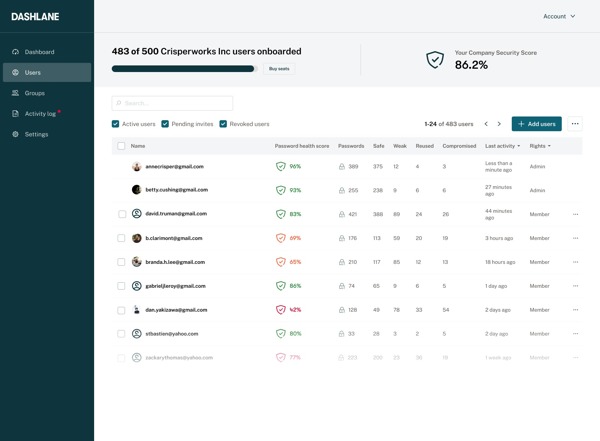
What is Dashlane? It is a top-notch password manager. It stands out with premium features. It is available to any individual or business that needs a high-end password manager for keeping and organizing logins and other account details as easy as pie.
Key Features of Dashlane Password Manager
- Encrypt passwords and account information using AES-256 and Argon2.
- Import and export passwords on various platforms.
- Integrate a random password generator.
- Change and share your passwords.
- Check the strength of your password.
- Autofill for forms, payments, and more.
- Equipped with bonus tools, like a live dark web monitor.
- Provide security notifications in real time.
- Support unlimited password sync across devices.
Review of Dashlane Password Manager
Pros
- Users can recover their accounts if they forgot the password.
- It can automatically update passwords.
- Dashlane complies with GDPR and CCPA.
- When transferring and sharing passwords, data encryption is effective.
- It provides encrypted file storage.
- Users can store passwords on the cloud and local memory or drive.
- It supports all major platforms and apps.
Cons
- It may collect and share user data.
- It doesn’t support multi-factor authentication.
- The premium plans are pricey.
- The web app is undeveloped.
- While it comes with a free version, the advanced features are unavailable.
Dashlane Price
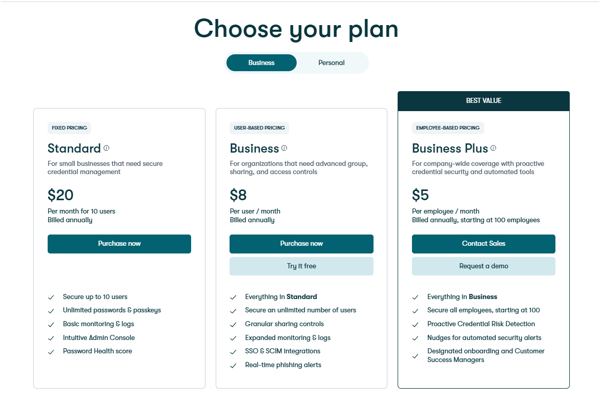
Is Dashlane free? Yes, it does provide a free edition with limited features. If you wish to unlock full features and effectively protect your passwords, you have to subscribe to a plan. It offers 4 paid plans:
- Premium plan costs $4.99 per month.
- Friends & Family plan costs $7.49 per month.
- Business plan costs $8 per user per month.
- Omnix plan costs $11 per user per month.
Dashlane vs. 1Password
Both Dashlane and 1Password are reputable password manager services. They are built on a zero-knowledge framework and are secured with AES-256 encryption. For pricing, Dashlane comes with a free edition, but 1Password is cheaper. 1Password stands out for its strong security, while Dashlane is easy to use and comes with a built-in VPN. In our opinion, Dashlane is good for getting started but can be limited in the long term use.
Part 2: How to Use Dashlane Password Manager
Dashlane Password Manager allows you to organize all your passwords on any digital devices and platforms. To get started, you must have a plan. In other words, you need to decide on a plan.
Step 1 Choose a Dashlane plan
Go to the Dashlane website and choose a plan. It offers two subscription tiers: business and personal. The free plan is only available for personal use. Subscribe to a plan according to your situation and create an account.
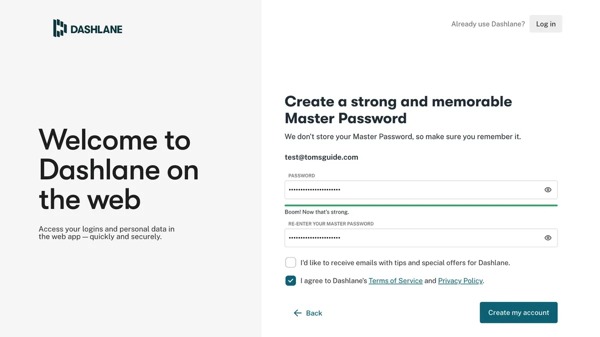
Step 2 Set up the app and extension
You can download Dashlane from the Apple App Store, Google Play Store, and Microsoft Store. Moreover, it can work as an extension in Chrome. Install the password manager software, app, and extension on your desktop, mobile device, and Chrome. Next, input your account and master password to log into Dashlane.
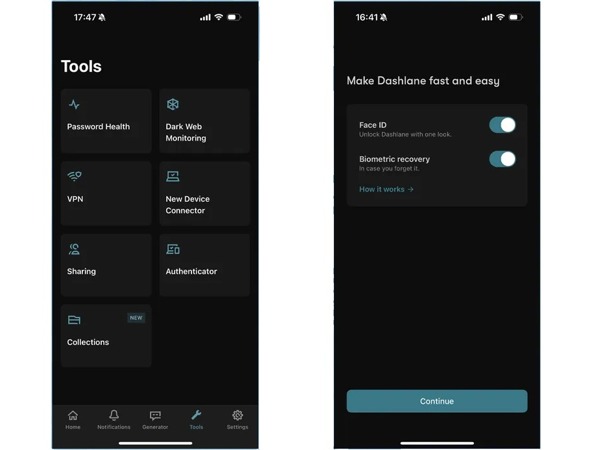
Step 3 Save your passwords
Once you log into Dashlane, you will be directed to the Get Started screen. Now, you can add your accounts manually or import them from the browser.
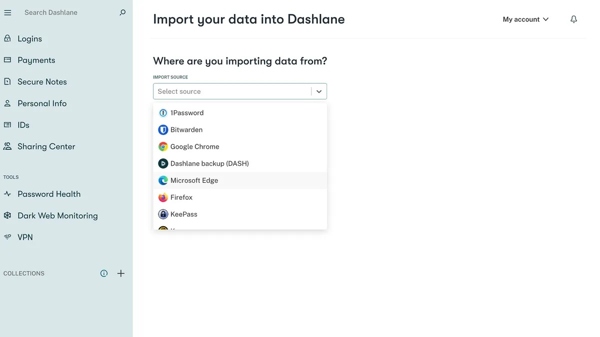
Step 4 Access your passwords
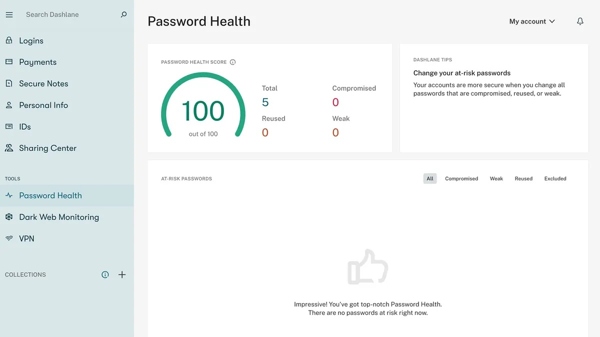
To access your passwords, go to the Logins, Payments, or IDs tab on the sidebar. Moreover, you can check the health of your passwords using the Password Health tool under Tools.
You May Also Like:
Part 3: An Ideal Alternative to Dashlane Password Manager
While Dashlane offers a free version, most features must work through an internet connection. That may bring extra risk to your passwords. Therefore, we recommend an alternative solution: imyPass iPhone Password Manager. It allows you to manage your iPhone passwords on a computer easily.
4,000,000+ Downloads
Detect all passwords on your iOS device.
Manage iPhone passwords on a computer.
Back up password to internal or external hard drive.
Available to a wide range of password types.
Support the latest models of iPhone and iPad.
How to Manage iPhone Password on Your Computer
Step 1 Connect to your iPhone
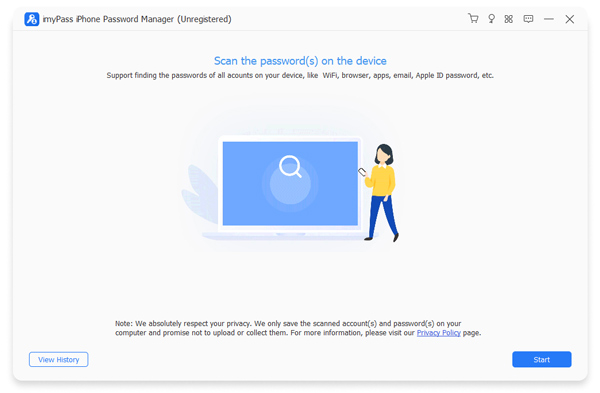
Download and install the alternative to Dashlane Password Manager on your PC. There is another version for Mac. Connect your iPhone to your PC with a Lightning cable. Launch the software, and it will detect your iPhone immediately.
Step 2 Manage iPhone passwords
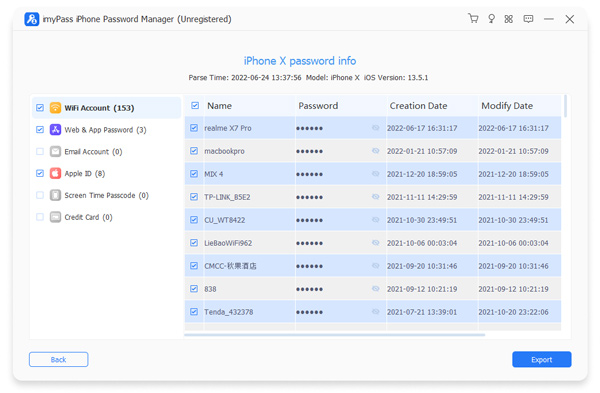
Click the Start button to begin scanning passwords in your memory. When it is done, you can view and manage passwords by type. To view your apps’ passwords, for example, select Web & App Password on the sidebar. Then, click the Eye button to display the password for a specific account.
Step 3 Back up iPhone passwords
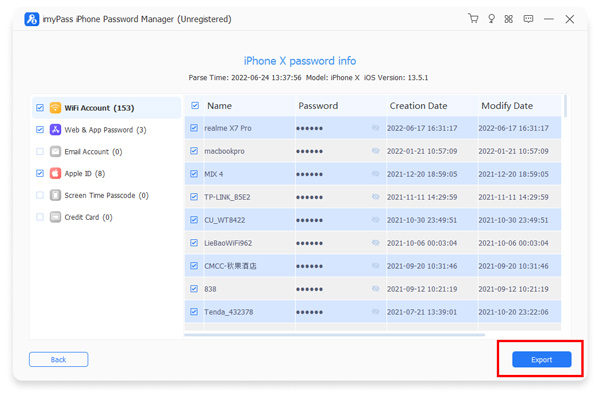
To protect your iPhone passwords, tick the checkbox next to every desired item. Then, click the Export button at the bottom right corner. The software will back up iPhone passwords in a CSV file.
If you want to view your passwords, click View History on the home interface, and hit View under the right backup.
Conclusion
This article reviewed one of the popular password manager services. Now, you should understand what Dashlane is, what it can do, its strengths and weaknesses, and other information you should know. Moreover, we shared the basic steps to download and use the password manager service on your desktop and app. Furthermore, we recommended an ideal alternative, imyPass iPhone Password Manager. It helps you manage iPhone passwords on a computer without the internet.
Samuel specializes in password security and digital privacy. He used to work as a cybersecurity consultant for small businesses to protect digital assets. With certifications in Cybersecurity and Ethical Hacking, he turns complex security topics into easy-to-follow advice. He also enjoys sharing password tips to help users protect their accounts more confidently.
Hot Solutions
-
Password Tips
- 4 Best Instagram Password Finders
- How to See Your Instagram Password
- How to Unlock Your Snapchat Account
- How to Reset Forgetten Twitter Password
- How to View Saved Passwords in Chrome
- What to Do When I Forgot My Apple ID Password
- How to Reset Your Snapchat Password
- How to Reset Forgotten Discord Password
-
Unlock iOS
-
Unlock Android
-
Windows Password