Solution
 Support Center
 About Us
 Contact
How to View Saved Passwords in Chrome Securely [Complete Guide]
 Samuel Spenser Published on January 23, 2026Password Tips3-min reading
There comes a moment when a website asks for a login, and your mind goes blank. It happens to all of us. The good news is that Google Chrome often has the password saved and ready. You only need to know where to find it. Understanding how to view saved passwords in Chrome gives you quick access to your accounts without the stress of resets.

In this article:
Part 1. How to View Saved Passwords in Chrome [on Computer]
Checking your saved passwords on Chrome is quick once you know where everything is. This is useful when you need to confirm a login, switch devices, or keep your accounts tidy. Understanding how to view saved passwords in Chrome gives you a simple way to stay in control of your online security. Here is the fast and clear way to do it on your computer.
Tick the three-dot menu in the top-right corner of Chrome. From the dropdown, select Settings and then navigate to Autofill and password section. This opens Google Password Manager, where all your saved passwords are stored securely.
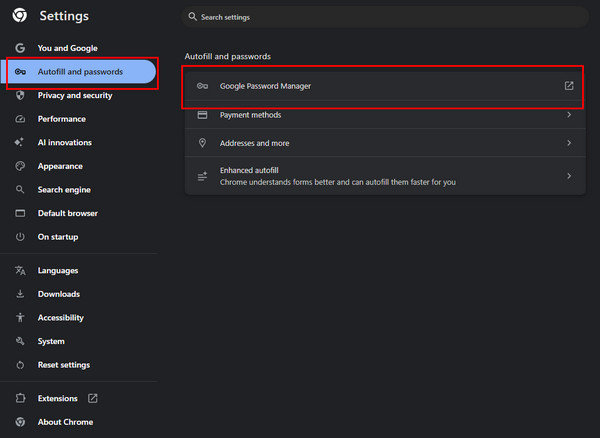
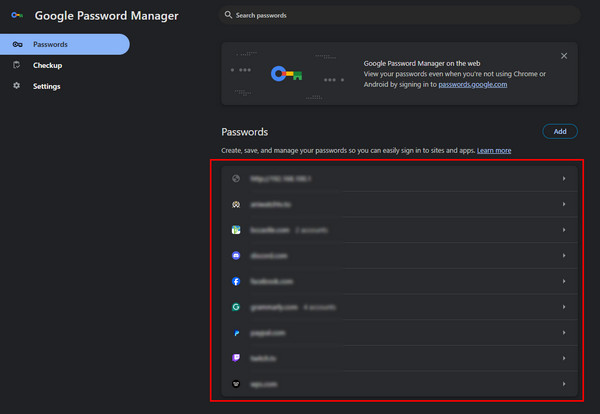
Scroll through the list of saved websites until you find the one you need. Click the entry to open it. Your computer will request your system password or PIN to confirm your identity. This extra measure ensures that only you can view your saved passwords.
Once verified, click the eye sign next to the password field. This will display your password on the screen. Take care to ensure no one else is looking, as the password will now be visible.
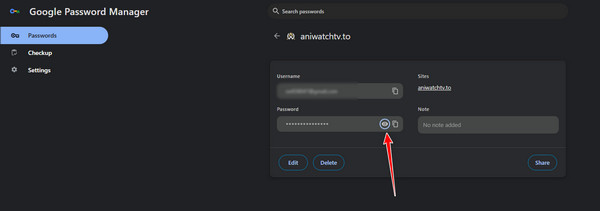
If you want to use the password elsewhere, click the copy icon beside the eye symbol. This allows you to paste it securely into a login form or password manager without having to memorize it.
Part 2. How to View Saved Passwords in Chrome [on Phone]
Seeing your saved passwords on your phone is simple once you know where to look. This is great when you are on the move and need quick access to a login. Learning how do I view saved passwords in Chrome gives everyone a fast way to check their details without any stress. To view your saved passwords on your mobile phone, follow the steps below.
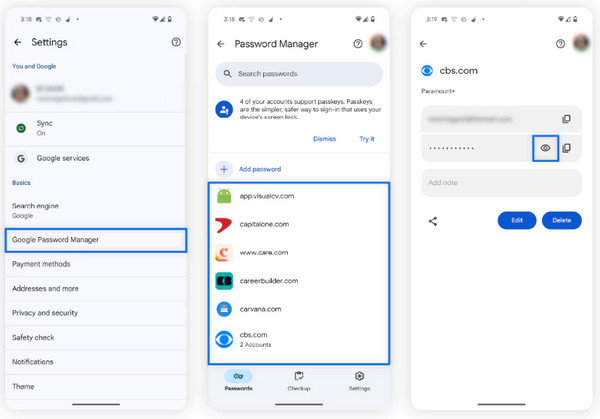
Launch the Chrome app on your phone. Hit the three-dot menu in the corner, then select Settings. This is where all your browser options and password management tools are located.
In Settings, tap Passwords to open Google Password Manager. Scroll through your saved logins and find the website or app you want to view. Selecting it will prepare Chrome to show the password securely.
Before viewing the password, Chrome will ask you to confirm your identity. Use your PIN, fingerprint, or facial recognition. This step protects your credentials from unauthorized access.
Once verified, tap the eye sign next to the password to see it. If you need to use the password elsewhere, tap the copy icon to paste it safely into another app or website. Always ensure no one else is watching when your password is revealed.
Part 3. Manage Your Google Chrome Passwords
Managing your saved passwords in Chrome is essential to keep your accounts secure and your logins organized. Knowing how to view passwords in Chrome is just the first step. As soon as you have learned your credentials that you have saved, you will be able to control them, change your weak passwords, delete old accounts and ensure that your data is available on every device. The following are viable methods of keeping your passwords in Google Chrome safe:
1. Review Saved Logins
Regularly checking your stored credentials helps you confirm that all logins are correct. Chrome view saved passwords makes it easy to see which accounts are active and ready for use.
2. Update Outdated Passwords
In case of a corrupted or an old password, change it right away. It is also important to keep your entries up-to-date, since this way you will never be locked out and your account will also be more safeguarded. In case you forgot the password on your Windows 10 and want to update it, then you need to find a reliable how to remove the password on Windows 10.
3. Remove Unused Accounts
Removing passwords of the accounts that are not in use decreases clutter and lowers the security risks. This is a critical component of how to consider saved passwords on Chrome responsible.
4. Check Password Strength
Use the password manager to identify weak or repeated passwords. Replacing them with strong, unique combinations keeps your accounts safe from unauthorized access.
5. Monitor Security Alerts
Chrome notifies you in case a saved password has been compromised. It is a clever idea to listen to these notifications in order to maintain your passwords in Google Chrome and avoid hazards.
6. Sync Across Devices
Enabling sync lets you access your saved passwords on all your devices. Learning how to view passwords in Chrome across phones, tablets, and desktops ensures you are never locked out.
7. Export Passwords Safely
In Chrome, you can save logins that are secure logins to export. This would come in handy in case of backup or transferring credits to a different browser without losing your data.
8. Control Auto-Save Settings
Decide whether Chrome should automatically save passwords for new logins. Controlling this setting helps you manage your Google Chrome passwords without storing unnecessary credentials. Also, doing this on your iOS can make your life easier. Learn how to save passwords on an iPhone is a must so you do not need to remember.
Part 4. Export and View Passwords in Any Browser on iPhone
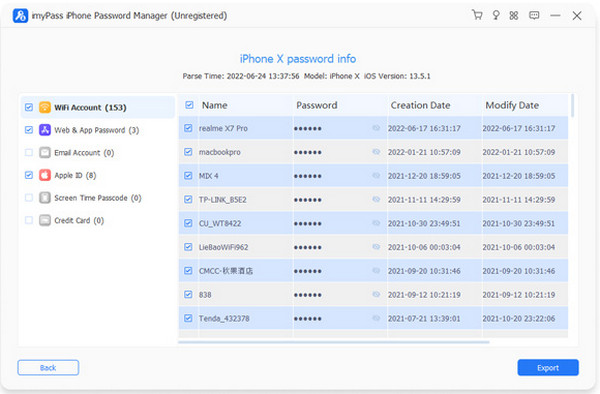
Sometimes you may need a password that Chrome no longer has on your iPhone, either because it was deleted or the account was removed. Third-party assistants, such as imyPass iPhone Password Manager, can be used in such situations to recreate your credentials safely. These applications enable you to read, export and see passwords on a variety of browsers and applications on your phone or computer.
A good password manager will make sure that you do not forget that you have access to valuable accounts and will provide you with a central point where you place your logins. In doing so, your passwords remain secure, convenient, and manageable even after they have been removed from Chrome.
Conclusion
Knowing how to view passwords in Chrome helps you manage your accounts safely and easily. You can check saved passwords on a computer or a mobile device. You can also use a password manager to recover lost logins. Reviewing and organizing your passwords keeps your accounts secure and prevents login problems. Taking time to manage your credentials ensures you stay in control and makes your online experience smoother on all devices.
Samuel specializes in password security and digital privacy. He used to work as a cybersecurity consultant for small businesses to protect digital assets. With certifications in Cybersecurity and Ethical Hacking, he turns complex security topics into easy-to-follow advice. He also enjoys sharing password tips to help users protect their accounts more confidently.
Hot Solutions
-
Password Tips
- 4 Best Instagram Password Finders
- How to See Your Instagram Password
- How to Unlock Your Snapchat Account
- How to Reset Forgetten Twitter Password
- How to View Saved Passwords in Chrome
- What to Do When I Forgot My Apple ID Password
- How to Reset Your Snapchat Password
- How to Reset Forgotten Discord Password
-
Unlock iOS
-
Unlock Android
-
Windows Password