



 Solution
 Support Center
 About Us
 Contact
How to Recover Deleted Notes from iCloud Due to Accidental Loss
 Clara Prescott Published on January 13, 2026Recover Data3-min reading
Every day, we engage in different activities from work, school, or something personal. Due to the quantity, we tend to make notes so as not to forget doing them. The traditional way of taking notes is by using a notebook or notepad. Luckily, your iPhone or other Apple devices have the Notes app to keep your notes.
However, some Apple users experience losing their notes. Are you one of the individuals who experience it? This issue is very inconvenient. Do not worry. This article has got your back! It listed the three most useful ways to recover iCloud notes from an iPhone. Kindly scroll below to know their full details about the topic.

In this article:
Part 1. Recover Notes Directly from iCloud via a Pro Tool
iCloud backups need to be entirely restored. It means that it does not allow a selective restore for your data, like notes. imyPass iPhone Data Recovery will let you experience a selective restore for your notes.
Why Choose imyPass iCloud Recovery?
This third-party tool has a straightforward interface and features that are best for novices. Notes are not the only supported data. It can also recover your photos, videos, call history, contacts, and more.
The software also supports recovery directly from your iPhone. iTunes backups are also available from the mentioned tool. Recover deleted iCloud notes with this recovery tool by following the instructions given below.
Download the latest version of imyPass iPhone Data Recovery. You may get it from the main website. Then, set up the downloaded file from the web browser. Install it afterward. Finally, please launch it on your computer as the start of the procedure.
Please plug the iPhone into the computer. Use the compatible USB cable for the procedure. Then, tap the Trust button on the iPhone to let it be read by your computer. Then, click the Recover from iCloud button at the bottom left corner.
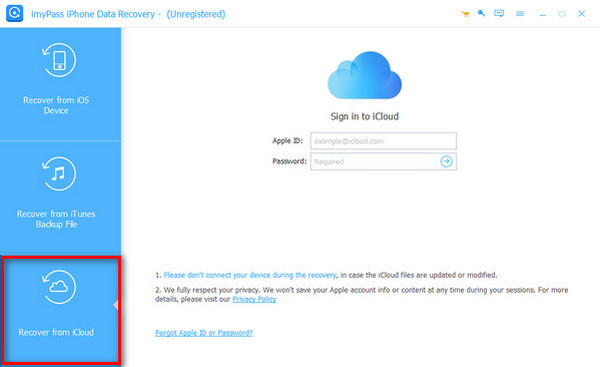
Enter the iCloud credentials from the main interface, which is related to the backup. Then, click the Arrow button to sign in. You are required to enter the verification code for two-factor authentication. Then, click the iCloud Backup button on the right.
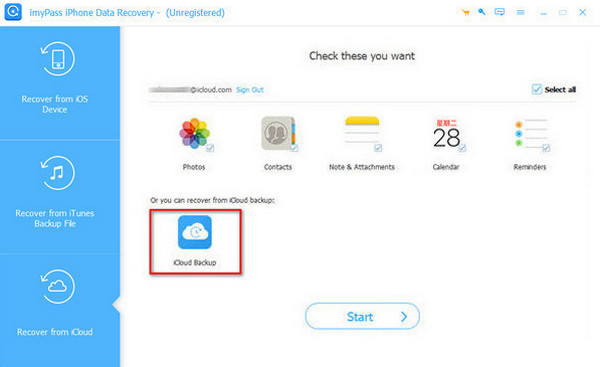
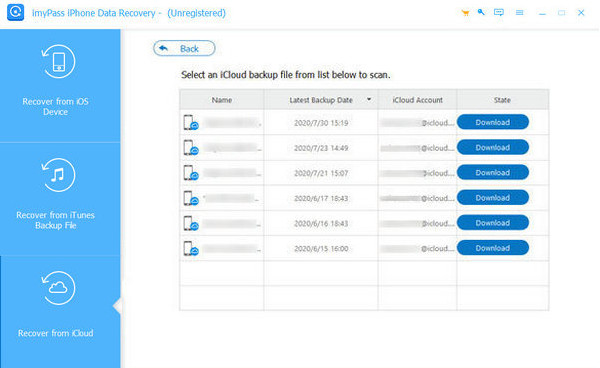
Please click the Start option at the bottom right of the tool. The available backups from the iPhone will appear on the right. Choose the backup you prefer from the list. Click the Download button beside the backup to proceed.
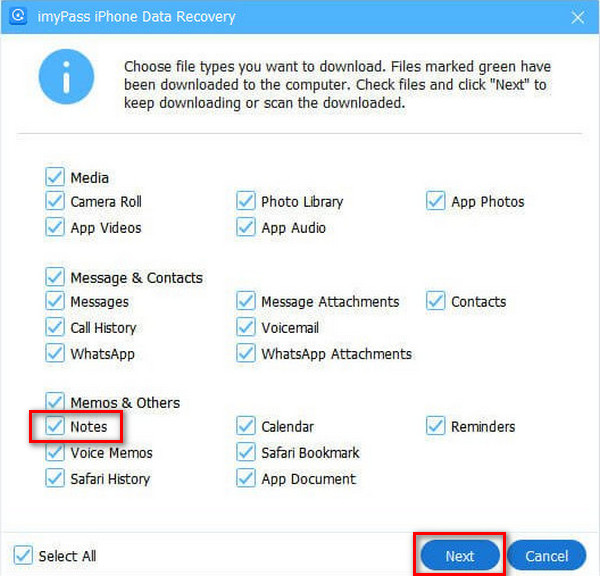
The list of supported data types will appear on the screen. Click the Notes option at the bottom left. Then, click the Next button at the bottom right. Then, the recovery procedure will start immediately.
Part 2. Recover iCloud Notes with iCloud Recovery Feature
iCloud has a recovery feature that can be found on its official website. The good thing about it is that it allows you to restore your iCloud from different devices. Apple and non-Apple devices can be used. However, this method is not as fast as the best iPhone data recovery software from the previous section. The reason is that the software does not require an internet connection, while the iCloud website requires a fast Wi-Fi network. Recover deleted unlocked or locked notes from the iCloud website with the steps below.
Click the Sign In option on the main website of iCloud. After that, the mentioned website will require you to sign in to your iCloud account. Enter the credentials of the account associated with the backup where the notes are included. Please click the Arrow button to sign in to the account.

You might need to enter a verification code before signing in. Then, the supported data types will appear on the screen. Please go to the Notes section that will be prompted on the main screen. Later, the notes will be prompted from the next interface.
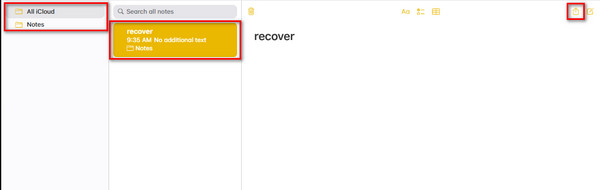
Please select the notes you want to retrieve in your iCloud account. You can click the Notes or All iCloud section at the top left of the main interface. In the next column, choose the notes you need to recover from the list. You will also see the content of the notes.
Please click the Share option at the top right. Then, a small window will appear from the main interface. You are required to enter your email address in the empty section. After that, click the Share button at the bottom right corner.
Open the email account from your iPhone. After that, save the notes to your iPhone to retrieve them.
Part 3. Restore Notes from iCloud
Finally, iCloud notes can be restored from backups during the setup process of your iPhone. You can also use it when you forgot your notes password on your iPhone to recover them when deleted. However, this procedure is different from the previous one, which was the use of the iCloud website. You cannot selectively restore your notes. The good thing about it is that you can also use it when the iPhone is not new. However, you are required to factory reset your iPhone. Ensure that you have backed up your iPhone before restoring the iCloud notes backups if that is the case. Let us recover iPhone data after a factory reset or during the setup process with the steps below using iCloud.
Factory reset your iPhone if it is not brand new. Open the Settings app on your iPhone as the first step. Then, tap the General button from the list. Select the Transfer or Reset iPhone button at the bottom of the screen. Tap the Erase All Content and Settings option.
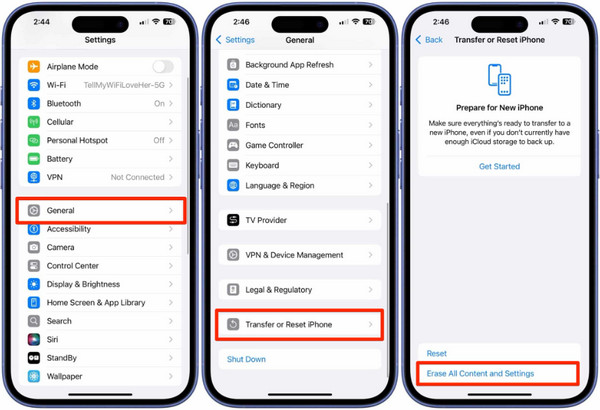
Please enter the iPhone passcode or the Apple ID password for verification. Tap the Erase iPhone button afterward. Turn on your iPhone and set it up. Enter the information needed from the screen. Wait for the Transfer Your Apps & Data screen.
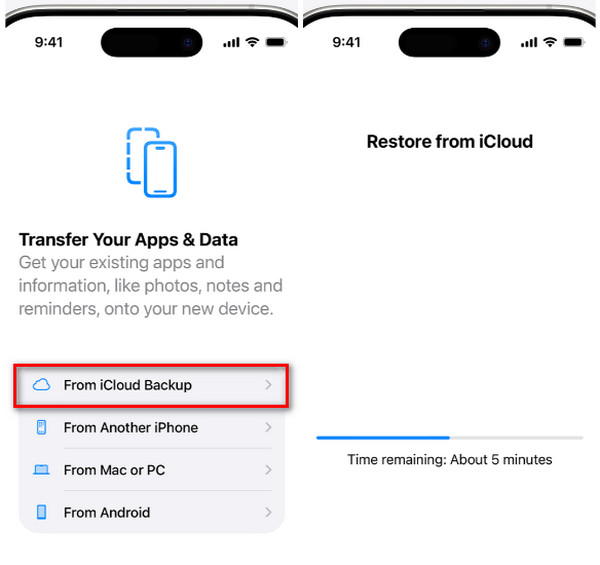
Select the From iCloud Backup button from the screen. Then, you will be required to enter the iCloud account credentials. Enter the account from the backup that includes the deleted notes. Then, select the most relevant backup from the screen.
Enter the encryption passcode if required. After that, the Restore from iCloud screen will appear. Please wait for the progress bar to be completed. It is the indication that the restore process is completed. Ensure that the iPhone is connected to the internet until the process is completed.
Conclusion
All in all, you can recover notes from iCloud for your Apple devices. You can recover them in three easy ways. imyPass iPhone Data Recovery is a third-party tool that can recover your iCloud notes selectively without restoring the entire backup. How convenient, right? Download the tool now and experience its excellent features.
Clara is an editor from imyPass. She specializes in data recovery. You can find professional tutorials and solutions for recovering lost data from any device. Many users reported that his tutorial is easy and useful.
Hot Solutions
-
Recover Data
- Recover WhatsApp View Once Photo
- Recover Deleted TikTok Videos on Mobile
- Recover Deleted Facebook Photo
- Recover Viber Messages, Photos, etc.
- Recover Deleted Snapchat Photos
- 5 Best Contact Recovery Apps
- Recover Deleted Discord Messages
- AppGeeker iOS Data Recovery Review
- Recover Data from DFU Mode
- Cannot Restore iPhone Backup
-
Unlock iOS
-
iOS Tips
-
Password Tips

