Solution
 Support Center
 About Us
 Contact
How to Unlock a Motorola Phone Without a Password Easily
 Gideon Byron Published on June 01, 2026Unlock Android3-min reading
Motorola phones use a standard Android screen-lock security feature that helps their users to have secure data and information. It supports PIN, password, pattern, and biometric locks. Some Motorola phone users said that the alphanumeric password, a combination of numbers and letters, is the most secure.
However, these lock screen passwords can be accidentally forgotten. This way, you cannot access your Motorola phone. The only possible way to do that is to unlock the password without them. It sounds challenging, right? Let this article help you unlock a Motorola phone with its three easy methods. Kindly scroll below to discover them.

In this article:
Part 1. Can I Unlock a Motorola Phone When I Forgot the Password
The Motorola phone lock screen password is very important. It allows you to secure the stored data, contents, and settings of your Motorola phone. It is one of the reasons why people want the password to be unique. However, it leads them to forget it accidentally. Can I unlock a Motorola phone when I forgot the password? Definitely, yes! You can do this by resetting the Motorola phone or Google account.
What Will Happen
The reset process of the lock screen password on your Motorola phone will remove the PIN, password, and pattern lock. Most of the methods will erase all the stored data and settings on the mentioned device. On the other hand, other methods will keep the content and settings of the Motorola phone.
What Will Not Happen
Unlocking the device will not bypass Motorola's official security protections. After a factory reset, most Motorola devices will activate Google FRP (Factory Reset Protection). This means you must sign in with the previously synced Google account on the device to verify ownership before using. If you forget your Gmail password or Google account credentials, you may need to recover them through Google's account recovery process.
Part 2. How to Unlock a Motorola Phone via Factory Reset
When your Motorola phone is locked, you can't able to access most apps and features. However, you can still use the physical buttons to enter Recovery Mode and perform a factory reset. This method can help you unlock your Motorola phone if you forgot the password.
However, you need to be careful about this process. A single wrong combination can lead to a different command from your Motorola phone. If you want to prevent that from happening, you can follow the detailed steps below.
Ensure that your Motorola phone has enough charge. It is recommended to charge it 30% or higher. After that, please turn off your Motorola phone. To do that, please press and hold the Volume Down and Power buttons simultaneously.
Release the buttons when the Motorola phone turns off. Then, press and hold Volume Down button, then press the Power button to boot into Recovery Mode.
You might see the No Command messages. If so, press and hold the Power button. While doing that, press and quickly release the Volume Up button. Please select the Wipe Data/Factory Reset button using the Volume Down button.
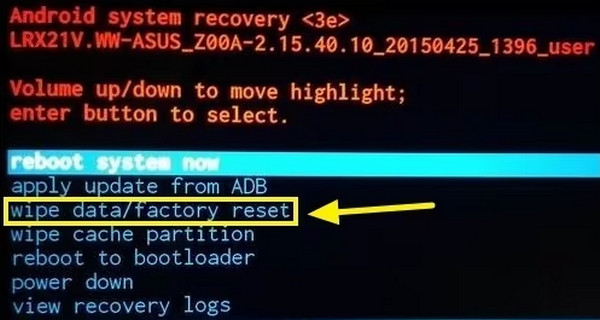
Please press the Power button to select the Factory Data Reset button from the options list. Confirm all on-screen confirmation prompts. Please wait for the factory reset to be completed afterward. Then, select the Reboot System Now button.
Wait for the reboot process to be completed. Then, you will be prompted to the Verify Your Account screen. Enter your Google account afterward to verify your ownership of the Motorola phone.
Part 3. How to Unlock a Motorola Phone via Find My Device
Google Find My Device is an official Android device management service provided by Google. If your Motorola phone is linked to a Google account before locking, you can use this feature to remotely erase the device and remove the lock screen password.
On another device, open the Google Find My Device website and sign in with the Google account linked to your Motorola phone.
You can view all devices connected to the Google account. Choose your locked Motorola phone from the device list.
Click the Erase Device button, then press Erase to start the remote erase process.
Part 4. How to Unlock a Motorola Phone via AnyPassGo
If standard methods do not work, a third-party Android unlocking tool like imyPass AnyPassGo can also help remove screen locks from Motorola phones. This tool works for Android 5-17 and supports multiple lock types, including PINs, passwords, patterns, fingerprints, and face recognition. It is also compatible with many popular Android brands, such as Motorola, Samsung, Huawei, LG, HTC, Oppo, and OnePlus.
Download imyPass AnyPassGo on your computer. Set up, install, and open it to start the unlocking process.
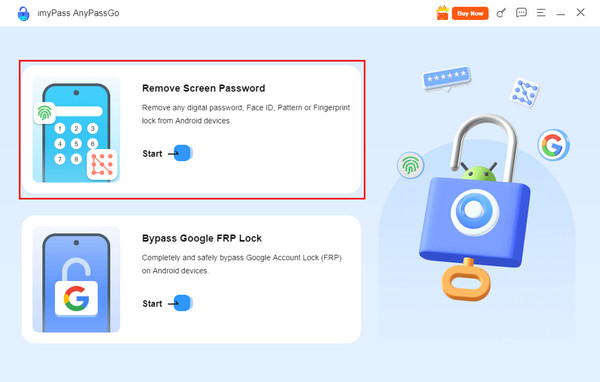
Two main features of the tool will appear. Please click the Remove Screen Password button at the top left.
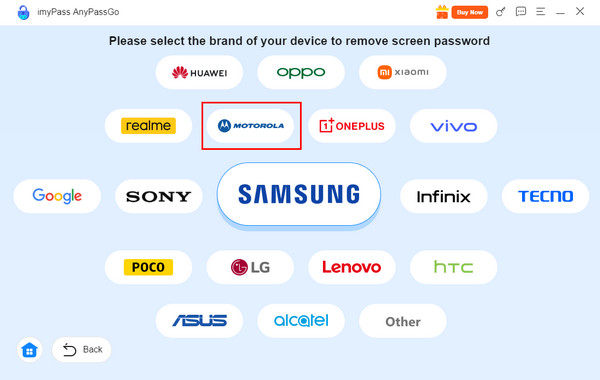
The supported Android brands will appear on the next screen. Please click the Motorola button at the top left.
Plug your Motorola phone into the computer with a USB cable. Then, click the Remove Now button to start removing the password.
Part 5. How to Unlock a Motorola Phone via Google Account
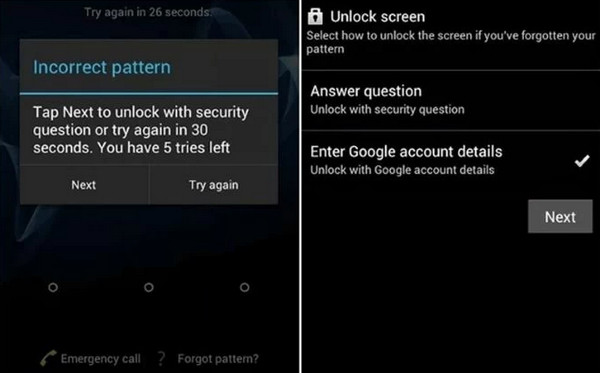
Some older Motorola devices and Android versions (Android 5-10) may display a "Forgot Pattern/PIN/Password" option after multiple incorrect attempts; you can use this option to sign in with your Google account and unlock your Motorola phone. However, on most Android 11 and later devices, this feature has been removed due to updated security policies.
You cannot view or retrieve your lock screen password through Google Chrome. You can only view the saved password like website and app login credentials.
Turn on your Motorola phone and enter the wrong PIN, password, or pattern multiple times until the Forgot Pattern/PIN/Password? option appears on the screen. Tap the option to continue.
The Google account verification screen will appear afterward. Select Enter Google Account Details, then tap Next. Enter the Google account email address and password linked to the Motorola phone. Finally, tap Sign In to unlock the device.
Conclusion
In conclusion, this article explains 4 effective ways to unlock Motorola G Play, Motorola Edge 70, Moto G75 5G, and more Motorola models. Whether you choose a factory reset, Find My Device, Google account verification, or a third-party unlocking tool, each method can help you remove the forgotten passwords easily!
Gideon writes about unlocking iOS, Android, and Windows devices. He previously worked as a mobile device specialist in a repair center, assisting customers with locked devices and password recovery. In his spare time, he tests new unlock tools, customizes smart devices and makes complex unlock processes simple and safe.
Hot Solutions
-
Unlock Android
-
Unlock iOS
-
Password Tips
-
iOS Tips