



 Solution
 Support Center
 About Us
 Contact
Check Screen Time Now Before Another Hour Slips Away
 Penny Warren Published on March 20, 2026Unlock iOS3-min reading
Many people spend more time on their iPhones than they realize. Have you ever reached for your iPhone the moment you wake up, or lost hours swiping through TikTok late at night? Apple's built-in Screen Time feature tracks how you use your device and provides you with tools to set limits. In this guide, you'll learn to better utilize Screen Time on iPhone and regain control of your time!

In this article:
Part 1: How to Check Screen Time on iPhone
Do you want to know which app secretly stole most of your time, or how long your child spends on games? Just check Screen Time on your iPhone, you'll find everything you want to see here.
How to Enable Screen Time on iPhone
First things first, you need to turn on Screen Time before it can start tracking your usage. Where is Screen Time on iPhone? Don't worry, it only takes you a few seconds to set it up.
Go to Settings and find Screen Time.
Tap App & Website Activity, then tap Turn On App & Website Activity.
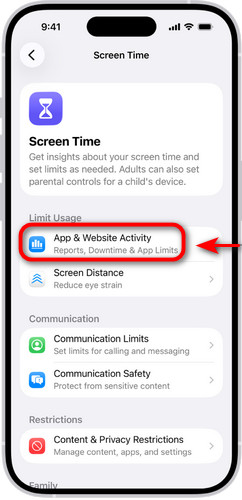
If you ever decide that you want to turn off Screen Time later, you can disable it whenever you need.
How to View Screen Time Summary
Once Screen Time is enabled, it starts monitoring right away. After just one day, you'll have a clear and detailed summary of your phone habits, including the apps you use most often and how much time you spend on each one. Here's how to access it quickly:
Go to Settings and tap Screen Time.
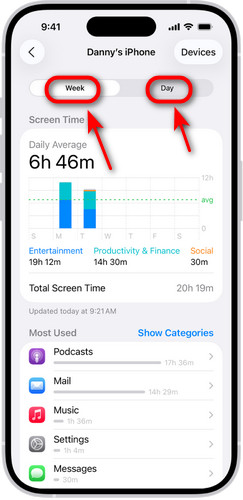
Choose See All App & Website Activity. You can tap Devices to select the device you want to view.
Now you can view the detailed summary of your iPhone usage. Tap Week to see your weekly use summary, or tap Day to check your daily use.
How to Check Your Child's Screen Time on iPhone
If you have an Apple Account, you can set up a Family Sharing group and add your child to it. Then you can monitor their screen time and customize parental controls for your child.
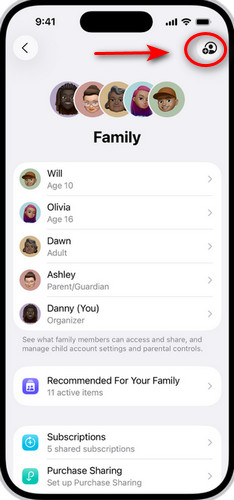
Go to Settings, tap Your Name and tap Family to set up your Family Sharing group.
You can tap Create Child Account to create an Apple Account for a child you want to add to your family, or tap Invite People to invite family members.
Select the child, then tap Screen Time. Now you can view how much time your child spends on iPhone.
Part 2: How to Set and Manage Screen Time Limits
Too much screen time can eat into work, school, hobbies, and real-life interactions. Screen Time Limits help you take back control of your device use. Whether you want to reduce gaming hours or cut down on endless social media scrolling, these settings are simple to use and highly effective.
Set iPhone Downtime hours
Downtime is used to schedule time away from your iPhone. During the Downtime period, all apps except the allowed ones will be grayed out and unavailable. It can help you reduce screen time, stay focused on work or study, or prevent children from using their phones late at night.
Go to Settings, tap Screen Time and tap Downtime.
Tap Turn on Downtime Until Tomorrow or tap Scheduled to set it up.
Set App Limits
Some apps are just too addictive - you can't stop scrolling once you start? Set a time limit for them, and they'll lock automatically when time's up. App Limits lets you set a time cap for these apps, so you can enjoy them in moderation without letting them take over your day.
Go to Settings, tap Screen Time and tap App Limits.
Tap Add Limit, then select the app you want to limit.
Tap Next in the top right corner, and set the detailed time limit.
Tap √ to save it.
Part 3: What to Do If You Forgot Your Screen Time Passcode
You set a Screen Time passcode to prevent yourself from bypassing limits, but then you forget it. Don't panic! There are a few simple ways to recover or reset it!
Reset the Passcode with Your Apple ID.
If your device runs iOS 13.4 or later, you can reset the Screen Time passcode by entering your Apple ID and passcode.
Go to Settings and tap Screen Time.
Tap Change Screen Time Passcode, and tap Forgot Passcode?
If asked, enter your Apple ID and password used to set up Screen Time.
After verification, you can set a new passcode and enter it twice to confirm.
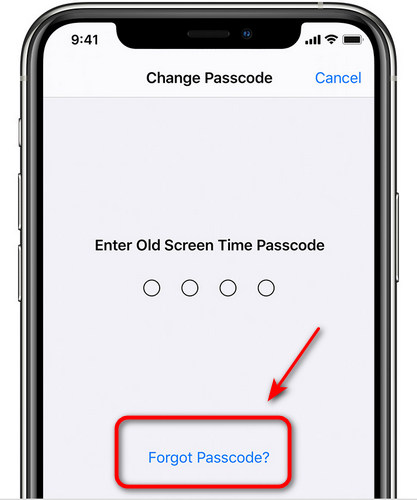
If your device is managed by Family Sharing, there is no Forgot Passcode option on this screen, you cannot reset your Screen Time passcode in this way.
Use a Third-party iOS Unlocker.
If you don't remember the Apple ID used to set up before, you can use a third-party tool like imyPass iPassGo. It is available for both Windows and Mac users. As a powerful iOS Unlocker, iPassGo can remove your Face ID/Touch ID/passcode, bypass Screen Time/MDM without a passcode easily get into your locked iPhone.

4,000,000+ Downloads
Bypass Screen Time on iPhone/iPad without a passcode.
Remove Screen Time locks without erasing data.
Support all iOS devices (iPhone 18 Pro included) with the latest iOS 27 and iPadOS 27.
Easy to use for professionals or novices.
Choose the Screen Time mode
Connect your device to a computer with a USB cable. Launch the software and choose the Screen Time mode.
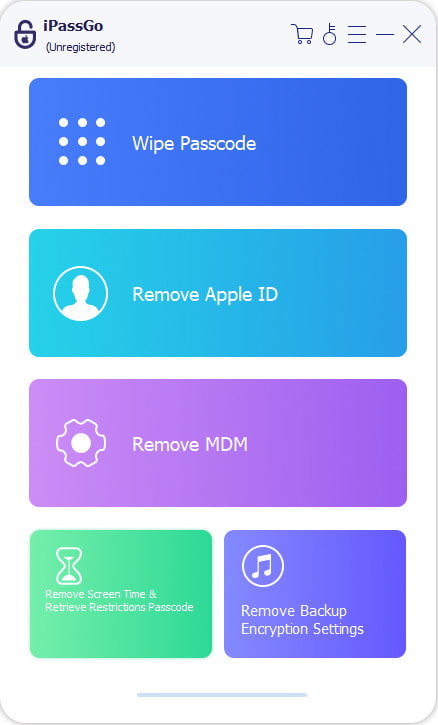
Remove Screen Time Passcode
For iOS 12 or later:
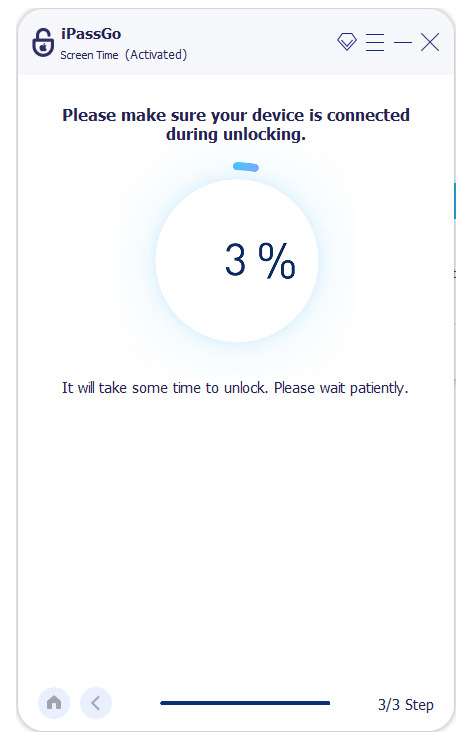
iPassGo will remove your Screen Time passcode immediately. Perform the device setup settings, select Don't Transfer Apps & Data, and choose Set Up Later in Settings.
For iOS 11 or earlier,
iPassGo can restore the Restrictions passcode at once only when your iTunes backup is not encrypted. If encrypted, enter the passcode to decrypt the backup first. Then, after retrieving process, you can reset your device with the revealed Restrictions passcode.
Conclusion
iPhone Screen Time can make a difference in your digital life. You can check Screen Time on iPhone to understand your phone habits, set time limits to certain apps to protect your sleep and focus, and even monitor your child's screen usage. Just enable Screen Time on your iPhone, view your daily summary, and take control of your screen time!
Penny focuses on GPS troubleshooting and Windows optimization. She formerly worked as a technical support engineer, helping clients solve location-based and system issues efficiently. Backed by IT support experience, she provides practical solutions that really work. In her free time, she likes hiking and geocaching, testing GPS tech in the real world.
Hot Solutions
-
Unlock iOS
-
iOS Tips
-
Unlock Android
-
Password Tips


