



 Solution
 Support Center
 About Us
 Contact
Forgot iTunes Password - How to Reset Apple ID Fast
 Samuel Spenser Published on May 19, 2026Unlock iOS3-min reading
If you forget your iTunes password, you may encounter various problems. For instance, you won't be able to download new apps, update existing ones, or make in-app purchases.
The good news is that your anxiety comes to an end here! This article will introduce four effective methods for resetting or deleting the password of your Apple account, to help you quickly solve the problem when you forgot your iTunes password.

In this article:
- Part 1. What Is iTunes Password
- Part 2. Reset Apple ID Password via Another Trusted Apple Device
- Part 3. Reset Password on Apple's Official iforgot Website
- Part 4. Reset iTunes Password via Apple Official Account Recovery
- Part 5. Remove Apple ID Using Third‑Party Unlocking Software
- Part 6. Comparison of All Apple ID Password Reset Methods
Part 1. What Is iTunes Password
What is an iTunes password? To clarify, the so-called iTunes password refers to your Apple ID password. However, many Apple users still use the term "iTunes password", which was used in the old version of Apple services. Actually, Apple has unified iTunes accounts and Apple ID. All operations in iTunes are verified by the Apple ID now. Therefore, all the iTunes passwords mentioned in this article refer to the Apple ID password. When you forgot your iTunes password, follow the detailed steps below!
Part 2. Reset iTunes Password via Another Trusted Apple Device
If you have already logged into the same Apple ID account on another Apple device, then you can reset the iTunes password on another trusted device. This is the fastest and safest official method. It will not cause any data loss. You just need to complete a simple identity verification process to create a new password.
Open Settings on your trusted Apple device.
Tap your name to enter the Apple ID interface.
Select Sign in & Security.
Tap Change Password.
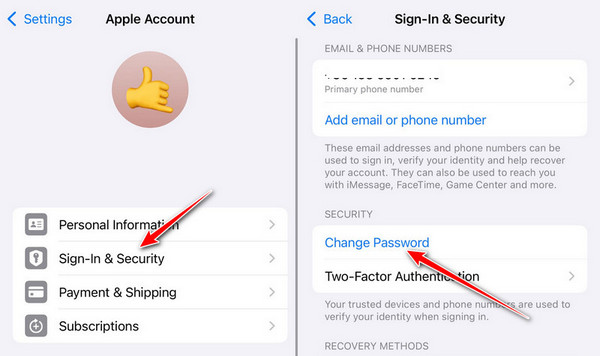
Enter your screen passcode or use Face ID to verify your identity.
Create and retype a new Apple ID password.
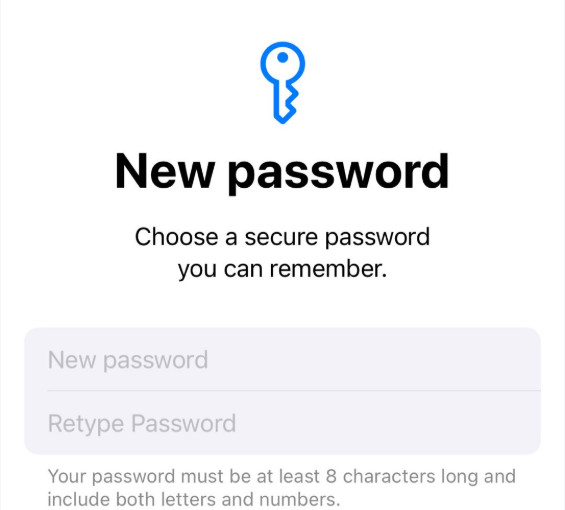
Sign in with the new password on all your Apple devices.
Part 3. Reset Password on Apple's Official iforgot Website
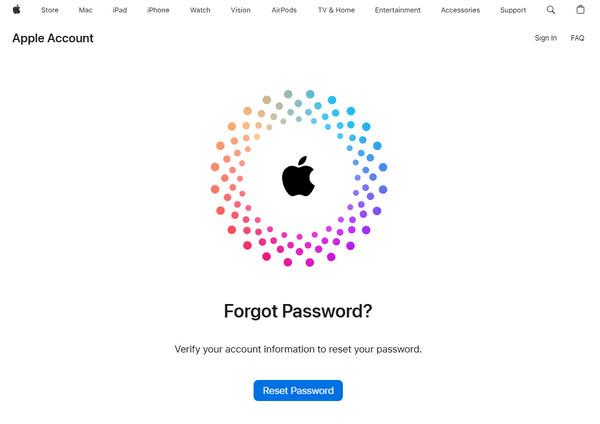
Apple provides an official Apple ID recovery page online - iforgot.com. If you have access to a trusted Apple device, you can also reset your password online through Apple's official password‑reset page.
Open any browser and visit iforgot.apple.com.
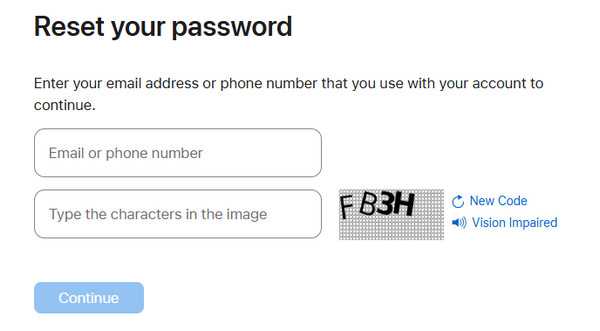
Enter your Apple ID and fill in the characters on the right. Click Continue.
You will receive an instruction message on your Apple device. Click Allow.
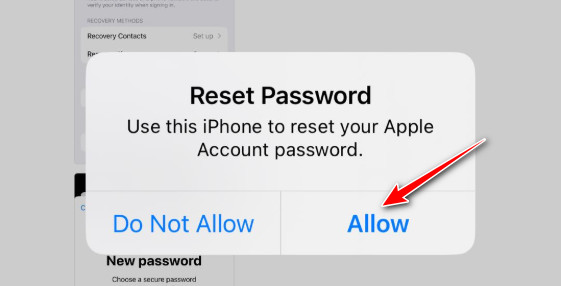
You will be led to the password reset interface. Reset your Apple ID password there.
Part 4. Reset iTunes Password via Apple Official Account Recovery
When you have no trusted devices and cannot access verification phone numbers or emails, Apple's account recovery is the only official solution. But the whole recovery process takes relatively longer.
Go to iforgot.apple.com and enter your Apple ID.
Click Don't have access to any of your Apple devices in blue and enter the account recovery process.
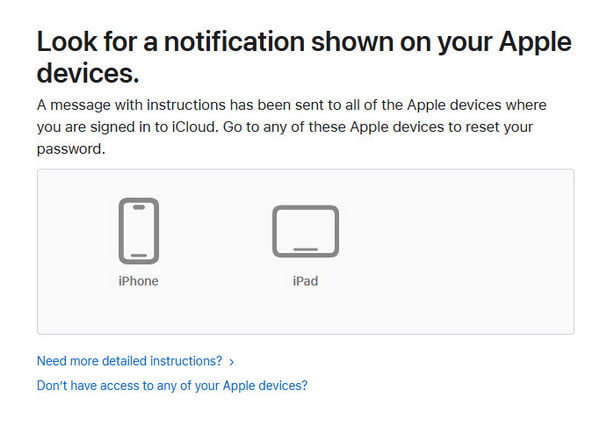
It will require you to enter a phone number that can receive SMS or phone calls (any number works).
You'll see an estimated waiting period of 5 days or longer. Confirm to submit.
Apple will send a confirmation email to your Apple ID email account.
Apple will notify you via text message or call when the waiting period is over.
Please do not log in to this Apple ID on any device during the waiting period. Otherwise, the account recovery process will be automatically canceled.
Go back to iforgot.apple.com and reset your Apple ID password.
Part 5. Remove Apple ID Using Third‑Party Unlocking Software
If all official methods fail or are not suitable, professional third‑party iOS unlocking software, such as imyPass iPassGo, can help you remove the Apple ID directly. But note that this method will erase all device data.

4,000,000+ Downloads
Remove Apple ID without a password.
Intuitive and easy-to-follow steps.
Erase Apple ID with one click.
High success rate and compatibility.
Support all iOS devices and models.
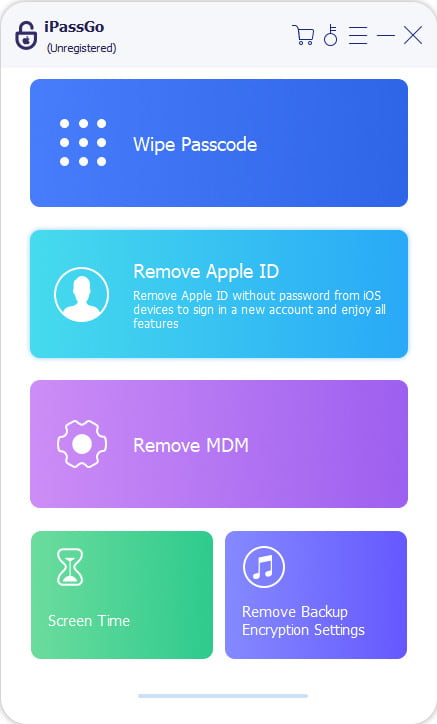
Download this tool to your computer and launch it.
Choose the Remove Apple ID feature on the main interface.
Connect your device to your computer and check your device information. Click Start Now.
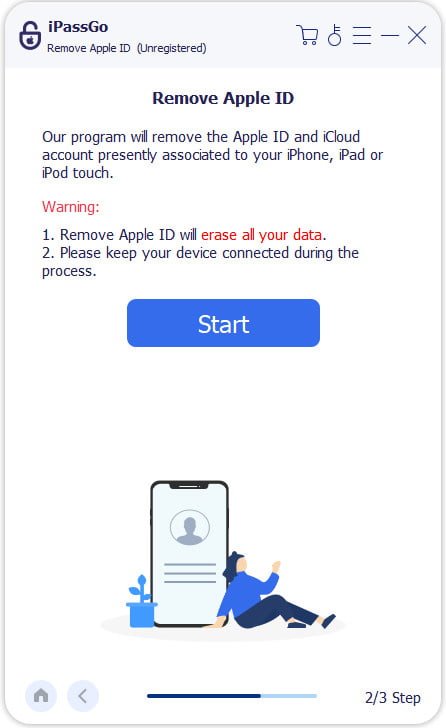
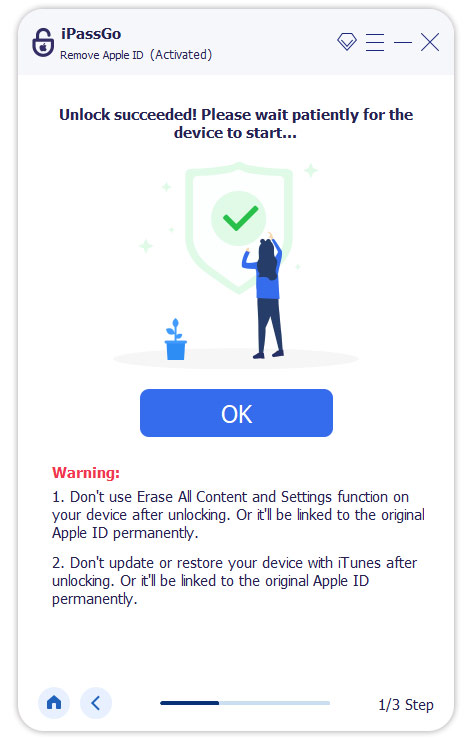
If Find My is disabled, your Apple ID will be unlocked soon, and then you can set a new Apple ID password freely.
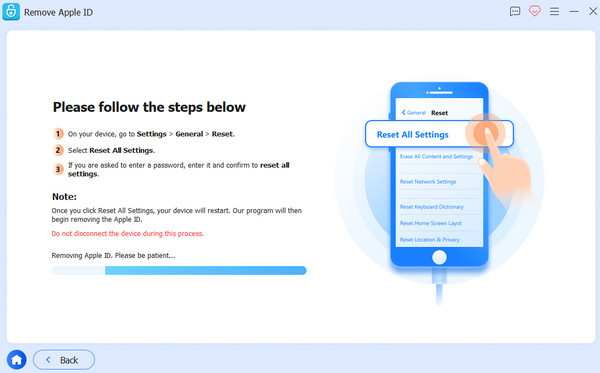
If Find My is enabled, you should first follow the on-screen instructions to reset your iOS device.
This tool also helps you unlock an iPhone without a passcode.
Part 6. Comparison of All Apple ID Password Reset Methods
| Method | Data Loss | Internet Required | Apple ID Required | Difficulty | Suitable Scenarios |
| Reset via trusted Apple device | No | Yes | Yes | Easy | Have other Apple devices that share the same Apple ID |
| Reset via iforgot.apple.com | No | Yes | Yes | Moderate | Available to trusted phone/email |
| Recover via official Apple account | No | Yes | Yes | Relatively Difficult | No trusted devices or verification info |
| Third-party unlocking software | Yes | No | No | Very easy | Official methods unavailable, easier solution |
Conclusion
In summary, there are many solutions to reset or remove an Apple ID if you forgot iTunes password. You can use a trusted device, Apple's official website, or account recovery to help you. Third‑party unlocking software, such as imyPass iPassGo, should only be used as an emergency alternative. And remember to back up your device data before using it.
Samuel specializes in password security and digital privacy. He used to work as a cybersecurity consultant for small businesses to protect digital assets. With certifications in Cybersecurity and Ethical Hacking, he turns complex security topics into easy-to-follow advice. He also enjoys sharing password tips to help users protect their accounts more confidently.
Hot Solutions
-
Unlock iOS
-
iOS Tips
-
Unlock Android
-
Password Tips


