



 Solution
 Support Center
 About Us
 Contact
Reset a Forgotten iPhone Restrictions Passcode [Without Data Lost]
 Samuel Spenser Published on June 04, 2026Unlock iOS3-min reading
While user security helps safeguard personal information, it can also pose access issues if users overlook their old credentials or if they reset their account security too rapidly. There are numerous restrictions on password lockouts, which begin after software updates, after resetting devices, or after changing security policies. It is wise to know the relationship between permissions, authentication, and recovery methods processes before going ahead to attempt a reset. Here are some of the most common causes, the potential pitfalls of wrong solutions, and some practical tips to re-establish trustworthy access with less aggravation.

In this article:
Method 1: Reset via Settings (If You Know Apple ID)
Resetting the restrictions passcode via Settings is often the quickest and most secure alternative whenever the Apple ID connected to the gadget may be recovered. With Apple, you can restore a forgotten Screen Time password and restrictions directly on the device without restoring all its settings. This is effective in the following scenarios: when the device is signed in properly and is connected to the internet.
Tap on the Settings application inside your iPhone or iPad. Tap Screen Time at the bottom.
Tap the Forgot Passcode? button after you select Change Screen Time Passcode. Enter your Apple ID associated with the device.
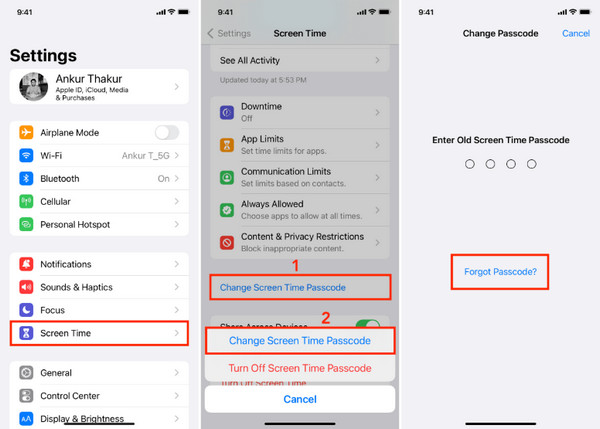
Follow the on-screen instructions to create a new restrictions passcode. Confirm the new passcode and return to Screen Time settings to verify the change.
This method preserves your apps, files, and personal settings while restoring access to restricted features.
Method 2: Use Family Sharing (If You're the Parent)
Apple Family Sharing allows parents to reset a forgotten iPhone restrictions passcode on a child's device without deleting data or restoring the device. This method only works if Screen Time and Family Sharing were already enabled before the passcode was forgotten.
Open the Settings app on your iPhone or iPad. Tap your Apple ID profile at the top of the screen, then select Family Sharing. Choose the child's account from the list of family members.
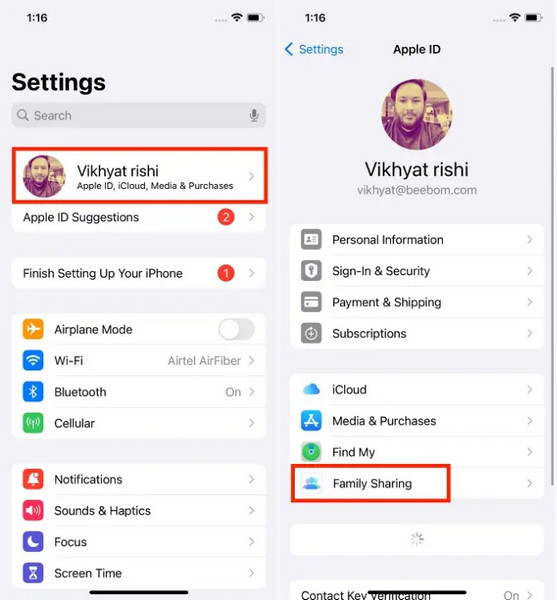
Click on the selected child's name in Screen Time. This part regulates all restrictions, apps, and content restrictions on the device.
Select Change Screen Time Passcode. Verify your identity using Face ID, Touch ID, or the device passcode when prompted.
Type in a new restrictions passcode and confirm it to change the Screen Time settings instantly.
This way, parents can put their phone into the safety of reset mode and delete the passcode for safe measures without wiping the phone or impacting how the kid has it set up.
Method 3: Use imyPass iPassGo
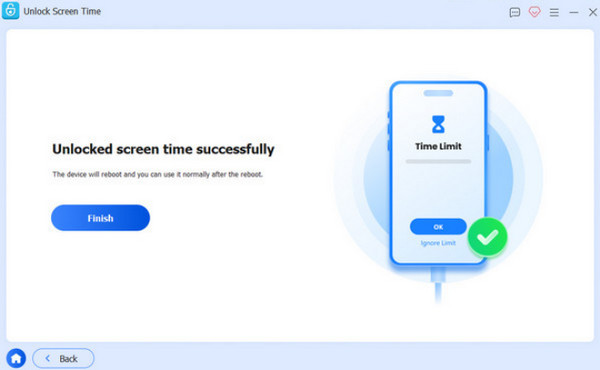
imyPass iPassGo is a tool that may be utilized as a backup if your iPhone restrictions password is lost and Apple's normal recovery choices are ineffective. A desktop app that gets you rid of Screen Time or restriction passcodes by pairing an iPhone with a computer and completing a set of instructions. Rather than repeated unsuccessful attempts to reset the restriction layer, it attempts to reset the layer directly, so you can retrieve privileged access more quickly. It is the preferred method when Apple ID recovery or Family Sharing is not available.
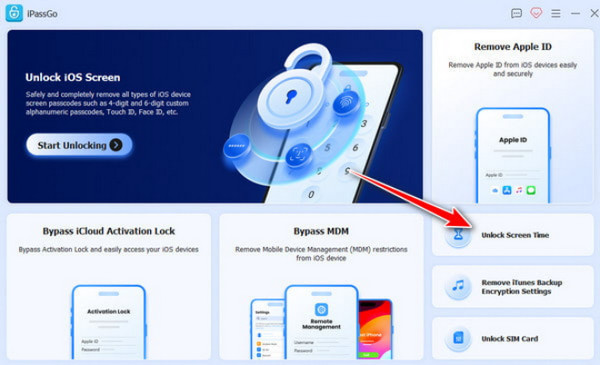
Download and install the iPassGo on your computer by clicking the appropriate download button below. After that, launch it.
Go to the Unlock Screen Time mode from the interface and ensure you have a stable connection between your PC and iOS.
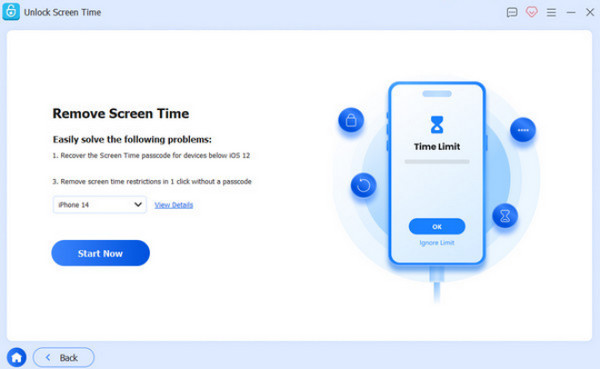
Next, set the iPhone version you connect to and click Start Now. Then, select how your Screen Time password is set from the options available here.
Disable the Find My of your iPhone, then activate the two-factor authentication, and click Unlock to successfully remove the screen time passcode on your iPhone.
Method 4: Factory Reset the Device
If none of the above options work, a factory reset can remove a forgotten restrictions passcode on an iPad. It will delete all content and settings, including Screen Time data, and restore the device to its original settings. Ideally, you should restore access via your Apple ID, Family Sharing, or third-party methods before trying this one, but it is not impossible that the method is unworkable.
Open the Settings app on your iPad and go to General. Scroll down and tap Transfer or Reset iPhone/iPad.
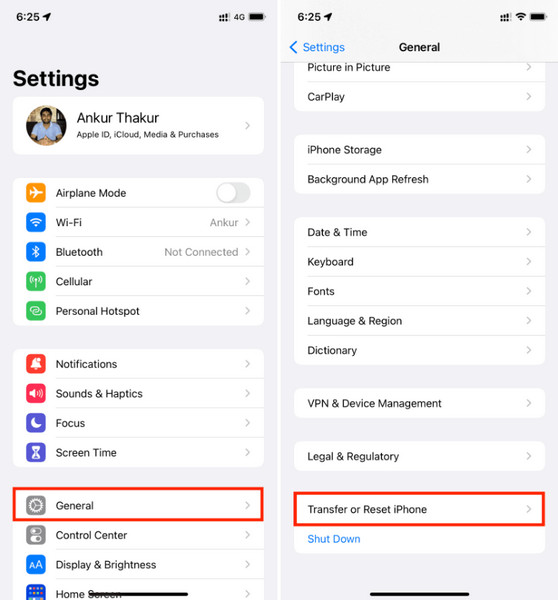
Select Erase All Content and Settings. You may be asked to enter your device passcode or Apple ID password to confirm the action. Review the warning message carefully. This step will delete all apps, photos, and personal data from the device.
Tap Continue and wait for the reset process to complete. The iPad will restart and return to the setup screen.
Set up your iPad again as new or restore it from an iCloud or computer backup if available.
This method of factory resetting an iPhone is commonly used when dealing with a forgotten restrictions passcode iPad situation. Still, it should only be done when data loss is acceptable or when backups are available.
Special Case: iPhone Asking for Restrictions Passcode I Never Set
Sometimes the iPhone will request a restrictions code, even if you did not set one. This typically occurs when you restore from a pre-existing backup, move data over from another device, or receive settings from another Apple ID. In many cases, it means that your iPhone will be locked for some reason prior to use, and this will result in a lost restrictions passcode situation.
Go to the Settings app > Screen Time. Check whether Screen Time is already enabled, as this often indicates that restrictions were carried over from a previous setup or backup.
Tap the Apple ID profile back in Settings. If you have not done so before, go into Family Sharing and see if it is connected to another account that may have had Screen Time set up.
If available, tap Forgot Passcode? under Screen Time. Type the Apple ID associated with the device or the last setup in order to recover.
Check if the issue started after restoration from a backup or migration from another source device, as this is a usual pathogen of inherited restriction settings.
Causes & Solutions
In most cases, a restrictions passcode issue happens because Screen Time was already enabled, a device was restored from a backup, or the iPhone is linked to another Apple ID through Family Sharing. It can also occur when old settings are carried over from a previous device without the user noticing.
How to solve the problem is determined by the cause. To reset a passcode, if it has been tied to your Apple ID, use Screen Time settings. It is possible to change it directly if it is from Family Sharing, earned by the parent/or organizer. If it has been inherited from a backup or if it can't be retrieved, you may need to reset the device or rely on a recovery tool.
Conclusion
Restriction settings protect personal data and control device access. Still, they can be a problem if the passcode is not remembered or when the passcode is transferred from old restrictions. Fortunately, you have options such as Apple ID recovery, Family Sharing recovery, third-party tools, or factory reset options for gaining access. Utilizing the right approach in the initial phase will likely prevent data loss and save time in troubleshooting. If you need to reset the restrictions passcode in iPad settings, it is best to begin with Apple's built-in recovery methods before trying more advanced solutions.
Samuel specializes in password security and digital privacy. He used to work as a cybersecurity consultant for small businesses to protect digital assets. With certifications in Cybersecurity and Ethical Hacking, he turns complex security topics into easy-to-follow advice. He also enjoys sharing password tips to help users protect their accounts more confidently.
Hot Solutions
-
Unlock iOS
-
iOS Tips
-
Unlock Android
-
Password Tips


