



 Solution
 Support Center
 About Us
 Contact
How to Recover Your Apple ID Account (2026 Full Guide)
 Samuel Spenser Published on April 01, 2026Unlock iOS3-min reading
When you forget your Apple ID account or password, it's as frustrating as losing your keys. Without Apple ID, you cannot access many features and services on Apple devices, such as iCloud, Apple Music, iTunes Store, etc.
This post will show you how to recover Apple ID when you've forgotten password or the account ID. Keep reading to find a solution that suits you.

In this article:
Part 1. What Happens If You Forget Your Apple ID or Password
Your Apple ID connects your iPhone, iPad, and Mac to Apple services like iCloud, the App Store, FaceTime, and iMessage. If you forget your Apple ID email or password, you may lose access to important features across all your devices.
Without your Apple ID, you may:
- Be unable to sign in to iCloud, the App Store, or other Apple services.
- Cannot restore backups, make purchases from Apple, and sync your iPhone.
- Get blocked by Activation Lock after resetting the device.
- Be unable to turn off Find My or sign out of the current account.
Fortunately, Apple provides several official ways to recover your Apple ID if you forgot the password.
Part 2. How to Recover Apple ID Account
| Method | Best For… | Success Rate | Requirements |
| 2FA | Users who still know the Apple ID username. | Extremely High | 2FA and linked phone number or email address. |
| Official Account Recovery | Users with no setup but willing to wait for identity verification. | Medium | Verification of account ownership (may take days). |
| Recovery Key | Users who previously generated and saved the 28-character code. | Extremely High | Access to your physical or digital 28-digit key. |
| Recovery Contact | Users who have assigned a trusted friend or family member. | High | A Trusted Contact with an active Apple device. |
Way 1: Recover Apple ID With 2FA
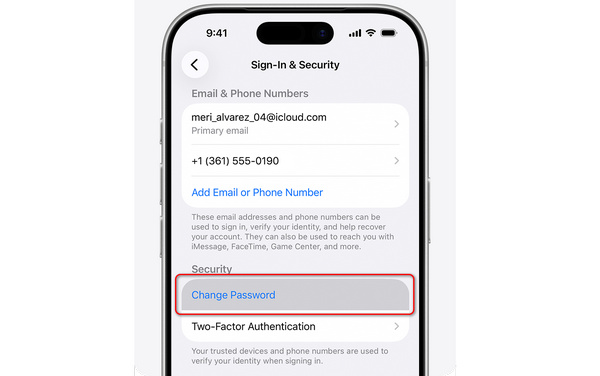
When you forget the Apple ID password but still remember the username, 2FA (Two-Factor Authentication) can help you easily recover your Apple ID with linked phone number or email address. This method only works if you are already signed in to your Apple ID on the device.
Open the Settings app. Tap your profile.
Select Sign-In & Security. Then, tap Change Password.
Follow the on-screen guide to recover your Apple ID. The process may need your screen passcode.
Way 2: Recover Apple ID via Official Account Recovery
Case 1: You have access to a trusted phone number
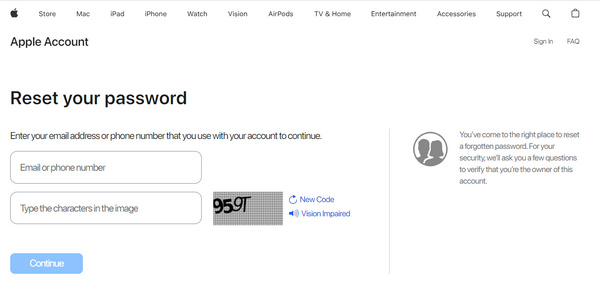
Go to Apple's official recovery site: iforgot.apple.com.
Choose Reset Password. Enter your Apple ID email. Then, select the option to receive a verification code.
Enter the code sent to your trusted phone number. Then, you just need create a new password to recover your Apple ID.
Case 2: You lost access to both trusted device and phone number
Go to iforgot.apple.com. Enter your Apple ID. Then, Choose Can't access your trusted devices?.
Start Account Recovery. Enter a phone number where Apple can contact you. Wait for Apple’s recovery process (this may take several days).
Way 3: How to Recover Apple ID Account with Recovery Key
As mentioned previously, Recovery Key is one way to regain access to your Apple ID when you are locked out of your iPhone or iPad. In other words, it allows you to recover your Apple ID account without a phone number or email. This method only works if you enabled Recovery Key before losing access to your Apple ID.
Set up Recovery Key on iPhone/iPad:
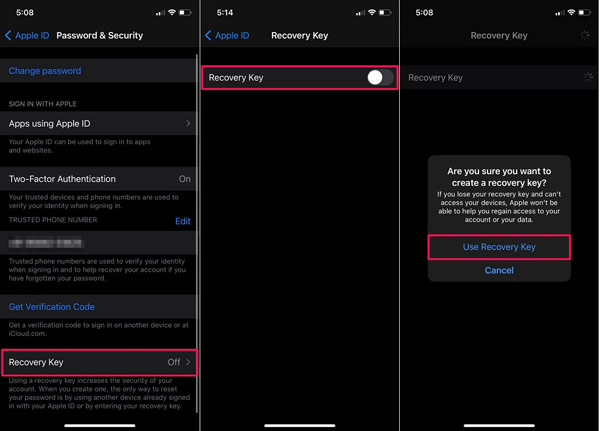
Run the Settings app from your home screen, and tap on your profile.
Navigate to Password & Security, Account Recovery, and Recovery Key.
Toggle on the Recovery Key option, and tap Use Recovery Key on the confirm box. Then you will be prompted to enter your iPhone passcode.
Write down your recovery key. Tap Continue, and then enter it on the next screen to confirm it. Now, your recovery key is activated.
Set up Recovery Key on Mac:
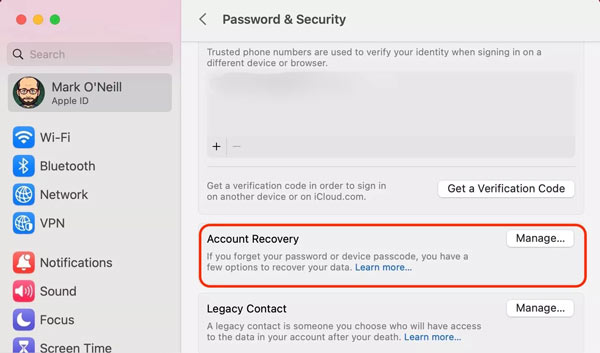
Click the Apple menu, choose System Settings, and hit your name.
Choose Password & Security, and press the Manage button on the Account Recovery entry.
Next, click Turn On in the Recovery Key section. Then follow the instructions to create your recovery key and write it down.
Use Recovery Key to Recover Apple ID
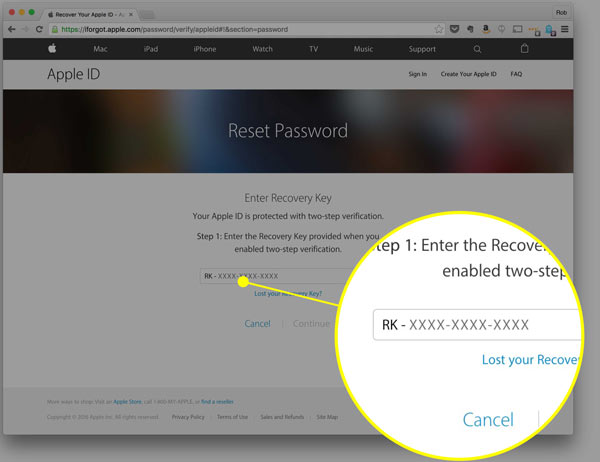
If you forget your Apple ID password or are locked out of your account, visit the iForgot website in a web browser, input your Apple ID, and tap the Continue button to begin recovering your Apple ID. Follow the on-screen instructions until you are prompted to choose a way to verify the ownership. Enter your recovery key and move on. Then enter a new Apple ID password, re-enter it, and confirm the changes.
Way 4: How to Recover Apple ID with Recovery Contact
Recovery Contact is another way to recover your Apple ID without email or phone number. Similar to the Recovery Key, you must set up a recovery contact on your iPhone or Mac before losing access to your account.
Set up Account Recovery Contact on iPhone:
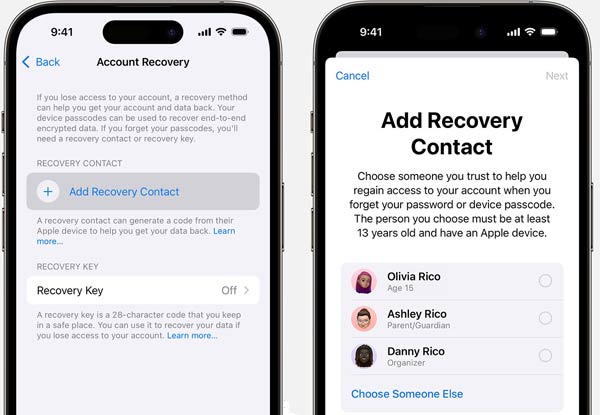
Run your Settings app, and tap on your name.
Choose Sign-in & Security, tap Account Recovery, press Add Recovery Contact, and tap it again. When prompted, authenticate with your Face ID or Touch ID.
Select a proper contact on the list. If you cannot find the desired one, tap Choose Someone Else. Then the contact will get a notification. Once they accept your request, the process is complete.
Set up Account Recovery Contact on Mac:
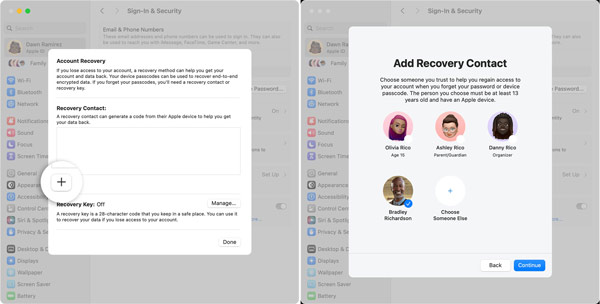
Click the Apple menu, choose System Settings, click your name, and choose Sign-in & Security.
Press Account Recovery, hit the Add icon, and click Add Recovery Contact. If prompted, enter your Mac password.
Select an appropriate contact on the list, and click Continue. Wait for the contact to accept your request.
Recover Apple ID with Account Recovery:
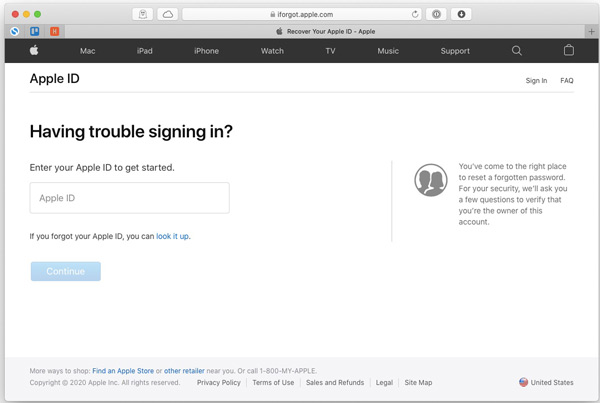
When you are locked out of your account, start recovering the Apple ID with the normal steps on iforget.apple.com. As long as you reach out to your recovery contact, turn to the device of the contact. Navigate to Settings on iPhone or System Settings in the Apple menu on Mac, tap on the profile, Sign-in & Security, and Account Recovery. Tap on your name, and press Get Recovery Code. Then enter the code on your device and move on.
Part 3: How to Prevent Losing Access to Your Apple ID Again
Now that you've successfully recovered your Apple Account, the goal is to make sure you never have to go through that "waiting period" again. By 2026, Apple has introduced several high-level security features that act as a safety net for your digital life.
Here is how to lock down your account and ensure you always have a way back in.
1. Set Up Recovery Conditions
As mentioned above, Recovery Key and Recovery Contact can help you recover Apple ID when you've forgotten your username and password and linked phone number or email. Therefore, you can set up a Recovery Key or Recovery Contact when you've regained access to your iPhone.
2. Enable Stolen Device Protection
This is a critical layer for 2026. It prevents a thief who knows your passcode from changing your Apple Account password. This feature will require Face ID or Touch ID to enable your Apple ID password to be changed if the device is in an unfamiliar place.
3. Be Aware of Trusted Device
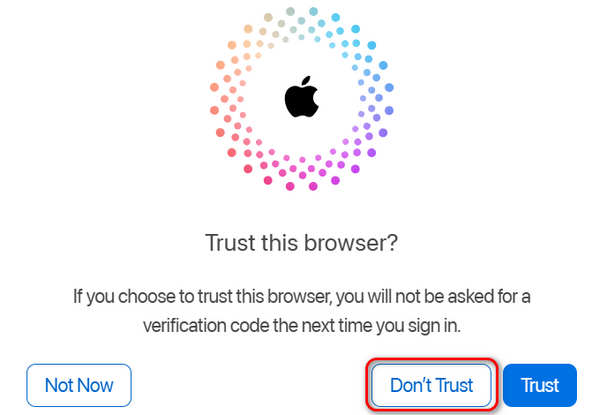
When you need to log into your Apple ID on another device, like an iPhone, iPad, or computer, you don't necessarily need to trust that device. Only trust personal devices that you control. Adding unnecessary trusted devices increases the risk of unauthorized access if those devices are lost or stolen.
Bonus: Remove Apple ID and Password on a Second-Hand iPhone
If account recovery is not possible because you have no access to verification methods, removing the old Apple ID from the device may be another practical solution. To remove the locked account from your iPhone, imyPass iPassGo is the best option.

4,000,000+ Downloads
Delete Apple ID and password from an iPhone or iPad.
Unlock iPhone or iPad without password.
Do not require any verification items.
Available to a wide range of situations.
Support the latest iPhone and iPad models.
Here are the steps to remove your Apple ID account without recovery on your iPhone:
Connect to your iPhone
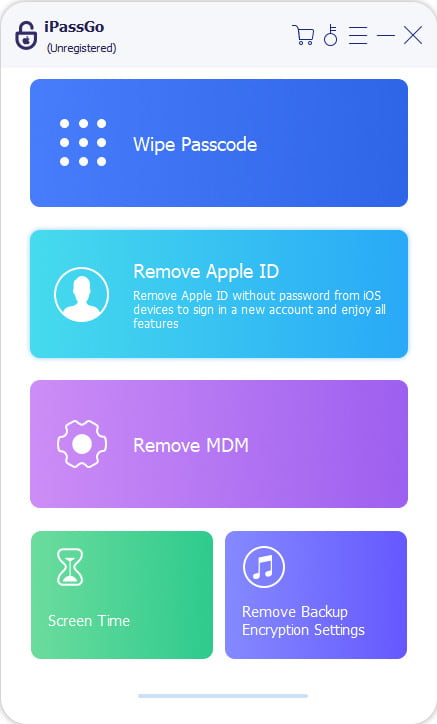
Launch the best Apple ID removal app after installing it on your computer. Choose the Remove Apple ID mode. Plug your iPhone into the same machine with a Lightning cable. Click the Start button to continue.
Remove your Apple ID
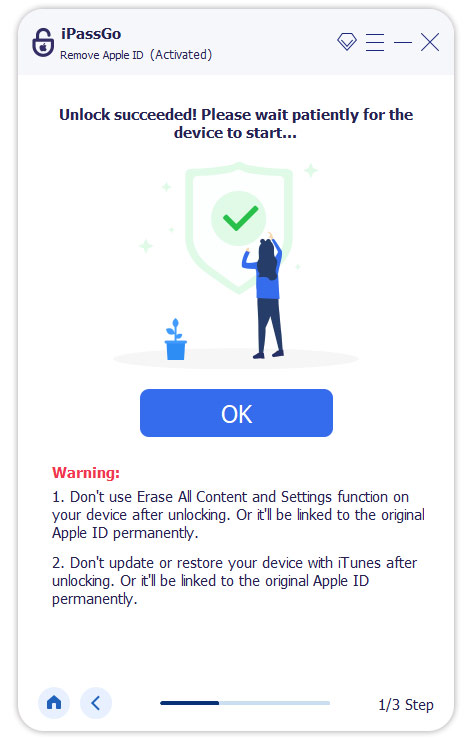
The removal process depends on whether Find My is enabled and the iOS version running on your device.
On iOS 11.3 and earlier with Find My iPhone enabled, reset all settings on your device, and the software will do the rest.
On iOS 11.4 and later with Find My iPhone enabled, enter 0000, and click Confirm to download the firmware. Then enter 0000 again, and hit the Unlock button.
FAQs.
-
Can you recover old Apple accounts?
Yes, you can. You can submit your request to Apple Support, whether by phone call, in person at a physical store, or on the website. Apple will verify your request and finally determine whether to help you find the account.
-
What happens if I can't recover my Apple ID?
If you cannot recover your Apple ID, that means even Apple decline your recovery request. In that case, what you can do is only to give it up and create a new Apple ID.
-
Is there a fee for Apple Account recovery?
No cost. It's free to recover your Apple account.
Conclusion
This guide has discussed how to recover an Apple ID without an email or phone number. Sometimes, you just find that you are locked out of your account and cannot log in to all Apple services. The good news is that Apple provides multiple ways to unlock your account, such as Recovery Key, Recovery Contact, and Apple Support.
If you decide to give up an Apple ID on an iOS device, imyPass iPassGo can help you quickly get rid of the old Apple ID on your device. You don't need to log out your account on different services one-by-one.
Samuel specializes in password security and digital privacy. He used to work as a cybersecurity consultant for small businesses to protect digital assets. With certifications in Cybersecurity and Ethical Hacking, he turns complex security topics into easy-to-follow advice. He also enjoys sharing password tips to help users protect their accounts more confidently.
Hot Solutions
-
Unlock iOS
-
iOS Tips
-
Unlock Android
-
Password Tips


