



 Solution
 Support Center
 About Us
 Contact
How to Erase iPhone Without Screen Time Passcode to Delete Data
 Samuel Spenser Published on May 20, 2026Unlock iOS3-min reading
Screen Time is used to manage the screen time of the iPhone user. It could be linked to an iPhone of a child or other family members. It can restrict adult, violent, and other inappropriate content. Additionally, it can limit the screen time you spend on your iPhone.
However, some cannot remember the Screen Time passcode. Erasing the iPhone is their primary solution for the issue. How to erase iPhone without Screen Time passcode? In this article, you will see the four easy methods that can remove your Screen Time passcode or erase your iPhone. Kindly scroll below to know their full details.

In this article:
Part 1. Use imyPass iPassGo
The Screen Time passcode is not a requirement to erase your iPhone. But you might be erasing your iPhone due to restrictions or a forgotten Screen Time passcode. So, imyPass iPassGo can help! This tool can help you bypass the Screen Time passcode on your iPhone without data loss. Novices will love using the tool due to the straightforward interface it offers.
Additionally, the software can be used to bypass different security features that are accessible on your iPhone. It includes iCloud Activation Lock, MDM, screen lock, SIM lock, and more. Use the tool with the steps below.
Download imyPass iPassGo from its website. Then, locate its file from the web browser and set it up. Later, install the tool to let the computer install it afterward.
The supported features will appear. Please select the Unlock Screen Time button at the bottom right. Plug your iPhone into the computer with a USB cable afterward.
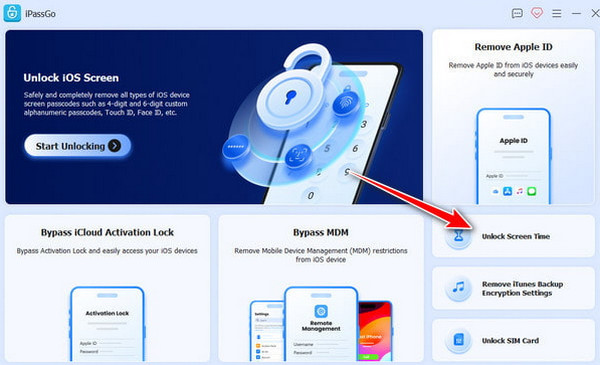
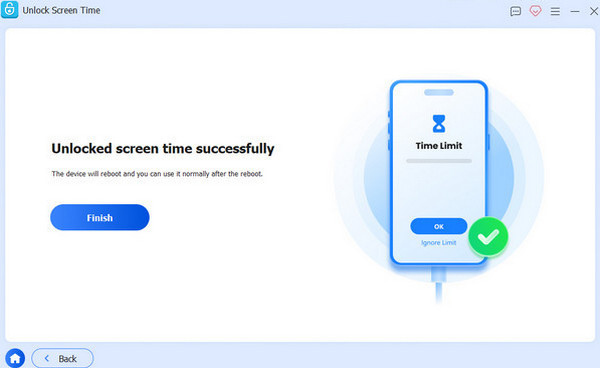
Click the Start Now button at the bottom left. Choose the method you want to set your Screen Time passcode. Click the Unlock button. The feature will start to be unlocked using the tool. Click the Finish button as the final step of the process.
Part 2. Factory Reset via Recovery Mode
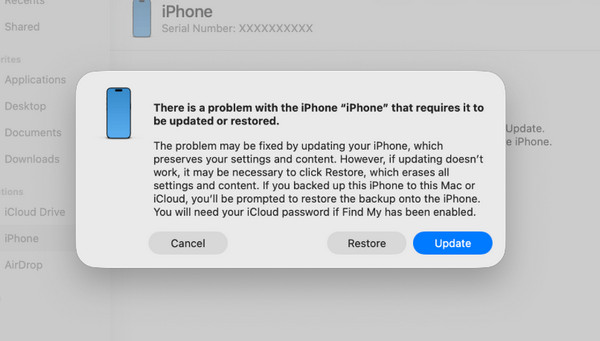
The Erase All Content and Settings option might be greyed out, so you can't erase the iPhone without the Screen Time passcode. If so, you might need an advanced method to erase your iPhone without the passcode of the mentioned security feature. Recovery mode is one of the best options.
However, the method requires professional skills, which some beginners will find hard to operate. The good thing about it is that it does not need an internet connection to function. Please use the steps below as your guide for recovery mode to erase your iPhone without the Screen Time passcode.
The recovery mode of your iPhone depends on its version. Determine the version or model of your iPhone and follow the steps below that suit it.
- iPhone Models Without a Home Button: Press and quickly release Volume Up. Please do the same combination with the Volume Down. Later, please long-press Side. Wait for the Connect to Computer screen to be prompted.
- iPhone Models with a Home Button: Press and hold Side and Volume Down or Home. Wait for the Connect to Computer screen to appear.
Plug your iPhone into a computer. Open iTunes or Finder. Later, click the Restore button and follow the on-screen instructions to complete the process.
Part 3. Erase Remotely via iCloud
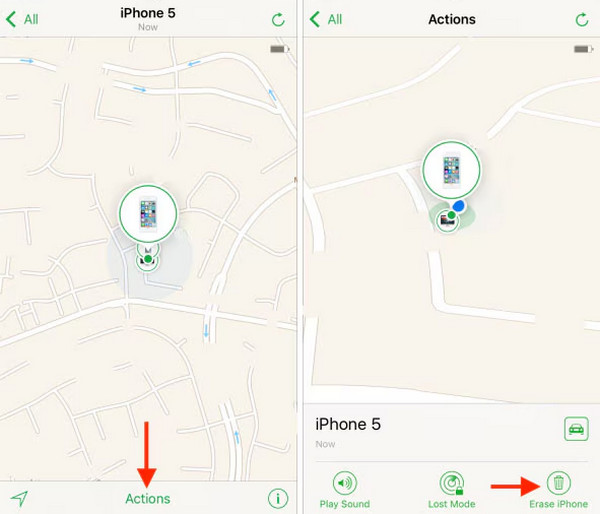
You can also remotely erase your iPhone using iCloud Find My. It will delete the Screen Time on iPhone in a few taps or clicks. The Apple ID associated with the iPhone is the top requirement. Please refer to the steps below.
Visit the website of iCloud Find My. Enter your Apple ID on the first screen. Then, click the Continue button to sign in.
Go to the All Devices section. Select your iPhone and click the Erase iPhone button. Authenticate the process to start.
Part 4. Reset Screen Time Passcode Using Apple ID
Besides erasing the iPhone, you can also reset the Screen Time passcode to enable the greyed-out Erase All Content and Settings option. An Apple ID is needed for the authentication. Please use the steps below to know how.
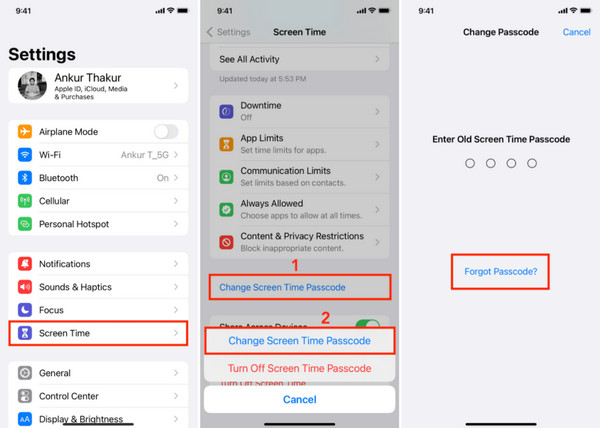
Tap the Settings app to open it. Then, tap the Screen Time button from the list of options. Later, choose the Change Screen Time Passcode button twice to proceed to the next interface.
Tap the Forgot Passcode button. Enter the Apple ID associated with the iPhone. Then, you will be required to enter your new Screen Time passcode. Enter the passcode twice to confirm and change it.
What to Do After the Reset
If you have decided to erase your iPhone when the Screen Time passcode is unknown, there are a few things you need to do after the reset. Your iPhone will be on its factory settings. So, you need to set it up as new.
1. Setup Process
When you turn on the iPhone after the reset process, you are required to enable and set up its features. It includes Wi-Fi, Location Services, Siri, Screen Time, App Analytics, and Automatic Updates. You only need to follow the on-screen steps for the proper method.
2. Restoring a Backup
Given that the iPhone performed a factory reset, it is helpful if you have a backup. Do you have one? Restore it after setting up your iPhone to get back your important data. Use the steps below.
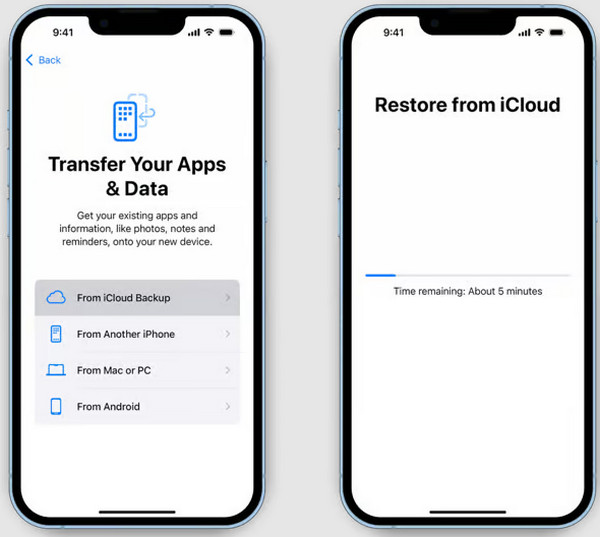
Follow the on-screen instructions until the Transfer Your Apps & Data screen is shown. Multiple options will appear.
Select between the From iCloud Backup, From Mac or PC, From Another iPhone, and From Android options. Follow the on-screen instructions to complete the restore process.
3. Setting a New Screen Time Passcode
If you want to set a limit on Screen Time on iPhone again, you need to set a new passcode. This method is simple and can be done in seconds. Please refer to the steps below for the proper method.
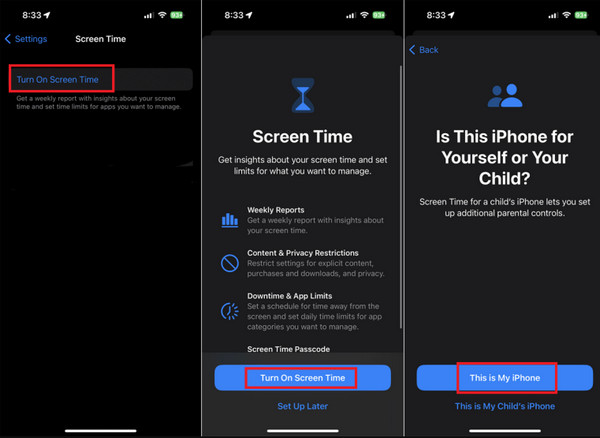
Open the Settings app on your iPhone. Then, select the Screen Time button from the list.
Select the Turn On Screen Time button. Tap the Continue button and choose between the This is My iPhone and This is My Child's iPhone buttons. Tap the Use Screen Time Passcode button and set it up.
Conclusion
In conclusion, you learned how to erase an iPhone without the Screen Time passcode with this post. The four easy methods to help you are here! imyPass iPassGo can be encountered and used as a third-party tool that can bypass your Screen Time on iPhone without data loss. Download the tool to explore it further.
Samuel specializes in password security and digital privacy. He used to work as a cybersecurity consultant for small businesses to protect digital assets. With certifications in Cybersecurity and Ethical Hacking, he turns complex security topics into easy-to-follow advice. He also enjoys sharing password tips to help users protect their accounts more confidently.
Hot Solutions
-
Unlock iOS
-
iOS Tips
-
Unlock Android
-
Password Tips


