



 Solution
 Support Center
 About Us
 Contact
Microsoft Intune MDM Review: Manage and Secure Devices Easily
 Samuel Spenser Published on September 09, 2026Unlock iOS3-min reading
Managing and securing a number of devices is challenging, especially when employees work remotely or use their personal devices for work. Fortunately, Microsoft Intune MDM provides administrators with centralized device management. This review covers Microsoft Intune's features, enrollment, management, pricing, and fixes to common issues, helping you determine whether it's right for your business.

In this article:
Part 1: What You Need to Know About Intune MDM
What is Intune MDM?
Microsoft Intune is an endpoint management service for securing and managing devices and apps. As a Microsoft Intune MDM solution, it can enroll, modify, secure, and update devices, as well as deploy and protect applications. Most importantly, it allows the admin to control who and what can access organizational resources.
Why Use Intune MDM?
Organizations use Intune to automate device administration and strengthen the security of company-owned and personal devices. Instead of configuring each device manually, admins can create policies once and apply them to groups of users or devices. All of this happens in the web-based Microsoft Intune admin center.
Part 2: How to Enable Intune MDM
To enable MDM Intune, administrators will need to configure Intune and link it to Microsoft Entra ID. This configuration enrolls devices, automatically applies security policies, and lets users access company resources.
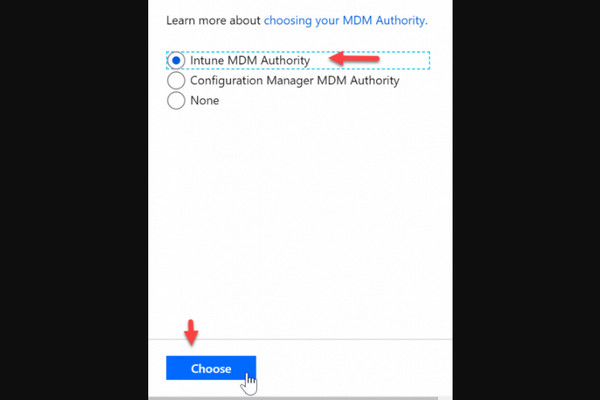
Sign in to the Microsoft Intune admin center, go to Tenant administration > MDM Authority, set the MDM authority to Microsoft Intune, and confirm.
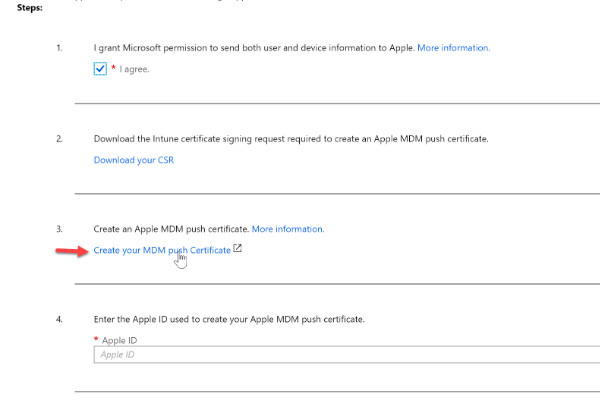
Go to Device enrollment, click Apple enrollment, and select Apple MDM Push certificate. Sign in to the Apple Push Certificates Portal with your Apple ID, then upload the CSR file. Then, click Create your MDM push certificate.
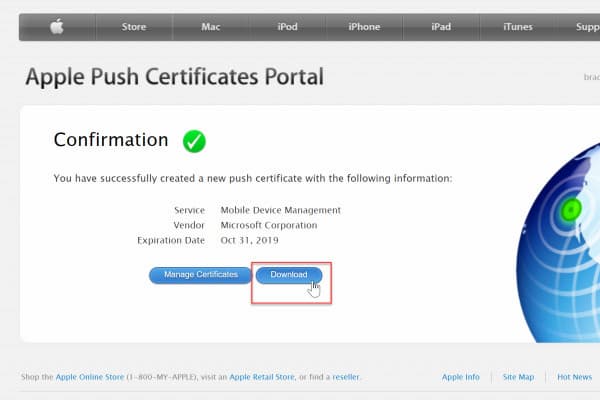
Sign in with your Apple ID credentials and click Create a Certificate. Upload the downloaded CSR file, confirm the submission, and download your certificate.
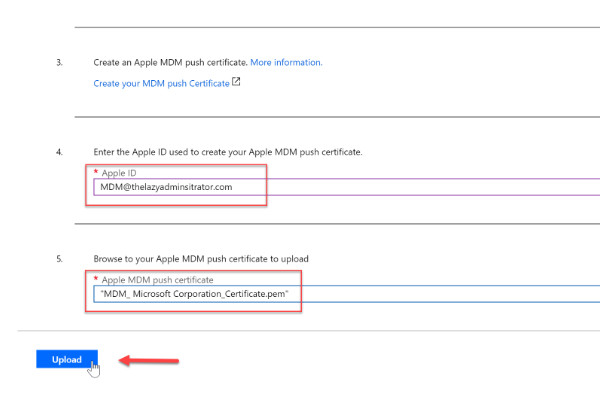
Return to the Intune portal, enter your Apple ID credentials, and upload the downloaded certificate. Once uploaded, view the details regarding the certificate, including expiration date.
Part 3: How to Manage Devices with Intune MDM
1. How to Enroll Devices into Intune MDM
To enroll devices, users are required to add their work account to their personal devices or join company-owned devices. See the Intune MDM tutorial below to enroll devices:
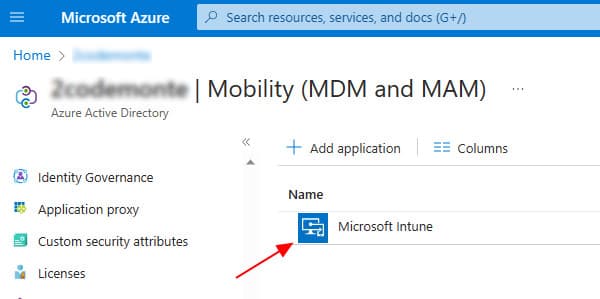
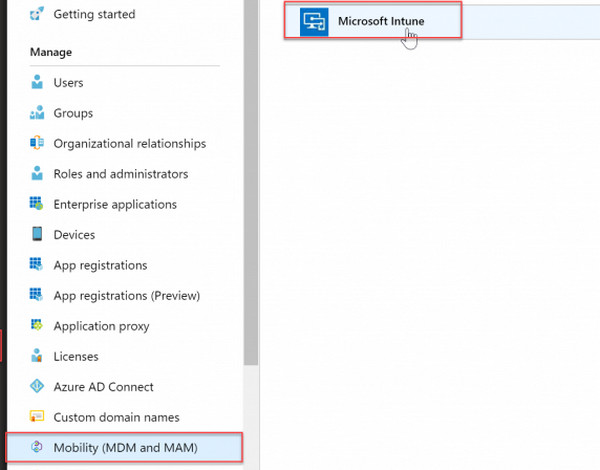
In the Microsoft Entra admin center, go to Mobility (MDM and MAM) and select Microsoft Intune.
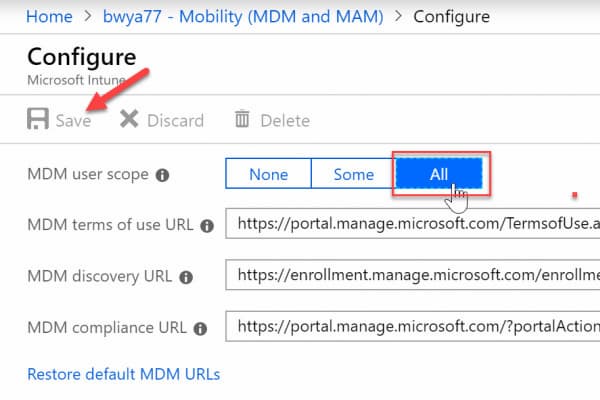
Modify the MDM user scope and specify which device should be managed by Intune. Choose Some to select Groups that can enroll their devices, or All to allow all users.
2. Intune MDM for iOS
Organizations can enroll iOS devices in a centralized cloud-based admin center. The process is easy for end users and requires only the Intune Company Portal app.
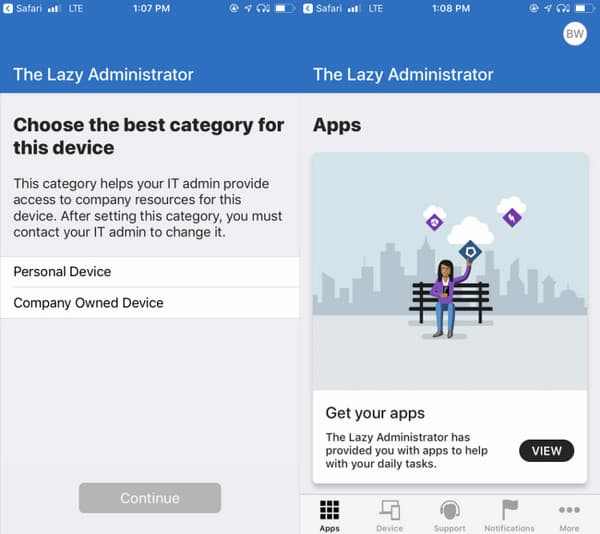
Download Intune Company Portal and sign in to your account. Then, the app will check for enrollment requirements and begin the iOS enrollment setup.
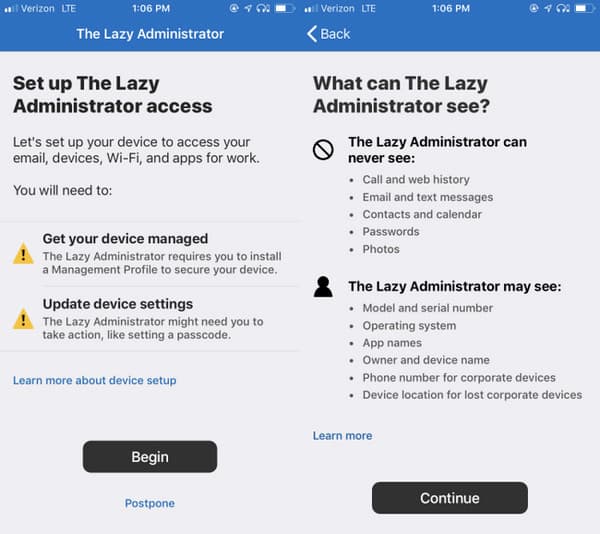
The app then shows what your organization can and cannot see on the device after enrollment. Follow the instructions to enroll the device. Next, it will install the iOS MDM Profile on the device.
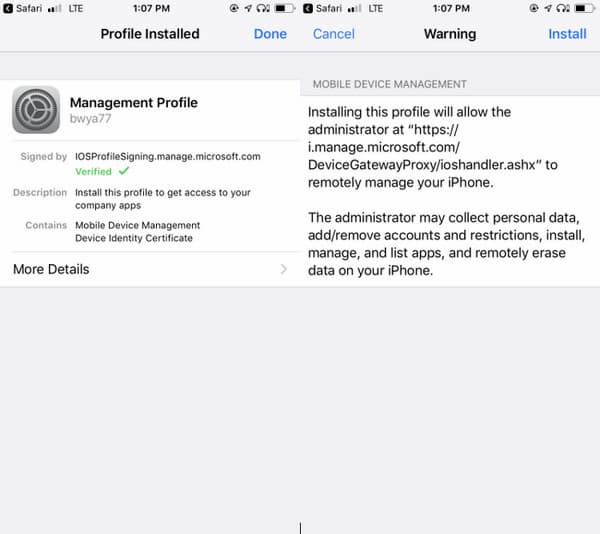
Choose a category: Personal Device or Company Owned Device. Right after, the app then shows the work apps you can now access.
3. Intune MDM Settings
Microsoft Intune can create configuration profiles that apply settings to manage devices. Administrators can create policies and deploy them to selected users or groups.
Head to Device Configuration, select Profiles, and click + Create Profile. Enter the necessary information and configure the settings for your specific policy.
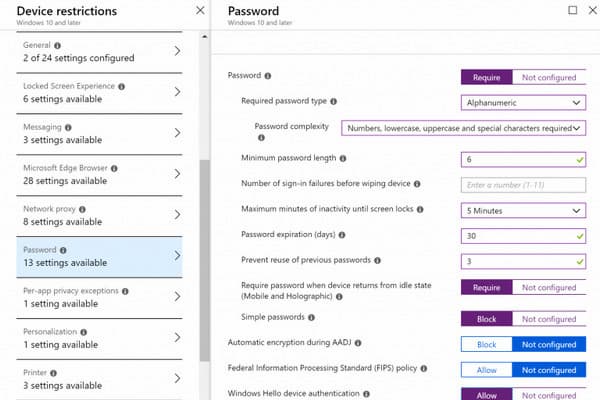
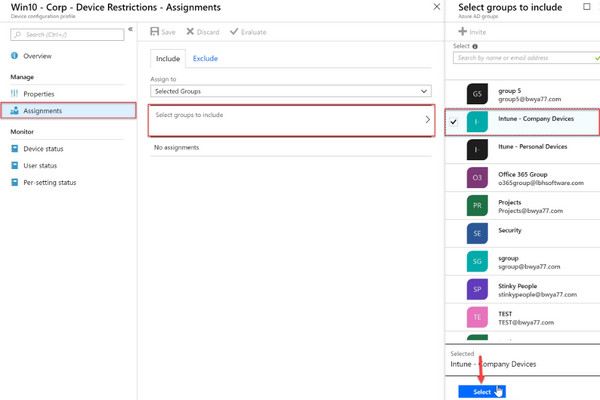
After configuring all the settings, click Create. Navigate to Assignments to assign the policy, and from there, select a group to apply the policy.
Part 4: Intune MDM vs. MAM
When comparing Intune MDM vs MAM, both can protect corporate data, but they work differently. To explain them briefly, MDM or Mobile Device Management controls the physical device and its system settings. On the other hand, MAM or Mobile Application Management focuses on securing corporate data inside specific work apps.
| Features | Mobile Device Management (MDM) | Mobile Application Management (MAM) |
| Scope of Control | Manages the whole OS. | Manages only approved work apps. |
| Privacy & Data Protection | Admins can see device location, enforce passcodes, and view installed apps. | Administrators see only work app data; personal app data stays private. |
| Remote Wipe | Full factory reset | Selective wipe |
| Best Use Cases | Company-issued devices. | Employee-owned personal phones. |
Part 5: Intune MDM Pricing & Licensing
When evaluating Microsoft MDM Intune pricing, Microsoft offers standalone plans and subscriptions bundled with MS 365 and Enterprise Mobility + Security (EMS).
| Standalone Plans | Intune Plan 1 | $8.00, paid yearly |
| Intune Plan 2 (Add-on) | $4.00, paid yearly | |
| Intune Suite | $10.00, paid yearly | |
| Microsoft 365 & EMS Plans | Microsoft 365 E3 | $39.00 user/month, paid yearly |
| Microsoft 365 E5 | $60.00 user/month, paid yearly | |
| Microsoft 365 E7 | $99.00 user/month, paid yearly | |
| Enterprise Mobility + Security E3 | $12.00 user/month, paid yearly | |
| Enterprise Mobility + Security E5 | $18.00 user/month, paid yearly |
Note:
Intune Plan 2 is available as an add-on to Intune Plan 1. Microsoft 365 and EMS plans include Intune capabilities, with the exact features depending on the subscription.
Part 6: Troubleshooting Common Intune MDM Issues
1. Devices Not Appearing in the Intune Admin Center
If devices are not appearing in the admin center, it could be due to failed MDM enrollment. In Microsoft Entra ID, if the MDM is set to None, devices will join Entra ID but won't hand off management to Intune.
To Fix: Go to Microsoft Entra ID, click Mobility (MDM and MAM), and select Microsoft Intune. Enable the MDM user scope and confirm that the Intune MDM Authority is actively set up in your tenant.
2. iOS Devices Failing to Enroll
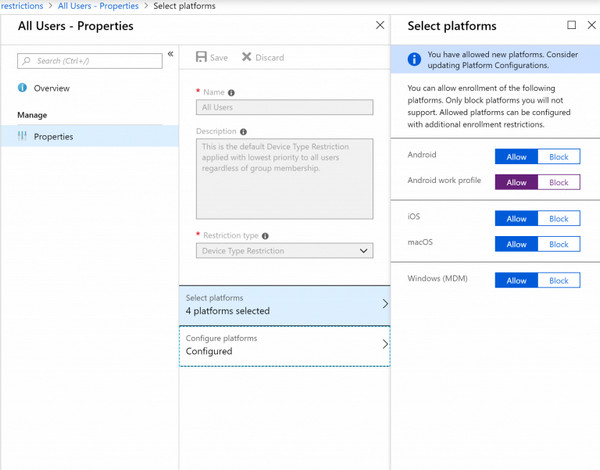
If the iOS devices won't enroll in the admin center, it's due to platform enrollment restrictions. If the tenant blocks iOS devices by default, profile downloads fail with an Invalid Profile error.
To Fix: Navigate to Devices, click Enroll devices, and click Enrollment restrictions. Under Device Type Restrictions, select All Users, select Properties, and click Edit. Ensure iOS is set to Allow.
3. MDM server URL Not Found
The MDM server URL Not Found error may occur when a device tries to enroll in Microsoft Intune but cannot connect to the organization's MDM service.
To Fix: For Apple devices, check whether the Apple MDM Push certificate configured in Intune is still valid. If the certificate has expired, renew or replace it. Make sure the device can access Intune and Apple endpoints, and check whether a firewall or proxy is blocking the connection.
In Microsoft Entra ID > Mobility (MDM and MAM) > Microsoft Intune, check the MDM user scope and make sure the affected user is included.
Bonus: How to Remove an MDM Profile from an iPhone
If you need to remove an existing MDM profile from your iPhone, imyPass iPassGo is a powerful unlocker and password management tool. It can remove MDM from Microsoft Intune, Google Workspace, Jamf, and other management systems. After removing the MDM profile, you will be able to regain access to your device's features without the administrator's credentials.
Download imyPass iPassGo, install it, and launch it on your computer after setup.
Choose the Bypass MDM tool, then plug your iPhone into the computer via USB cable.
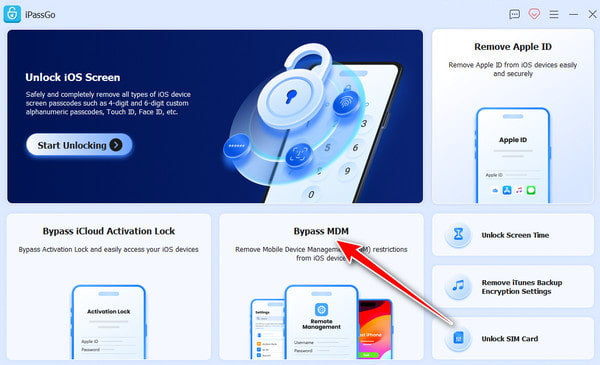
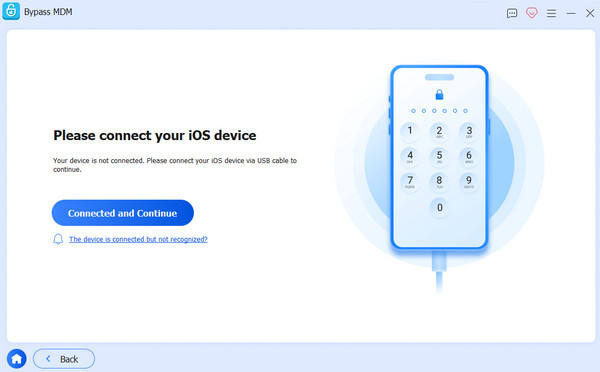
After establishing a connection, click Start to begin the Intune MDM removal.
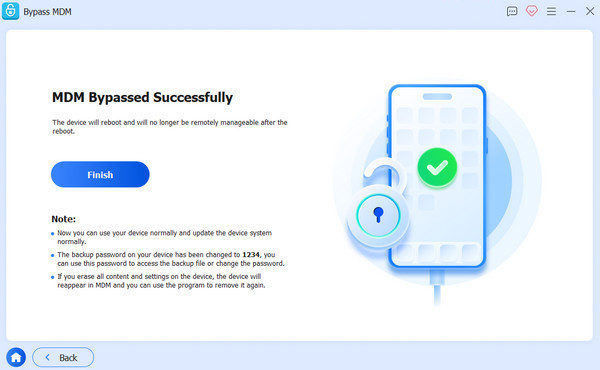
After successfully removing the MDM profile, your device will restart automatically.
Note:
You can also use this software to remove the Jamf MDM profile. But keep in mind that only use this on devices you own or are authorized to manage. Removing an MDM profile without the organization's consent may violate your employer's policies or local law.
Conclusion
If you're evaluating Microsoft 365 Intune and MDM support, MS Intune is a capable option. It delivers unified security and device management in a single console, improving productivity with less administrative overhead. Meanwhile, if you have an iOS device that is still enrolled in an MDM profile, imyPass iPassGo can help you remove it. This tool can bypass MDM restrictions even if you don't have the administrator's credentials.
Samuel specializes in password security and digital privacy. He used to work as a cybersecurity consultant for small businesses to protect digital assets. With certifications in Cybersecurity and Ethical Hacking, he turns complex security topics into easy-to-follow advice. He also enjoys sharing password tips to help users protect their accounts more confidently.
Hot Solutions
-
Unlock iOS
-
iOS Tips
-
Unlock Android
-
Password Tips


