



 Solution
 Support Center
 About Us
 Contact
How to Disable Parental Controls to Remove Restrictions on iPhone
 Samuel Spenser Published on April 24, 2026Unlock iOS3-min reading
The iPhone has different features that allow you to manage your apps, features, data, etc. Parental Controls is a built-in feature that lets parents manage and monitor their kids' iPhones. It is associated with the Screen Time feature that Apple offers.
Parental Controls can track how long the iPhone is used, restrict content or applications, set a downtime for the iPhone, and more. However, some users do not know how to turn off Parental Controls to reaccess the restricted content on the iPhone. Scroll below to turn off the said feature, including if the Screen Time passcode is unknown. Continue browsing to know the full details.

In this article:
Part 1. How to Turn Off Parental Controls WITH the Passcode (The Normal Way)
How to switch off Parental Control? Turning off the mentioned feature is easy! The passcode must be present to achieve it with no sweat. There are two ways to do that, which are turning off the restriction on your own iPhone or the iPhone of your kids. See the full information about these methods below.
1. On Your Own iPhone
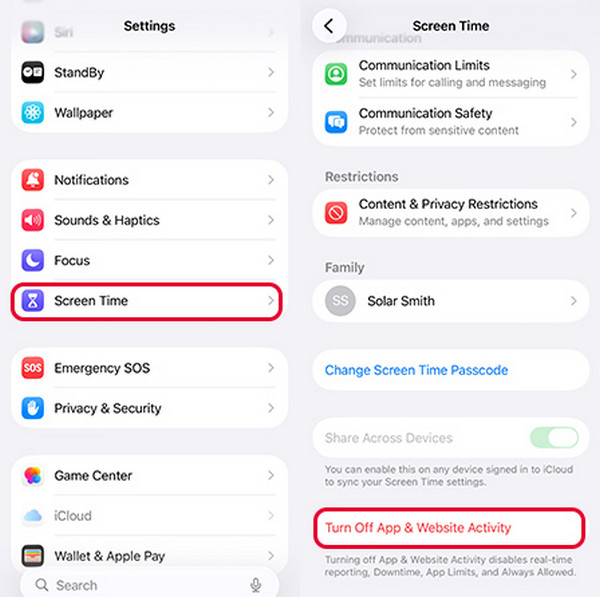
You cannot delete Screen Time on iPhone. All you can do to remove the restrictions from the iPhone is to switch it off. This procedure can be done by yourself. The only requirement is the Screen Time passcode used for the restriction. See the steps below to know how.
Open the Settings app on your iPhone. After that, select the Screen Time button from the options list. Select the App & Website Activity button.
Tap the Turn On App & Website Activity button. Enter the Screen Time passcode and tap the same button mentioned. The feature will be turned off afterward.
2. On a Child's iPhone (via Family Sharing)
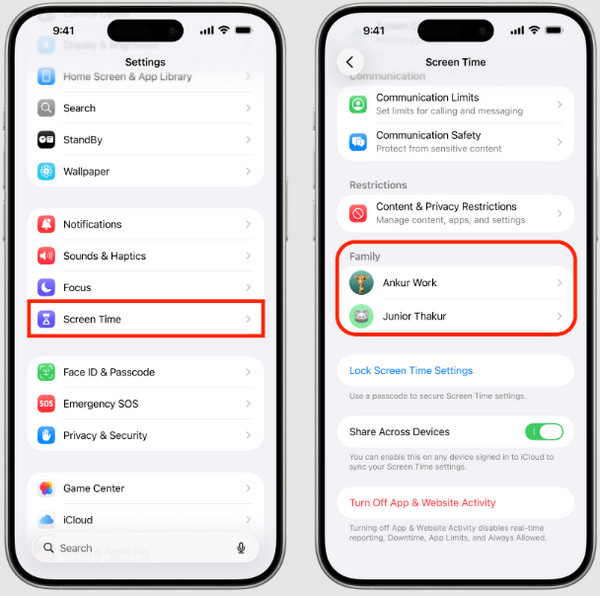
If you want to turn off the Screen Time of your child, you can do it with Family Sharing. It is a feature associated with Screen Time. How to turn off Parental Controls on iPhone with Family Sharing? The steps below will guide you.
Open the Settings application on your iPhone. Then, tap the Screen Time button.
Go to Family. Later, select the name of your kid from the list. Select Turn On App & Website Activity and enter the passcode.
Part 2. What to Do If You Forgot the Screen Time Passcode
What to do if you forgot the Screen Time passcode? This issue prevents you from turning off Parental Controls on your iPhone. If so, you need to reset or bypass the Screen Time passcode first.
Method 1: Use Your Apple ID to Reset the Passcode
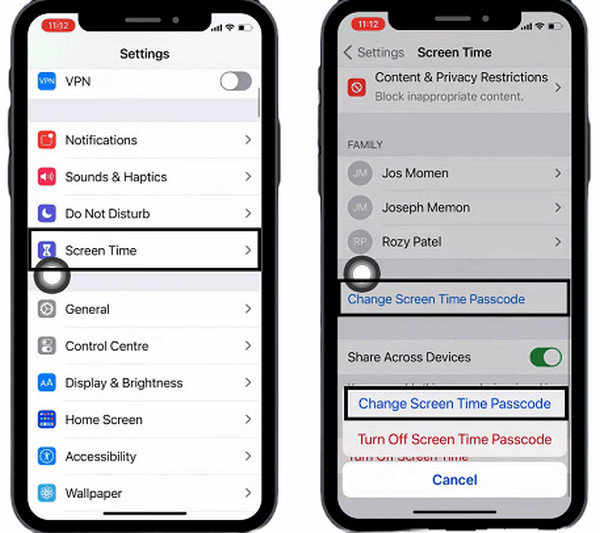
The Screen Time passcode can be reset using your Apple ID. The account will serve as the authentication of the process. The reset process will not cause data loss on your iPhone. Follow the steps below to know how the process works.
Tap Settings and choose the Screen Time button from the list. Then, select the Change Screen Time Passcode button. Tap the same button and enter the current Screen Time passcode.
Tap the Forgot Passcode button from the small window. Then, enter your Apple ID credentials from the list. Create your new Screen Time passcode afterward.
Method 2: Use imyPass iPassGo
imyPass iPassGo lets you remove the Screen Time restrictions on your iPhone without the need for an internet connection! The best thing about it is that it does not erase even a single piece of data from the mentioned Apple device. Also, there will be no jailbreak needed for your iPhone when turning off Screen Time.
Besides Screen Time, the tool can also be used to bypass MDM, remove Apple ID, remove iTunes backup password, and unlock the iPhone screen passcode. Use the steps below as your guide for this tool.
Go to the main website of imyPass iPassGo. Download, install, and open the tool afterward.
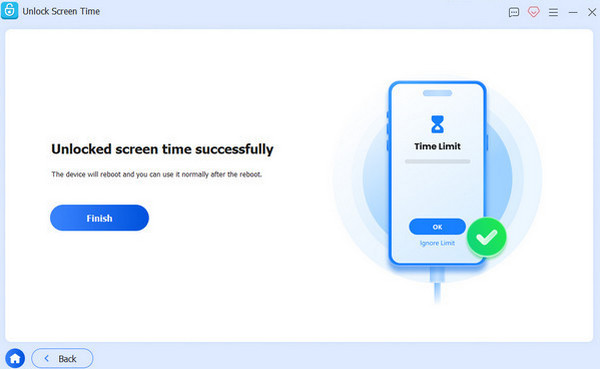
Select Unlock Screen Time from the first interface. Plug your iPhone into the computer with a USB cable. Follow the additional on-screen instructions afterward. Click the Start Now button at the bottom left.
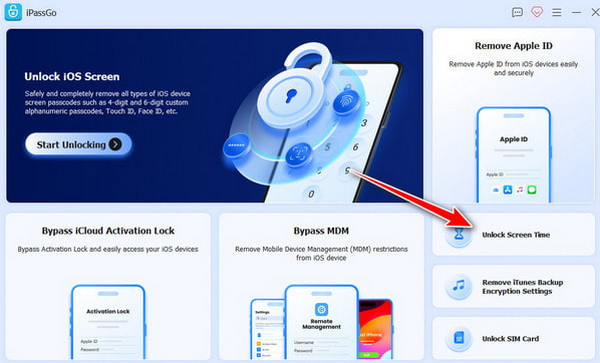
Select how your Screen Time password will be set. Then, the tool will start to bypass the Screen Time restrictions on your iPhone. Wait for the process to be completed. Finally, click the Finish button.
Method 3: Erase the Device and Restore from a Backup
Finder and iTunes are commonly used to back up your iPhone data. Restoring this backup will delete the data from the iPhone because it replaces it. This procedure requires a USB connection. The backup encryption passcode must be known to continue with the restore process. Discover how to turn off Parental Controls by erasing and restoring a backup from the iPhone.
Open Finder or iTunes. Then, plug the iPhone into the computer with a USB cable. Trust the computer and select the iPhone name on the left or top. Go to the Backups section at the bottom.
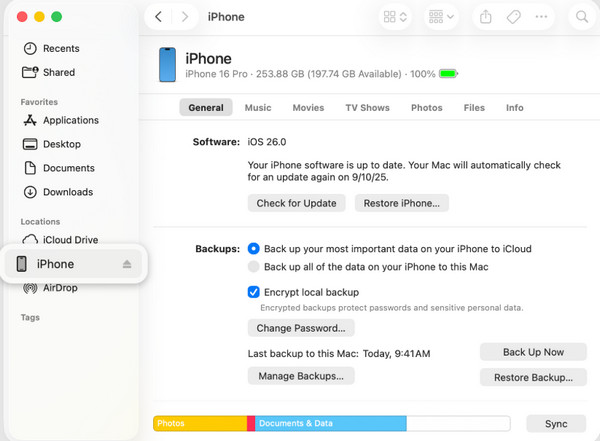
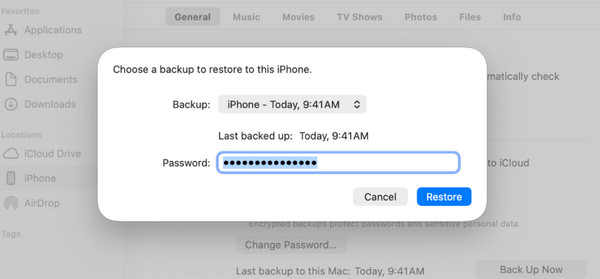
Select the Restore Backup button at the bottom right. Later, choose a backup and enter the passcode. Click the Restore button again to confirm the process.
Method 4: Erase Directly from the Device (If Not Restricted)
Factory resetting your iPhone can help you reset the Screen Time passcode. However, this procedure is only applicable for users who do not have restrictions on factory resetting an iPhone. Also, you will lose your files permanently if you do not have a backup. The steps below will guide you.
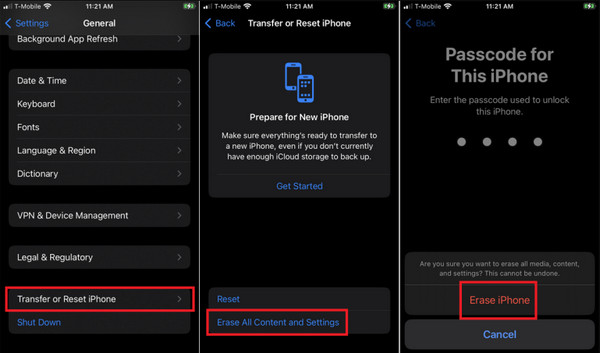
Tap the Settings button. Then, choose the General button. Choose the Transfer or Reset iPhone button.
Tap Erase All Content and Settings. Select Continue and enter your iPhone passcode to authenticate.
Part 3. Disabling Specific Restrictions
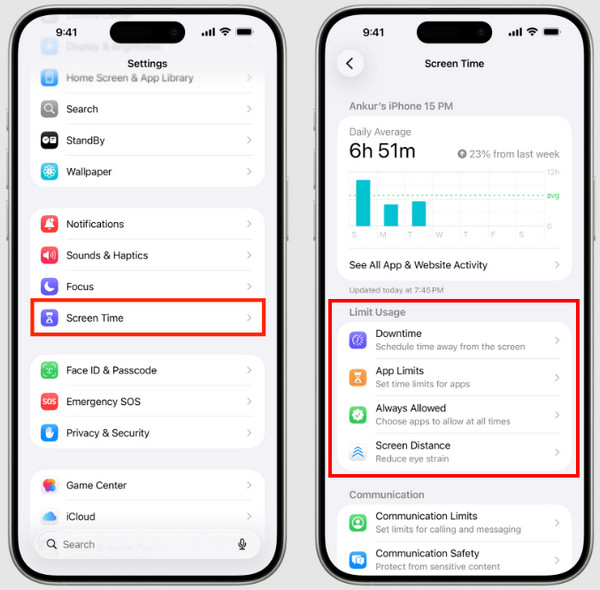
Turning off Screen Time will disable all the restrictions made on your iPhone. The good thing about this feature is that you can disable specific restrictions on your iPhone. In this case, the other restrictions will not be affected. You can check Screen Time on iPhone for the specific restrictions it contains. Learn how to delete Parental Controls from a specific restriction on Screen Time using the steps below.
Open Settings and tap the Screen Time button. Then, go to the Limit Usage section at the bottom.
You can select Downtime if you want to turn off a schedule. Tap App Limits to turn off screen time limitations for apps. Select Always Allowed to enable apps that are restricted. Also, tap Content & Privacy Restrictions to allow restricted content or websites.
Conclusion
All in all, the iPhone Parental Controls is a feature that allows you to make limitations on the apps and features that the mentioned device can offer. In this article, you will know how to turn it off without difficulty! imyPass iPassGo is here to help you bypass the Screen Time passcode when accidentally forgotten. Please download the tool if you want to know more about the operations it can perform!
Samuel specializes in password security and digital privacy. He used to work as a cybersecurity consultant for small businesses to protect digital assets. With certifications in Cybersecurity and Ethical Hacking, he turns complex security topics into easy-to-follow advice. He also enjoys sharing password tips to help users protect their accounts more confidently.
Hot Solutions
-
Unlock iOS
-
iOS Tips
-
Unlock Android
-
Password Tips


