



 Solution
 Support Center
 About Us
 Contact
How to Turn off Screen Time With or Without Passcode
 Samuel Spenser Published on September 14, 2026Unlock iOS4-min reading
"I updated to the new iOS a couple of days ago and turned on Screen Time, but my battery life plummeted. Can I temporarily disable it?" Screen Time helps iPhone, iPad, and Mac users monitor device usage, set app limits, and manage parental controls. However, you may want to turn it off when you no longer need these restrictions or forget your Screen Time passcode. This guide shows you how to turn off Screen Time on iPhone, iPad, and Mac, with or without a passcode.

In this article:
Part 1. How to Turn Off Screen Time on iPhone & iPad
If you know your Screen Time passcode, you can disable Screen Time directly from the Settings app. The steps vary from different iOS versions.
On iOS 17 and Later
Go to Settings > Screen Time. Tap Turn Off App & Website Activity, and choose Turn Off App & Website Activity again.
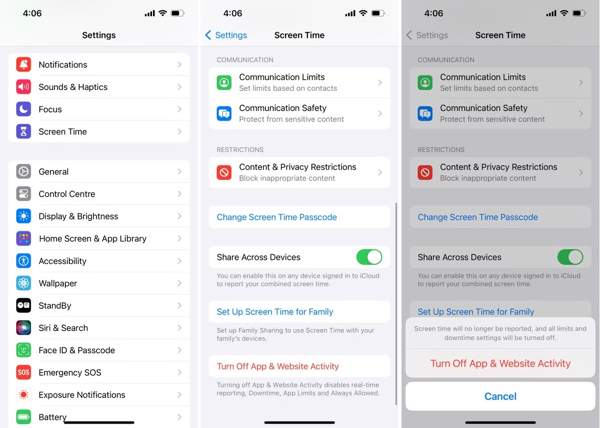
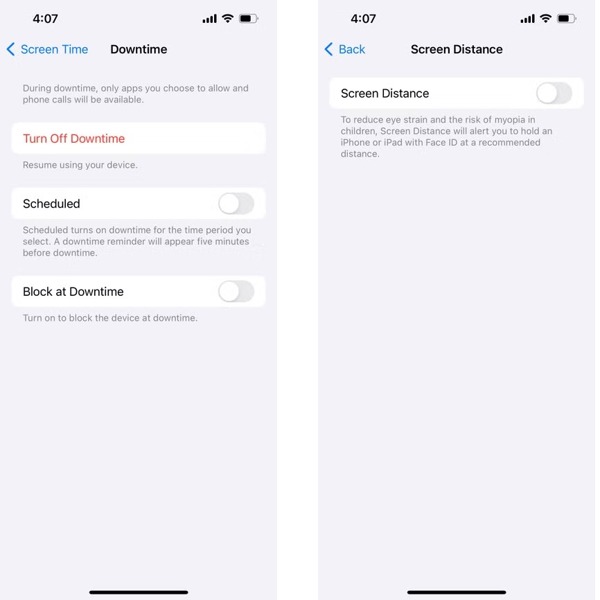
Next, turn off the remaining Screen Time features one by one. Choose Downtime on the Screen Time screen, and tap the Turn Off Downtime button.
Go to Screen Time > Screen Distance and toggle off Screen Distance.
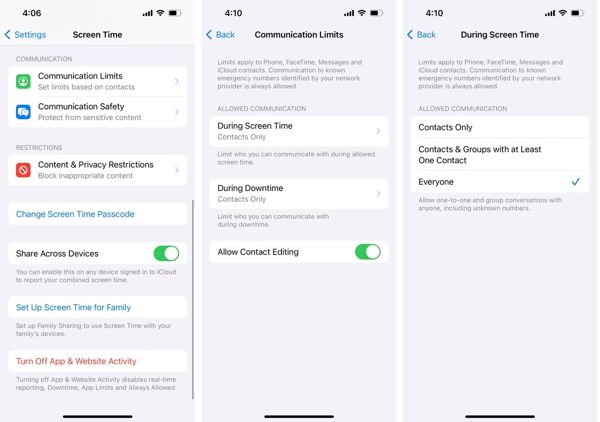
Choose Communication Limits, tap During Screen Time, and select Everyone.
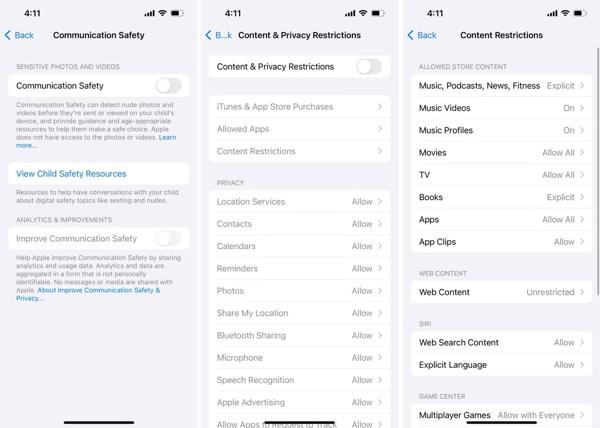
Finally, choose Content & Privacy Restrictions and toggle it off.
On iOS 16 and Earlier
Open the Settings app.
Tap Screen Time and enter your Screen Time passcode.
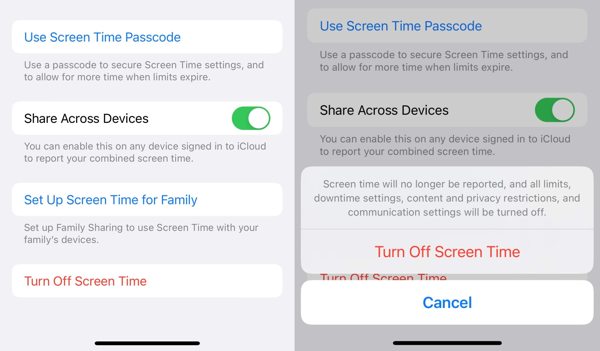
Tap Turn Off Screen Time, and confirm it again.
Part 2. How to Turn Off Screen Time on Mac
Screen Time is also available on macOS. If you want to disable Screen Time, you can turn off its related features from System Settings. The available options may vary depending on your macOS version.
Go to the Apple menu in the top-left corner and choose System Settings or System Preferences.
Select Screen Time from the sidebar.
Click App & Website Activity and turn it off. Then confirm your action if prompted.
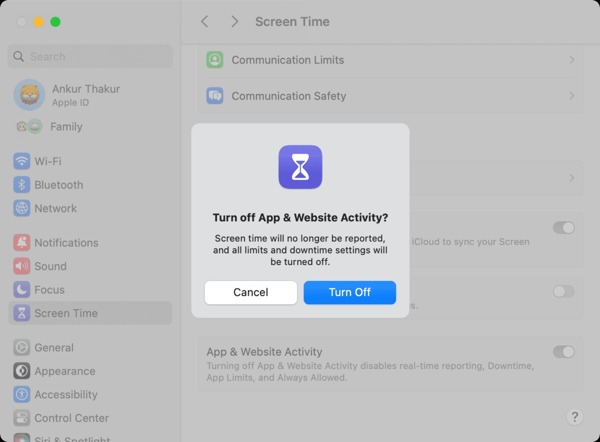
Next, disable other Screen Time features if you no longer need them.
Part 3. How to Turn Off Screen Time for Certain Apps
Apple's Screen Time is a free set of parental controls. If your child is older, you can turn off Screen Time on your child's iPhone. Of course, the adjustment is available on both your iPhone and Mac.
How to Turn off Screen Time on Chile's Device with an iPhone
Go to the Screen Time tab in your Settings app.
Scroll down and tap your child's name under the Family heading.
Tap the Turn Off Screen Time button and confirm it. If you have set a passcode for Screen Time, enter it.
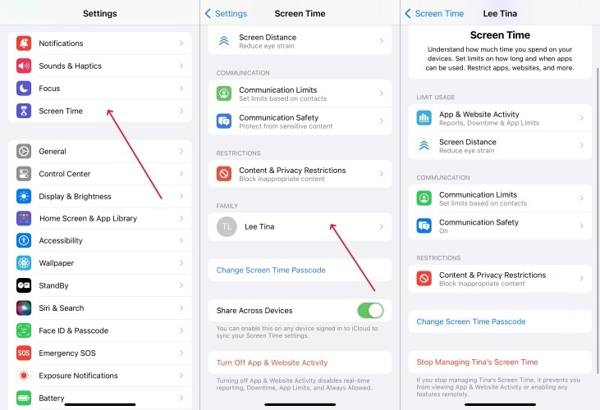
Note: If you cannot find the Turn Off Screen Time button, you have to toggle off App & Website Activity, Screen Distance, Communication Limits, and Content & Privacy Restrictions, respectively.
How to Turn off Screen Time on Chile's Device with a Mac
Click the Apple menu and choose System Settings.
Choose the Screen Time option.
Select your child's name from the Family Member section.
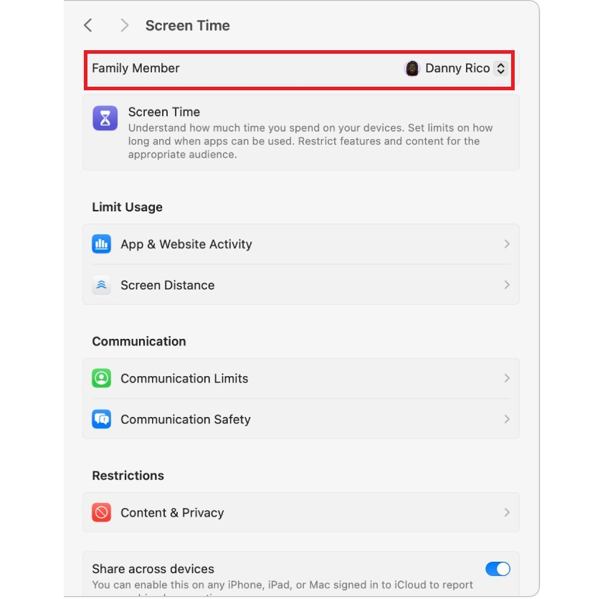
Next, click the Turn Off Screen Time button or disable all controls on the list respectively to turn off Screen Time on Mac.
Part 4. How to Turn Off Screen Time on Your Child's Device
Apple's Screen Time works as a parental control feature that helps parents manage their child's device usage. As your child grows older, you may need to update these settings by changing the Screen Time passcode, adjusting restrictions, or turning off Screen Time on your child's iPhone or Mac.
Turn Off Screen Time on Your Child's iPhone
Open the Settings app on your iPhone and tap Screen Time.
Scroll down to the Family section and select your child's name.
Tap Turn Off Screen Time and confirm it again. If you have set a Screen Time passcode, enter it when prompted.
Note:
If you cannot find the Turn Off Screen Time option, disable the Screen Time features individually.
Turn Off Screen Time on Mac for Your Child
Click the Apple menu and choose System Settings.
Select Screen Time from the sidebar.
Choose your child's name under the Family Member section.
Click Turn Off Screen Time and confirm it, or disable all controls on the list respectively.
Part 5. How to Turn Off Screen Time If You Forgot the Passcode
When you set up Screen Time, the passcode used to manage restrictions is separate from your iPhone or Mac login password. You need this passcode whenever you want to change Screen Time settings. If you forget your Screen Time passcode, is it possible to remove Screen Time restrictions? In this case, a professional iOS unlock tool like imyPass iPassGo can help turn off Screen Time without passcode.

4,000,000+ Downloads
Turn off Screen Time on an iPhone or iPad without a passcode.
Protect your data while removing Screen Time.
Bypass iPhone screen locks and remove the Apple ID password.
Remove MDM from iOS devices.
Support the latest versions of iOS and iPadOS.
Launch imyPass iPassGo on your computer, then choose the Unlock Screen Time mode from the interface.
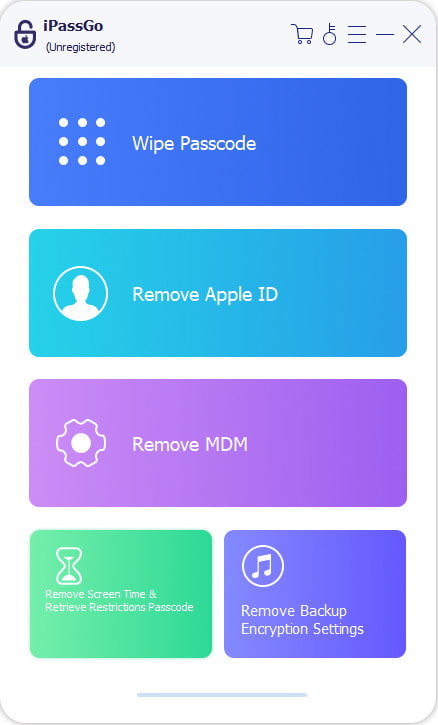
Connect your device to computer with a USB cable.
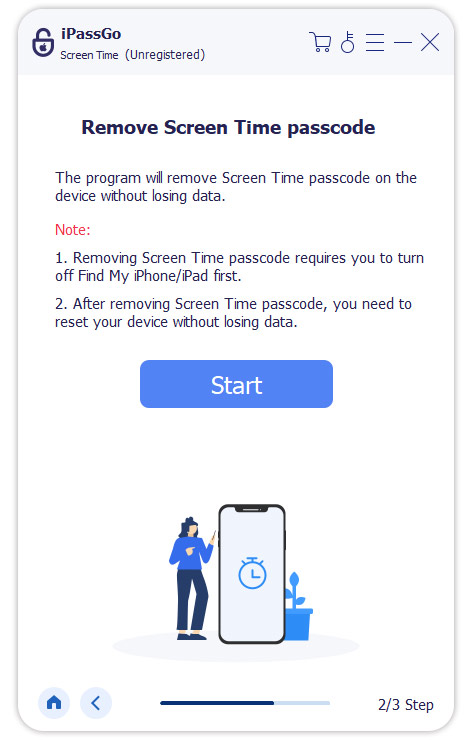
Choose how your Screen time password is set. Make sure that Find My on your iPhone is disabled, then follow the on-screen instructions to turn off Screen Time.
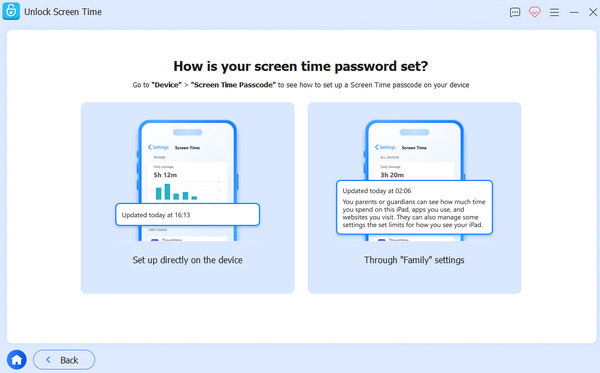
Click the Unlock button to continue. This tool will remove the Screen Time passcode, and your device will reboot automatically.
Conclusion
This guide explains how to turn off Screen Time on iPhone, iPad, and Mac. Whether you want to remove app limits, disable parental controls, or turn off Screen Time without a passcode, you can find the solutions in this guide. If you forget your Screen Time passcode, imyPass iPassGo is your best option to remove Screen Time restrictions from iOS devices.
Samuel specializes in password security and digital privacy. He used to work as a cybersecurity consultant for small businesses to protect digital assets. With certifications in Cybersecurity and Ethical Hacking, he turns complex security topics into easy-to-follow advice. He also enjoys sharing password tips to help users protect their accounts more confidently.
Hot Solutions
-
Unlock iOS
-
iOS Tips
-
Unlock Android
-
Password Tips


