



 Solution
 Support Center
 About Us
 Contact
3 Ways to Unlock a Disabled iPhone/iPad Without iTunes Backup
 Samuel Spenser Published on August 11, 2026Unlock iOS3-min reading
"iPhone/iPad is disabled. Connect to iTunes." Some Apple devices show this notification on screen when permanently locked. By connecting to iTunes, you can restore from backup and unlock the screen. But what if you've never used iTunes before, or your PC is currently unavailable? It's okay; there are still methods to unlock a disabled iPhone/iPad without iTunes.

In this article:
Part 1. "iPhone/iPad is Disabled. Connect to iTunes": How Did It Happen
After you enter incorrect passcodes too many times, the iPhone or iPad activates its security lock. It starts with temporary locks for 1 minute, 5 minutes, and 15 minutes, increasing as the number of failed attempts grows. When you reach 10 incorrect entries, you get completely locked out with this notification: "iPhone/iPad is disabled". That is to say, you can only regain access by resetting the device.
So, before you go on to the next part, you need to understand that data loss is basically inevitable now. And it would be a relief if you got a backup on iCloud, iTunes, or other devices, which means you don't have to lose it all.
Part 2. How to Unlock Disabled iPhone/iPad Without iTunes
Method 1. Unlock Disabled iPhone/iPad Using imyPass iPassGo
How do you unlock a disabled iPhone without iTunes? imyPass iPassGo is the easiest solution. It's a dedicated program for removing almost all types of locks on iOS devices. It doesn't require a login or anything techy. You need nothing more than some clicks on a computer.

4,000,000+ Downloads
Unlock a disabled iPhone or iPad in 3 steps.
Bypass digital passcodes, Touch IDs, and Face IDs.
Remove any iOS lock with only a few clicks.
Compatible with the latest versions of iOS and iPadOS.
Download and install the software on a PC or Mac.
Connect your disabled iPhone or iPad to the computer with a cable.
Launch imyPass iPassGo. In the Unlock iOS Screen section, click Start Unlocking. It auto-detects your device immediately.
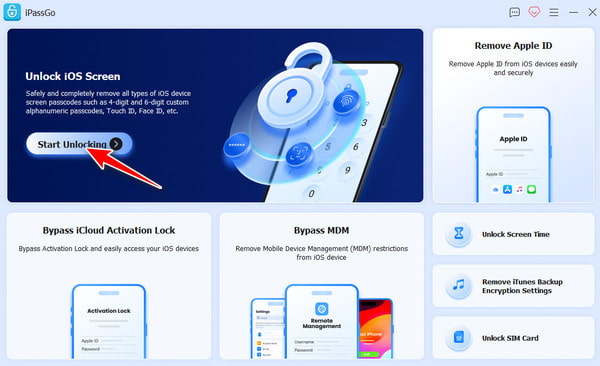
Click the Start button to load the device info. Look at the info carefully; if you find something wrong, correct it before you proceed. When you're sure everything is good, click Start to download the firmware package.
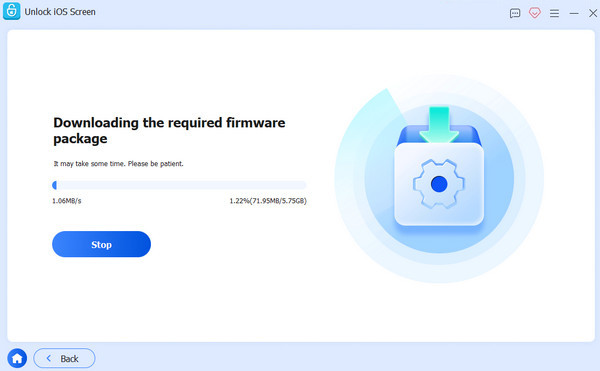
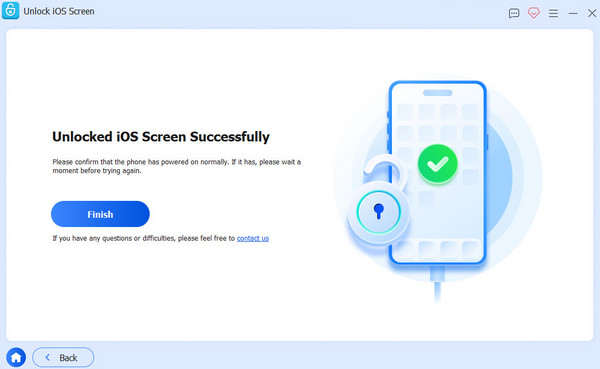
After the download finishes, click Unlock. Read the notification that appears, and type 0000 to confirm that you want to unlock the iPhone or iPad. Then it starts unlocking. Keep your devices connected until it's finished.
Method 2. Unlock Disabled iPhone/iPad via Find My App
How to unlock a disabled iPad or iPhone without a computer? Use Find My App, which is available on any Apple device, including mobiles.
For this solution, you need:
- Another Apple device.
- Wi-Fi connection.
- Your Apple ID and password
- Find My activated on your disabled iPhone/iPad.
On an available Apple device, sign in to the same Apple account linked to your locked iPhone or iPad, and open the Find My App.
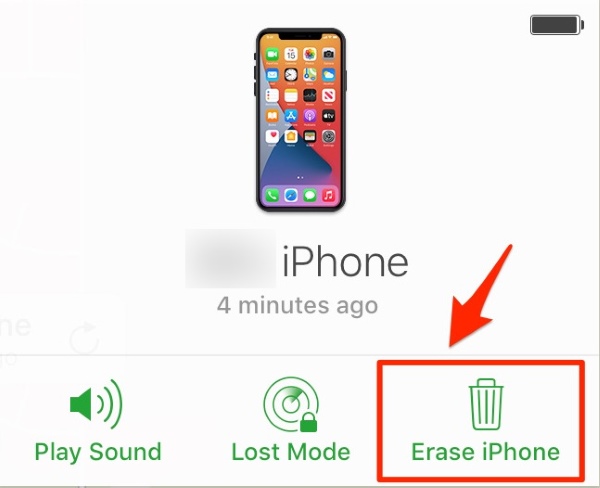
Tap the name of your locked device.
Tap Erase iPad / Erase iPhone. This wipes all data on it, including the screen lock. After it finishes, you can open it without a passcode and set it up again.
Method 3. Unlock Disabled iPhone/iPad on Browser
Without Apple devices, you can still access Find My on a browser. This method requires the same conditions as Method 1 except for the Apple device part.
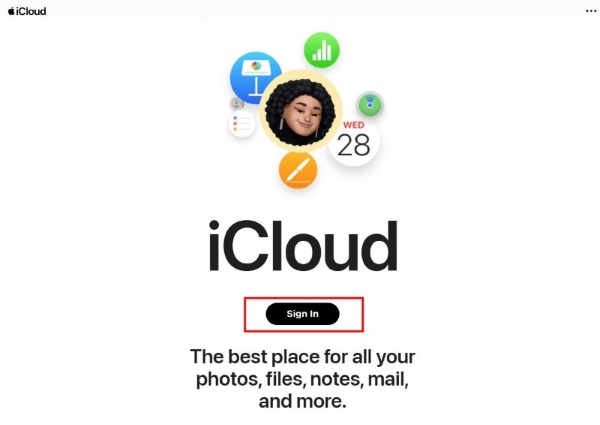
Open a browser (any browser would work) and go to icloud.com.
Click Sign in. Enter your Apple ID and password. It needs to be the same account as on the locked device.
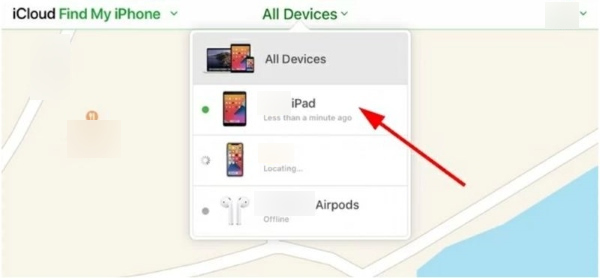
Then you will see a map showing where your devices are. From the All Devices list at the top, find the disabled iPhone or iPad, and click on it.
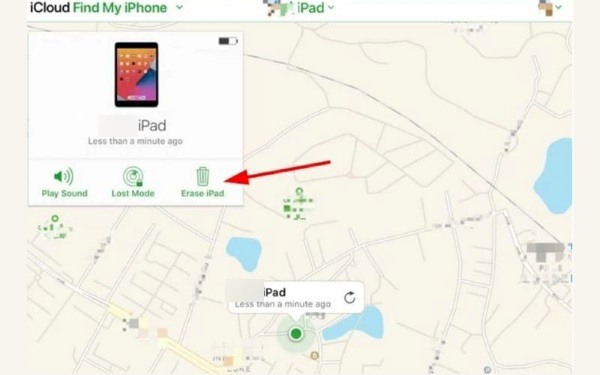
In the device info window that shows up, click Erase iPhone / Erase iPad. You may be required to enter your ID and password again to confirm it.
Once erased, your previously locked device will restart and show the Hello screen. Go through the setup process, and at the Apps & Data screen. you can restore from an iCloud backup, if you have one.
Part 3. The Standard Way: Unlock Disabled iPhone/iPad with iTunes
How to fix a disabled iPhone/iPad when you do have an iTunes backup? In this case, things are much easier. Here's an easy-to-follow guide for restoring from iTunes.
Find a PC with iTunes. If you're using the Apple Devices App, it also works; they share the same sync feature.
Turn off your locked iPhone/iPad completely. Connect it to the computer, then put it into Recovery Mode.
- iPhone 8 and later / iPad without Home button: Press and release Volume Up, then Volume Down. Then press and hold the Side button.
- iPhone 7 / 7 Plus: Press and hold the Top / Side button together with the Volume Down button.
- iPhone 6s or earlier / iPad with Home button: Press and hold the Home button together with the Top / Side button.
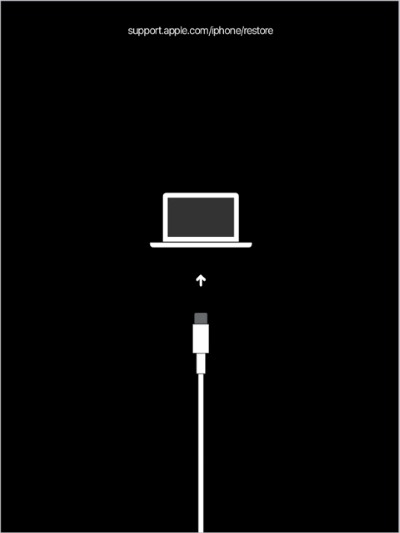
Keep holding the buttons until you see the Recovery Mode screen, which appears as a cable linked to a computer.
Open iTunes on your computer. Wait until iTunes detects your iPhone or iPad, and then you'll see a prompt asking you to update or restore it. Choose the Restore option. If iTunes doesn't automatically prompt, go to Summary in iTunes, then click the Restore button next to your device info.
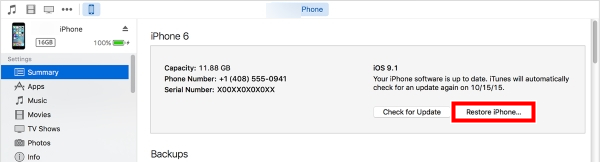
iTunes downloads the latest compatible iOS firmware. Then it wipes the device and reinstalls the iOS.
Now you can set up the device again like new. If you have an iTunes backup, this is when you use it. Walk through the setup process, and at the App & Data screen, tap Restore from Mac or PC. Then select the backup you want on iTunes and wait for it to finish.
Part 4. Plan Ahead: How to Create an iTunes Backup for iPhone/iPad
With an iTunes backup, you won't lose that much data. It's a small thing to do that can save you a lot of hassle.
You can only back up on iTunes when your iPhone or iPad is in a normal state. So get prepared before trouble finds you.
Connect your iPhone / iPad to the computer with iTunes using a cable.
Unlock your iPhone / iPad. If it asks whether you want to trust this computer, tap Trust and enter your passcode.
On iTunes, click the device button. Choose to back up on This Computer.
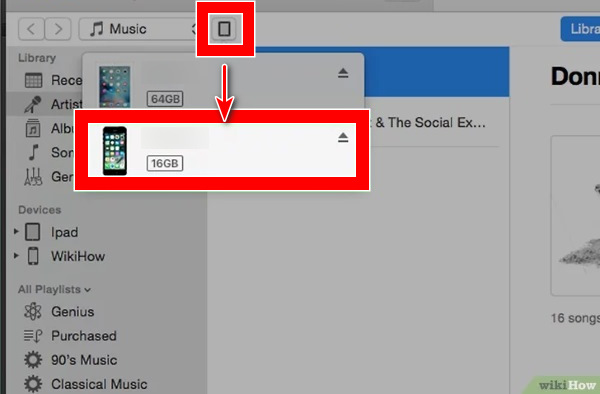
Click Back Up Now. iTunes then starts copying your data. By default, the backup files are saved at C:\Users\<username>\Apple\MobileSync\Backup\.
Worried about privacy? You can set an iTunes backup password to avoid someone else accessing your data. Just go to the Summary tab and turn on Encrypt local backup.
Conclusion
How to unlock an iPhone/iPad when it is disabled? Even though iOS tells you to use iTunes, you can still unlock the disabled iPhone/iPad in other ways. Find My is Apple's official feature for resetting a disabled device. In case Find My is not enabled on your locked device or you forget your Apple ID password, the ultimate solution, imyPass iPassGo, is always there.
Samuel specializes in password security and digital privacy. He used to work as a cybersecurity consultant for small businesses to protect digital assets. With certifications in Cybersecurity and Ethical Hacking, he turns complex security topics into easy-to-follow advice. He also enjoys sharing password tips to help users protect their accounts more confidently.
Hot Solutions
-
Unlock iOS
-
iOS Tips
-
Unlock Android
-
Password Tips


