



 Solution
 Support Center
 About Us
 Contact
Can Someone Unlock Your iPhone with Face ID While Sleeping
 Penny Warren Published on November 07, 2025Unlock iOS3-min reading
Given that you are fast asleep with your iPhone by your bedside, have you ever wondered whether someone picks up your phone and holds it to your face, and unlocks it easily?
Is Face ID safe when you are sleeping?
This article will delve into the working principle of Face ID and introduce how to unlock iPhone Face ID while sleeping.

In this article:
Part 1: Can You Unlock iPhone Face ID While Sleeping
Can you unlock iPhone Face ID while sleeping? The answer is No. Technically, Face ID cannot unlock your iPhone while you’re asleep with your eyes closed - this is a deliberate security feature by Apple.
Face ID doesn’t just recognize your face. It also uses an attention unlocking feature, which checks if your eyes are open and looking at the screen. The camera system projects over 30,000 invisible infrared dots to create a precise 3D map of your face to verify that you’re actively focused on your device.
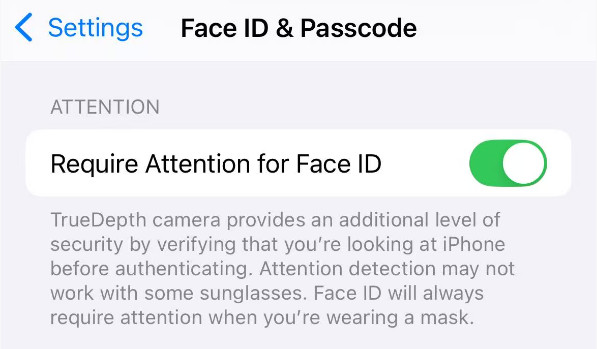
This attention-based security design prevents anyone from unlocking your iPhone while you’re sleeping, unconscious, or not paying attention. Only when you’re awake and looking at the screen can Face ID verify your identity and unlock your phone.
Part 2: How to Unlock iPhone Face ID in 3 Ways
Obviously, when you’re asleep or have your eyes closed, your iPhone’s Face ID won’t be automatically unlocked. But is there a way to unlock the iPhone screen manually without Face ID, especially when your Face ID isn’t working and you’ve forgotten your passcode? Don’t worry - in this section, we’ll introduce 3 practical methods on how to unlock an iPhone when Face ID is unavailable, even while sleeping. Keep reading to find out more!
Method 1: imyPass iPassGo
imyPass iPassGo, one of the best iPhone unlockers on the market, is designed to help users remove various iPhone locks, including Face ID, Touch ID, screen passcodes, and even Apple ID, without any credentials.

4,000,000+ Downloads
Unlock iPhone when Face ID is not available.
Unlock iOS devices in a few simple steps.
No technical skill requirement.
Support most iOS models and different versions.
Free download, install, and launch this tool.
Select the Wipe Passcode option.
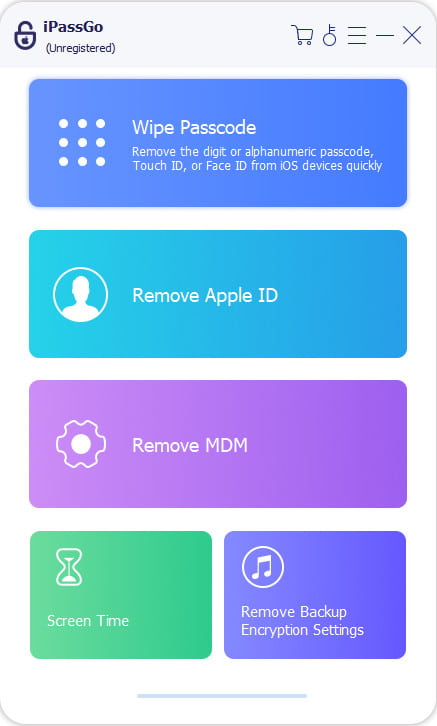
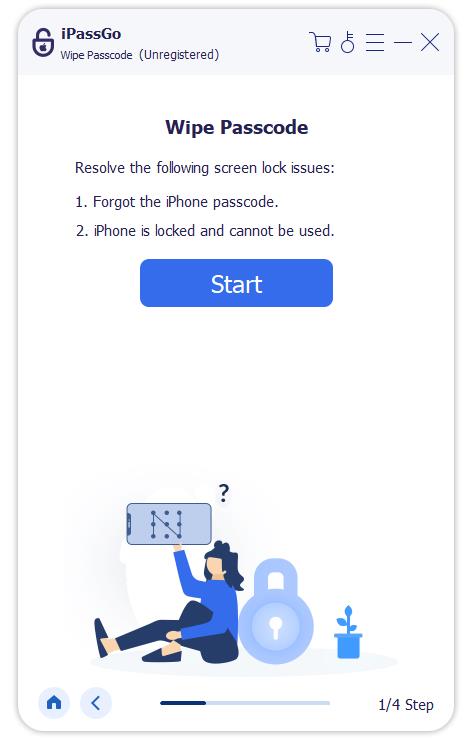
Connect your iPhone to your computer and press the Start button.
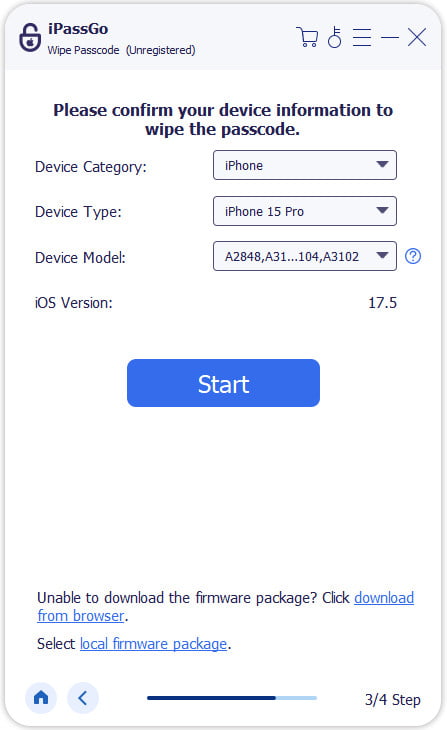
Confirm your device information and press the Start button to download related firmware.
Press the Unlock button after a successful download. Then, enter 0000 to confirm your operation. The passcode will be automatically removed soon.

1.All your data will be removed. Back up your iPhone using iCloud in advance so you can restore from iCloud backup later.
2.Your iOS version will be automatically updated to the latest one.
Method 2: iTunes
iTunes, as one of Apple’s official tools, is primarily designed for managing, backing up, and restoring iOS devices. However, it can also be used to remove the screen passcode when Face ID is unavailable by restoring iPhone. But you should note that, if you’ve ever enabled Find My on your iPhone, you will encounter an iCloud activation lock on the screen. Enter your Apple ID and password to remove it.
Make sure your iTunes runs the latest version and connect your iPhone.
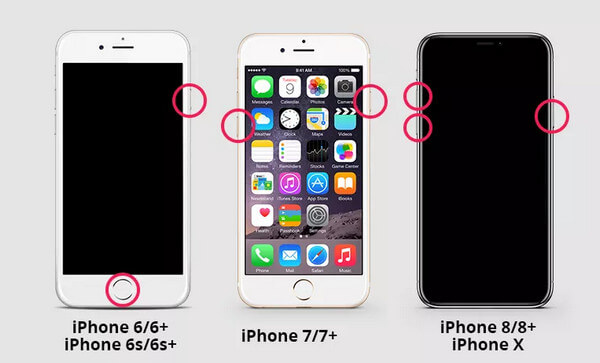
Put your iPhone in Recovery Mode. Steps vary for different iPhone models.
iPhone 6s / SE and earlier: Press and hold the Home and Top (or Side) buttons until the recovery mode screen appears, then release them.
iPhone 7 / 7 Plus: Press and hold the Power and Volume Down buttons together until the recovery mode screen appears, then release both.
iPhone 8 and later: Quickly press and release Volume Up, then Volume Down, and hold the Power button until the recovery mode screen appears. Release only when you see the Connect to computer prompt.
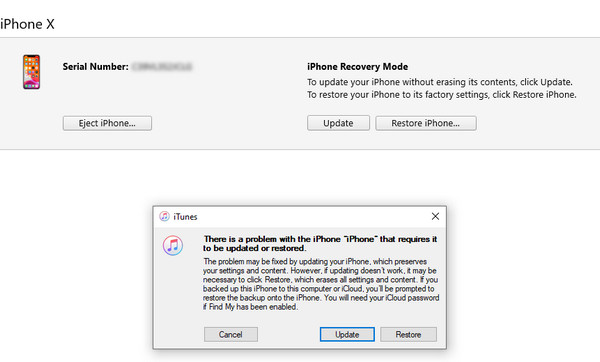
You will be reminded that there is a problem with your iPhone. Click Restore on the pop-up window.
Wait for the system to download the firmware. The screen lock will be removed soon.
Method 3: iCloud
iCloud is also Apple’s official tool that helps you safely store and sync your data across all your iOS devices. Although it can’t directly unlock your iPhone using Face ID, you can use it to remotely erase your device and set a new screen passcode.
Go to icloud.com and sign in with the Apple ID and password bound to your locked iPhone.
Click Find My on the main interface.
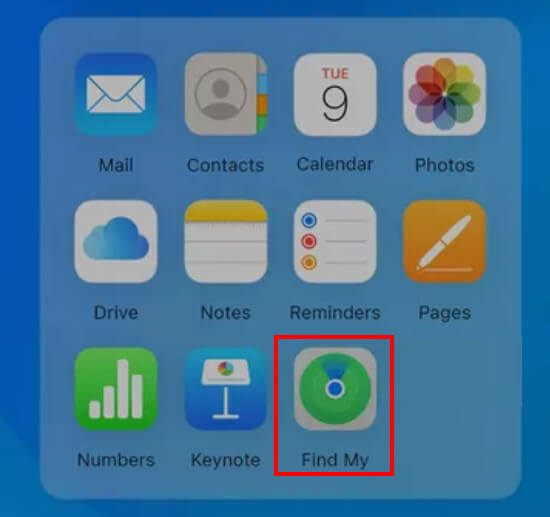
Select your locked iPhone from the dropdown list.
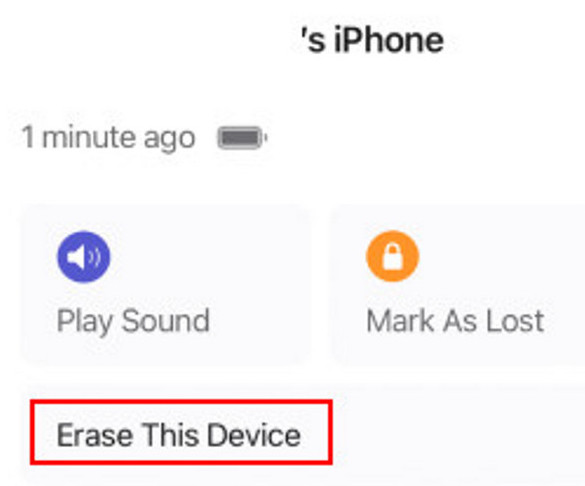
Click Erase This Device and confirm your decision.
Part 3: Crucial Warnings for Unlocking iPhone Face ID While Sleeping
1. Unlocking someone else's iPhone without permission is illegal.
2. Do not disable security features like Attention Unlocking and Find My.
3. All the methods above are only for legitimate purposes.
Conclusion
In this post, you can learn how Face ID works, whether someone can unlock your iPhone while you’re asleep, and what to do if your Face ID stops working.
Don’t worry - no one can unlock your iPhone while you’re sleeping, thanks to Apple’s advanced security design. And even if Face ID or your Apple ID fails, there are still three reliable ways to unlock your iPhone screen safely.
Penny focuses on GPS troubleshooting and Windows optimization. She formerly worked as a technical support engineer, helping clients solve location-based and system issues efficiently. Backed by IT support experience, she provides practical solutions that really work. In her free time, she likes hiking and geocaching, testing GPS tech in the real world.
Hot Solutions
-
Unlock iOS
-
iOS Tips
-
Unlock Android
-
Password Tips


