



 Solution
 Support Center
 About Us
 Contact
How to Change Life360 Location to Protect Your Privacy
 Penny Warren Published on December 26, 2025GPS Location3-min reading
Life360 is a popular app that tracks the real-time locations of family members and friends. It can help you to know where their kids and families are. However, sometimes, it bothers you for privacy exposure. Can you change Life360 location without anyone knowing?
If you want privacy or need a break from being tracked, we understand how important that is. With the right methods, you can take control of your location and enjoy the freedom you deserve. This article will tell you how to change location on Life360. You can protect your privacy easily.

In this article:
Part 1: Can You Stop Location Sharing on Life360?
Yes, you can stop the location service for Life360 on your phone. However, Life360 will detect it, and others will see prompts on your profile like "Location sharing paused", "No network/phone off", or "GPS off". Therefore, simply stopping location sharing is not enough to protect your privacy. That's why you'll need to change Life360 location on your phone.
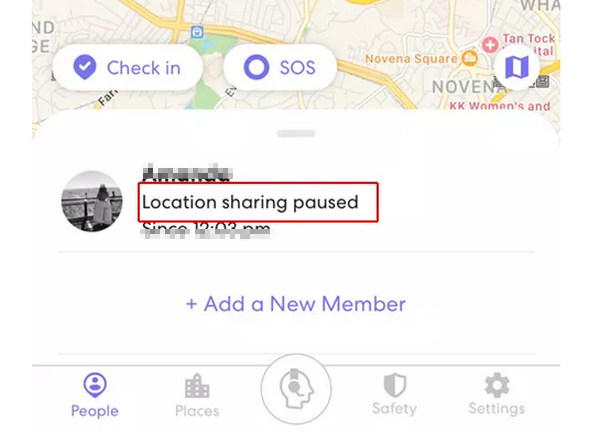
It's also worth noting that Life360 has various ways to notice inconsistencies in location data, such as sudden jumps or locations that do not match the time or travel history. While Life360 does not have a specific tool to flag fake locations, it can still sense irregularities and may alert other users or show an inaccurate location on the map. Therefore, a reliable method is needed to change your location on Life360.
Part 2: How to Change Location on Life360 Easily
Want to change your Android or iPhone location without being detected by Life360? imyPass iLocaGo is the solution you need. This tool lets you spoof your phone's location quickly and safely without the hassle of jailbreaking or rooting, so that you can easily change Life360 location. It has a user-friendly interface and quick-to-access navigation.
You can create virtual routes and customize the movement speed so that Life360 won't be able to detect abnormal location changes. You can also use the joystick mode to easily change Life360 location without going out. Then, you can protect your location privacy and do what you want with ease.

4,000,000+ Downloads
Create fake routes or use a joystick to make virtual movements on Life360.
Adjust the movement speed to protect your security.
Create virtual locations to hide your current real location.
Change Life360 location seamlessly without stutter or lag.
How to Change Location on Life360 Using imyPass iLocaGo
Download and install imyPass iLocaGo
Download, install, and launch imyPass iLocaGo. Then, connect your phone to your computer.
Choose a movement mode
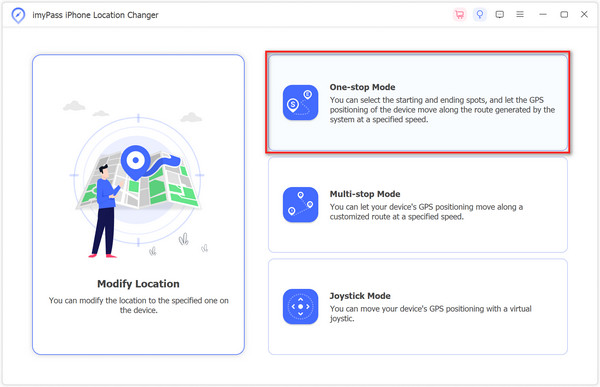
On the main interface, you can choose One-stop Mode, Multi-stop Mode or Joystick Mode to change the Life360 location.
Create virtual movements
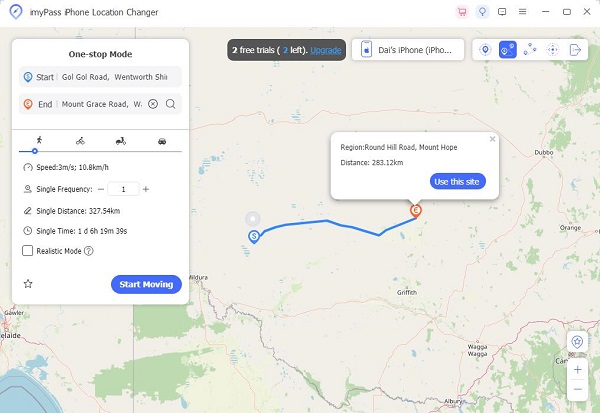
If you select One-stop Mode, you can select a starting point and a destination on the map or directly search and select locations. Click the Start Moving button to start moving and changing Life360 location.
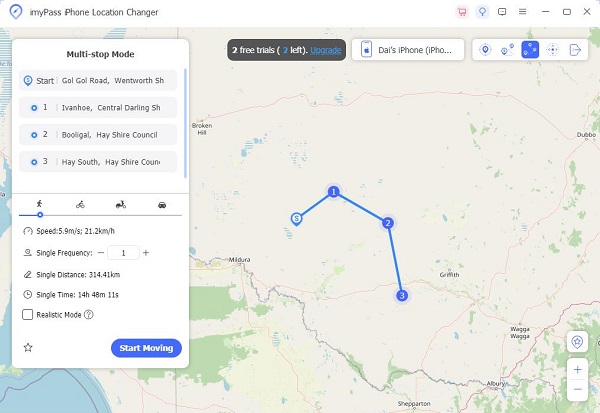
If you select Multi-stop Mode, you can select a starting point on the map first, and then select multiple other sites. Then, click the Start Moving button to change Life360 location.
If you select Joystick Mode, you can choose a movement speed, and then select Free Mode or Mouse Mode to move the pin on the map with your mouse or keyboard easily.
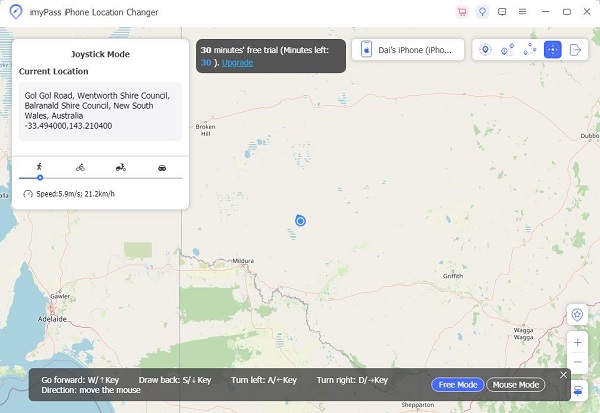
That's how to change your location on Life360 easily with imyPass iLocaGo. Note that you'd better choose a low movement speed, or Life360 will detect your wrongdoings.
Disclaimer: It is important to note that changing your location on Life360 should be done ethically. If used irresponsibly, this feature can lead to trust issues or bad consequences. Always consider the risks before making changes.
Part 3: How to Change Location on Life360 on iPhone or Android
If you want to change your location on Life360, a GPS spoofing app is a simple solution for Android and iOS users. Dr.Fone can help you easily change location on Life360. This Life360 location changer is very easy to use, and you can protect your privacy without anyone knowing or being detected by Life360.
How to Change Life360 Location with Dr.Fone
Download, install, and launch Dr.Fone on your iPhone or Android phone. Tap the Toolbox button on the bottom side.
Select AI Tools, and then select Change Location to access the Life360 location changer feature. Then, tap the Let's get started button.
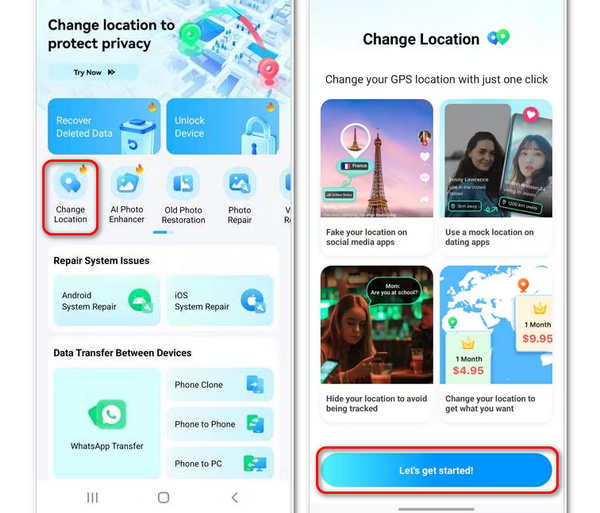
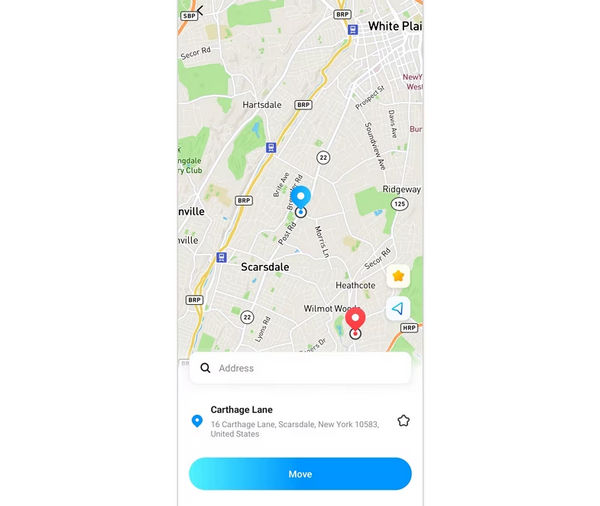
Now, you can select a location on the map and tap the Move button to go to that location. Then, your location will change on Life360 and your iPhone as well.
Part 4: How to Change Location on Life360 – Best Tricks
If you want to protect your privacy on Life360, some practical and useful tricks can help you change location on Life360 without anyone knowing.
Trick 1. Change Home Location on Life360
You can change the Home location on Life360, like a slight deviation from the actual location. Then, when you go out to do something, others on Life360 won't get notified because it still says you are at home. Now, let's check how to change Home location on Life360.
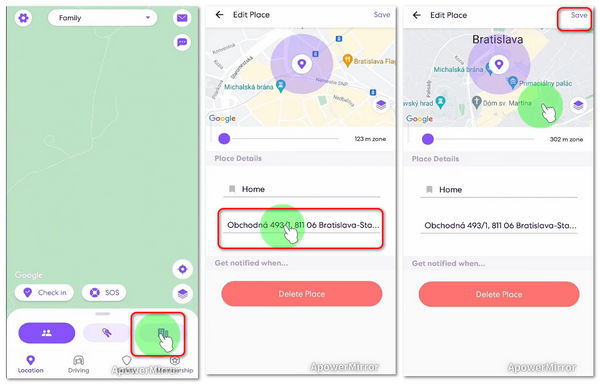
Open Life360 on your phone and select Places. Then, tap the Home button.
Tap the home address to edit it.
Now, select Change Location to select a new address for your Home. You can fudge the coordinates slightly. Then, tap the Save button to change Home location on Life360.
Trick 2: Use Another Phone or Emulator on a Computer
If you have another phone, you can log into your Life360 on it, so that you can use your main phone to go anywhere you want. But ensure that Life360 is logged out on your main phone.
If you have a computer, you can install an Android emulator application and then install Life360 on it. Log into your Life360 account. Then, you can go anywhere with ease. That's a very practical and helpful trick to change Life360 location without anyone knowing.
FAQs.
-
How to tell if someone is faking their location on Life360?
You can see if there are abnormal jumps or speeds of a person's location on Life360.
-
How to freeze Life360 location without them knowing?
The best way is to use another phone to log into your Life360 account. Then, put it in your bed or hide it somewhere.
-
How to secretly pause location sharing on Life360?
If you pause location-sharing on Life360, the app will notify others. Therefore, you can use imyPass iLocaGo to create a virtual location to spoof the app that you are in a certain place.
Conclusion
Can you change your location on Life360 without anyone knowing? The answer is yes. You can use desktop or mobile apps to change your Life360 location. As long as you don't select a very fast movement speed, Life360 and others won't detect you. imyPass iLocaGo can easily help you spoof Life360. With it, you can select locations on a map and create virtual movements between them. You can also use a joystick in this program to freely make virtual movements.
Penny focuses on GPS troubleshooting and Windows optimization. She formerly worked as a technical support engineer, helping clients solve location-based and system issues efficiently. Backed by IT support experience, she provides practical solutions that really work. In her free time, she likes hiking and geocaching, testing GPS tech in the real world.
Hot Solutions
-
GPS Location
-
Unlock iOS
-
iOS Tips
-
Unlock Android


