Solution
 Support Center
 About Us
 Contact
How to Unlock a Samsung Tablet Without a Password to Regain Access
 Gideon Byron Published on January 13, 2026Unlock Android3-min reading
Samsung releases different devices every year, like the tablet. These tablets are commonly used due to the larger screen they offer compared to Samsung phones. In this case, there is countless data they store. However, some Samsung tablet users cannot access this data due to accidental forgotten of the lock screen passcode.
The said issue is one of the serious ones you could ever experience. The reason is that you cannot access all the data, information, and features of your Samsung tablet. In this post, you will learn how to unlock a Samsung tablet's forgotten password in three quick ways. The complete details about this topic are posted below.

In this article:
Part 1. How to Unlock a Samsung Tablet Forgot Password
imyPass AnyPassGo is a third-party tool that is best for unlocking the Samsung tablet without the password. It can remove PIN, fingerprint, pattern, face ID, and more. Additionally, the tool can also bypass the Google FRP lock on your Samsung tablet. This can be performed with or without the Google account credentials.
The tool has a simple interface that beginners will love. Besides Samsung, it also supports other Android brands. Xiaomi, HTC, LG, OPPO, Vivo, OnePlus, and more are supported. It uses a USB connection for the unlocking process. How to unlock a Samsung tablet forgot PIN and other screen lock types? The steps are available below.
Please download the tool on your computer from its website. Then, set up the file and install it on your computer. You can manually open the tool on your computer to start the process.
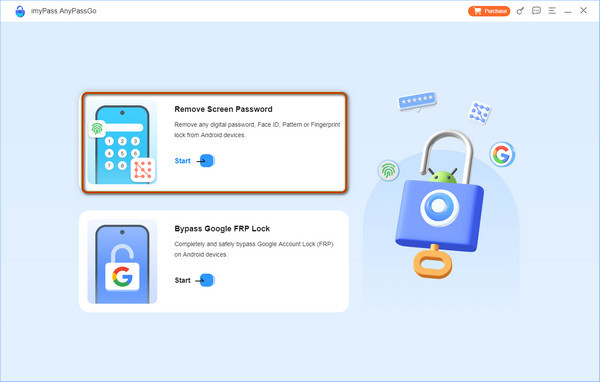
The two supported unlocking tools of the software will appear on the screen. Please click the Remove Screen Password button at the top left. Then, you will be prompted to a new screen.
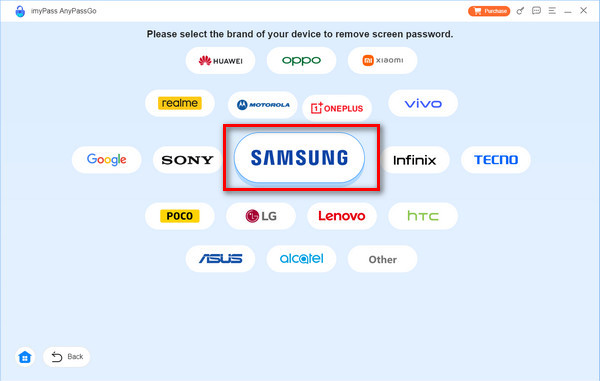
Please choose the Samsung button at the center of the screen. You can also familiarize yourself with the other supported Android phone brands for future purposes. Then, proceed with the next step by following the on-screen instructions.
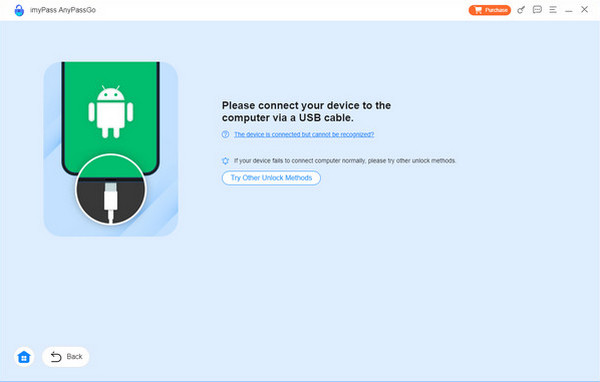
The connecting screen will be prompted. Please get a USB cable and connect your Samsung tablet to the computer. Then, please click the Remove Now button under the Samsung tablet name. The tool will start to remove the Samsung tablet password.
Part 2. How to Unlock a Samsung Tablet with Google Find Hub
You can enter a password to unlock 30 attempts remaining. However, it will not factory reset the Samsung tablet. Google offers different free services for your Android phones and tablets, like a Samsung tablet. Find Hub is one of the most convenient. It is a free Google service that can be used to track your Samsung tablet using GPS location. The good thing about this service is that you can use it to erase your Samsung tablet when the password is forgotten.
You will need to Google account signed in to the Samsung tablet before you forget the lock screen password. This procedure will delete all the content and settings of your Samsung tablet. The backups made are helpful after the process. The steps on how to use this free service are available below.
Go to the main website of Find Hub. You will be required to sign in the your Google account from the first interface. Enter your email or phone number, including the password. After that, you will be prompted to the map screen, where you will see the current location of the associated devices.
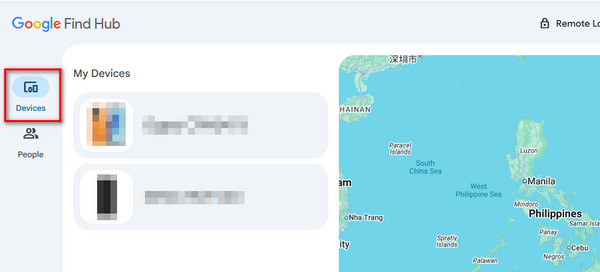
Please select the Devices button at the top left. Then, the names of the devices associated with the Google account will be prompted. Please select the Samsung tablet name from the screen.
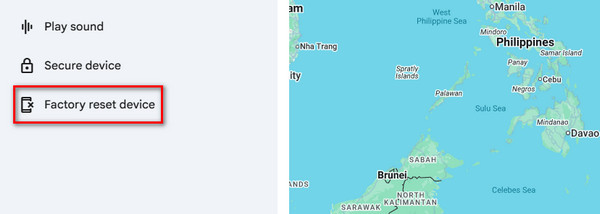
The supported features will appear on the screen. Please select the Factory Reset Device button at the bottom left. Confirm the process to start the factory reset on your Samsung tablet to unlock it.
Part 3. How to Unlock a Samsung Tablet via SmartThings Find
Additionally, SmartThings Find is another tracking tool that can be used to locate misplaced and lost Samsung devices, like tablets. It is the supported tracking service of all Samsung devices. You can also use it with other Android phones or tablets, like Oppo, Vivo, Xiaomi, and more. The tracking service can be used for offline finding on your Samsung tablet by determining the last location.
Finally, SmartThings Find can be used to unlock your Samsung tablet by erasing all of its content and settings. You can also use its Unlock feature. This service can be used on different devices because of its availability online. The steps on how to use SmartThings Find to unlock your Samsung tablet.
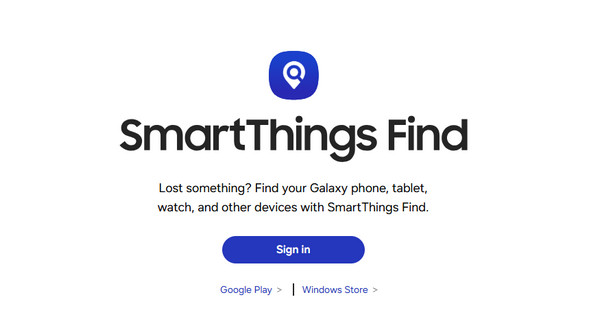
Open your web browser and search for the official website of SmartThings Find. After that, click the Sign In option at the center of the screen. Then, enter the Samsung account from the main interface to sign in.
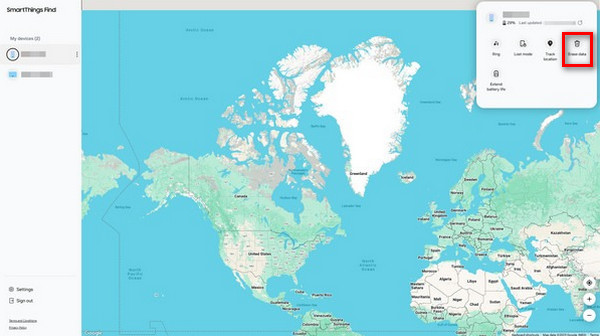
The map screen will appear on the next interface. Please select the Samsung tablet name from the devices list. Then, the features that can be used with the mentioned device will appear. Please click the Erase Data button. You can also use the Unlock button.
The tool will require you to authenticate the process. Enter the Samsung account from the screen. Then, the interface will load, and the free service will start to unlock your Samsung tablet. The procedure will last for a few seconds or minutes.
Part 4. Can You Unlock a Samsung Tablet Without Erasing Data
A forgotten lock screen password on the Samsung tablet is indeed inconvenient. The proper way to unlock the Samsung tablet is with the password. In this case, you will not lose or erase the data it contains.
However, for those individuals who forgot the lock screen password, you can still use SmartThings Find to unlock your Samsung tablet when the password is forgotten. As mentioned, the free service can unlock your Samsung tablet without erasing the data using its Unlock feature. On the other hand, you can use its Erase Data feature to unlock your Samsung tablet lock screen without the password.
Unfortunately, this free service does not bypass or remove the Google FRP lock on your Samsung tablet. In this case, you can use an FRP hijacker. imyPass AnyPassGo can also be used to bypass your Samsung Google FRP lock feature.
Conclusion
In conclusion, you can unlock a Samsung tablet without a password in multiple ways, but this post included the three easiest. imyPass AnyPassGo can unlock your Samsung tablet without the PIN, numeric, alphanumeric, and more. You may download the tool on your computer to know more about it.
Gideon is a senior editor from imyPass. He is an expert in unlocking phones and computers, and he has written password tutorials in imyPass for 3 years.
Hot Solutions
-
Unlock Android
-
Unlock iOS
-
Password Tips
-
iOS Tips