



 Solution
 Support Center
 About Us
 Contact
How to Tell If Someone Paused Their Location on Life360
 Penny Warren Published on January 23, 2026GPS Location3-min reading
Your child's Life360 location may sometimes appear to remain in one spot for hours. Naturally, parents want to know whether this is due to a technical glitch or if location sharing has been paused or turned off. In this guide, we'll show you how to know if someone paused their location on Life360.
You'll learn how to distinguish between temporary technical issues, such as connectivity problems or errors in Life360, and deliberate privacy settings, which can help you to respond appropriately. Let's explore the key signs and prompts to watch for to ensure accurate tracking and understand any interruptions in Life360.

In this article:
Part 1: How to Tell If Life360 Is Paused on Others' Phones
Does Life360 let you know when someone turns off location? Yes, Life360 shows prompts on a user's profile indicating their current status. However, some users may use tricks to hide their location without triggering notifications. In this guide, you'll learn all the methods to detect whether someone has paused or hidden their location on Life360.
Method 1. Check Their Location History
With Life360's Location History, you can check if someone has turned off location sharing on Life360 and spot periods when updates stop. This feature lets you review past locations to detect irregular activities. If a location isn't updating, you may wonder: Can Life360 be hidden on someone's phone? While users can pause sharing, Life360 shows clear indicators when location tracking is turned off. Follow the steps below to investigate:
Go to the Life360 app on your iPhone or Android. Tap on a user in your circle to open its profile.
Search for the Location History from their profile and click to get an overview of all the places they have been recently.
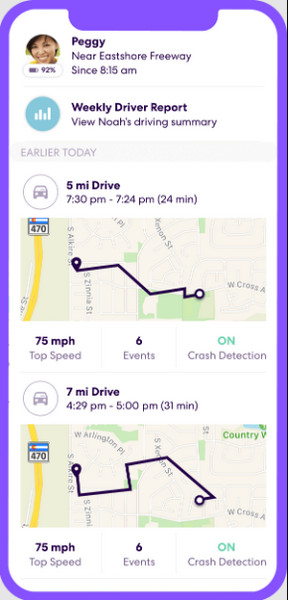
Check the Location History for gaps or unaccounted-for periods. If they hadn't moved around much during periods of long duration, they could have turned off location services.
Compare their location history with their usual routine. They may have gone to school or work, attended an event, or turned off tracking if key locations are missing.
If their history suddenly stops updating and resumes later at another location, that is a strong sign that they may have paused their Life360 location services.
Method 2: Check If There Is Any Pause Notification
If you want to know if someone paused their location on Life360, you can directly see their profile, which will show different prompts based on their settings on location or specific activities.
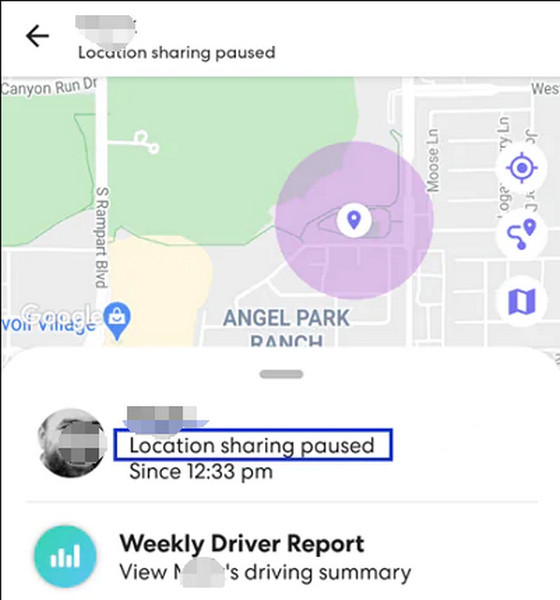
1. Location paused
If you see "Location paused" on someone's profile, that means they have paused their Life360 location tracking in the Life360 app. Their location on the map will remain at the last place they were when they turned off location in Life360.
2. Location permission off/GPS off
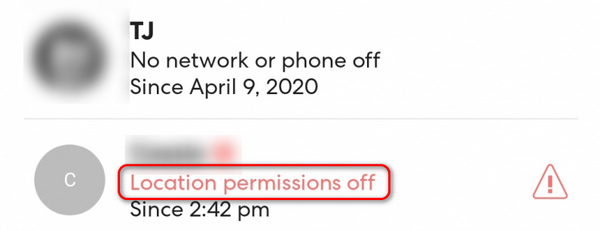
If you see "Location permission off" on someone's profile, then you can directly tell that they have turned off location sharing for the Life360 app. They didn't necessarily "pause" it inside the Life360 app, but they disabled the phone's ability to track them.
Suppose they use an iPhone, and they would do this in the Settings app: Slide down to elect Life360, and then select Location, and then select Never. Or they stopped location sharing for all apps in the Settings app: Select Privacy & Security, and then select Location Services, and then turn off Location Services.
Although Life360 shows this prompt when someone turns off their location, they could claim it's a GPS issue on their phone. As a result, there's often no straightforward way to confirm.
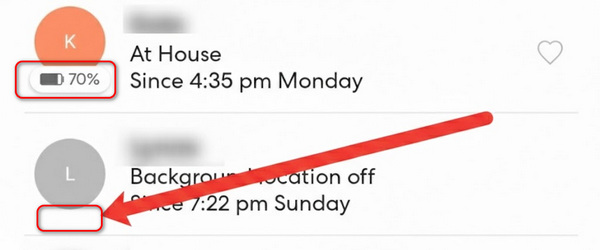
3. Missing battery icon
If someone’s battery percentage is missing, it usually means their phone is off or manually shut down. If the percentage remains unchanged for a long time, it could be due to custom settings, which is unreliable for you to tell if someone paused their location on Life360.
Method 3: Note on GPS Spoofing
Even if you can tell when someone pauses their location on Life360, be aware of GPS spoofing apps or services. These tools can create fake locations or routes, causing your map to display false data. In such cases, you may need to rely on real-world observations to determine whether they're using these features.
Part 2: How Should You React When Knowing They Have Paused Life360?
Now that you know someone can pause Life360 location, it's important to deal with the situation calmly. People may do so to save battery, protect privacy, or fix technical issues. Analyze the situation before jumping to conclusions.
1. Remain Calm and Think of the Possibilities
Before assuming the worst reason, remember someone may pause their location to save battery, fix technical issues, or protect their privacy.
2. Communicate Wisely
Deal with the situation with respect. A simple, non-accusatory message like, "Hey, I noticed your location isn't updating. Everything okay?" can start a healthy conversation. Remember, Life360 tracks locations, and some members may feel it affects their freedom.
3. Revisit Expectations on Location Sharing
If Life360 is used within your family or group for safety, openly discuss its purpose. Ensure that everyone understands when and why location sharing is expected.
4. Check Alternative Ways to Reach Them
If you are genuinely concerned, try calling, texting, or checking their social media activity to confirm they are safe. A paused location doesn't always mean something is wrong.
Part 3: How Can People Hide Their Life360 Location?
As mentioned above, if people don't want Life360 to notify them when they pause location, they may use a GPS spoofing method to hide their real location. For example, you can use imyPass iLocaGo to make fake locations or freeze your location at chosen points without causing prompts or notifications on Life360 on iPhone and Android.
Download the iLocaGo on your Windows or Mac by pressing the appropriate download button, which is well presented below. Next, install the downloaded package to your computer and launch it.
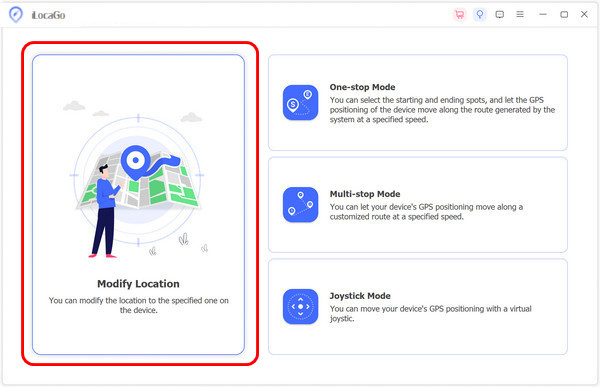
Establish a connection with a USB cable to your phone and the PC, and click Modify Location to proceed to the next step.
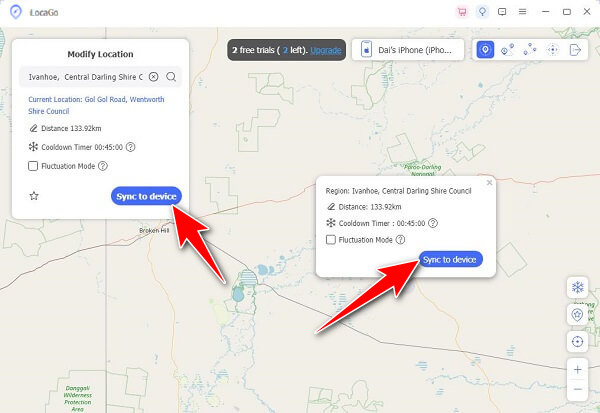
Now that you have opened the Modify Location select the region or exact location that you want your location to appear in, then click Sync to the device to pin your location on that area.
Conclusion
It can be concerning if your child pauses Life360 location, and this article tells you how to tell if someone paused their location on Life360. But it's also important to respect their privacy. The app is meant to assist you, but building trust and having meaningful conversations are also very important.
Suppose you are the people who want to protect your location privacy, you can use imyPass iLocaGo to easily spoof GPS on your phone to make virtual locations and routes on Life360. You can hide your real location without pausing or turning off location in Life360.
Penny focuses on GPS troubleshooting and Windows optimization. She formerly worked as a technical support engineer, helping clients solve location-based and system issues efficiently. Backed by IT support experience, she provides practical solutions that really work. In her free time, she likes hiking and geocaching, testing GPS tech in the real world.
Hot Solutions
-
GPS Location
-
Unlock iOS
-
iOS Tips
-
Unlock Android


